
Introduction
This manual provides essential instructions for setting up, operating, maintaining, and troubleshooting your Epson Ecotank L3266 A4 Wi-Fi All-in-One Ink Tank Printer. Please read this manual thoroughly before using the printer to ensure correct and safe operation.
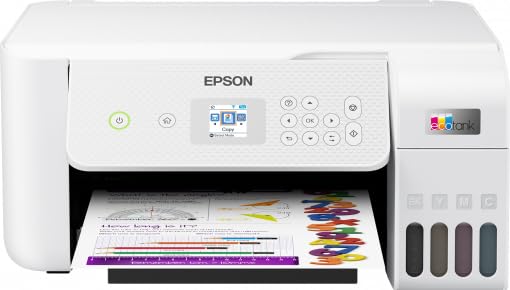
Image 1: Front view of the Epson Ecotank L3266 printer, showing the control panel, paper tray, and ink tanks.
1. Setup Guide
1.1 Unpacking
- Carefully remove the printer from its packaging.
- Remove all protective tapes and packing materials from the exterior and interior of the printer. Refer to the quick start guide for specific locations.
- Ensure all components listed in the "What's in the Box" section are present.
1.2 Ink Filling
The Epson Ecotank L3266 uses an ink tank system. Follow these steps to fill the ink tanks:
- Open the ink tank unit cover on the side of the printer.
- Open the cap for the corresponding color ink tank (Black, Cyan, Magenta, Yellow).
- Uncap the ink bottle and insert it into the filling port. The ink will automatically fill the tank. Do not squeeze the bottle.
- Once the tank is full, remove the ink bottle and securely close the tank cap and unit cover.
- Repeat for all ink colors.
- After filling, turn on the printer and follow the on-screen instructions to initialize the ink system. This process may take several minutes.
1.3 Power On and Initial Setup
- Connect the power cord to the printer and then to an electrical outlet.
- Press the power button (ⓘ) to turn on the printer.
- Follow the instructions on the printer's display screen to select your language and perform initial settings.
1.4 Connectivity
The L3266 supports Wi-Fi, USB, and Bluetooth connectivity.
Wi-Fi Setup:
- On the printer's control panel, navigate to the Wi-Fi setup menu.
- Select your Wi-Fi network (SSID) from the list.
- Enter the Wi-Fi password using the control panel buttons.
- Confirm the settings. The printer will connect to your network.
USB Connection:
Connect the printer to your computer using a USB cable (not always included). Install the printer drivers from the Epson website or the provided CD (if applicable).
Bluetooth Connection:
Enable Bluetooth on your device and the printer. Follow the pairing instructions on both devices to establish a connection.
2. Operating Instructions
2.1 Loading Paper
- Pull out the paper cassette or open the rear paper feeder.
- Adjust the paper guides to match the width of your paper.
- Load paper print-side up (or as indicated by the printer). Do not overload the tray.
- Close the paper cassette or feeder.
2.2 Printing
To print from a computer or mobile device:
- Open the document or image you wish to print.
- Select Print from the application's menu.
- Choose your Epson L3266 printer.
- Adjust print settings such as paper size, print quality (standard, high), color/monochrome, and number of copies.
- Click Print.
Note: The L3266 supports manual duplex printing. To print on both sides, print the odd pages first, then reload the paper as instructed by the printer driver, and print the even pages.
2.3 Copying
To make a copy using the printer's control panel:
- Place the document face-down on the scanner glass, aligning it with the corner mark.
- Close the scanner lid.
- On the printer's control panel, select the Copy function.
- Adjust settings like number of copies, color/monochrome, and paper type if necessary.
- Press the Start button (often a green button or indicated by a play symbol).
2.4 Scanning
To scan a document or photo:
- Place the document face-down on the scanner glass.
- Close the scanner lid.
- On your computer, open the Epson Scan software or a compatible scanning application.
- Select your Epson L3266 scanner.
- Choose scan settings such as resolution, color mode, and destination folder.
- Click Scan.
3. Maintenance
3.1 Checking Ink Levels
Visually inspect the ink tanks on the front of the printer. The transparent tanks allow you to monitor ink levels. Refill ink when levels approach the minimum line to prevent air from entering the system.
3.2 Print Head Cleaning
If print quality declines (e.g., missing lines, incorrect colors), perform a print head cleaning:
- From the printer's control panel or your computer's printer utility, navigate to Maintenance.
- Select Head Cleaning.
- Follow the on-screen prompts. This process uses ink and takes a few minutes.
- After cleaning, perform a nozzle check to verify print quality.
3.3 Nozzle Check
To check if the print head nozzles are clogged:
- From the printer's control panel or your computer's printer utility, navigate to Maintenance.
- Select Nozzle Check.
- A test pattern will print. Examine the pattern for any gaps or missing segments. If imperfections are present, perform a head cleaning.
4. Troubleshooting
4.1 Printer Not Responding
- Ensure the printer is powered on and connected to a power source.
- Check USB cable connections or Wi-Fi network status.
- Restart the printer and your computer/device.
- Verify that the correct printer is selected in your application's print dialog.
4.2 Poor Print Quality
- Perform a nozzle check (Section 3.3). If necessary, perform a head cleaning (Section 3.2).
- Check ink levels and refill if low (Section 3.1).
- Ensure you are using genuine Epson ink.
- Verify that the paper type setting in your print driver matches the paper loaded.
4.3 Paper Jams
- Turn off the printer and unplug the power cord.
- Carefully open all covers and remove any jammed paper, pulling gently to avoid tearing.
- Ensure no small pieces of paper remain inside.
- Close all covers, plug in the power cord, and turn on the printer.
5. Specifications
| Feature | Detail |
|---|---|
| Brand | Epson |
| Model Name | L3266 |
| Connectivity Technology | Bluetooth, USB, Wi-Fi |
| Printing Technology | Inkjet |
| Special Features | Borderless Printing, Display Screen |
| Printer Output | Colour |
| Maximum Print Speed (Colour) | 15 ppm |
| Maximum Print Speed (Monochrome) | 33 ppm |
| Item Weight | 3900 Grams |
| Scanner Type | Flatbed |
| Maximum Copy Speed (Black and White) | 33 ppm |
| Item Dimensions (D x W x H) | 34.7D x 37.5W x 17.9H Centimeters |
| Printing Media Type | Paper (plain) |
| Maximum Sheet Capacity | 100 |
| Paper Size Support | 8.5 x 11, 5 x 7, 11 x 17 inches |
| Max Print Resolution (Color) | 5760 x 1440 dpi |
| Dual-sided printing | Yes (Manual Duplex) |
| Country of Origin | Philippines |
| Box Contents | Ink Bottles, Documentation |
6. Warranty and Support
6.1 Warranty Information
The Epson Ecotank L3266 printer comes with a limited warranty of 1 year or 30,000 pages, whichever comes first. Please retain your purchase receipt for warranty claims. For detailed terms and conditions, refer to the warranty document included with your product or visit the official Epson website.
6.2 Customer Support
For technical assistance, service, or further inquiries, please contact Epson customer support:
- Manufacturer: Epson India Pvt Ltd, EPSON Precision (Philippines) INC., LIPA Plant
- Importer/Packer Contact: Epson India Pvt Ltd, Godrej Centre, Hebbal, 11th Floor, Sahakar Nagar, Byatarayanapura, Bangalore, Karnataka, PIN Code - 560092.
- Visit the official Epson website for up-to-date contact information, drivers, and FAQs.


