Introduction
This manual provides detailed instructions for the operation and maintenance of your Wkzay White Noise Sound Machine with Sunrise Alarm Clock, Model SM-07. This device is designed to enhance sleep, improve wake-up routines, and create a relaxing environment through a combination of soothing sounds, adjustable lighting, and intelligent alarm functions.
Please read this manual thoroughly before using the product to ensure proper function and longevity.
Package Contents
- Wkzay White Noise Sound Machine (SM-07) x 1
- Charger x 1
- Charging Cable x 1
- User Manual x 1
Product Overview
The Wkzay SM-07 combines a white noise sound machine, a sunrise alarm clock, and a night light into one compact device. It features 30 soothing sounds, adjustable volume and brightness levels, a sleep timer, and a memory function for personalized settings.

Image: The Wkzay White Noise Sound Machine with Sunrise Alarm Clock, Model SM-07, in white. The device features a fabric-covered cylindrical body with a digital clock display at the base and control buttons on top.
Setup
- Unpacking: Carefully remove all components from the packaging.
- Power Connection: Connect the charging cable to the device's power input port and plug the charger into a standard electrical outlet. The device will power on automatically.
- Initial Time Setting: Upon first use or after a power interruption, the clock may need to be set. Refer to the "Setting Time" section under "Operating Instructions" for details.
- Placement: Place the device on a stable, flat surface away from direct sunlight, heat sources, and moisture. Ensure adequate ventilation.
Operating Instructions
Control Buttons Overview
The device features intuitive tactile buttons on its top panel. Familiarize yourself with their functions:
- Brightness Button (Sun icon): Adjusts light brightness.
- Alarm/Light Button (Bell/Lightbulb icon): Toggles alarm and light functions.
- Alarm Set Button (Bell icon): Enters alarm setting mode.
- Volume Up/Next Track Button (Play/Plus icon): Increases volume or skips to next sound.
- Volume Down/Previous Track Button (Rewind/Minus icon): Decreases volume or skips to previous sound.
- Timer Button (Clock icon): Sets sleep timer.


Images: Close-up views of the control buttons on the top panel, including the brightness control, alarm/light toggle, alarm set, and volume/track selection buttons.
Setting the Time
- Press and hold the Time Set button (often integrated with another button, refer to device for exact icon, typically a clock or gear).
- Use the Volume Up/Down buttons to adjust the hour.
- Press the Time Set button again to switch to minute adjustment.
- Use the Volume Up/Down buttons to adjust the minutes.
- Press the Time Set button once more to confirm and exit.
Sound Functions
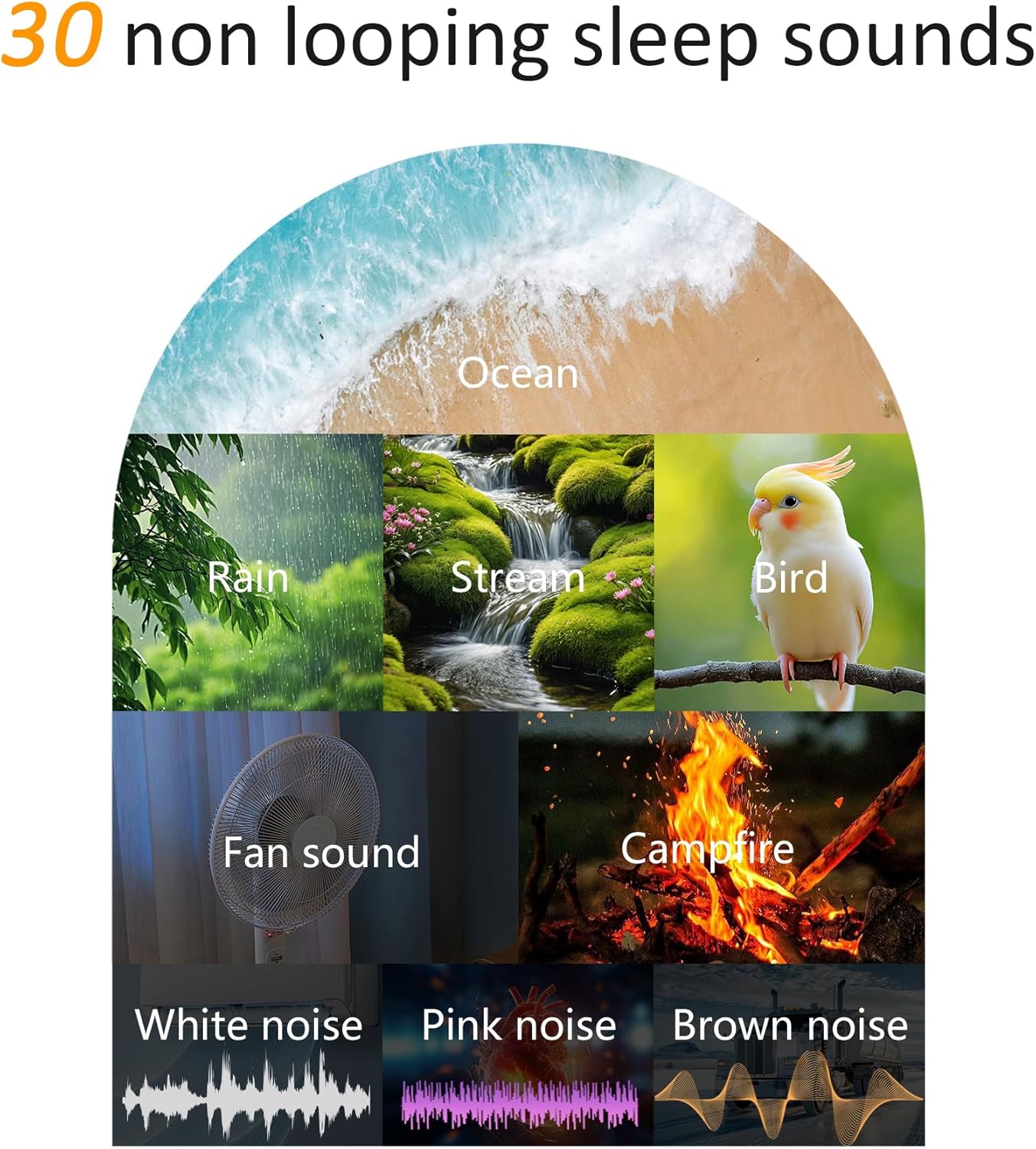
Image: A visual representation of the 30 non-looping sleep sounds available, including ocean waves, rain, stream, bird, fan sound, campfire, white noise, pink noise, and brown noise.
- Playing Sounds: Press the Play/Pause button (often integrated with Volume Up/Down or a dedicated button) to start or stop sound playback.
- Selecting Sounds: Use the Next Track or Previous Track buttons to cycle through the 30 available soothing sounds (e.g., white noise, nature melodies, lullabies).
- Adjusting Volume: Use the Volume Up (+) and Volume Down (-) buttons to select from 30 volume levels.
Light Functions (Night Light & Sunrise Simulation)

Image: The Wkzay sound machine acting as a sunrise alarm clock, gradually brightening a bedroom from 6:00 AM to 7:00 AM, illustrating the gentle wake-up experience.
- Turning Light On/Off: Press the Light button (often integrated with the Alarm/Light button) to turn the night light on or off.
- Adjusting Brightness: With the light on, press the Brightness button (Sun icon) to cycle through 13 brightness levels.
- Sunrise Alarm: When setting an alarm, you can enable the sunrise simulation. The light will gradually brighten over 10-60 minutes before your set alarm time, mimicking a natural sunrise. Refer to "Setting Alarms" for activation.
- Sunset Simulation: When setting a sleep timer, you can enable sunset simulation. The light will gradually dim over the set timer duration, aiding in relaxation before sleep. Refer to "Setting Sleep Timer" for activation.
Setting Alarms
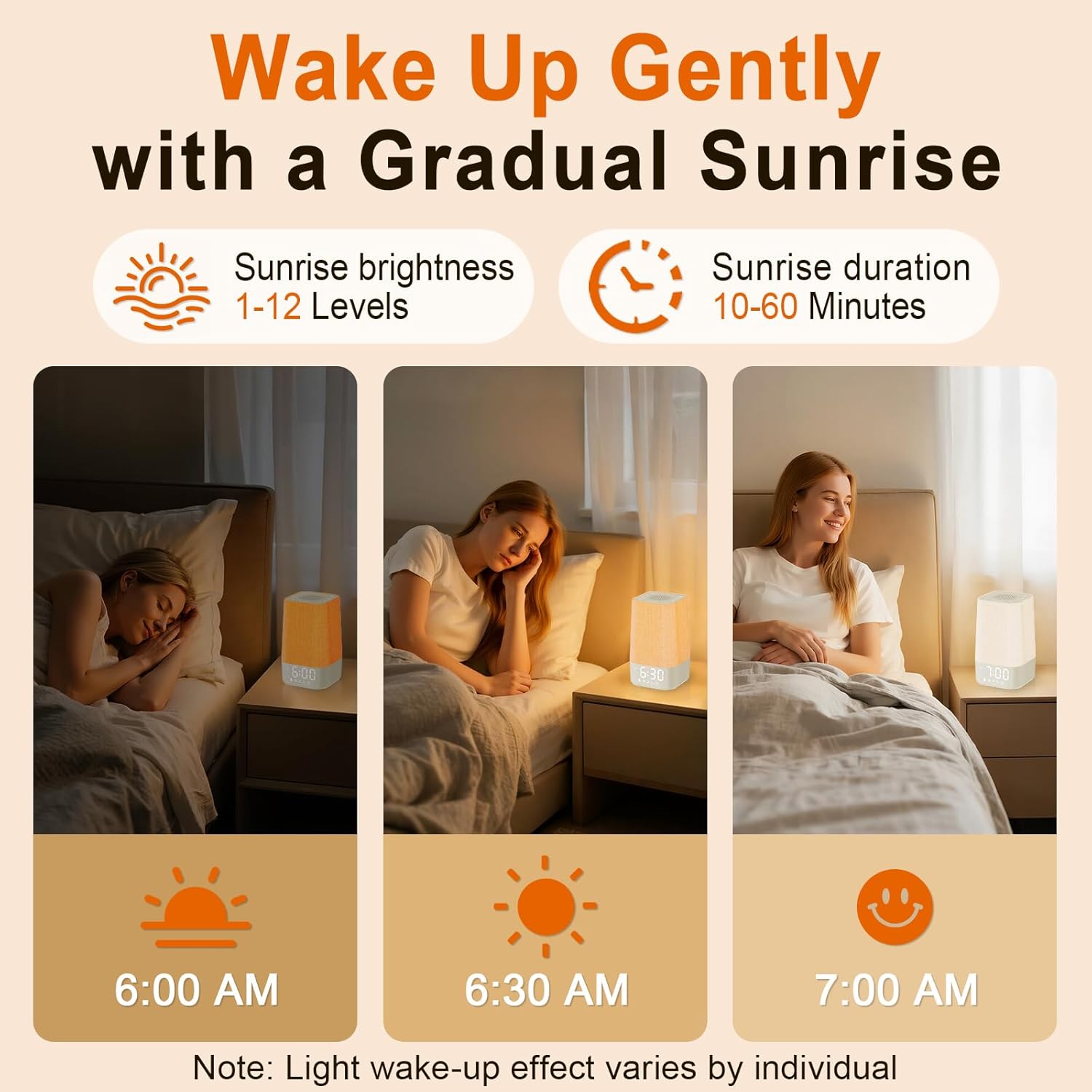
Image: A sequence showing the gradual brightening of the sunrise alarm clock from 6:00 AM to 7:00 AM, with adjustable brightness levels and duration.
- Press and hold the Alarm Set button (Bell icon). The hour display will flash.
- Use the Volume Up/Down buttons to set the desired alarm hour.
- Press the Alarm Set button again. The minute display will flash.
- Use the Volume Up/Down buttons to set the desired alarm minutes.
- Press the Alarm Set button again to select the alarm sound. Use Volume Up/Down to choose from available alarm tones or sounds.
- Press the Alarm Set button again to enable/disable sunrise simulation for the alarm. Use Volume Up/Down to toggle.
- Press the Alarm Set button once more to confirm and exit.
- To activate/deactivate the alarm, short press the Alarm Set button. An alarm icon will appear/disappear on the display.
Setting the Sleep Timer

Image: Icons representing sleep timer durations of 30, 60, and 90 minutes, indicating the device's ability to automatically turn off sounds and lights after a set period.
The sleep timer allows the sound and light to gradually turn off after a set duration.
- Press the Timer button (Clock icon) repeatedly to cycle through available timer durations (e.g., 30, 60, 90, 120, 180 minutes, or OFF).
- The selected duration will be displayed. The device will automatically turn off sounds and lights after this period.
Display Brightness

Image: The digital clock display showing 5 different brightness levels, from fully bright to completely off, allowing customization for various environments.
The LED display has 5 levels of brightness adjustment.
- Press the Display Brightness button (often integrated with the Time Set button or a dedicated button) to cycle through the 5 brightness levels, including off.
Memory Function

Image: An illustration depicting the memory function, showing that the device automatically restores previous sound, light, and volume settings upon restart or daily use.
The device automatically remembers your last used sound, volume, and light settings. This ensures a consistent experience without needing to reconfigure settings each time it's used.
Maintenance
- Cleaning: Disconnect the power before cleaning. Use a soft, dry cloth to wipe the exterior of the device. Do not use liquid cleaners or abrasive materials.
- Storage: When not in use for extended periods, store the device in a cool, dry place, away from direct sunlight and extreme temperatures.
- Battery: The device contains an internal LR44 battery for time backup. This battery is not user-replaceable. If the time consistently resets after power loss, contact customer support.
Troubleshooting
| Problem | Possible Cause | Solution |
|---|---|---|
| Device does not power on. | Not properly connected to power. | Ensure the charging cable is securely connected to the device and the power adapter is plugged into a working outlet. |
| No sound output. | Volume is too low or muted; sound is not selected. | Increase the volume using the Volume Up (+) button. Ensure a sound is selected and playing. |
| Alarm does not sound. | Alarm is not activated or set incorrectly. | Verify the alarm time is set correctly and the alarm icon is visible on the display. Ensure alarm volume is not muted. |
| Light does not turn on/off. | Light function is disabled or brightness is set to minimum. | Press the Light button to toggle the light. Adjust brightness using the Brightness button. |
| Time resets after power loss. | Internal backup battery issue. | While the device has a backup battery, persistent issues may indicate a fault. Contact customer support. |
Specifications
| Feature | Detail |
|---|---|
| Model Number | SM-07 |
| Dimensions | 3.74 x 3.74 x 7.08 inches |
| Weight | 15.2 ounces |
| Material | Acrylonitrile Butadiene Styrene (ABS) |
| Sound Options | 30 soothing sounds (white noise, nature, lullabies) |
| Volume Levels | 30 adjustable levels |
| Light Brightness | 13 adjustable levels |
| Display Brightness | 5 adjustable levels |
| Sunrise Simulation | 10-60 minutes gradual brightening |
| Sleep Timer | 30 to 180 minutes (selectable) |
| Power Input | Standard USB power adapter (included) |
| Backup Battery | 1 LR44 (included, non-user replaceable) |
Warranty and Support
For warranty information and customer support, please refer to the contact details provided with your purchase or visit the official Wkzay website. Keep your purchase receipt for warranty claims.
Manufacturer: Shenzhen TingRu Technology Co., Ltd.
Important Safety Information
- Do not expose the device to water or excessive moisture.
- Do not disassemble or attempt to repair the device yourself. This will void the warranty.
- Keep out of reach of children and pets.
- Use only the provided power adapter and cable.
- Avoid placing the device near strong magnetic fields or heat sources.
Product Videos
No official seller videos are available for embedding at this time. If available, relevant product videos would be displayed here, providing visual guides for setup and operation.


