
1. Introduction
This manual provides detailed instructions for the installation, operation, and maintenance of your Carpuride W903S Wireless Portable Carplay Android Auto System. Please read this manual thoroughly before use to ensure proper functionality and safety.

The Carpuride W903S is a portable car display unit that integrates wireless Apple CarPlay and Android Auto. It features a high-definition IPS screen and a multi-camera system including a 4K front camera, 1080p rear camera, and 1080p infrared camera. The image shows the main unit with its display, along with included accessories like mounting brackets, a 64GB SD card, and the rear camera.
2. Product Features
- Wireless CarPlay & Android Auto: Seamless integration with iOS 6+ and Android 11+ devices.
- HD IPS Display: 1600 x 600 pixel resolution for clear visuals.
- Multi-Camera System: Includes a 4K front camera, 1080p rear camera, and 1080p infrared camera.
- Loop Recording: Automatic recording with a 64GB TF card included.
- G-Sensor: Built-in gravity sensor for automatic video locking during sudden impacts.
- Voice Control: Supports Siri and Android voice assistants for navigation, calls, and music.
- Light Sensor: Automatically adjusts screen brightness based on ambient light.
- Multiple Audio Output Modes: Built-in speaker, Bluetooth audio, FM transmitter, and AUX output.
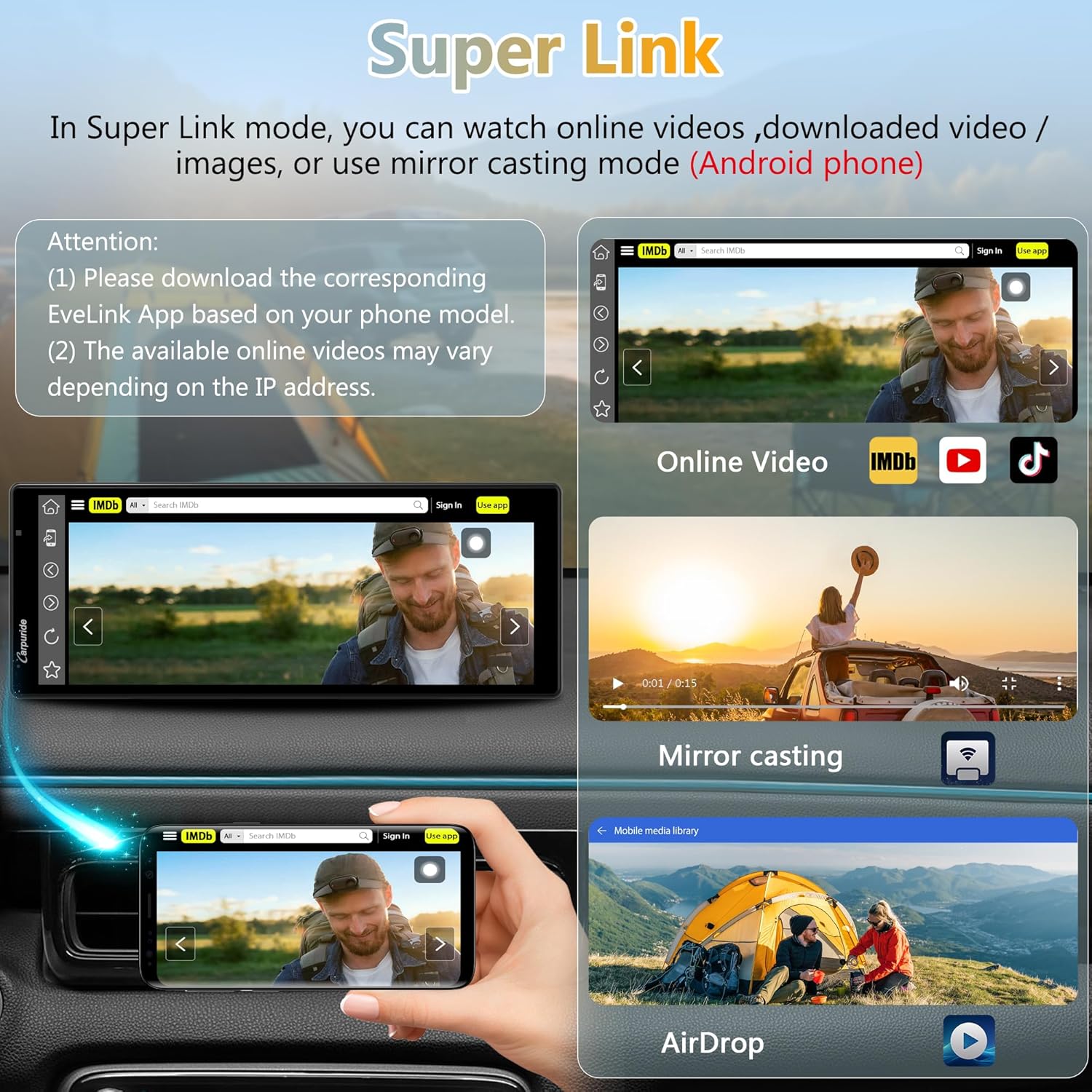
- Wireless Mirrorlink: Screen mirroring for compatible applications (Note: Some streaming services like Netflix/Amazon Prime may not support mirroring due to copyright).
- Universal Compatibility: Powered by a 12V Type-C cigarette lighter cable, compatible with 12-24V vehicles.
3. Installation Guide
3.1 Package Contents
- 1x W903S Car Radio Unit
- 1x Rear Camera
- 1x 64GB TF Card
- 1x Car Charger
- 1x AUX Cable
- 1x User Manual
- 1x Suction Cup Mount
- 1x Adhesive Mount
3.2 Mounting the Unit
Choose a suitable location on your dashboard or windshield that does not obstruct your view.
- Attach the chosen mount (suction cup or adhesive) to the W903S unit.
- Securely attach the unit to your desired location.
3.3 Power Connection
Connect the provided Type-C 12V car charger to the W903S unit and plug the other end into your vehicle's cigarette lighter socket.
Important: Use only the original Carpuride car charger to ensure optimal performance, especially for FM transmission.
3.4 Camera Installation
3.4.1 Front Camera
The 4K front camera is integrated into the main unit. It can be rotated 350 degrees for optimal viewing. Avoid excessive rotation to prevent cable damage.
3.4.2 Rear Camera (1080p)
Install the rear camera at the back of your vehicle.
Note: The red wire of the rear camera does not need to be connected to your car's reverse lights. Simply connect the black wire to the AV IN port on the W903S. To display the rear camera image, press the "R" button on the original car charger.
This diagram shows the rear camera connecting to the AV IN port of the W903S unit. It explicitly states that the red wire of the rear camera does not need to be connected to the car's reverse lights. The image also highlights the 'R' button on the car charger, which is used to activate the rear camera view.
3.4.3 Infrared Camera (1080p)
The infrared camera is designed for interior vehicle monitoring. Rotate it towards the car's interior.
Caution: Avoid direct exposure to window glass or other smooth surfaces, as this can cause reflections and image flickering. For best performance, use it only for recording scenes inside the car.
4. Operating Instructions
4.1 Powering On/Off
The unit powers on automatically when the vehicle's ignition is turned on (if connected to a switched power source) and powers off when the ignition is off.
4.2 Wireless CarPlay / Android Auto Connection

This image displays the different wireless connectivity options: Apple CarPlay, Android Auto, and MirrorLink. It shows how a smartphone connects wirelessly to the Carpuride W903S to display these interfaces, enabling navigation, music, and communication features.
- Ensure Bluetooth and Wi-Fi are enabled on your smartphone.
- On the W903S, select either "CarPlay" or "Android Auto" from the main menu.
- Follow the on-screen prompts to pair your phone. Once paired, the system will automatically connect in the future.
- Compatible with iOS 6+ and Android 11+.
4.3 Mirrorlink Function
The W903S supports wireless Mirrorlink to display your phone's content.
- Download the corresponding EveLink App based on your phone model.
- Select "Mirrorlink" on the W903S.
- Follow the app instructions to establish the connection.
Note: Due to copyright restrictions, some applications like Netflix and Amazon Prime Video may not support screen mirroring.
4.4 Multi-Camera Operation

This image illustrates the multi-camera capabilities of the W903S, showing split-screen views from the 4K front camera, 1080p infrared camera (for interior view), and 1080p rear camera. Icons for loop recording, locked video, video playback, 64GB SD card, night vision, and adjustable reversing lines are also visible.
The W903S simultaneously records from the front, rear, and infrared cameras.
- Front Camera (4K): Records the road ahead.
- Rear Camera (1080p): Provides a view of the area behind the vehicle, useful for parking and reversing. Activated via the "R" button on the car charger.
- Infrared Camera (1080p): Monitors the vehicle's interior, useful for observing passengers.
4.5 Loop Recording and G-Sensor
The system automatically records video in a loop, overwriting the oldest files when the 64GB TF card is full.
The built-in G-sensor detects sudden vibrations or collisions and automatically locks the current video segment to prevent it from being overwritten.
4.6 Audio Output Modes
- Built-in Speaker: Audio plays directly from the W903S unit.
- Bluetooth Audio: Connect your phone to your car's Bluetooth system. Audio from CarPlay/Android Auto will play through your car speakers.
- FM Transmitter: Tune your car radio to the same FM frequency (87.5 MHz to 108 MHz) selected on the W903S to transmit audio wirelessly.
- AUX Output: Connect the provided 3.5mm AUX cable from the W903S to your car's AUX input for wired audio transmission.
5. Care and Maintenance
- Cleaning: Use a soft, dry cloth to clean the screen and unit. Avoid abrasive cleaners or solvents.
- Temperature: Do not expose the unit to extreme temperatures (hot or cold) for extended periods.
- Cable Management: Ensure all cables are securely routed and not pinched or damaged.
- TF Card: Periodically check the TF card for errors and format it if necessary (this will erase all data). Back up important recordings regularly.
6. Troubleshooting Guide
- Unit does not power on.
- Check the car charger connection and ensure the vehicle's cigarette lighter socket is receiving power. Confirm the original Carpuride charger is used.
- CarPlay/Android Auto not connecting wirelessly.
- Ensure Bluetooth and Wi-Fi are enabled on your phone. Verify your phone's operating system (iOS 6+ or Android 11+) is compatible. Try restarting both the W903S and your phone.
- No audio from car speakers.
- Check your selected audio output mode (Bluetooth, FM, AUX). If using FM, ensure the W903S and car radio are on the same frequency. If using AUX, ensure the cable is properly connected to both the W903S and your car's AUX input.
- Rear camera image not displaying.
- Ensure the black wire of the rear camera is connected to the AV IN port on the W903S. Press the "R" button on the car charger to activate the rear view.
- Infrared camera image flickering or showing reflections.
- Reposition the infrared camera to avoid direct exposure to window glass or other reflective surfaces. It is optimized for interior recording.
- Screen brightness is too low/high.
- The light sensor automatically adjusts brightness. You can customize the auto-brightness range in the settings.
- Mirrorlink not working for certain apps.
- Some streaming services (e.g., Netflix, Amazon Prime) restrict screen mirroring due to copyright protection. This is normal behavior.
7. Technical Specifications
| Feature | Specification |
|---|---|
| Brand | CARPURIDE |
| Model | W903S |
| Display | HD IPS, 1600 x 600 pixels |
| Front Camera | 4K |
| Rear Camera | 1080p |
| Infrared Camera | 1080p |
| Storage | Supports up to 256GB TF card (64GB included) |
| Audio Output | Built-in speaker 8Ω 2W, BT Audio, FM, AUX 3.5mm |
| FM Frequency | 87.5 MHz to 108 MHz |
| Power Input | Type-C 12V (12-24V compatible) |
| Special Features | Accelerometer, Voice Control, Loop Recording, G-Sensor, Integrated GPS, Apple CarPlay/Android Auto |
| Control Method | Touch |
| Product Dimensions | 2.8D x 24W x 9.3H cm |
8. Warranty and Customer Support
For warranty information or technical assistance, please contact Carpuride customer support. Refer to the contact details provided with your purchase or visit the official Carpuride website.
Note: Software updates are not guaranteed beyond the initial release. Spare parts availability information is not available.


