
MCHOSE A7 Ultra/42K DPI/8K Nano Dongle
Contents
MCHOSE A7 Ultra Wireless Gaming Mouse User Manual
Model: A7 Ultra/42K DPI/8K Nano Dongle
Introduction
The MCHOSE A7 Ultra Wireless Gaming Mouse is designed for high-performance gaming, offering a lightweight design, advanced sensor technology, and versatile connectivity options. This manual provides detailed instructions for setup, operation, maintenance, and troubleshooting to ensure optimal performance.
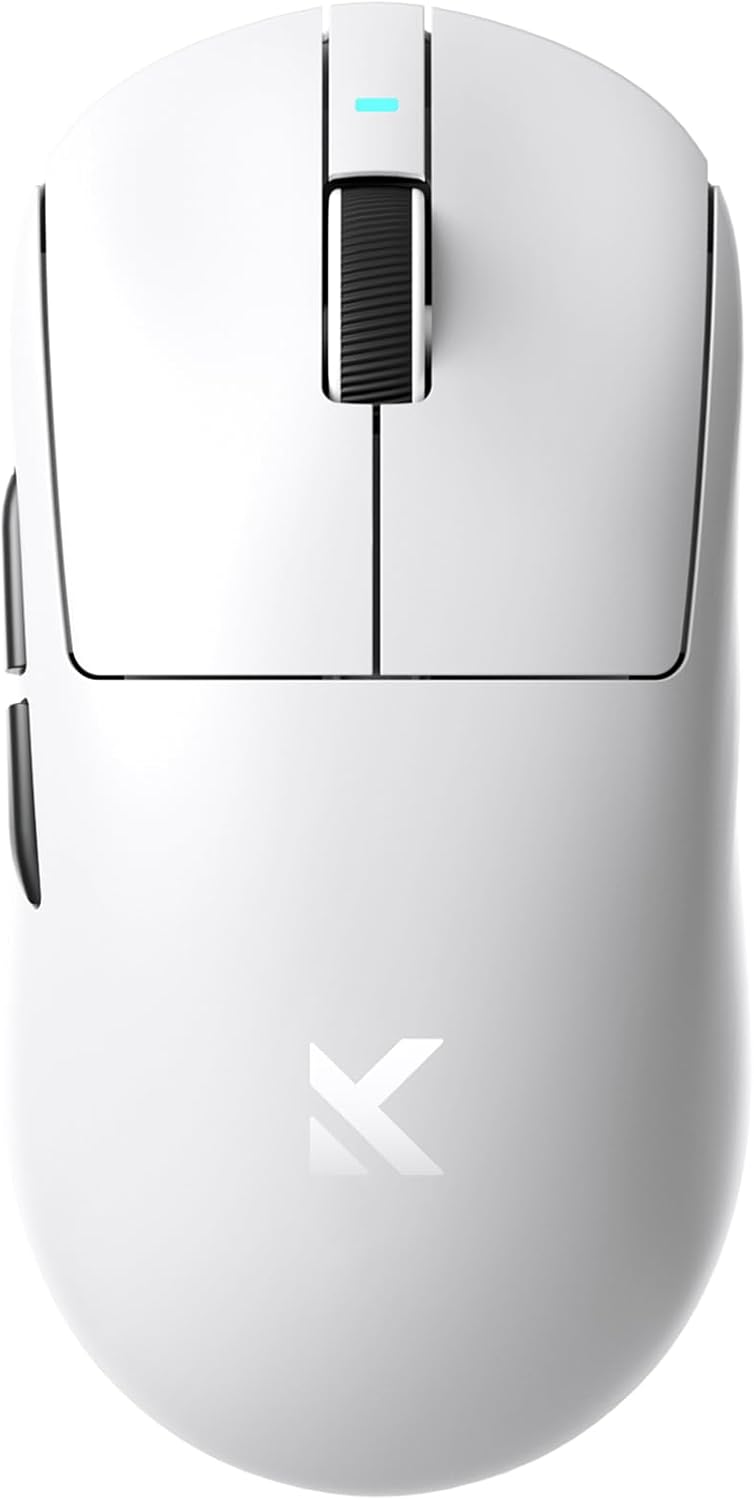
Image: Top view of the MCHOSE A7 Ultra Wireless Gaming Mouse, showcasing its sleek white design and central scroll wheel.
Package Contents
- MCHOSE A7 Ultra Wireless Gaming Mouse
- USB-C Charging Cable (Braided)
- Nano 2.4GHz Wireless Dongle
- User Manual
- Stickers (if included)
Setup
1. Charging the Mouse
Before first use, it is recommended to fully charge the mouse. Connect the provided USB-C cable to the mouse's charging port and the other end to a USB power source (e.g., computer USB port, wall adapter). The mouse features a 500mAh battery, offering up to 130 hours of battery life on a single charge.

Image: Close-up of the mouse indicating a 500mAh battery capacity, highlighting its long-lasting power.
2. Connecting the Mouse (Tri-Mode)
The A7 Ultra supports three connection modes: 2.4GHz Wireless, Bluetooth, and Wired (USB-C).
- 2.4GHz Wireless Connection:
- Locate the 2.4GHz nano dongle, typically stored in a compartment on the underside of the mouse.
- Plug the dongle into an available USB port on your computer.
- Set the switch on the underside of the mouse to "2.4G". The mouse should automatically connect.
- Bluetooth Connection:
- Set the switch on the underside of the mouse to "BT".
- On your computer or device, go to Bluetooth settings and search for new devices.
- Select "MCHOSE A7 Ultra" from the list of available devices to pair.
- Wired Connection:
- Connect the USB-C cable to the mouse and the USB-A end to your computer.
- The mouse will function immediately in wired mode and will charge simultaneously.

Image: Underside view of the MCHOSE A7 Ultra mouse, illustrating the Type-C port, Bluetooth, and 2.4GHz wireless dongle options.
Operating the Mouse
DPI Adjustment
The A7 Ultra features a PAW3950 optical sensor, offering up to 42,000 DPI for precise tracking. DPI settings can be adjusted using the dedicated DPI button located on the underside of the mouse or through the custom software.

Image: Close-up of the mouse's underside, highlighting the PAW3950 optical sensor capable of up to 42,000 DPI.
Polling Rate
The mouse supports a dual 8000Hz polling rate, which significantly reduces latency to 0.125ms, ensuring lightning-fast response times and precise control. The polling rate can be configured via the custom software.
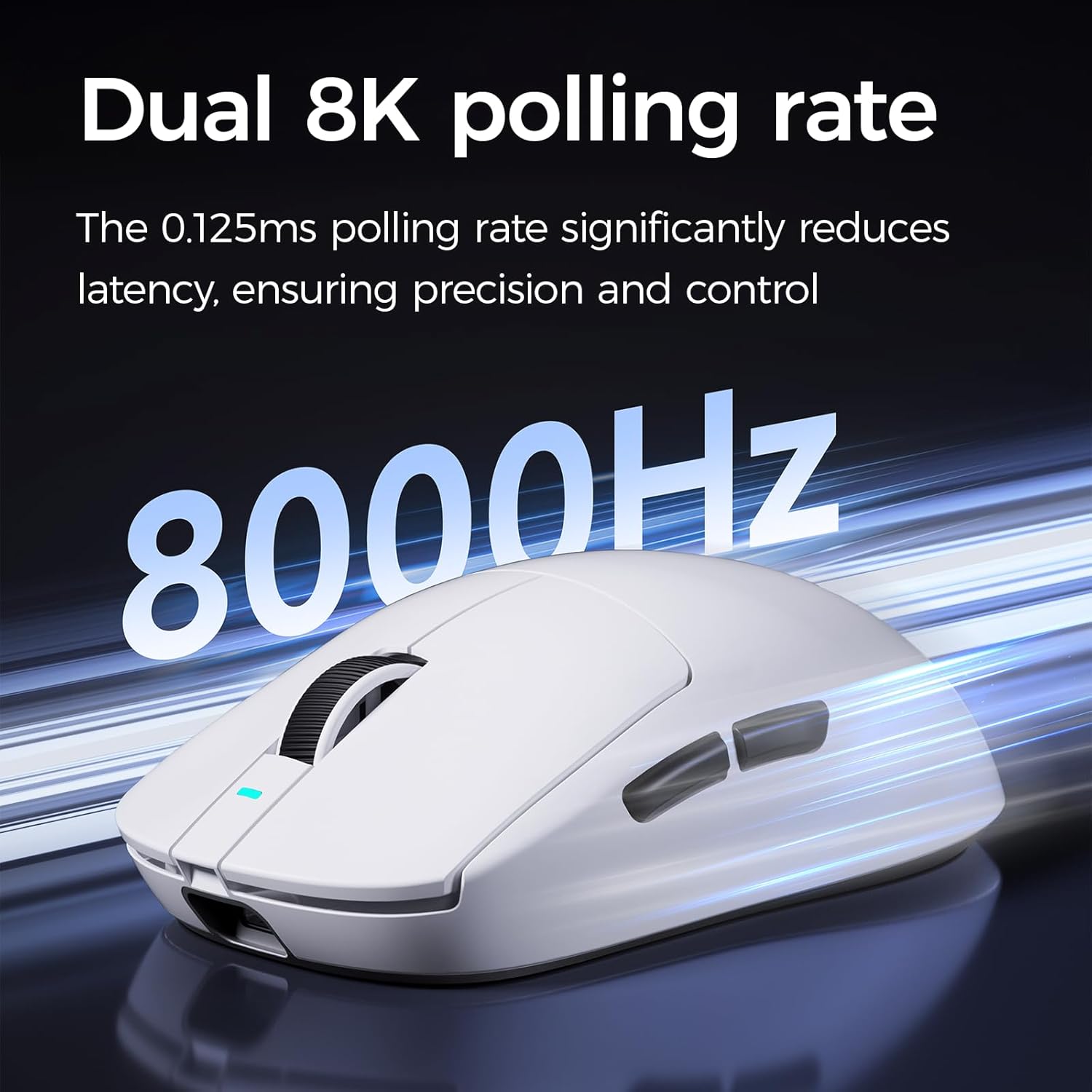
Image: The MCHOSE A7 Ultra mouse with a visual representation of its 8000Hz polling rate, emphasizing speed and responsiveness.
Custom Software
The A7 Ultra supports onboard memory, allowing users to store custom settings for buttons, DPI adjustments, polling rates, and gaming modes. The custom software provides comprehensive customization options:
- Button Assignment: Reassign functions to mouse buttons.
- DPI Levels: Set multiple DPI stages and switch between them.
- Macro Settings: Create and assign complex macros.
- Polling Rate: Adjust the polling rate up to 8000Hz.
- Lift-off Distance: Fine-tune the sensor's lift-off distance.
- Key Debounce Time: Adjust click debounce for optimal responsiveness.
The software is web-based, requiring no download. Access it via the official MCHOSE website (refer to product packaging or official website for URL).

Image: Screenshots of the MCHOSE custom software interface, showing options for button customization, DPI settings, and other advanced configurations.
Maintenance
Cleaning
To maintain the mouse's performance and appearance, regularly clean its surface with a soft, dry cloth. For stubborn dirt, a slightly damp cloth can be used, ensuring no moisture enters the internal components. Avoid harsh chemicals or abrasive materials.
Battery Care
The A7 Ultra is equipped with a rechargeable lithium-ion battery. To prolong battery life:
- Avoid fully discharging the battery frequently.
- Store the mouse in a cool, dry place when not in use for extended periods.
- Use the provided charging cable for optimal charging.
Troubleshooting
| Problem | Possible Cause | Solution |
|---|---|---|
| Mouse not responding in wireless mode. | Low battery, dongle not connected, incorrect mode selected, interference. | Charge the mouse. Ensure the 2.4GHz dongle is securely plugged in or Bluetooth is paired. Check the mode switch on the mouse. Move closer to the receiver or reduce wireless interference. |
| Cursor movement is erratic or stops. | Sensor obstruction, dirty sensor, firmware issue. | Clean the optical sensor on the underside of the mouse. Ensure the mouse pad or surface is clean and uniform. Update mouse firmware via the custom software (as suggested by user reviews). |
| Buttons are too sensitive / accidental clicks. | Default debounce settings, user preference. | Adjust the key debounce time in the custom software to a higher value. |
| Cannot connect via Bluetooth. | Mouse not in pairing mode, device Bluetooth off, previous pairing conflict. | Ensure mouse switch is on "BT". Turn Bluetooth off and on again on your device. Remove previous pairings of the mouse from your device's Bluetooth list and re-pair. |
Specifications
| Feature | Detail |
|---|---|
| Model | A7 Ultra |
| Connectivity | 2.4GHz Wireless, Bluetooth, USB-C Wired |
| Sensor | PAW3950 Optical Sensor |
| Max DPI | 42,000 DPI |
| Polling Rate | Up to 8000Hz |
| Weight | 59 grams (approx. 2.08 ounces) |
| Battery Life | Up to 130 hours |
| Battery Capacity | 500mAh |
| Dimensions | 125.8mm x 63.2mm x 39.8mm (approx. 4.95 x 2.49 x 1.57 inches) |
| Manufacturer | MCHOSE |
| Country of Origin | China |

Image: Diagram showing the dimensions of the MCHOSE A7 Ultra mouse (length, width, height) and different grip styles.
Warranty and Support
MCHOSE provides a 1-year warranty for the A7 Ultra Wireless Gaming Mouse. For technical support, warranty claims, or further assistance, please visit the official MCHOSE website or contact their customer service through the details provided on the product packaging or purchase platform.
Official MCHOSE Store: Visit MCHOSE Store on Amazon
Documents and downloads
Ask a question about this manual
Ask about setup, troubleshooting, compatibility, parts, safety, or missing instructions. Manuals+ will review the question and use this page’s manual context to help answer it.