
MCHOSE G75 PRO 75% Wireless Mechanical Keyboard User Manual
Model: G75 PRO
Brand: MCHOSE
Introduction
This manual provides comprehensive instructions for the setup, operation, and maintenance of your MCHOSE G75 PRO 75% Wireless Mechanical Keyboard. The G75 PRO is a versatile keyboard featuring tri-mode connectivity (Bluetooth 5.0, 2.4GHz wireless, and USB-C wired), hot-swappable switches, vibrant RGB backlighting, and an ergonomic design for enhanced typing comfort. It is equipped with an 8000mAh battery for extended use and a unique gasket structure for a superior typing experience.
Package Contents

The image above displays the MCHOSE G75 PRO keyboard along with its included accessories. This visual guide helps confirm all components are present upon unboxing.
Please verify that all the following items are included in your package:
- MCHOSE G75 PRO Keyboard
- USB-C Cable
- 2.4GHz Receiver (often stored in the keyboard's magnetic slot)
- Keycap & Switch Puller
- 2 x Replacement Switches
- Dust Cover
- User Manual (this document)
- Handy Guide
Setup Guide
1. Charging the Keyboard
Before initial use, it is recommended to fully charge the keyboard. Connect the provided USB-C cable to the keyboard's USB-C port and the other end to a powered USB port on your computer or a wall adapter. The keyboard features an 8000mAh battery, providing extended usage time.
2. Connecting the Keyboard (Tri-Mode)
The MCHOSE G75 PRO supports three connection modes: Bluetooth 5.0, 2.4GHz wireless, and USB-C wired. You can switch between these modes using the dedicated mode switch button located on the top left side of the keyboard.

This image illustrates the keyboard's versatile tri-mode connection capabilities, allowing seamless switching between Bluetooth, 2.4GHz wireless, and USB-C wired modes to connect to various devices.
USB-C Wired Connection:
Connect the USB-C cable directly from the keyboard to your computer's USB port. The keyboard will be recognized automatically.
2.4GHz Wireless Connection:
- Locate the 2.4GHz USB receiver. It is typically stored in the magnetic slot on the side of the keyboard for convenient access and storage.
- Plug the 2.4GHz receiver into an available USB port on your computer.
- Set the keyboard's mode switch to the 2.4GHz position. The keyboard should connect automatically.
Bluetooth 5.0 Connection:
- Set the keyboard's mode switch to the Bluetooth position.
- On your device (PC, laptop, smartphone, tablet), open Bluetooth settings and search for new devices.
- Select "MCHOSE G75 PRO" from the list of available devices to pair.
- The keyboard can store up to 3 Bluetooth profiles. Use Fn + Q/W/E to switch between paired Bluetooth devices.
3. System Mode Switch

This image demonstrates how to switch between Windows and Mac system modes on the keyboard using the Fn key combinations.
To optimize compatibility with your operating system, use the following key combinations:
- Fn + A: Switch to Windows System Mode
- Fn + S: Switch to Mac System Mode
Operating Instructions
Keyboard Layout and Key Functions

This image provides a clear top-down view of the MCHOSE G75 PRO keyboard, highlighting its 75% layout with 82 keys, including dedicated arrow keys, designed for efficient space utilization without compromising essential functionality.
The G75 PRO features a compact 75% layout with 82 keys, providing a balance between functionality and desktop space saving. It retains essential keys such as arrow keys, which are crucial for both gaming and productivity.
RGB Backlighting Control

The image illustrates the various key combinations used to control the stunning RGB backlighting of the keyboard, including changing colors, modes, brightness, and speed.
The keyboard features per-key RGB lighting with 16.8 million colors and multiple lighting effects. Use the following key combinations to customize the backlighting:
- Fn + = / +: Switch backlight color
- Fn + B: Check battery level (status indicator)
- Fn + \ |: Switch backlight mode
- Fn + ↑: Increase backlight brightness
- Fn + ↓: Decrease backlight brightness
- Fn + ←: Decrease backlight speed
- Fn + →: Increase backlight speed
MCHOSE HUB Software
This image displays the user interface of the MCHOSE HUB Software, which allows for advanced customization of the keyboard's settings, including macro editing, key redefinition, music sync, RGB effects, and latency adjustments.
For advanced customization, including macro editing, key redefinition, music synchronization, and detailed RGB effect control, download the MCHOSE HUB Software. This software allows you to tailor the keyboard's performance to your personal needs.
Download the software from: mchose.com.cn
Hot-Swappable Switches
This image demonstrates the hot-swappable feature of the keyboard, showing a switch being easily removed, highlighting the compatibility with 3-pin and 5-pin switches without requiring soldering.
The G75 PRO features a hot-swappable PCB, allowing you to easily change switches without soldering. It supports both 3-pin and 5-pin mechanical switches. The keyboard comes pre-installed with creamy linear switches (Matcha Latte V2 Switch) for a smooth typing experience.
Gasket Structure Design
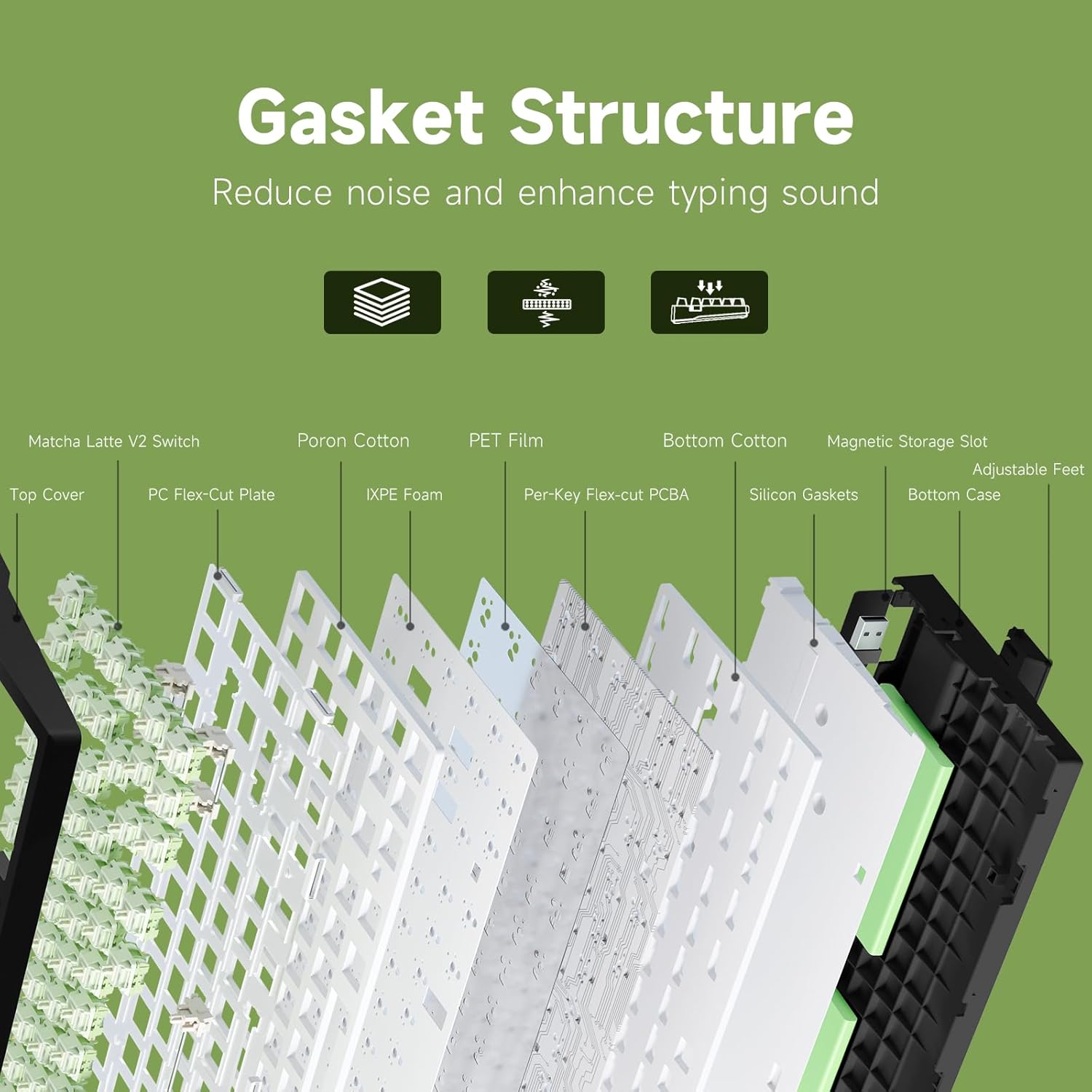
This diagram illustrates the intricate 5-layer gasket structure of the keyboard, detailing components like the PC Flex-Cut Plate, Poron Cotton, IXPE Foam, PET Film, Per-Key Flex-cut PCBA, Silicon Gaskets, and Bottom Cotton, all designed to reduce noise and enhance typing sound.
The keyboard incorporates a 5-layer gasket structure design. This advanced construction significantly reduces noise and provides superior shock absorption, resulting in a pure, satisfying typing sound and a consistent feel with every key press.
Ergonomic Design

This image points out key ergonomic features of the keyboard, including the mode switch button, 2-stage adjustable feet, PVD mirror plate, USB-C ports, and the magnetic dust-proof storage slot for the 2.4GHz receiver.
Designed with ergonomic principles, the G75 PRO features a golden angle and 2-stage adjustable feet to ensure comfortable typing posture, reducing strain on your fingers and wrists during prolonged use.
Maintenance
Cleaning the Keyboard
To maintain the keyboard's appearance and functionality, regularly clean it using a soft, lint-free cloth. For deeper cleaning, you may gently remove keycaps using the provided keycap puller and clean underneath with compressed air or a small brush. Avoid using harsh chemicals or abrasive materials.
Keycap and Switch Replacement
Use the included keycap and switch puller tools for safe removal and installation of keycaps and switches. When replacing switches, ensure they are aligned correctly with the PCB sockets to avoid bending pins.
Troubleshooting
| Problem | Possible Cause | Solution |
|---|---|---|
| Keyboard not responding in wireless mode. | Low battery, incorrect mode selected, receiver not plugged in (2.4GHz), not paired (Bluetooth), interference. | Charge the keyboard. Ensure the mode switch is set correctly (2.4GHz or BT). For 2.4GHz, ensure the receiver is securely plugged in. For Bluetooth, re-pair the device. Move closer to the receiver/device. |
| RGB backlighting not working or dim. | Backlight turned off, brightness set too low, low battery. | Use Fn + ↑ to increase brightness. Use Fn + \ | to cycle through modes. Charge the keyboard. |
| Specific keys not responding. | Loose or faulty switch, software issue. | Carefully remove the keycap and switch using the puller. Re-seat the switch firmly. If still not working, try replacing with one of the spare switches. Restart your computer. |
| Keyboard frequently disconnects. | Interference, distance from receiver/device, low battery. | Ensure no strong wireless interference sources are nearby. Reduce distance to the connected device. Charge the keyboard fully. |
If you encounter issues not listed here or require further assistance, please refer to the support section or contact MCHOSE customer service.
Product Specifications
| Feature | Detail |
|---|---|
| Model Number | G75 PRO |
| Connectivity | Tri-Mode: Bluetooth 5.0, 2.4GHz Wireless, USB-C Wired |
| Layout | 75% (82 Keys) |
| Switches | Hot-Swappable (3-pin/5-pin compatible), Pre-lubed Creamy Linear Switches (Matcha Latte V2) |
| Keycaps | Double-Shot PBT Keycaps |
| Backlighting | Per-key RGB (16.8 million colors, multiple effects) |
| Battery Capacity | 8000mAh |
| Battery Life | Up to 400 hours (without RGB) |
| Dimensions (L x W x H) | 12.6 x 5.4 x 1.06 inches (32.0 x 13.7 x 2.7 cm) |
| Item Weight | 2.51 pounds (1.14 kg) |
| Compatible Devices | PC, Laptop, Gaming Console, Smartphone, Tablet |
| Special Features | Gasket Structure, Ergonomic Design, Magnetic Receiver Storage, MCHOSE HUB Software Support |
Warranty and Support
Warranty Information
MCHOSE products are manufactured to high quality standards. This product comes with a standard manufacturer's warranty against defects in materials and workmanship. Please refer to the warranty card included in your package or visit the official MCHOSE website for detailed warranty terms and conditions.
Customer Support
For technical support, troubleshooting assistance, or any inquiries regarding your MCHOSE G75 PRO keyboard, please contact MCHOSE Official customer service. You can typically find contact information on the official MCHOSE website or through the retailer where you purchased the product.
Visit the official MCHOSE Store on Amazon: MCHOSE Store
Product Videos
No official product videos from the seller were found to be relevant for inclusion in this instruction manual based on the provided data.


