1. Introduction
Thank you for choosing the Thunderobot ML903 Wireless Gaming Mouse. This manual provides detailed instructions for setting up, operating, maintaining, and troubleshooting your device. The ML903 is designed for high-performance gaming, featuring a PixArt PAW3395 sensor, tri-mode connectivity, an ultra-lightweight design, and a 4K polling rate with a magnetic charging dock.

Thunderobot ML903 Wireless Gaming Mouse on its RGB charging dock.
2. Product Overview
2.1 Key Features
- Next-Gen Optical Sensor: Equipped with PixArt PAW3395 sensor for 26,000 DPI, 650 IPS, and 50G acceleration.
- Ultra-Fast 4000Hz Polling Rate: Ensures real-time responsiveness and zero-latency gameplay.
- Ergonomic & Ultra-Lightweight Design: Weighs just 65 grams for comfortable, extended use.
- Tri-Mode Connectivity: Supports Wired USB-C, 2.4GHz wireless, and Bluetooth connections.
- Long Battery Life: Over 70 hours of continuous gameplay on a single charge.
- Magnetic Charging Dock: Convenient RGB charging dock with DPI indicator.
- Durable Switches: 80-million click lifecycle for enduring performance.

Key features of the ML903 mouse, including its lightweight design, optical sensor, and connectivity options.
2.2 Package Contents
- Thunderobot ML903 Wireless Gaming Mouse
- Magnetic RGB Charging Dock (with 4K Hz Transceiver)
- USB-C to USB-A Cable
- 2.4GHz Wireless Receiver (dongle)
- User Manual (this document)
3. Setup
3.1 Charging the Mouse
Before first use, it is recommended to fully charge the mouse. The ML903 offers two charging methods:
- Magnetic Charging Dock: Place the mouse onto the magnetic charging dock. Ensure the mouse aligns correctly with the charging pins. The RGB lighting on the dock will indicate charging status.
- USB-C Cable: Connect the provided USB-C cable directly to the mouse's USB-C port and the other end to a powered USB port on your computer or a USB wall adapter.
The mouse features an intuitive battery indicator and a low-power reminder that activates below 10% battery level.

The Thunderobot ML903 mouse being charged on its magnetic RGB charging dock.

Features of the Thunderobot Wireless Charging Dock 4K, including magnetic charging, RGB lighting, and DPI indicator.
3.2 Connectivity Modes
The ML903 supports three connectivity modes:
- Wired Mode (USB-C):
Connect the USB-C cable directly from the mouse to your computer. The mouse will function immediately, and it will charge simultaneously. This mode is plug-and-play. - 2.4GHz Wireless Mode:
For optimal performance, use the magnetic charging dock which acts as a 4K Hz transceiver. Connect the dock to your computer via USB. The mouse will automatically connect to the dock. Alternatively, you can use the smaller 2.4GHz USB dongle directly plugged into your computer for standard 1K Hz polling rate. Ensure the mouse's mode switch (located on the underside) is set to 2.4G. - Bluetooth Mode:
Turn the three-position switch on the underside of the mouse to the right (Bluetooth mode). Long press the Bluetooth coding key (usually a small button near the switch or on the underside) to enter pairing mode. The mouse's indicator light will flash. On your computer or device, search for Bluetooth devices and select "Thunderobot ML903" to pair.

Image demonstrating the tri-mode connectivity of the ML903 mouse, connected to a laptop and a monitor setup.

Visual guide to the three connectivity modes: Bluetooth, 2.4G, and Wired.
4. Operation
4.1 DPI Adjustment
The ML903 mouse features a dedicated DPI button, typically located behind the scroll wheel. Press this button to cycle through different DPI sensitivity levels. Each DPI level is often indicated by a distinct RGB color on the mouse or charging dock, providing quick visual confirmation of your current precision setting.
4.2 Polling Rate
The ML903 supports up to a 4000Hz polling rate when used with its magnetic charging dock/transceiver. This high polling rate minimizes input lag, providing extremely smooth and responsive tracking, crucial for competitive gaming. When using the standard 2.4GHz dongle or Bluetooth, the polling rate will be lower (typically 1000Hz or less).
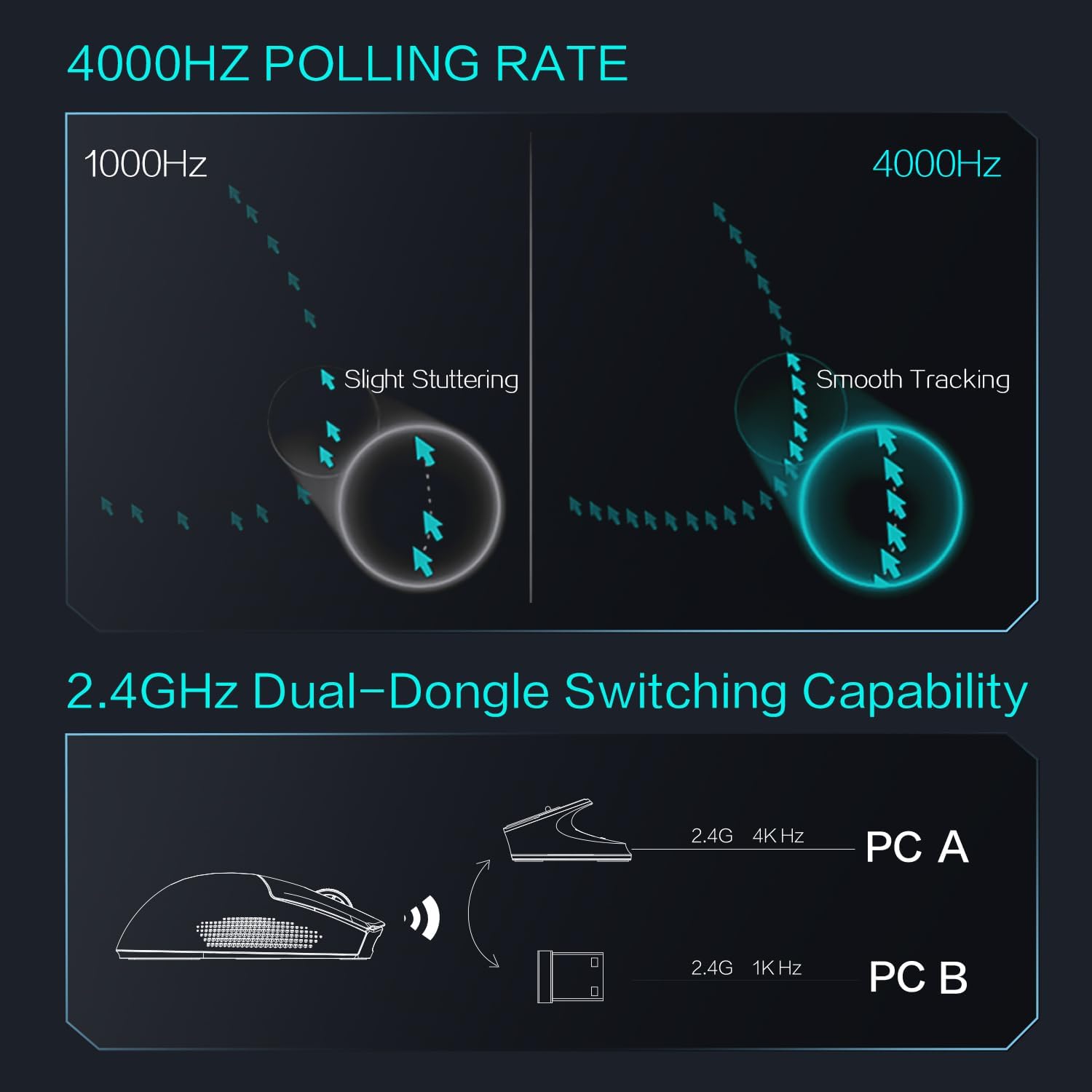
Diagram illustrating the 4000Hz polling rate and 2.4GHz dual-dongle switching capability.

Comparison of polling rates (1000Hz, 2000Hz, 4000Hz) demonstrating smoother tracking at higher rates.
4.3 Ergonomics and Grip
The ML903 features an ergonomic, ultra-lightweight design (65g) with a refined structural design. It is crafted for comfort during long gaming sessions and is suitable for various grip styles including palm, fingertip, and claw grips.

Ergonomic design features of the ML903 mouse, showing frontal trapezoidal elevation and midsection waistline.

Diagram illustrating different grip styles (palm, fingertip, claw) compatible with the ML903's lightweight symmetrical design.
5. Maintenance
To ensure the longevity and optimal performance of your Thunderobot ML903 mouse, follow these maintenance guidelines:
- Cleaning: Use a soft, dry cloth to wipe the surface of the mouse and charging dock. For stubborn dirt, slightly dampen the cloth with water or a mild electronic cleaner. Avoid using harsh chemicals or abrasive materials.
- Sensor Cleaning: Occasionally, use a cotton swab or compressed air to gently clean the optical sensor on the underside of the mouse to prevent tracking issues.
- Storage: When not in use for extended periods, store the mouse and dock in a cool, dry place away from direct sunlight and extreme temperatures.
- Cable Care: Avoid sharp bends or kinks in the USB-C cable to prevent internal damage.
- Mouse Feet: The ML903 uses 100% PTFE mouse feet for smooth glide. If they become worn, replacement feet can be purchased from authorized retailers.

Underside view of the ML903 mouse, showing 100% PTFE mouse feet, paracord cable, Type-C port, and receiver extender.
6. Troubleshooting
If you encounter issues with your Thunderobot ML903 mouse, please refer to the following common troubleshooting steps:
- Mouse Not Responding:
- Ensure the mouse is charged.
- Check the connectivity mode switch on the underside of the mouse (Wired, 2.4G, Bluetooth).
- For 2.4GHz wireless, ensure the receiver/dock is properly connected to your computer. Try a different USB port.
- For Bluetooth, ensure Bluetooth is enabled on your device and the mouse is paired. Try re-pairing.
- If in wired mode, ensure the USB-C cable is securely connected to both the mouse and the computer.
- Tracking Issues / Cursor Lag:
- Clean the optical sensor on the underside of the mouse.
- Ensure you are using a suitable mouse pad or surface.
- Check for interference if using 2.4GHz wireless (e.g., other wireless devices).
- Ensure the 4000Hz polling rate is enabled if using the charging dock.
- Charging Problems:
- Ensure the magnetic dock is properly connected to a power source.
- Verify the mouse is correctly seated on the charging dock, making good contact with the pins.
- If charging via USB-C, try a different USB port or cable.
- RGB Lighting Not Working:
- Ensure the mouse has sufficient battery charge.
- Check if any software settings have disabled RGB lighting.
If the issue persists after trying these steps, please contact Thunderobot customer support.
7. Specifications
| Feature | Specification |
|---|---|
| Model | ML903 |
| Sensor | PixArt PAW3395 Optical Sensor |
| DPI (Dots Per Inch) | Up to 26,000 |
| IPS (Inches Per Second) | 650 Max |
| Acceleration | 50G Max |
| Polling Rate | 4000Hz (with charging dock/transceiver), 1000Hz (with standard dongle/Bluetooth) |
| Weight | 65 grams |
| Connectivity | Wired (USB-C), 2.4GHz Wireless, Bluetooth |
| Battery Life | 70+ hours (continuous gameplay) |
| Switches | 80-million click lifecycle |
| Mouse Feet | 100% PTFE |
| Charging | Magnetic Charging Dock, USB-C |

Detailed specifications of the PixArt PAW3395 sensor, including resolution, speed, acceleration, and tracking accuracy.
8. Warranty and Support
Thunderobot products are designed and manufactured to the highest quality standards. For information regarding warranty coverage and terms, please refer to the warranty card included with your product or visit the official Thunderobot website.
For technical support, troubleshooting assistance, or to inquire about replacement parts, please contact Thunderobot customer service through their official channels. You can find more information and support resources by visiting the Thunderobot Store on Amazon or their official brand website.


