
realme C61
Contents
realme C61 Smartphone User Manual
Model: C61
1. Introduction
Welcome to the user manual for your new realme C61 Dual-SIM 4G/LTE Smartphone. This guide provides essential information to help you set up, operate, maintain, and troubleshoot your device. Please read this manual thoroughly to ensure optimal performance and longevity of your smartphone.
2. Product Overview

Figure 2.1: Overall view of the realme C61 smartphone, showcasing its sleek design and camera module on the rear, and the display on the front.

Figure 2.2: Front view of the realme C61, highlighting its 6.74-inch IPS LCD display with a small notch for the front camera.
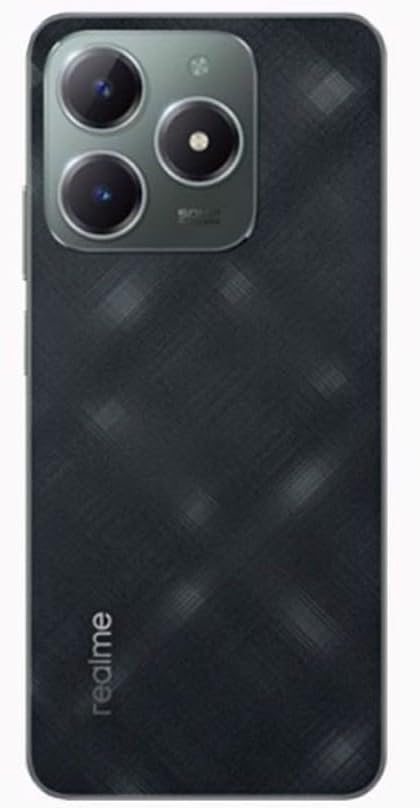
Figure 2.3: Rear view of the realme C61 in Dark Green, showing the textured back panel and the prominent camera module with dual lenses.
3. Setup Guide
3.1 SIM Card Installation
The realme C61 supports Dual-SIM functionality, allowing you to use two Nano-SIM cards simultaneously. It also features a dedicated microSDXC slot for expandable storage.
- Locate the SIM tray on the side of your device.
- Insert the SIM ejector tool into the small hole on the SIM tray to open it.
- Place your Nano-SIM cards into the designated slots (SIM1 and SIM2) with the gold contacts facing down.
- If using, insert your microSDXC card into its dedicated slot.
- Gently push the SIM tray back into the device until it clicks into place.
3.2 Initial Power On
To power on your realme C61 for the first time:
- Press and hold the Power button (usually on the right side of the device) until the realme logo appears on the screen.
- Follow the on-screen prompts to complete the initial setup, including language selection, Wi-Fi connection, Google account setup, and security settings.
3.3 Network Compatibility
The realme C61 is an unlocked 4G/LTE smartphone. It is compatible with GSM networks. Important: This smartphone is not compatible with CDMA networks, including VERIZON, SPRINT, and US CELLULAR. Please verify network compatibility with your service provider before use. The supported frequency bands are:
- 2G GSM: 850 / 900 / 1800 / 1900 MHz
- 3G HSDPA: 850(B5) / 900(B8) / 2100(B1) MHz
- 4G FDD-LTE: 700(B28) / 800(B20) / 850(B5) / 900(B8) / 1800(B3) / 2100(B1) / 2600(B7) MHz
- 4G TDD-LTE: 2300(B40) / 2500(B41) / 2600(B38) MHz
4. Operating Your realme C61
4.1 Display and Navigation
The device features a 6.74-inch IPS LCD display with a resolution of 720 x 1600 pixels. Navigate the Android 14 operating system using touch gestures. Swipe, tap, pinch, and zoom to interact with applications and content.
4.2 Camera Functions
Your realme C61 is equipped with a dual rear camera system (50 MP main, 0.08 MP secondary) and a 5 MP front camera. Open the Camera app to capture photos and videos. Explore various modes such as Portrait, Night, and Pro for enhanced photography.
4.3 Audio and Connectivity
The device includes a 3.5 mm audio jack for wired headphones. For wireless audio, connect Bluetooth devices. The smartphone supports 4G cellular connectivity for high-speed internet access and calls. Wi-Fi and Bluetooth are also available for local wireless connections.
4.4 Storage and Memory
The realme C61 comes with 256GB of internal storage and 6GB of RAM. The storage can be expanded further using a microSDXC card in its dedicated slot. Manage your storage by regularly clearing unnecessary files and uninstalling unused applications.
5. Maintenance and Care
5.1 Battery Care
The realme C61 is powered by a 5000mAh non-removable battery. To prolong battery life:
- Avoid extreme temperatures.
- Use the original charger and cable provided.
- Avoid fully discharging the battery frequently.
- Optimize settings like screen brightness and background app refresh.
5.2 General Device Care
- Keep the device clean using a soft, dry cloth.
- Avoid exposing the device to water or excessive moisture.
- Protect the screen with a screen protector and use a protective case.
- Do not attempt to disassemble the device, as this will void the warranty.
6. Troubleshooting Common Issues
If you encounter problems with your realme C61, refer to the following common issues and solutions:
- Device Not Powering On: Ensure the battery is charged. Connect the charger and wait a few minutes before attempting to power on again. If unresponsive, try holding the Power button for 10-15 seconds for a forced restart.
- Network Connectivity Issues: Check if SIM cards are properly inserted. Verify that mobile data is enabled in settings. Restart the device. If issues persist, contact your network provider to confirm service status and compatibility.
- Slow Performance: Close unused background applications. Clear cache from apps. Ensure sufficient free storage space. Consider a factory reset as a last resort (back up data first).
- Apps Crashing: Update the app to its latest version. Clear the app's cache and data in settings. Reinstall the app if necessary.
7. Technical Specifications
| Feature | Specification |
|---|---|
| Model Name | realme C61 |
| Operating System | Android 14 |
| Processor | Unisoc Tiger T612 (12 nm), Octa-core (2x1.8 GHz Cortex-A75 & 6x1.8 GHz Cortex-A55) |
| Display | 6.74 inches IPS LCD, 720 x 1600 pixels |
| RAM | 6GB |
| Internal Storage | 256GB |
| Expandable Storage | microSDXC (dedicated slot) |
| Rear Camera | 50 MP, 0.08 MP |
| Front Camera | 5 MP |
| Battery | 5000mAh (non-removable) |
| Connectivity | 4G LTE, Wi-Fi, Bluetooth |
| Audio Jack | 3.5 mm |
| SIM Type | Dual Nano-SIM |
| Color | Dark Green |
8. What's in the Box
Upon unboxing your realme C61, you should find the following items:
- realme C61 Smartphone
- USB Cable
- SIM Ejector Tool (may be included)
- Quick Start Guide (this manual)
9. Warranty and Support
Your realme C61 smartphone is covered by a manufacturer's warranty. Please refer to the warranty card included in your product packaging for specific terms and conditions, including the warranty period and coverage details. For technical support, service, or further inquiries, please visit the official realme support website or contact their customer service channels. Keep your proof of purchase for warranty claims.
Ask a question about this manual
Ask about setup, troubleshooting, compatibility, parts, safety, or missing instructions. Manuals+ will review the question and use this page’s manual context to help answer it.