
1. Product Overview
The Jawploy ZY-006 is a portable MP3 player designed for high-fidelity audio playback and various multimedia functions. It features a compact design, touch controls, and a built-in speaker, making it suitable for music on the go.
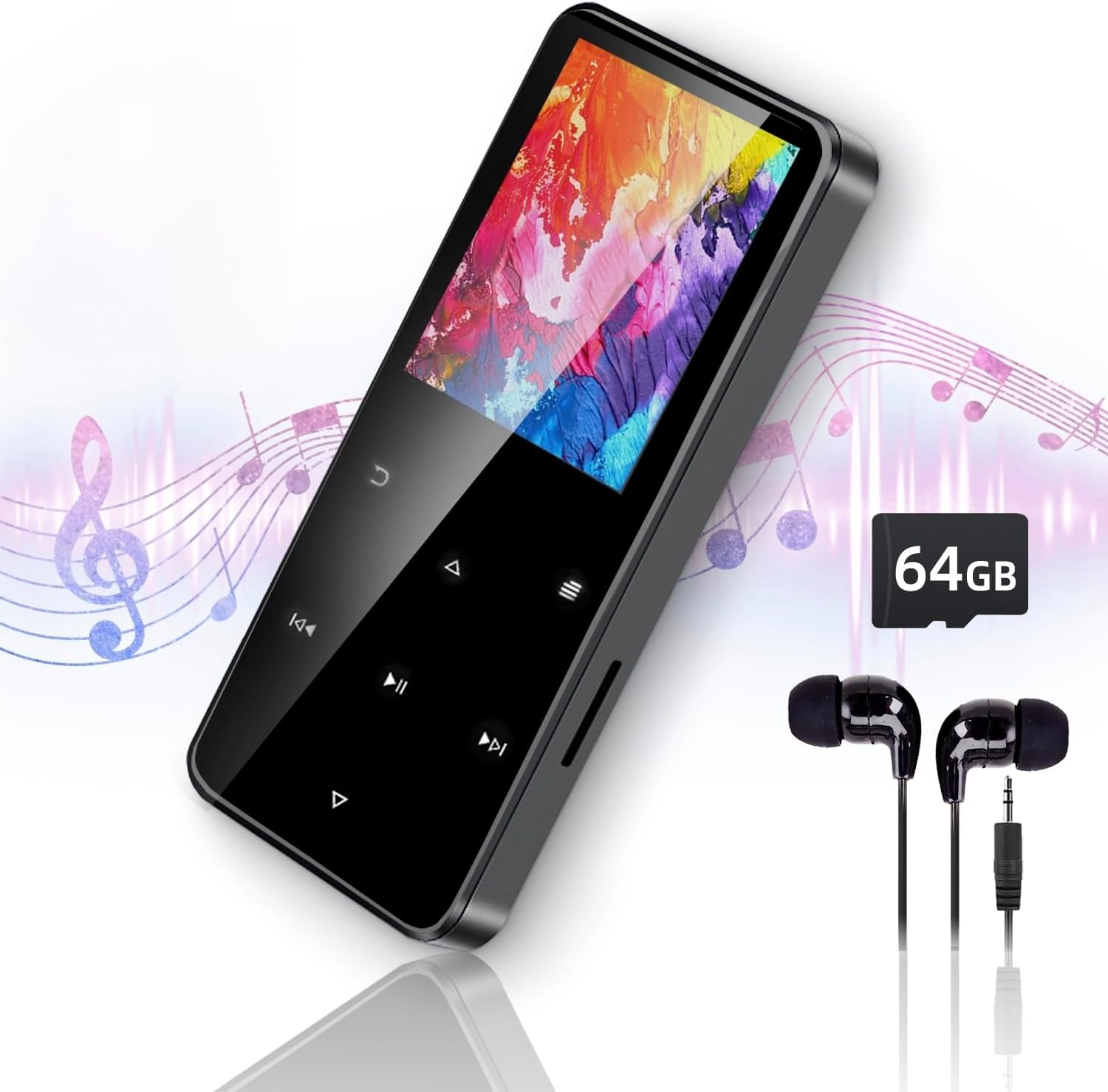
Image 1.1: The Jawploy ZY-006 MP3 Player, showcasing its sleek design, included earphones, and a 64GB TF card.
Package Contents:
- 1x Jawploy ZY-006 MP3 Player (with 16GB built-in memory)
- 1x 64GB TF Card
- 1x Earphones
- 1x USB Cable
- 1x User Manual (this document)
2. Device Layout and Controls
Familiarize yourself with the physical components and touch controls of your MP3 player.

Image 2.1: Diagram illustrating the key components of the Jawploy ZY-006 MP3 Player, including the sturdy alloy casing, touch buttons for navigation, built-in HD speaker, TF card slot, and 3.5mm audio jack.
Key Components:
- Sturdy Alloy Casing: Provides durability and a premium feel.
- Touch Buttons: For intuitive navigation and control.
- Built-in HD Speaker: For audio playback without earphones.
- TF Card Slot: For expanding storage capacity.
- 3.5mm Audio Jack: For connecting wired earphones or headphones.
- USB Port: For charging and data transfer.
3. Getting Started
3.1 Charging the Device
Before first use, fully charge the MP3 player. Connect the included USB cable to the device's USB port and the other end to a computer's USB port or a compatible USB wall adapter (not included).
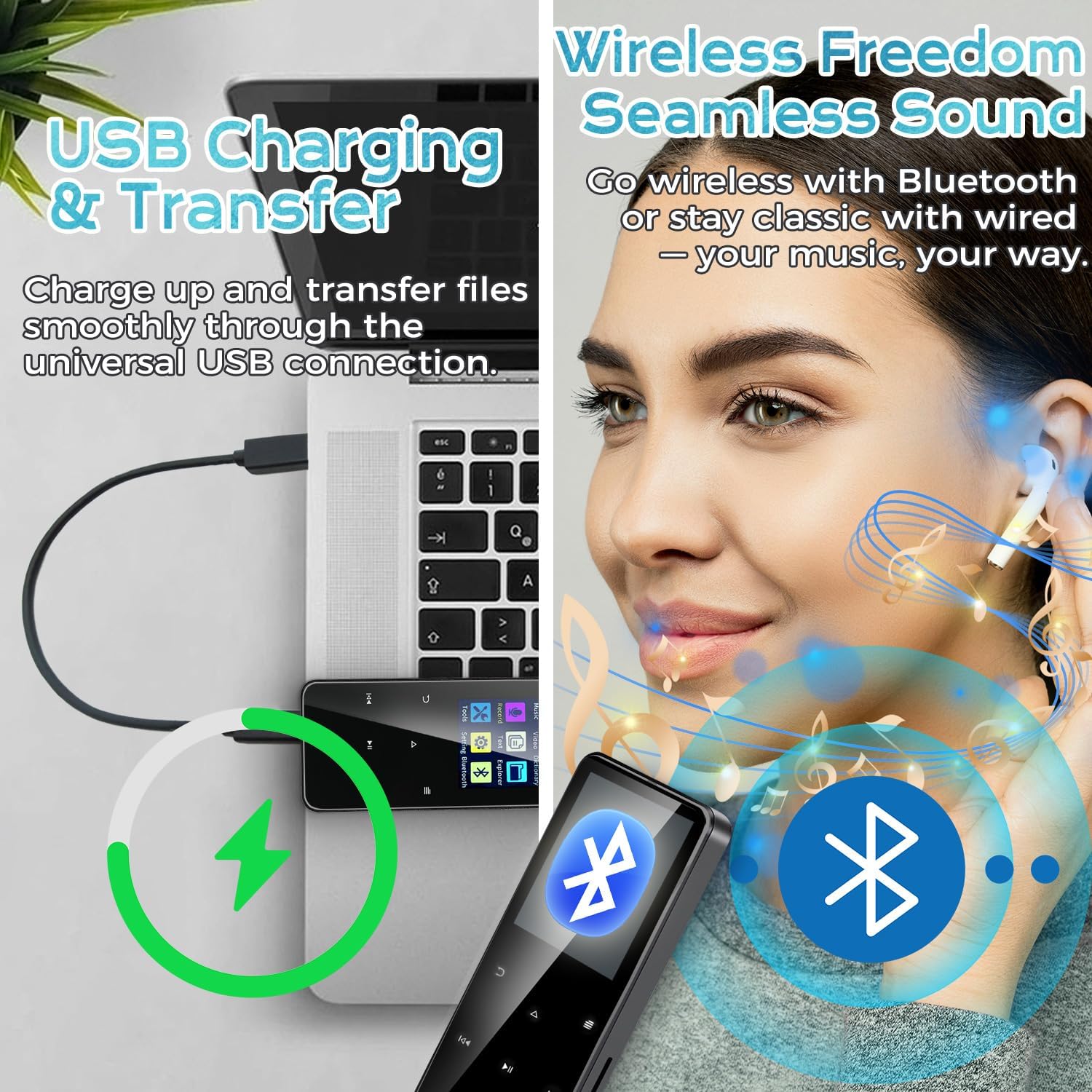
Image 3.1: The MP3 player connected to a laptop via USB cable, illustrating the process of charging and file transfer.
The battery indicator on the screen will show charging status. A full charge typically takes a few hours.
3.2 Inserting the TF Card
Your MP3 player comes with a 64GB TF card pre-installed or included separately. To insert or replace a TF card:
- Locate the TF card slot on the side of the device.
- Gently push the TF card into the slot until it clicks into place. Ensure the card is oriented correctly.
- To remove, gently push the card again until it springs out.
Note: The device supports TF cards up to 128GB, providing a total capacity of 144GB (16GB built-in + 128GB TF card).
3.3 Transferring Files
Connect the MP3 player to your computer using the provided USB cable. The device will appear as a removable disk. You can then drag and drop music, video, e-book, and image files into the appropriate folders on the device or the TF card.
- For music, place files in the 'Music' folder.
- For videos, place files in the 'Video' folder.
- For e-books, place files in the 'E-Book' folder.
- For images, place files in the 'Pictures' folder.
4. Operating Instructions
4.1 Power On/Off and Screen Navigation
- Power On: Press and hold the power button until the screen lights up.
- Power Off: Press and hold the power button until the power-off option appears, then confirm.
- Screen Lock/Unlock: Briefly press the power button to lock or unlock the screen.
- Navigation: Use the touch buttons (Up, Down, Left, Right, Menu, Back) to navigate through the menus and select options on the 1.8-inch color screen.
4.2 Music Playback
The player supports FLAC, MP3, WMA, WAV, AAC, and OGG audio formats up to 48kHz.
- From the main menu, select 'Music'.
- Browse by Artist, Album, Song, or Folder.
- Select a song to begin playback.
- Use the touch buttons for Play/Pause, Next/Previous Track, and Volume adjustment.

Image 4.1: The MP3 player's music interface, highlighting its capability for true lossless audio playback and portable design.
4.3 Bluetooth Connectivity
Connect your MP3 player to Bluetooth headphones or speakers for wireless audio.
- From the main menu, select 'Bluetooth'.
- Turn on Bluetooth.
- Ensure your Bluetooth device is in pairing mode.
- The MP3 player will scan for available devices. Select your device from the list to pair.
4.4 FM Radio
Listen to FM radio stations.
- From the main menu, select 'FM Radio'.
- Connect wired earphones; they act as the antenna.
- Use the scan function to find available stations or manually tune.
4.5 Voice Recorder
Record audio using the built-in microphone.
- From the main menu, select 'Record'.
- Select 'Start Recording' to begin.
- Press 'Stop' to end and save the recording.
4.6 Video Playback
The player supports AVI and AMV video formats with a resolution of 128x160.
- From the main menu, select 'Video'.
- Browse and select a video file to play.
4.7 E-Book Reader
Read TXT format e-books.
- From the main menu, select 'E-Book'.
- Browse and select a TXT file to open.
4.8 Other Functions
The device also includes:
- Alarm Clock: Set alarms for reminders.
- Picture Viewing: Browse image files.
- Tools: Access utilities like calendar, stopwatch.
- Settings: Adjust display, language, date/time, and other system preferences.
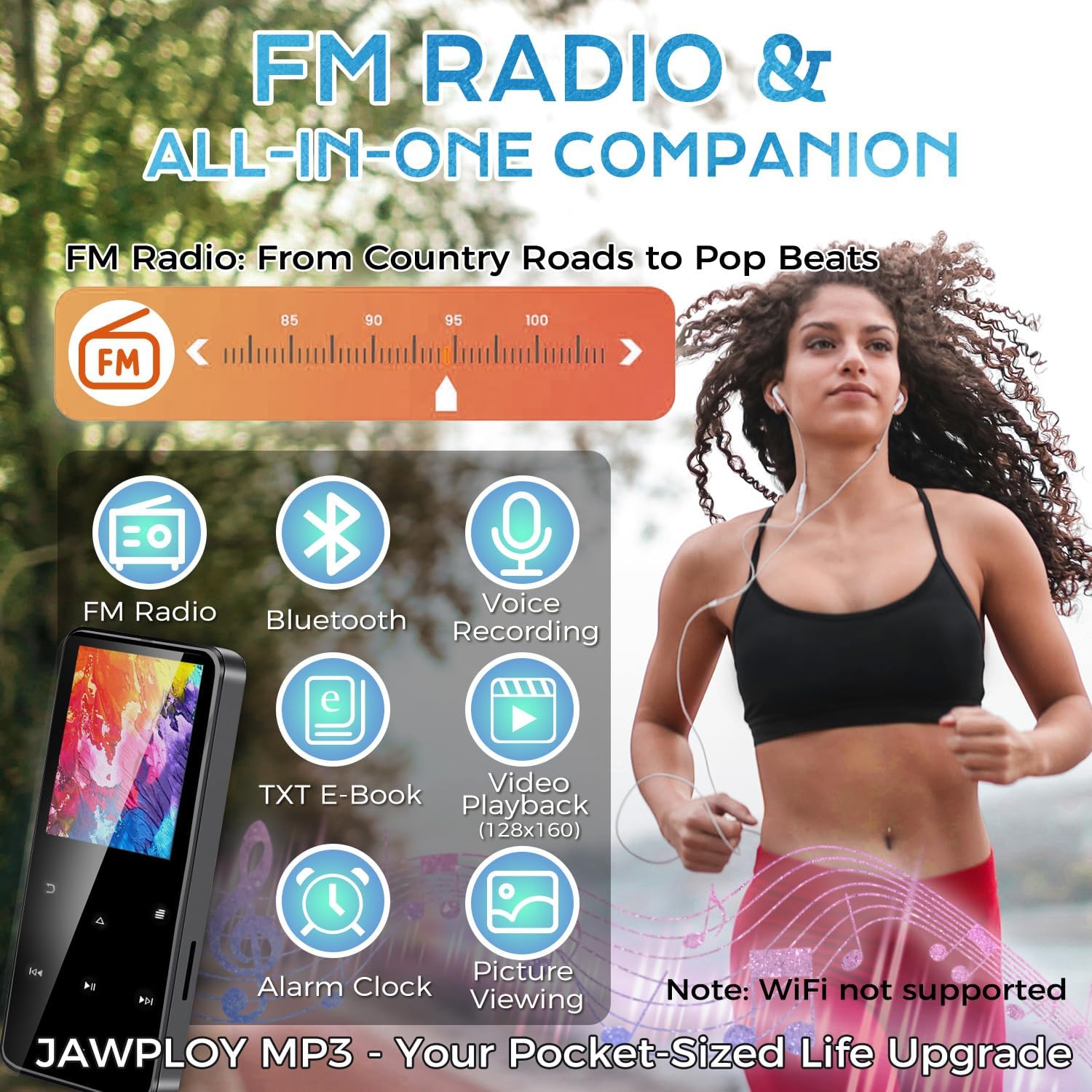
Image 4.2: The main menu of the Jawploy MP3 Player, showing icons for its multi-functional capabilities.
5. Maintenance
5.1 Cleaning
Wipe the device with a soft, dry cloth. Avoid using liquid cleaners or abrasive materials, as they may damage the screen or casing.
5.2 Battery Care
- Avoid fully discharging the battery frequently.
- Do not expose the device to extreme temperatures.
- If storing the device for an extended period, charge it to about 50% and recharge every few months.
5.3 Storage
Store the MP3 player in a cool, dry place away from direct sunlight and moisture. Keep it away from strong magnetic fields.
6. Troubleshooting
If you encounter issues with your Jawploy ZY-006 MP3 player, refer to the following common problems and solutions:
| Problem | Possible Cause | Solution |
|---|---|---|
| Device does not power on | Low battery; device frozen | Charge the device for at least 30 minutes. If still unresponsive, try a hard reset (refer to manual for specific reset instructions, if available, or hold power button for 10-15 seconds). |
| Buttons are unresponsive | Software glitch; device frozen | Restart the device. If the issue persists, ensure the screen is not locked. |
| Cannot transfer files | Incorrect USB connection; driver issue; full storage | Ensure the USB cable is securely connected. Try a different USB port or computer. Check available storage space on the device and TF card. |
| Music files not recognized or playing | Unsupported format; corrupted file; incorrect file location | Verify that the music files are in a supported format (FLAC, MP3, WMA, WAV, AAC, OGG). Ensure files are placed in the 'Music' folder. Try re-transferring the files. |
| Audio playback glitches or interruptions | Corrupted file; interference; software issue | Try playing a different file. Ensure no strong interference sources are nearby. Restart the device. |
| Difficulty removing TF card | Card not fully ejected | Gently push the TF card further into the slot until you feel a click, then release. The card should spring out. Avoid forcing it. |
| Music order is jumbled | Metadata issues; no playlist created | Ensure music files have correct metadata (track numbers, album info). Create playlists on the device for desired playback order. |
7. Specifications
Technical details of the Jawploy ZY-006 MP3 Player:
- Model Name: ZY-006
- Brand: Jawploy
- Memory Storage Capacity: 80 GB (16GB built-in + 64GB TF card included, expandable up to 128GB TF card)
- Screen Size: 1.8 Inches
- Color: Black
- Item Weight: 1.76 ounces (50 grams)
- Package Dimensions: 4.37 x 2.91 x 1.34 inches
- Connectivity Technology: Bluetooth, USB (Wi-Fi not supported)
- Supported Audio Formats: FLAC, MP3, WMA, WAV, AAC, OGG (up to 48kHz)
- Supported Video Formats: AVI, AMV (128x160)
- Supported E-Book Format: TXT
- Special Features: Built-In Speaker, E-Book Reader, FM Radio, Video Playback, Voice Recorder, Touch Buttons
- Battery: 1 CR5 battery required (included)
- Playtime: Up to 16 hours via wired headphones (MP3 format, varies by volume and format)
- Languages: Supports 28 languages
8. Support and Warranty
For technical assistance or warranty inquiries, please refer to the contact information provided with your purchase or visit the official Jawploy support website. Keep your proof of purchase for warranty claims.
This product is designed for reliable performance. Should you encounter any issues not covered in this manual, please contact customer support for further assistance.