
Introduction
Welcome to the Samsung Galaxy S25 Ultra 5G user manual. This guide provides comprehensive instructions for setting up, operating, maintaining, and troubleshooting your new smartphone. The Galaxy S25 Ultra 5G is designed as an advanced AI companion, featuring multi-modality AI capabilities and robust hardware. It adapts to user patterns, anticipates needs, and connects seamlessly. Key features include Now Brief for personalized insights, an Ultra-strong titanium frame, Corning Gorilla Armor 2, and a powerful Snapdragon 8 Elite processor optimized for gaming.
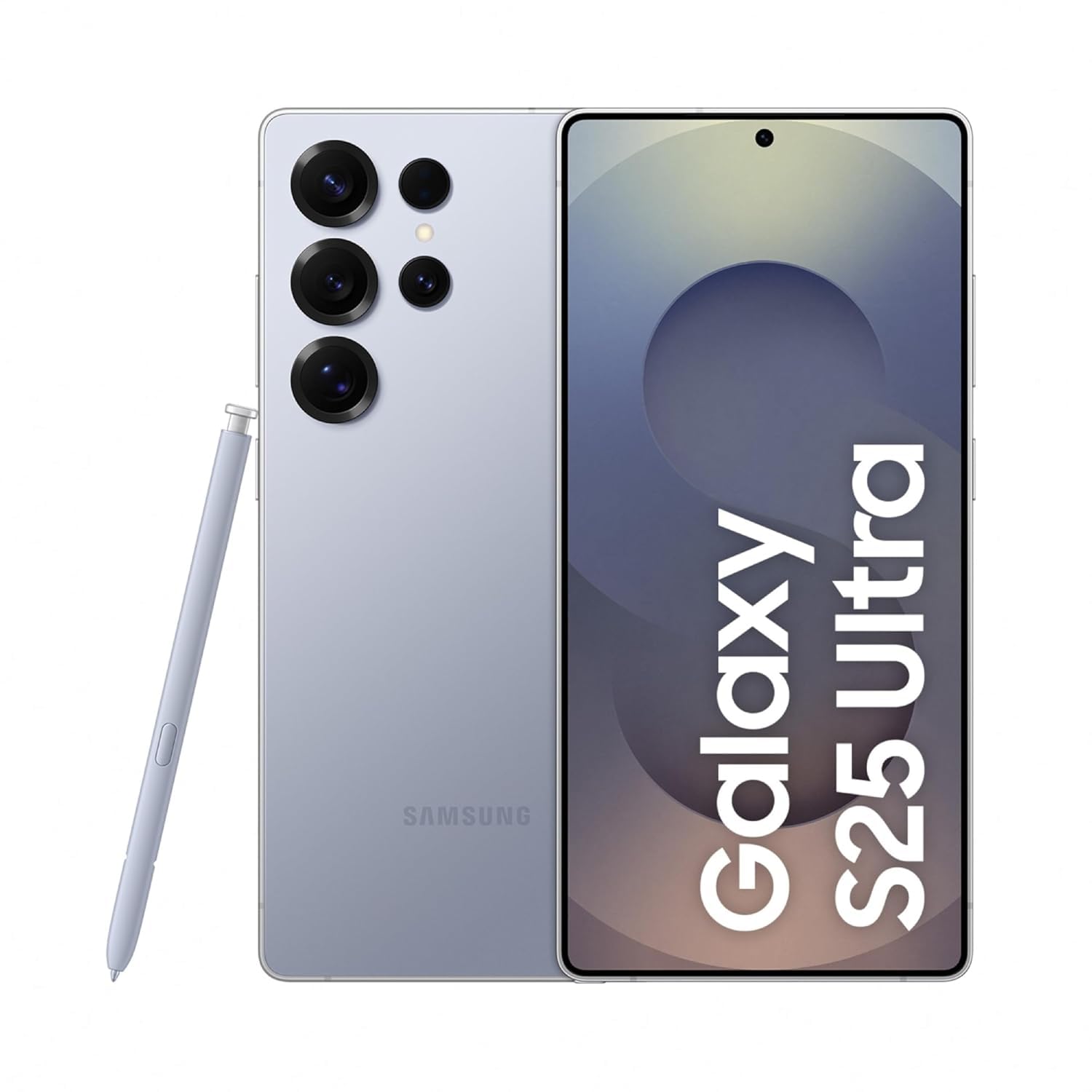
Image: Samsung Galaxy S25 Ultra 5G in Titanium Silverblue, showcasing the device's rear design and the accompanying S Pen.
Setup Guide
1. What's in the Box
Before you begin, ensure all components are present:
- Samsung Galaxy S25 Ultra 5G Smartphone
- USB-C to USB-C Data Cable
- SIM Ejection Pin
- S Pen Stylus

Image: The contents of the product box, including the Galaxy S25 Ultra, USB-C charge cable, and SIM ejection pin.
2. SIM Card Installation
- Locate the SIM card tray on the side of your device.
- Insert the SIM ejection pin into the small hole next to the tray and press firmly until the tray ejects.
- Place your Nano-SIM card(s) into the tray with the gold contacts facing down. The Galaxy S25 Ultra supports Dual SIM.
- Carefully reinsert the tray into the device.
3. Initial Power On and Setup
- Press and hold the Power button until the Samsung logo appears.
- Follow the on-screen prompts to select your language, connect to a Wi-Fi network, and agree to the terms and conditions.
- Sign in with your Google account or create a new one.
- Transfer data from an old device (optional).
- Set up biometric security (fingerprint recognition, face unlock) and a screen lock (PIN, pattern, password).
Operating Instructions
1. Basic Navigation
- Home Screen: Swipe left or right to access different panels.
- App Drawer: Swipe up from the home screen to view all installed applications.
- Notifications Panel: Swipe down from the top of the screen to access notifications and quick settings.
- Recent Apps: Tap the Recent Apps button (usually a square icon) to switch between open applications.
2. Using the S Pen
The S Pen is integrated into the Galaxy S25 Ultra 5G, offering enhanced productivity and creativity:
- Ejecting the S Pen: Press the bottom of the S Pen to release it from its slot.
- Air Command: Hover the S Pen over the screen and press its button to open the Air Command menu for quick access to S Pen features like Create Note, Smart Select, and Screen Write.
- Writing and Drawing: Use the S Pen directly on the screen for precise input in compatible applications.
3. Camera Features
The Galaxy S25 Ultra 5G features an advanced AI ProVisual Engine with a versatile camera system:
- Rear Cameras: 200MP Wide-angle, 50MP Ultra-wide, 10MP Telephoto (3x optical zoom), 50MP Periscope Telephoto (5x optical zoom).
- Front Camera: 12MP.
- Shooting Modes: Bixby Vision, Dual Recording, Food, Hyperlapse, Night, Panorama, Photo, Portrait, Portrait Video, Pro, Pro Video, Single Take, Slow Motion, Video.
- Digital Zoom: Up to 100x.

Image: Overview of key features including the advanced AI ProVisual Engine camera system, powerful processor, and 5000mAh battery life.
4. AI Features
- Now Brief: Provides personalized daily insights and summaries. Access by swiping right on your home screen or through the dedicated widget.
- Multi-modality AI: Enables seamless actions across various applications and offers real-time translation and generative photo editing.

Image: The 'Now Brief' feature displaying personalized briefings for morning, commute, and evening, providing daily insights and information.
5. Gaming
The Snapdragon 8 Elite processor ensures hyper-realistic and ultra-smooth gameplay. Optimize your gaming experience through the Game Launcher app, which allows for performance adjustments and notification management during gameplay.
Maintenance
1. Battery Care
- Avoid extreme temperatures to prolong battery life.
- Use the provided USB-C cable and a compatible fast charger for optimal charging.
- Enable power-saving modes when necessary to extend usage time.
2. Cleaning Your Device
- Use a soft, lint-free cloth to clean the screen and body.
- Avoid harsh chemicals or abrasive materials.
- The device has a Water Resistant rating; however, avoid intentional submersion.
3. Software Updates
Regularly check for and install software updates to ensure optimal performance, security, and access to new features. Navigate to Settings > Software update > Download and install.
Troubleshooting
Device Not Powering On
- Ensure the battery is charged. Connect the device to a charger for at least 10 minutes.
- Perform a forced restart by pressing and holding the Power button and Volume Down button simultaneously for about 7-10 seconds.
Apps Crashing or Freezing
- Close and reopen the app.
- Clear the app's cache and data (Settings > Apps > [App Name] > Storage > Clear cache/Clear data).
- Ensure the app is updated to its latest version.
Connectivity Issues (Wi-Fi/Bluetooth/5G)
- Toggle Wi-Fi, Bluetooth, or Mobile Data off and on.
- Restart your device.
- Reset network settings (Settings > General management > Reset > Reset network settings).
S Pen Not Responding
- Ensure the S Pen is properly seated in its slot and then re-eject it.
- Check S Pen settings (Settings > Advanced features > S Pen).
- Restart your device.
Technical Specifications
| Feature | Specification |
|---|---|
| Brand | Samsung |
| Model | Galaxy S25 Ultra 5G |
| Operating System | Android 15.0 |
| Processor | Snapdragon 8 Elite (4.47 GHz) |
| RAM | 12 GB |
| Storage | 256 GB |
| Display | 6.9 Inches AMOLED, 3120 x 1440 Pixels, 120 Hz Refresh Rate, 500 PPI |
| Rear Camera | 200MP Wide, 50MP Ultra-wide, 10MP Telephoto (3x), 50MP Periscope Telephoto (5x) |
| Front Camera | 12 MP |
| Battery Capacity | 5000 Milliamp Hours (Lithium-Ion) |
| Connectivity | 5G, Bluetooth, NFC, USB Type C, Wi-Fi |
| Security | Fingerprint Recognition |
| Dimensions | 8 x 78 x 163 Millimeters |
| Weight | 218 Grams |
| Water Resistance | Water Resistant |
Warranty Information
The Samsung Galaxy S25 Ultra 5G comes with a 1 Year Manufacturer Warranty for the device itself and 6 Months Warranty for in-box accessories. Please retain your proof of purchase for warranty claims.
Customer Support
For further assistance, technical support, or warranty inquiries, please contact Samsung customer service:
- Manufacturer: Samsung India Electronics Pvt ltd
- Address: 6th Floor, DLF Centre, Sansad Marg, New Delhi - 110001
- Email: support.india@samsung.com
You can also visit the official Samsung support website for FAQs and additional resources.