
1. Introduction
The ZGCINE PS-W126 is a versatile charging case designed for Fujifilm NP-W126 camera batteries. It features USB-C PD fast charging, dual battery slots, and integrated storage for various memory cards, all monitored via a clear OLED display. This manual provides essential information for the safe and efficient use of your charger.
Key Features
- USB-C PD Input: Supports 5V/3A and 9V/3A for efficient power delivery.
- Dual Battery Charging: Charges two Fujifilm NP-W126 batteries simultaneously with 8.4V/1A output per slot.
- Integrated Card Storage: Includes 2 SD card slots, 2 TF card slots, and 1 CFE Type-B card slot.
- OLED Display: A 0.96-inch OLED screen provides real-time charging status and information.
- Compact Design: Lightweight at 135g and compact (66*62*84mm) for portability.
Package Contents
- ZGCINE PS-W126 Charging Case
- USB-C Charging Cable
- User Manual
2. Product Overview
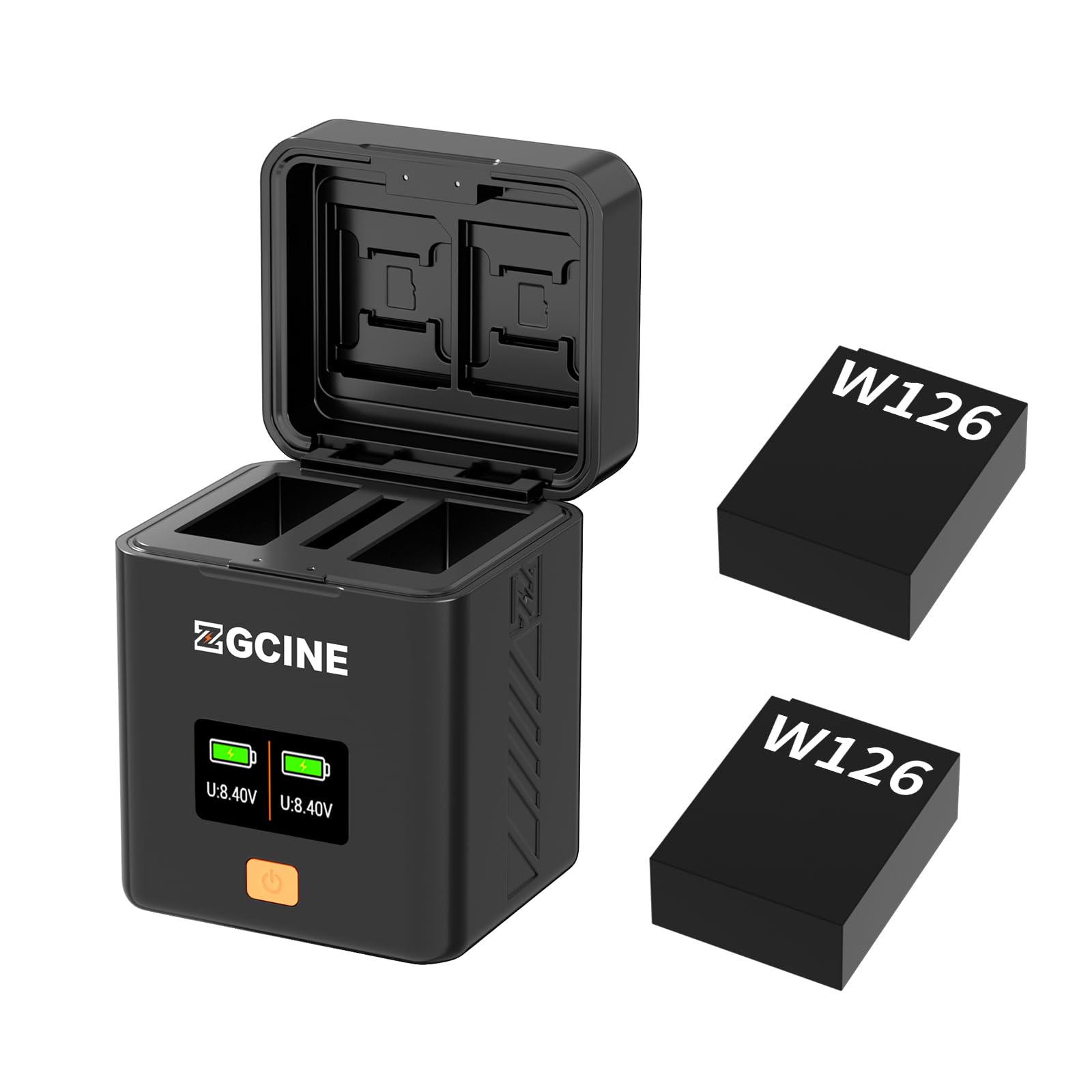
Image: The ZGCINE PS-W126 charging case, showcasing its compact design, dual battery compartments, USB-C input port, and the integrated OLED display. Memory card slots are visible on the side.
3. Setup
Powering the Charger
- Connect the provided USB-C charging cable to the USB-C input port on the ZGCINE PS-W126.
- Connect the other end of the USB-C cable to a compatible USB-C power adapter (not included) that supports PD (Power Delivery) with 5V/3A or 9V/3A output.
- The OLED display will illuminate, indicating the charger is powered on and ready for use.
Inserting Batteries
- Open the battery compartment cover on the ZGCINE PS-W126.
- Align your Fujifilm NP-W126 batteries with the battery slots, ensuring the contacts match correctly.
- Gently push the batteries into the slots until they are securely seated. The OLED display will show the charging status for each inserted battery.
4. Operating
Charging Process
Once batteries are correctly inserted and the charger is powered, the ZGCINE PS-W126 will automatically begin charging. The OLED display provides real-time information on the charging status of each battery.
OLED Display Information
The 0.96-inch OLED screen displays critical information, including:
- Battery Level: Shows the current charge percentage for each battery.
- Charging Status: Indicates if a battery is charging, fully charged, or if an error has occurred.
- Input/Output Voltage: May display current voltage information.
Memory Card Storage
The PS-W126 features integrated slots for memory card storage:
- Two (2) SD Card Slots
- Two (2) TF (MicroSD) Card Slots
- One (1) CFE Type-B Card Slot
These slots are for storage only and do not provide data transfer functionality. Insert cards carefully into their respective slots for secure keeping.
5. Maintenance
Cleaning
To maintain the charger's performance and appearance:
- Ensure the device is powered off and disconnected from any power source before cleaning.
- Use a soft, dry cloth to wipe the exterior of the charger.
- Do not use liquid cleaners, solvents, or abrasive materials, as these can damage the device.
- Keep the battery contacts clean and free of dust or debris.
Storage
When not in use, store the ZGCINE PS-W126 in a cool, dry place, away from direct sunlight and extreme temperatures. Remove batteries if storing for extended periods.
6. Troubleshooting
Common Issues and Solutions
- Charger not powering on: Ensure the USB-C cable is securely connected to both the charger and a compatible PD power adapter. Verify the power adapter is functioning correctly.
- Batteries not charging: Check that batteries are inserted correctly with contacts aligned. Ensure the charger is receiving adequate power. If a battery is severely depleted or damaged, it may not charge.
- OLED display not working: Confirm the charger is powered. If the issue persists, contact customer support.
- Slow charging: Ensure your power adapter supports USB-C PD with 5V/3A or 9V/3A output for optimal charging speed.
7. Specifications
Technical Specifications
| Feature | Detail |
|---|---|
| Brand | ZGCINE |
| Model Number | PS-W126 |
| Compatible Batteries | Fujifilm NP-W126 |
| Input Connector Type | USB Type C (PD) |
| Input Voltage | 5V/3A; 9V/3A |
| Output Voltage | 8.4V/1A * 2 |
| Special Feature | Fast Charging, OLED Display, Card Storage |
| Card Slots | 2x SD, 2x TF, 1x CFE Type-B |
| Net Weight | 135g |
| Dimensions | 66mm * 62mm * 84mm |
| UPC | 746555915795 |
| ASIN | B0DSJQ95Z1 |
8. Warranty and Support
Warranty Information
The ZGCINE PS-W126 charging case typically comes with a manufacturer's warranty covering defects in materials and workmanship for a specified period. Please refer to the warranty card included in your package or contact ZGCINE customer support for detailed warranty terms and conditions.
Customer Support
For technical assistance, troubleshooting, or warranty claims, please contact ZGCINE customer support through their official website or the retailer where the product was purchased. Have your model number (PS-W126) and proof of purchase ready when contacting support.
