Introduction
This manual provides detailed instructions for the GOWENIC 68 Keys 60% Mechanical Keyboard. This compact keyboard features a 68-key layout, multiple connection modes (2.4G wireless, Bluetooth 3.0/5.0, and Type-C wired), dynamic RGB backlighting, and a built-in rechargeable battery. It is designed for compatibility with various operating systems including Windows, HarmonyOS, and Android.
Please read this manual thoroughly before using the keyboard to ensure proper setup and operation.

Image: The GOWENIC 68 Keys Mechanical Keyboard, highlighting its compact design and retaining essential functions for efficient use.
Setup
1. Unpacking and Initial Inspection
Carefully remove all components from the packaging. Ensure the following items are present:
- 1 x GOWENIC Mechanical Keyboard
- 1 x USB Adapter (for 2.4G wireless connection)
- 1 x Data Cable (Type-C to USB-A, for wired connection and charging)
- 1 x Keycap Puller
- 1 x User Manual (this document)
2. Charging the Keyboard
The keyboard features a built-in 3000mAh Li-Ion battery. Before first use, or when the battery is low, connect the keyboard to a power source using the provided Type-C data cable. The keyboard can be used while charging in wired mode.
- Connect the Type-C end of the data cable to the keyboard's Type-C port.
- Connect the USB-A end of the data cable to a computer's USB port or a USB wall adapter (not included).
- The charging indicator (if present) will show the charging status. Refer to the keyboard's specific indicator behavior for details.
3. Connection Modes
The GOWENIC keyboard supports three connection methods: 2.4G wireless, Bluetooth, and Type-C wired.

Image: The GOWENIC 68 Keys Mechanical Keyboard illustrating its three versatile connection options: 2.4G wireless via USB adapter, Bluetooth, and a direct Type-C wired connection.
3.1. 2.4G Wireless Connection
- Locate the USB adapter included in the package.
- Plug the USB adapter into an available USB port on your computer.
- Turn on the keyboard. The keyboard should automatically connect to the adapter.
- If connection is not established, refer to the troubleshooting section or specific key combinations for 2.4G pairing (often Fn + a specific key, check keyboard markings).
3.2. Bluetooth 3.0/5.0 Connection
- Ensure Bluetooth is enabled on your device (PC, laptop, tablet, or smartphone).
- Turn on the keyboard.
- Activate Bluetooth pairing mode on the keyboard. This typically involves pressing a function key combination (e.g., Fn + Q, W, or E) to select a Bluetooth channel and then holding it to enter pairing mode. The indicator light will usually flash rapidly.
- On your device, search for new Bluetooth devices. The keyboard should appear as "GOWENIC Keyboard" or a similar name.
- Select the keyboard to pair. Follow any on-screen prompts.
- Once paired, the indicator light on the keyboard will become solid or turn off, depending on the model.
3.3. Type-C Wired Connection
- Connect the Type-C end of the provided data cable to the keyboard's Type-C port.
- Connect the USB-A end of the data cable to an available USB port on your computer.
- The keyboard will be automatically recognized by your computer and ready for use. This mode also charges the keyboard's battery.
Operating Instructions
1. Keyboard Layout and Function Keys
The GOWENIC 68 Keys keyboard features a compact 60% layout, retaining essential functionality through a combination of standard keys and function key (Fn) shortcuts. Familiarize yourself with the layout and secondary functions marked on the keycaps.

Image: A detailed view of the GOWENIC 68 Keys Mechanical Keyboard's layout, showing the arrangement of keys and their primary functions.
- Fn Key: Press and hold the Fn key to access secondary functions printed on various keycaps (e.g., multimedia controls, arrow keys, F-keys).
- Arrow Keys: Typically accessed via Fn + specific keys (e.g., Fn + W/A/S/D or Fn + I/J/K/L, depending on the model).
- Page Up/Down, Home/End: These functions are usually combined with other keys and accessed via the Fn key.
2. Dynamic RGB Backlighting
The keyboard features dynamic RGB backlighting with multiple modes. You can adjust the lighting effects, speed, and brightness to your preference.
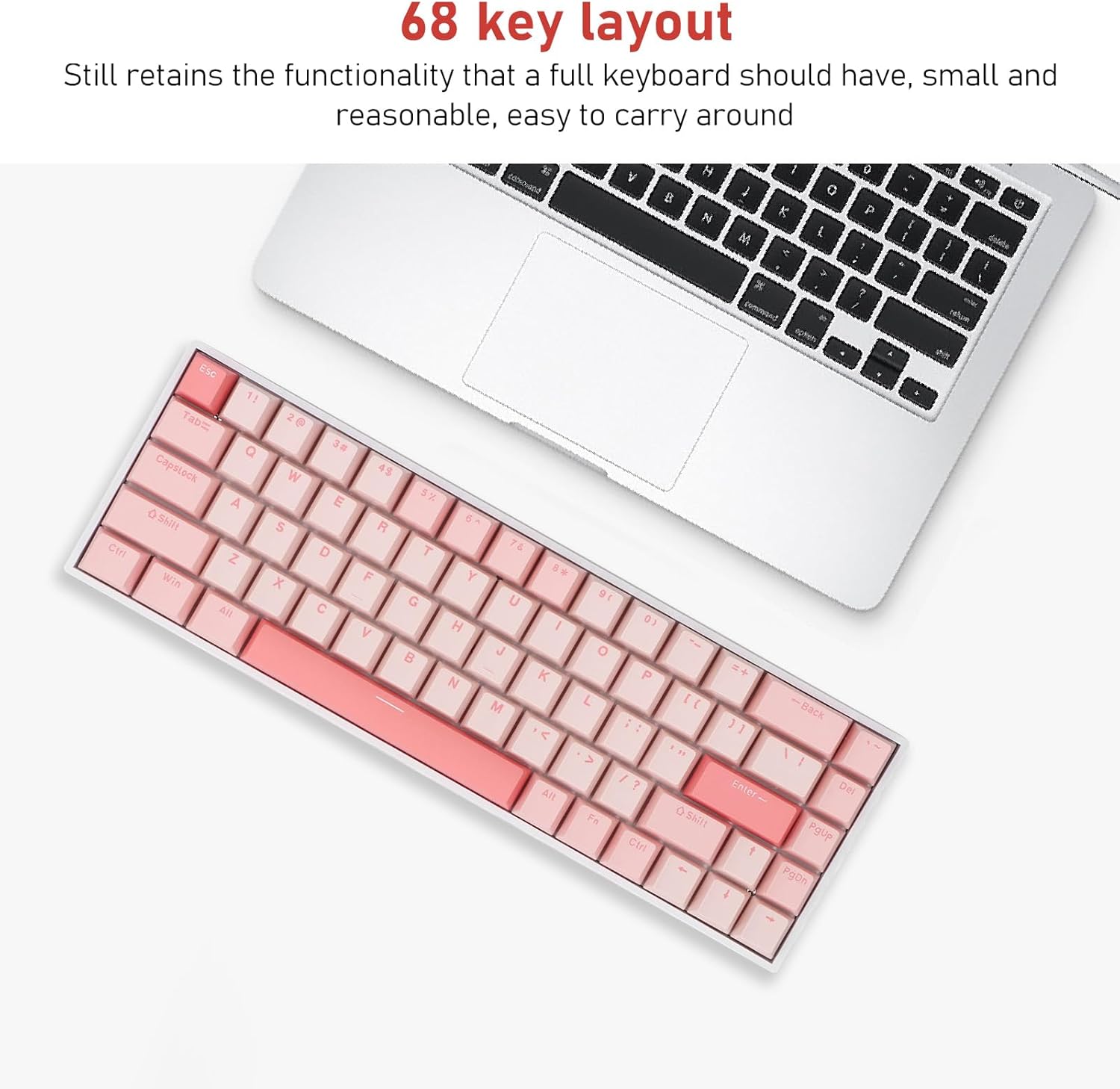
Image: The GOWENIC 68 Keys Mechanical Keyboard showcasing its dynamic RGB backlighting, with various colors illuminating the keys.
- Switching Modes: Use the Fn key in combination with a designated key (e.g., Fn + \| or Fn + P) to cycle through different RGB lighting effects.
- Adjusting Brightness: Use Fn + ↑ (Up Arrow) to increase brightness and Fn + ↓ (Down Arrow) to decrease brightness.
- Adjusting Speed: Use Fn + ← (Left Arrow) to slow down the lighting effect speed and Fn + → (Right Arrow) to speed it up.

Image: The GOWENIC 68 Keys Mechanical Keyboard with its RGB lighting actively displaying a colorful gradient across the keys.
3. Full Key Hot Swap
This keyboard supports full key hot-swapping, allowing you to change mechanical switches without soldering. Use the provided keycap puller and a switch puller (not included) to replace switches. Ensure the new switches are compatible with the keyboard's sockets.
Maintenance
Proper maintenance ensures the longevity and performance of your keyboard.
- Cleaning: Regularly clean the keyboard with a soft, dry cloth. For dust and debris between keycaps, use compressed air. For stubborn stains, slightly dampen a cloth with water or a mild cleaning solution (avoid harsh chemicals).
- Keycap Removal: Use the included keycap puller to carefully remove keycaps for deeper cleaning or replacement. Pull straight up to avoid damaging the switch.
- Storage: When not in use for extended periods, store the keyboard in a dry, cool place away from direct sunlight and extreme temperatures.
- Battery Care: Avoid fully discharging the battery frequently. Charge the keyboard when the battery is low.
Troubleshooting
If you encounter issues with your GOWENIC keyboard, refer to the following common solutions:
| Problem | Possible Solution |
|---|---|
| Keyboard not responding (Wired) |
|
| Keyboard not responding (2.4G Wireless) |
|
| Keyboard not responding (Bluetooth) |
|
| RGB lighting not working or stuck |
|
| Keys not registering or double-typing |
|
Specifications
| Feature | Detail |
|---|---|
| Model Number | GOWENICtvnmdqp6e2 |
| Key Layout | 68 Keys (60% Mechanical) |
| Switch Type | Blue Switch |
| Connection Method | 2.4G Wireless, Bluetooth 3.0/5.0, Type-C Wired |
| Lighting | RGB Multiple Lighting Modes |
| Key Rollover | Full Key Non-Conflict |
| Battery Capacity | Built-in 3000mAh Li-Ion Battery |
| Ergonomics | Supported |
| Hot Swap | Full Key Hot Swap |
| Padding | Dual Layer Padding (Interlayer Cotton and Bottom Cotton) |
| Compatible Systems | Windows 2000, ME, Vista, 7, 8, 10; HarmonyOS; Android |
| Item Weight | 1.54 pounds |
| Package Dimensions | 12.99 x 5.51 x 1.57 inches |
Warranty and Support
For warranty information and customer support, please refer to the documentation provided with your purchase or contact the retailer/manufacturer directly. Keep your proof of purchase for warranty claims.