
1. Introduction
Thank you for choosing the Tapo L535E Smart Light Bulb. This bulb offers advanced smart lighting features, including millions of colors, tunable white light, dimming capabilities, and Matter certification for broad compatibility. This manual provides essential information for safe installation, setup, operation, and maintenance of your smart light bulb.

Image 1.1: Tapo L535E Multicolor Dimmable Smart Light Bulb.
2. What's in the Box
Your Tapo L535E Smart Light Bulb package includes the following items:
- 4 × Tapo L535E Smart Light Bulbs
- 1 × User Manual
- 1 × Matter QR Code Card
3. Safety Information
Please read and follow all safety instructions before installing or operating your Tapo L535E Smart Light Bulb:
- Risk of Electric Shock: Do not install with wet hands or when standing on wet or damp surfaces.
- Indoor Use Only: This device is designed for indoor use in dry locations. Do not use where directly exposed to water.
- Not for Enclosed Fixtures: Not suitable for use in totally enclosed luminaires. This may reduce product life.
- Dimmer Compatibility: Not for use with standard dimmers. Dimming is controlled via the Tapo app or compatible smart home platforms.
- Operating Temperature: Ensure the operating environment is within the specified temperature range for the bulb.
- Emergency Lighting: Not intended for emergency lighting.
- Weight: Increased weight of the bulb may reduce the mechanical stability of certain luminaires and lampholders and may impair contact making and lamp retention.
4. Setup
4.1 Physical Installation
- Power Off: Ensure the power to the light fixture is turned off at the switch before installation.
- Screw In: Carefully screw the Tapo L535E bulb into a standard E26 light socket. Do not overtighten.
- Power On: Turn the power back on at the switch. The bulb should light up, indicating it's ready for pairing.
4.2 App Download and Account Creation
- Download the Tapo app from the Apple App Store or Google Play Store.
- Open the Tapo app and create a new TP-Link ID or log in with an existing one.
4.3 Pairing Your Smart Light Bulb (Matter Setup)
The Tapo L535E is Matter-certified, allowing integration with various smart home ecosystems like Apple Home, Alexa, Google Home, and SmartThings. A Matter-compatible hub is required for some platforms.

Image 4.1: Examples of Matter-compatible hubs for various platforms.
- Ensure your Matter-compatible hub (e.g., Apple HomePod, Amazon Echo, Google Nest Hub) is set up and connected to your home network.
- Open the Tapo app, tap the + icon in the top right corner, and select your L535E bulb.
- Follow the in-app instructions to connect the bulb to your Wi-Fi network.
- When prompted, scan the Matter QR code located on the bulb itself or on the included Matter QR Code Card.

Image 4.2: Location of the Matter QR code on the Tapo L535E bulb.
For detailed Matter setup guides and troubleshooting, visit the official TP-Link support page: TP-Link Matter FAQ

Image 4.3: The Tapo L535E integrates seamlessly into various Matter-compatible smart home ecosystems.
5. Operating Instructions
5.1 Basic On/Off and Dimming
- Tapo App: Use the Tapo app to turn the bulb on or off, and adjust brightness from 1% to 100%.
- Voice Control: Use voice commands with your connected smart assistant (Alexa, Google Assistant, Siri) to turn the bulb on/off or dim it.
5.2 Color Control
The Tapo L535E offers millions of colors to customize your lighting experience.

Image 5.1: The Tapo L535E offers millions of colors for various moods and activities.
- Tapo App: In the Tapo app, navigate to the bulb's control screen and select the 'Color' tab to choose from a color wheel or preset scenes.
- Voice Control: Command your smart assistant to change the bulb's color (e.g., "Alexa, change light to blue").
5.3 Tunable White Control
Adjust the white light from warm (2500K) to cool (6500K) to suit your needs.

Image 5.2: Adjust white light from warm (2500K) to cool (6500K).
- Tapo App: In the Tapo app, select the 'White Light' tab to adjust the color temperature slider.
- Voice Control: Use commands like "Hey Google, set light to warm white" or "Siri, set light to daylight."
5.4 Voice Control
Integrate your Tapo L535E with Amazon Alexa, Google Assistant, or Apple Home (Siri) for hands-free control.

Image 5.3: Control your Tapo L535E with simple voice commands.
- Follow the instructions in your smart assistant's app to link your Tapo account or add Matter devices.
- Use commands such as:
- "Alexa, turn on the bedroom light."
- "Hey Google, dim the living room light to 50%."
- "Siri, change the kitchen light to red."
5.5 Scheduling and Timers
Automate your lighting to fit your daily routine.
- Schedules: In the Tapo app, set schedules for your bulb to turn on/off, change brightness, or adjust color at specific times.
- Timers: Use the timer function to automatically turn off the light after a set duration.
5.6 Energy Monitoring
Track your bulb's energy consumption directly from the Tapo app.

Image 5.4: Monitor energy usage in the Tapo app to optimize consumption.
- Open the Tapo app and select your L535E bulb.
- Navigate to the 'Usage' section to view real-time and historical energy consumption data.
6. Maintenance
- Cleaning: Ensure the bulb is off and cool before cleaning. Wipe with a soft, dry cloth. Do not use liquid or abrasive cleaners.
- Firmware Updates: Regularly check for firmware updates via the Tapo app to ensure optimal performance and security.
- Storage: If storing the bulb for an extended period, keep it in a cool, dry place away from direct sunlight.
7. Troubleshooting
7.1 Bulb Not Turning On
- Check if the light switch is on.
- Ensure the bulb is screwed in properly and making good contact with the socket.
- Test the socket with another working bulb to rule out fixture issues.
7.2 Bulb Not Connecting to Wi-Fi/App
- Ensure your Wi-Fi network is 2.4 GHz. Tapo smart bulbs do not support 5 GHz Wi-Fi.
- Move the bulb closer to your Wi-Fi router during setup.
- Restart your Wi-Fi router.
- Try resetting the bulb: Turn the light switch OFF-ON five times (1-2 seconds interval) until the bulb flashes, indicating it's in pairing mode.
- Ensure your phone is connected to the same 2.4 GHz Wi-Fi network during setup.
7.3 Voice Control Not Working
- Verify that your Tapo account is correctly linked to your smart assistant (Alexa, Google Home, Apple Home).
- Check your internet connection.
- Ensure the bulb is online in the Tapo app.
- Try re-syncing devices in your smart assistant's app (e.g., "Alexa, discover devices").
8. Specifications
| Feature | Specification |
|---|---|
| Model | Tapo L535E |
| Light Type | LED |
| Bulb Shape Size | A19 |
| Bulb Base | E26 |
| Wattage | 9.5 W |
| Incandescent Equivalent | 75 W |
| Light Output | 1100 Lumens |
| Color Temperature | 2500K - 6500K (Tunable White) |
| Light Color | RGBW (Multicolor) |
| Color Rendering Index (CRI) | >90 |
| Beam Angle | 220 degrees |
| Voltage | 120 V ~ 60 Hz |
| Connectivity | Wi-Fi (2.4 GHz only), Matter |
| Control Method | App, Remote, Voice |
| Indoor/Outdoor Usage | Indoor |
| Special Features | Color Changing, Dimmable, Energy Efficient, Timer, Tunable |

Image 8.1: The Tapo L535E provides 1100 lumens, equivalent to a 75W incandescent bulb.

Image 8.2: High Color Rendering Index (CRI) of over 90 for vivid, true-to-life colors.
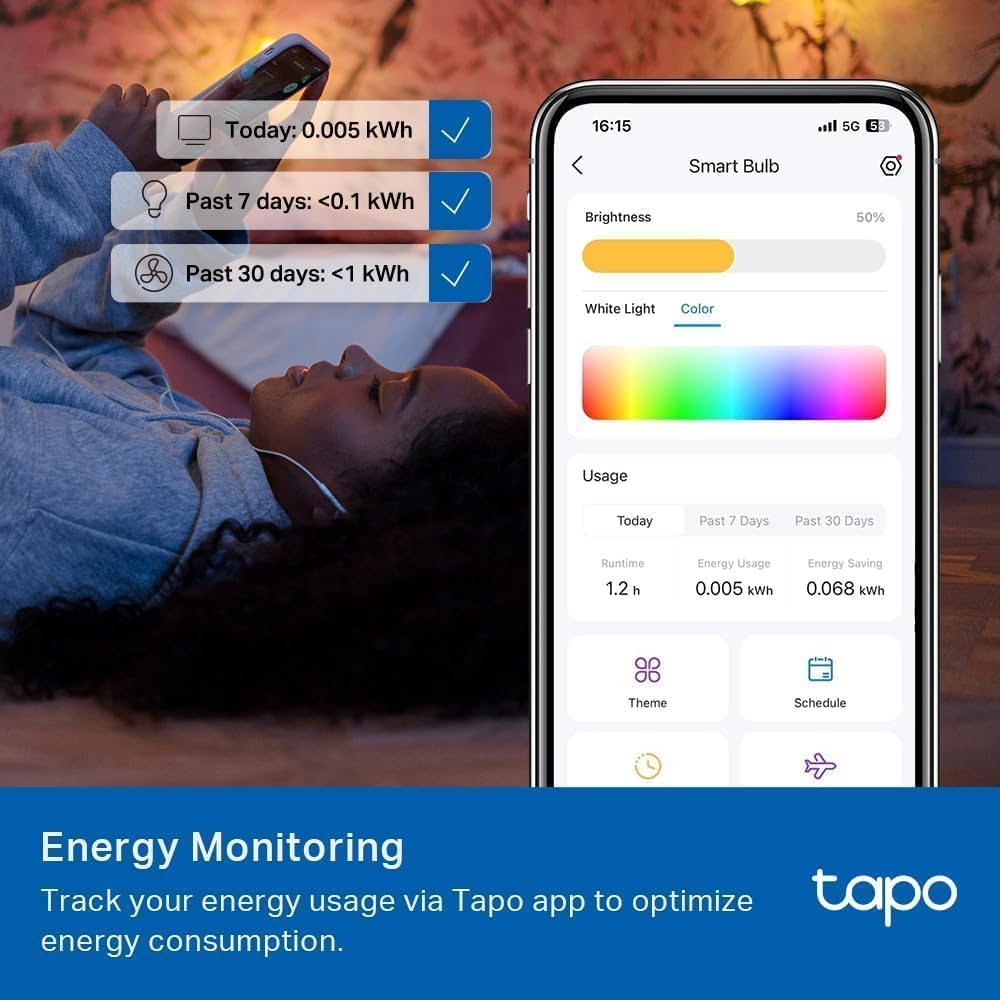
Image 8.3: The Tapo L535E LED bulb offers significant energy savings compared to incandescent bulbs.
9. Warranty Information
The Tapo L535E Smart Light Bulb comes with a 2-year manufacturer's warranty from the date of purchase. Please retain your proof of purchase for warranty claims. The warranty covers defects in materials and workmanship under normal use. It does not cover damage caused by misuse, accidents, unauthorized modifications, or use in unsuitable environments.
10. Support
For further assistance, technical support, or to access the latest user guides and FAQs, please visit the official Tapo support website:
You can also contact Tapo customer support directly through the contact information provided on the support website.