
Colesma bddb0dfb-c656-4a86-9089-b5b81030e49d
Colesma 1.59" HD Smart Watch for Women User Manual
Model: bddb0dfb-c656-4a86-9089-b5b81030e49d
1. Introduction
Thank you for choosing the Colesma 1.59" HD Smart Watch. This device is designed to enhance your daily life with features such as Bluetooth calling, comprehensive health monitoring, and fitness tracking. This manual provides detailed instructions to help you get started and make the most of your new smart watch.
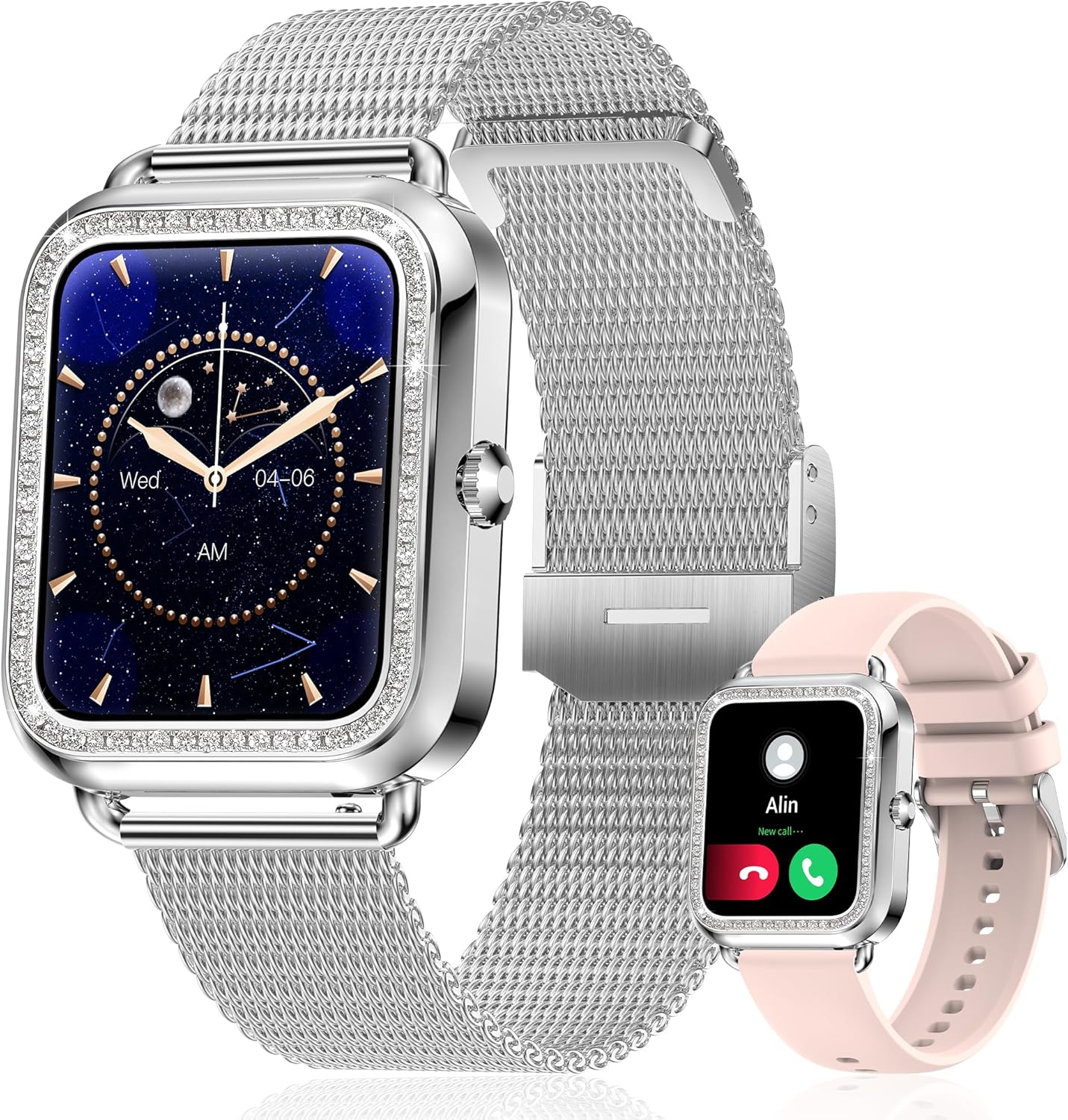
Figure 1: Colesma 1.59" HD Smart Watch

Figure 2: Key Features of the Colesma Smart Watch
2. Setup
2.1 What's in the Box
- 1x Watch Body
- 2x Watch Bands (one metal, one silicone)
- 1x Charging Cable
- 1x User Manual

Figure 3: Package Contents and Dimensions
2.2 Strap Installation
The watch comes with two interchangeable bands. Follow these steps to attach or remove the watch strap:
- To remove: Locate the small pin on the underside of the strap where it connects to the watch. Slide the pin inwards to release the strap.
- To install: Align one end of the strap's pin with the groove hole on the watch. Press the other side of the pin inwards, align it with the opposite groove, and release. Gently move the strap left and right to ensure it is securely fastened.
Video 1: How to Remove and Install the Watch Strap
2.3 App Installation and Device Pairing
To unlock the full functionality of your smart watch, download and connect it to the FitCloudPro app on your smartphone.
- Ensure Bluetooth is enabled on your smartphone.
- Download the 'FitCloudPro' app from the Google Play Store (for Android) or the App Store (for iOS). You can also scan the QR code provided in the product packaging or visit http://fitcloud.hetangsmart.com/qrcode/.
- Open the FitCloudPro app, navigate to the 'Device' section, and search for 'I68' to bind your watch.
- For call functionality: After binding the watch in the app, go to your phone's Bluetooth settings. Find 'Watch Call' in the list of available devices and connect to it. Once connected, you can make and receive calls directly from your watch.

Figure 4: App Download and Bluetooth Call Connection Steps
Video 2: Connecting the Call Bluetooth Feature
3. Operating Instructions
3.1 Basic Navigation
The smart watch features a 1.59" HD full touch screen. Swipe left, right, up, or down to access different menus and functions. The side button typically serves as a power button or a return-to-home screen button.
3.2 Customizing Watch Faces
Personalize your watch with over 180 watch faces available in the FitCloudPro app, or create your own using your favorite photos.
- Open the FitCloudPro app and navigate to the 'Watchface' section.
- Browse available watch faces or select the option to customize with your own image.
- Choose your desired watch face and sync it to your watch.
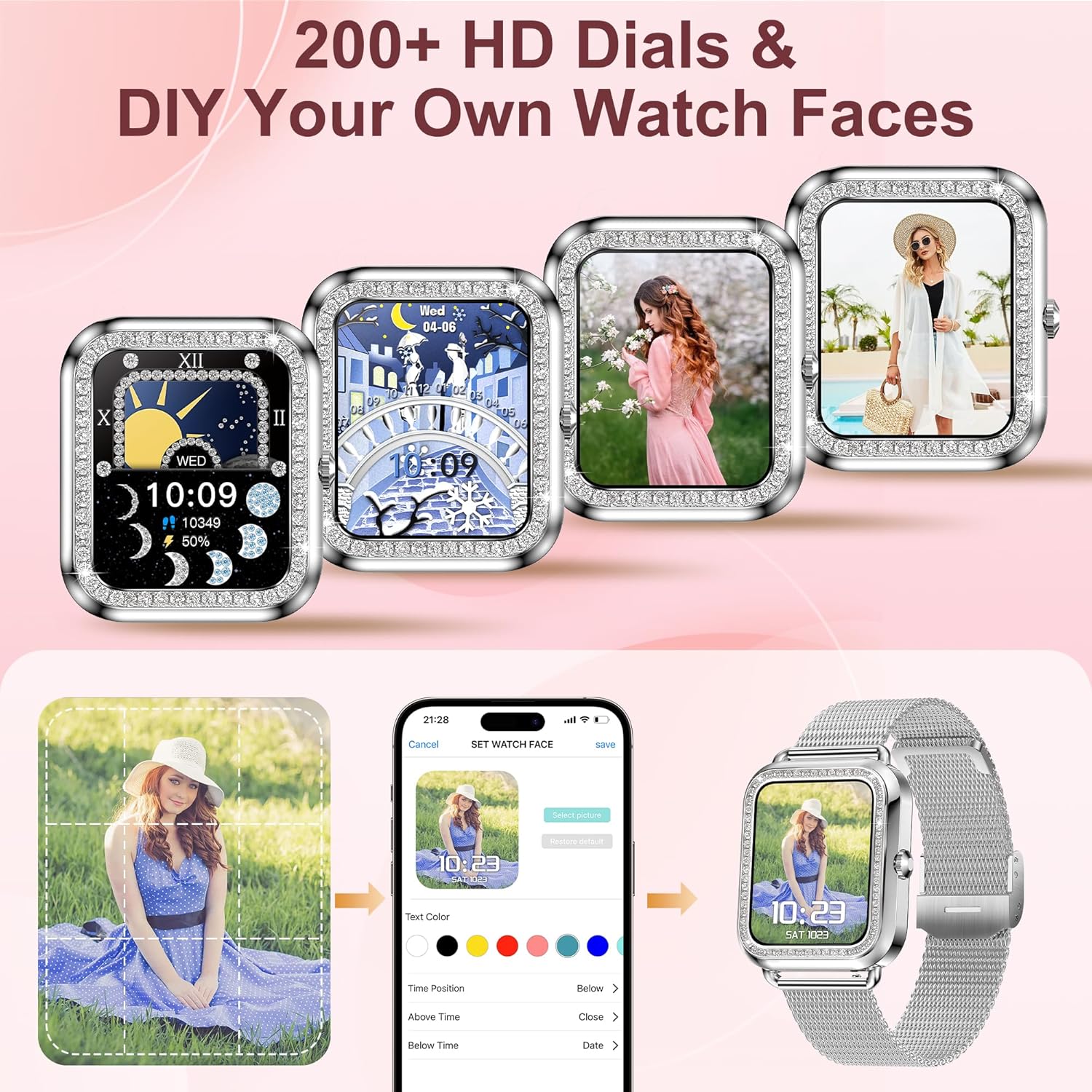
Figure 5: Watch Face Customization Options
Video 3: How to DIY Your Watch Face
3.3 Call and Message Notifications
Once connected via Bluetooth, you can make/receive calls and get notifications from various apps (e.g., SMS, Facebook, WhatsApp, Instagram, X) directly on your watch. The watch saves call and message records.

Figure 6: Bluetooth Call and Message Notification Features
3.4 Voice Assistant
Activate your phone's AI assistant (Siri, Bixby, Google, etc.) directly from your watch. This allows you to control music playback, set alarms, and perform other tasks using voice commands.

Figure 7: Bluetooth Call and AI Voice Assistant
3.5 Health Monitoring
The watch features advanced sensors for continuous health monitoring. Data can be synced to the FitCloudPro app for analysis.
- Heart Rate: Real-time heart rate tracking.
- Blood Pressure: Monitor your blood pressure.
- SpO2: Measure your blood oxygen levels.
- Sleep Monitor: Tracks sleep duration and identifies sleep states (deep, light, awake).
- Female Health: Provides menstrual cycle tracking and reminders.
Note: The monitoring data from the fitness watch is for reference only and cannot be used for medical purposes.

Figure 8: Health and Sleep Tracking

Figure 9: All-Day Health Monitoring

Figure 10: Women's Health Care Features
3.6 Fitness Tracking and Sports Modes
The watch records daily steps, distance, and calorie consumption. It supports over 120 sports modes, including cycling, running, yoga, and sit-ups, to help you track your workouts scientifically.

Figure 11: Activity Tracking

Figure 12: Multiple Sports Modes
3.7 Raise to Wake
Enable the 'Raise to Wake' feature in the FitCloudPro app to automatically turn on the screen when you raise your wrist. You can set specific time periods for this feature to avoid disturbances, for example, during sleep.
Video 4: How to Set Up the Raise to Wake Feature
3.8 Other Features
The smart watch includes additional useful functions:
- Weather Forecast: Get real-time weather updates.
- Music Control: Control music playback on your phone.
- Camera Control: Use your watch as a remote shutter for your phone's camera.
- Find Phone: Locate your misplaced phone by triggering an alarm.
- Sedentary & Drink Reminders: Receive alerts to move or drink water.

Figure 13: Utility Features
4. Maintenance
4.1 Charging
Charge your watch using the provided magnetic charging cable. A full charge typically takes 2.5 hours, providing 3-7 days of normal use and up to 25 days of standby time.
Important: If using a charging adapter, the recommended voltage is 5V. Do not use power adapters exceeding 5V/2A to prevent damage.

Figure 14: Charging and Battery Life
4.2 Water Resistance
The watch is IP67 waterproof, meaning it can withstand splashes, rain, and brief immersion. It is suitable for daily activities like washing hands.
Caution: Not recommended for use in hot water, saunas, or steam rooms, as high temperatures and steam can compromise the water resistance.
5. Troubleshooting
If you encounter any issues with your Colesma Smart Watch, please refer to the following common solutions or contact customer support.
- Watch not turning on: Ensure the watch is fully charged. Connect it to the charging cable and allow it to charge for at least 30 minutes before attempting to power it on.
- Cannot pair with phone: Ensure Bluetooth is enabled on your phone and the watch. Make sure the FitCloudPro app is installed and you are attempting to pair through the app's device management section. For call functionality, remember to connect 'Watch Call' separately in your phone's Bluetooth settings.
- Inaccurate health data: Ensure the watch is worn snugly on your wrist, not too tight or too loose. Clean the sensor on the back of the watch regularly. Remember that data is for reference only and not for medical diagnosis.
- Notifications not appearing: Check app permissions for FitCloudPro on your phone to ensure it has access to notifications. Verify that notifications are enabled within the FitCloudPro app settings for specific applications.
- Short battery life: Battery life can vary based on usage. Frequent use of call functions, continuous health monitoring, and high screen brightness can reduce battery duration. Try reducing screen brightness or disabling continuous monitoring if not needed.
6. Specifications
| Feature | Detail |
|---|---|
| Screen Size | 1.59 Inches |
| Operating System | Android & iOS |
| Connectivity Technology | Bluetooth |
| Water Resistance | IP67 |
| Battery Capacity | 210 Milliamp Hours |
| Item Weight | 7 ounces |
| Item Model Number | bddb0dfb-c656-4a86-9089-b5b81030e49d |
| Manufacturer | Colesma |
7. Warranty and Support
Colesma is committed to providing excellent customer service and product support.
- Lifetime Support: We offer lifetime support and solutions for our products.
- 24-Hour Service: Quick service is available via email.
- 30-Day Return Policy: Enjoy a 30-day no-reason return policy.
- 2-Year Replacement: A 2-year free replacement policy is provided for eligible issues.
For further assistance, please contact Colesma customer support through the contact information provided with your purchase or on the official Colesma website.
Related documentsbddb0dfb-c656-4a86-9089-b5b81030e49d


Ask a question about this manual
Ask about setup, troubleshooting, compatibility, parts, safety, or missing instructions. Manuals+ will review the question and use this page’s manual context to help answer it.