1. Introduction
The ZUCWO FireDrive Link is a wired CarPlay to HDMI converter designed to integrate your Fire TV Stick with your vehicle's infotainment system. This device allows you to stream video content from your Fire TV Stick directly to your car's display, enhancing in-car entertainment for passengers. It supports HD 1080P signal input, enabling high-quality video playback.

Image: The ZUCWO FireDrive Link device, a compact black unit with USB connectors, designed to connect a Fire TV Stick to a car's CarPlay system.
2. Important Compatibility Notice
- TV-Sticks are not included with this product.
- This device does not support wired CarPlay to wireless CarPlay conversion.
- Not compatible with certain vehicle models, including but not limited to trucks, the 2021 Ford F150, Chevrolet, Mazda, Subaru, and BMW.
- Ensure your car supports Wired CarPlay before attempting to use this device. For compatibility concerns, contact customer service for assistance.

Image: A graphic illustrating car models compatible with the FireDrive Link, indicating compatibility with over 800 vehicles that have wired CarPlay, while explicitly listing Chevrolet, Mazda, and Subaru as incompatible.
3. Package Contents
The package includes the following item:
- FireDrive Link Adapter
4. Setup Instructions
Follow these steps to connect and set up your ZUCWO FireDrive Link:
- Step 1: Connect to Car's CarPlay and Power Ports
Insert the Y-shaped cable. The shorter USB connector goes into the CarPlay port of your car. The longer USB connector should be inserted into a power supply port in your car. - Step 2: Connect Fire TV Stick to Adapter
Connect the Type-C connector into the base of your Fire TV Stick. Then, click the CarPlay icon on your car's screen to enter the main interface of the HD adapter. - Step 3: Insert External Device (Fire TV Stick)
Insert your external device (Fire TV Stick) into the HDMI port of the FireDrive Link adapter. You can now enjoy high-definition entertainment on your car's display.

Image: A visual guide detailing the three steps for connecting the FireDrive Link: connecting the Y-cable to the car's CarPlay and power ports, connecting the adapter to the Fire TV Stick, and then inserting the Fire TV Stick into the adapter's HDMI port.
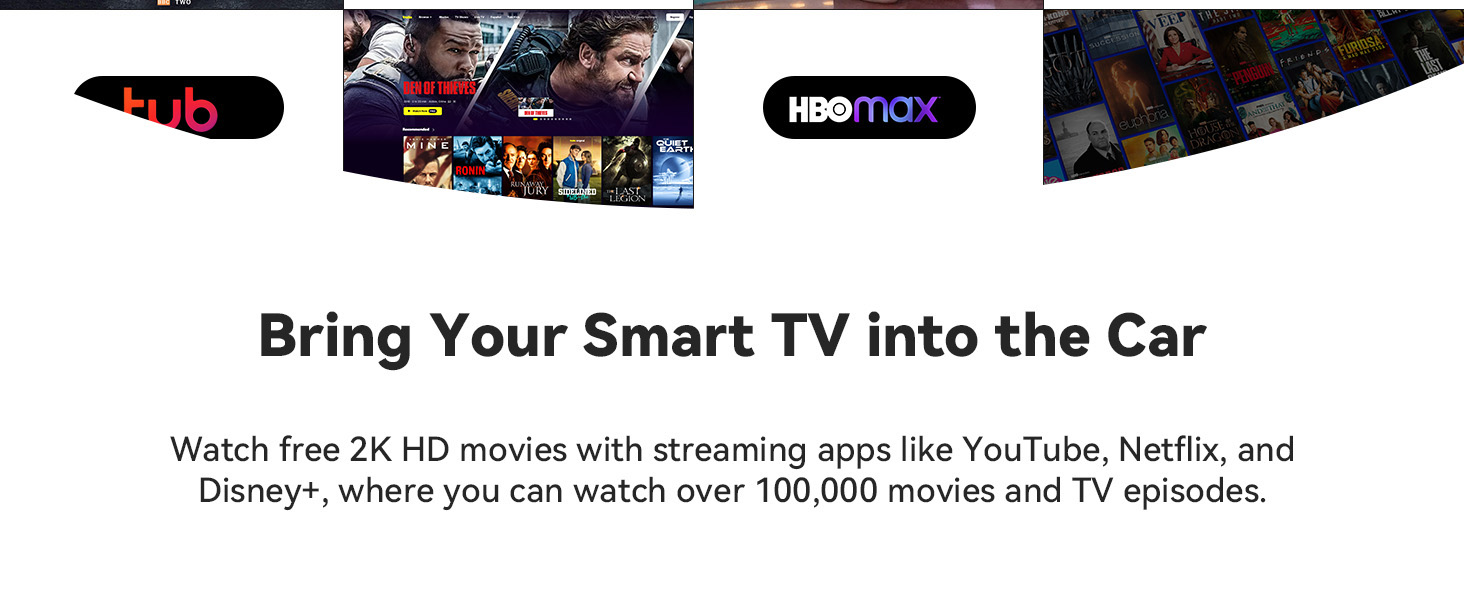
Image: A schematic diagram illustrating the connection flow from the car's CarPlay and power ports to the FireDrive Link, and then to the Fire TV Stick via HDMI, with the output displayed on the car's screen.
5. Operating Instructions
Once the FireDrive Link and Fire TV Stick are successfully connected and powered, the content from your Fire TV Stick will be displayed on your car's screen. You can navigate and control your Fire TV Stick using its remote control, just as you would with a home television setup.
- High Definition Output: The adapter supports a maximum output resolution of 2K, allowing for clear and vibrant video playback.
- Streaming Content: Enjoy various streaming services and apps installed on your Fire TV Stick, such as YouTube, Netflix, Disney+, and more, directly on your car's display.

Image: An in-car view demonstrating the FireDrive Link in use, with a hand holding a Fire TV Stick remote control to navigate content displayed on the car's central screen, indicating 1080P Full HD resolution.

Image: A view from inside a car, showing the FireDrive Link adapter connected, with Netflix content ("Stranger Things") displayed on the car's infotainment screen, illustrating its function as a car TV multimedia adapter.
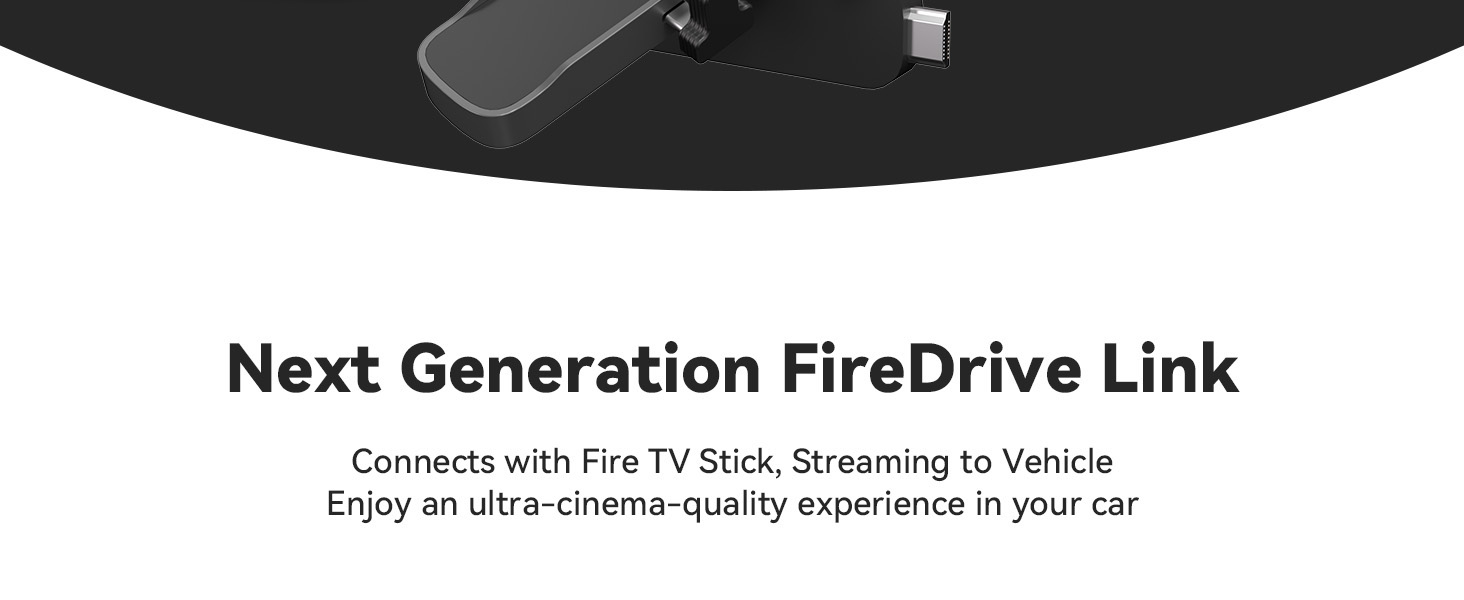
Image: A collage of logos for popular streaming services and apps, including Netflix, Prime Video, YouTube, Spotify, Disney+, Hulu, HBO Max, and Tubi, indicating the range of content available through the FireDrive Link.
6. OTA Update Method
The FireDrive Link supports Over-The-Air (OTA) updates to ensure optimal performance and compatibility. There are three methods for updating the device:
- Method 1: Car Recognized
- Set up a phone hotspot with the password "12345678".
- Connect the FireDrive Link device to your car's interface.
- On the device, navigate to Settings > Online Update > Enable WiFi.
- Select your phone's hotspot and follow the prompts to upgrade.
- Method 2: Car Not Recognized
- Power the device via USB.
- Enable your phone's hotspot with maximum compatibility and the password "12345678".
- After the device automatically connects to the hotspot, open a web browser on your phone and go to 54.251.178.108 to initiate the upgrade.
- Method 3: Upload Logs (for troubleshooting)
- Keep the device connected to your car's multimedia system.
- Enable your phone's hotspot (password: "12345678"); the device should auto-connect.
- On your phone's browser, visit 54.251.178.108.
- Click "Upload Log" and submit a screenshot of the UUID after successful upload.
Important Note: Do not disconnect power or internet during any upgrade process to prevent device damage.
7. Troubleshooting
If you encounter issues with your FireDrive Link, consider the following troubleshooting steps:
- No Display/Connection Issues:
- Ensure all cables are securely connected to their respective ports (CarPlay, power, HDMI).
- Verify that your car supports wired CarPlay. Refer to the "Important Compatibility Notice" section.
- Check if the Fire TV Stick is properly inserted into the HDMI port of the FireDrive Link.
- Confirm that the car's infotainment system is set to the correct input source (CarPlay).
- Audio Problems (Static/No Sound):
- If experiencing static or poor audio quality, try changing the audio output setting on your Fire TV Stick from Dolby to PCM.
- Ensure your car's audio system is functioning correctly and the volume is adjusted.
- Overheating/Random Reboots:
- Ensure the device has adequate ventilation. Avoid placing it in enclosed spaces where heat can build up.
- If overheating persists, disconnect the device and allow it to cool down before reconnecting.
- Update Failures:
- Ensure a stable internet connection during the OTA update process.
- Do not disconnect power or internet during an update.
- If an update fails, try a different update method or contact support.
For further assistance, please refer to the "Warranty and Support" section.
8. Specifications
| Feature | Specification |
|---|---|
| Brand | ZUCWO |
| Model Name | FireDrive Link |
| Model Number | US-ZH71-B |
| Color | Gray |
| Product Dimensions | 1.34 x 0.91 x 4.84 inches |
| Item Weight | 4.2 ounces |
| Connectivity Technology | HDMI |
| Connector Type | Micro USB |
| Resolution | 1080p (Max output 2K) |
| Supported Internet Services | Amazon TV (and other streaming apps via Fire TV Stick) |
| CPU | Cortex-A7 core |
| WiFi | 2.4G |
| Max Power Consumption | 5W |
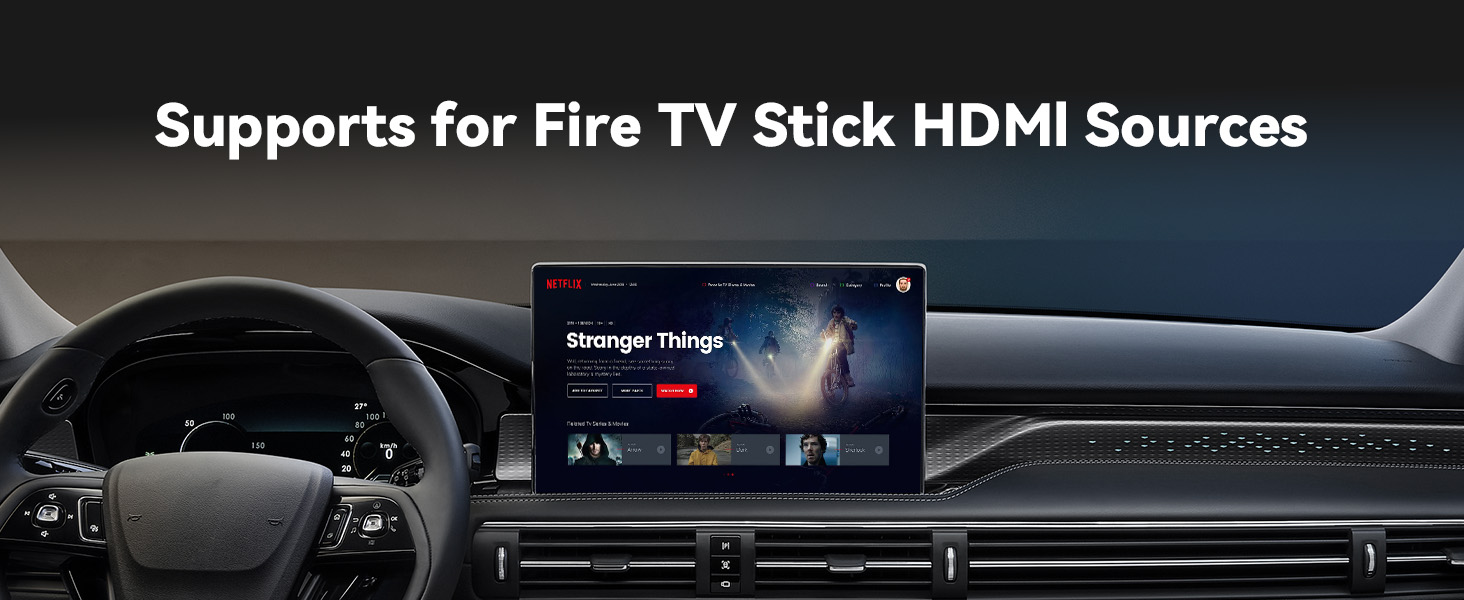
Image: A graphic displaying key technical specifications of the FireDrive Link, including 1080P HD Resolution, 2.4G WiFi, Cortex-A7 core CPU, and 5W maximum power consumption, alongside an image of the device in a car.
9. Warranty and Support
For warranty information or technical support, please contact ZUCWO customer service. Details for contacting support are typically provided with your product packaging or on the official ZUCWO website. When contacting support, please have your product model number (US-ZH71-B) and purchase information available.


