1. Introduction to Your Samsung Galaxy S25
This manual provides essential information for setting up, operating, and maintaining your Samsung Galaxy S25 smartphone. It covers key functionalities from initial setup to advanced features, ensuring users can maximize their device's potential.
The Samsung Galaxy S25 is designed to offer a seamless and powerful mobile experience. This guide will assist you in navigating its features, capturing high-quality photos, managing your daily tasks, and optimizing battery performance.
2. Initial Setup
Follow these steps to prepare your Galaxy S25 for first-time use.
- Unboxing: Carefully remove your Galaxy S25 and all accessories from its packaging. Verify that all components are present.
- SIM Card Insertion: Locate the SIM card tray on your device. Use the provided SIM ejector tool to open the tray. Insert your Nano-SIM card into the tray with the gold contacts facing down. Ensure it is correctly seated before reinserting the tray into the phone.
- Power On: Press and hold the Power button (typically on the right side of the device) until the Samsung logo appears.
- Initial Configuration: Follow the on-screen prompts to select your language, connect to a Wi-Fi network, and agree to the terms and conditions.
- Account Sign-in: Sign in with your Google account to access services like the Play Store and Gmail. You may also sign in with your Samsung account for additional device features and cloud services.
- Data Transfer (Optional): If upgrading from an old device, follow the instructions to transfer your data using Samsung Smart Switch or Google's data transfer tools.
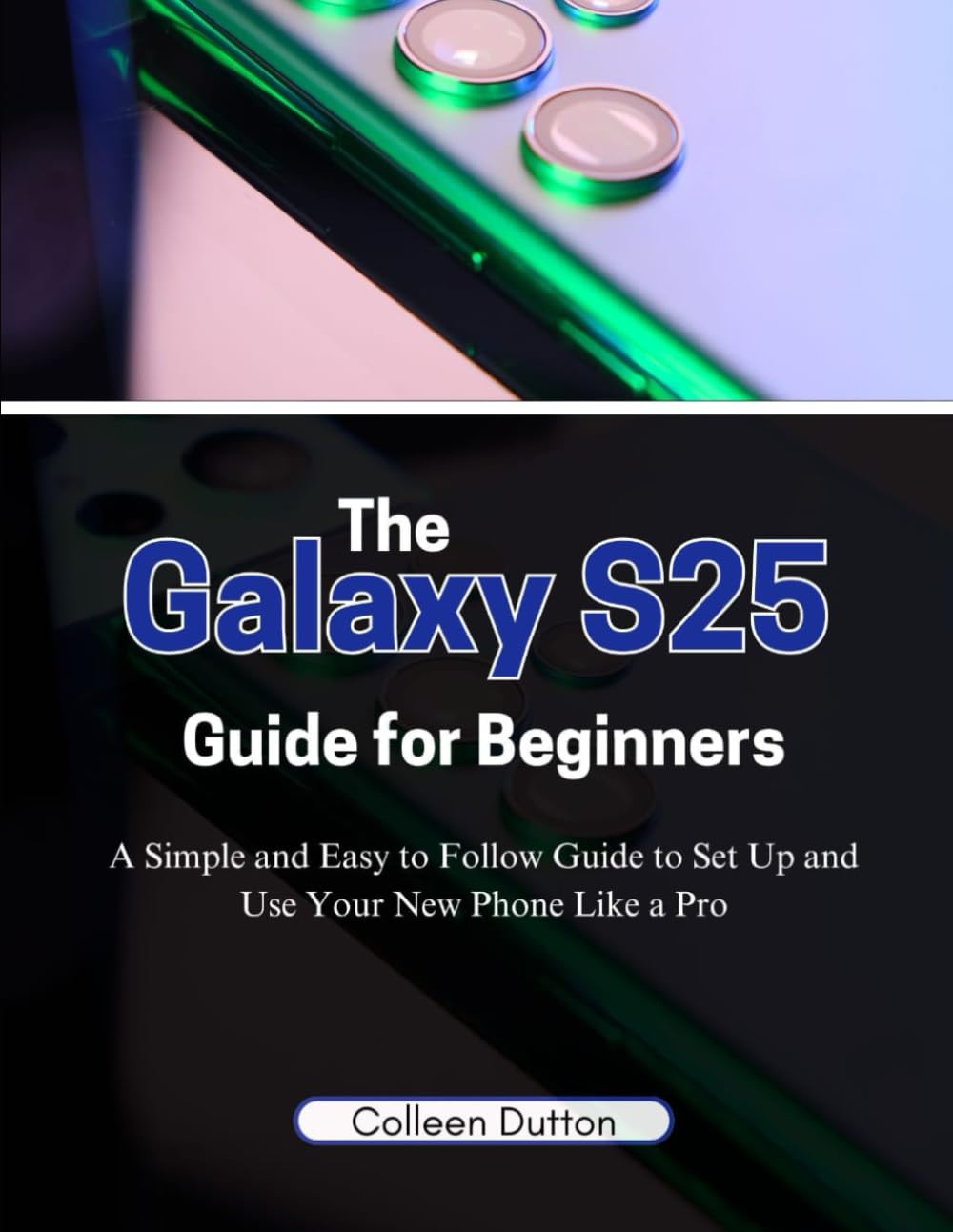
Figure 1: Front cover of the guide, illustrating the Samsung Galaxy S25.
3. Operating Your Galaxy S25
3.1. Camera Functions
The Galaxy S25 camera system offers various modes and settings to capture high-quality photos and videos.
- Basic Photography: Open the Camera app and tap the shutter button to take a photo.
- Advanced Modes: Explore modes such as Night Mode for low-light conditions, Portrait Mode for depth-of-field effects, and Pro Mode for manual control over settings like ISO, shutter speed, and white balance.
- Editing and Sharing: After capturing, photos can be edited directly within the Gallery app. Options include cropping, filters, and adjustments to brightness and contrast. Share your memories through various social media platforms or messaging apps.
3.2. Enhancing Productivity
Utilize the Galaxy S25's features to streamline your daily tasks and manage your digital life efficiently.
- Multitasking: Use split-screen view or pop-up view to run multiple applications simultaneously. Access these features from the Recent Apps screen.
- App Management: Organize your apps into folders, customize your home screen, and manage notifications to maintain focus.
- Samsung Pay: Set up Samsung Pay for secure and convenient mobile payments. Add your credit or debit cards to the app and use your phone for transactions at compatible terminals.
- Samsung Health: Monitor your fitness and wellness goals with Samsung Health. Track steps, workouts, sleep patterns, and more.
4. Battery and Device Maintenance
Proper maintenance ensures optimal performance and extends the lifespan of your Galaxy S25.
- Maximizing Battery Life:
- Adjust screen brightness to a lower setting.
- Enable Power Saving Mode from the Quick Settings panel or Battery settings.
- Close unused background applications.
- Disable Wi-Fi, Bluetooth, and GPS when not in use.
- Limit notifications from non-essential apps.
- Charging Tips:
- Use the official Samsung charger and cable for optimal charging speed and safety.
- Avoid extreme temperatures during charging.
- Wireless Charging: Place your Galaxy S25 on a compatible wireless charging pad. Ensure the phone is centered for efficient charging.
- Software Updates: Regularly check for and install software updates to ensure your device has the latest features, security patches, and performance improvements. Navigate to Settings > Software update.
- Cleaning Your Device: Use a soft, lint-free cloth to gently clean the screen and body of your phone. Avoid harsh chemicals or abrasive materials.

Figure 2: Back cover of the guide, displaying product identification.
5. Troubleshooting Common Issues
This section addresses common issues you might encounter with your Galaxy S25.
- Device Not Responding: If your phone freezes, perform a force restart by pressing and holding the Volume Down button and the Power button simultaneously for about 7-10 seconds until the device restarts.
- Battery Draining Quickly: Review the "Battery and Device Maintenance" section. Check battery usage in Settings > Battery and device care > Battery to identify apps consuming excessive power.
- Connectivity Problems (Wi-Fi/Bluetooth):
- Toggle Wi-Fi or Bluetooth off and on.
- Restart your phone.
- Forget the network/device and reconnect.
- Reset network settings: Settings > General management > Reset > Reset network settings.
- App Crashing: Clear the app's cache and data (Settings > Apps > [App Name] > Storage > Clear cache/Clear data). If the issue persists, uninstall and reinstall the app.
- Storage Full: Delete unnecessary files, photos, and videos. Uninstall unused apps. Consider moving media to cloud storage or an external drive.
6. Product Specifications
Key specifications for the Samsung Galaxy S25 guide book (Paperback version):
| Feature | Detail |
|---|---|
| ASIN | B0DSHKMW2Z |
| Publisher | Independently published |
| Publication Date | January 7, 2025 |
| Language | English |
| Print Length | 111 pages |
| ISBN-13 | 979-8306193472 |
| Item Weight | 9.8 ounces |
| Dimensions | 8.5 x 0.25 x 11 inches |
7. Warranty Information
This section pertains to the warranty of the Samsung Galaxy S25 smartphone. For specific warranty details, please refer to the official documentation provided with your Samsung Galaxy S25 device or visit the official Samsung support website. Warranty terms typically cover manufacturing defects for a specified period from the date of purchase.
Note: This guide book does not provide a warranty for the Samsung Galaxy S25 device itself.
8. Customer Support
For technical assistance, service, or further inquiries regarding your Samsung Galaxy S25, please contact Samsung Customer Support directly. You can find contact information, FAQs, and troubleshooting resources on the official Samsung website.
For support related to this guide book, please refer to the publisher's contact information if available within the book itself.


