
1. Product Overview
The Bettdow AC1061 is a versatile smart projector designed for a superior home entertainment experience. Featuring official Google TV and Android 9.0 dual systems, it provides direct access to a vast library of streaming applications like Netflix, Disney+, YouTube, and Prime Video without the need for additional devices. With native 1080P resolution, 600 ANSI lumens brightness, HDR10+ support, and advanced smart projection technologies, it delivers clear, vibrant images and an immersive audio experience.
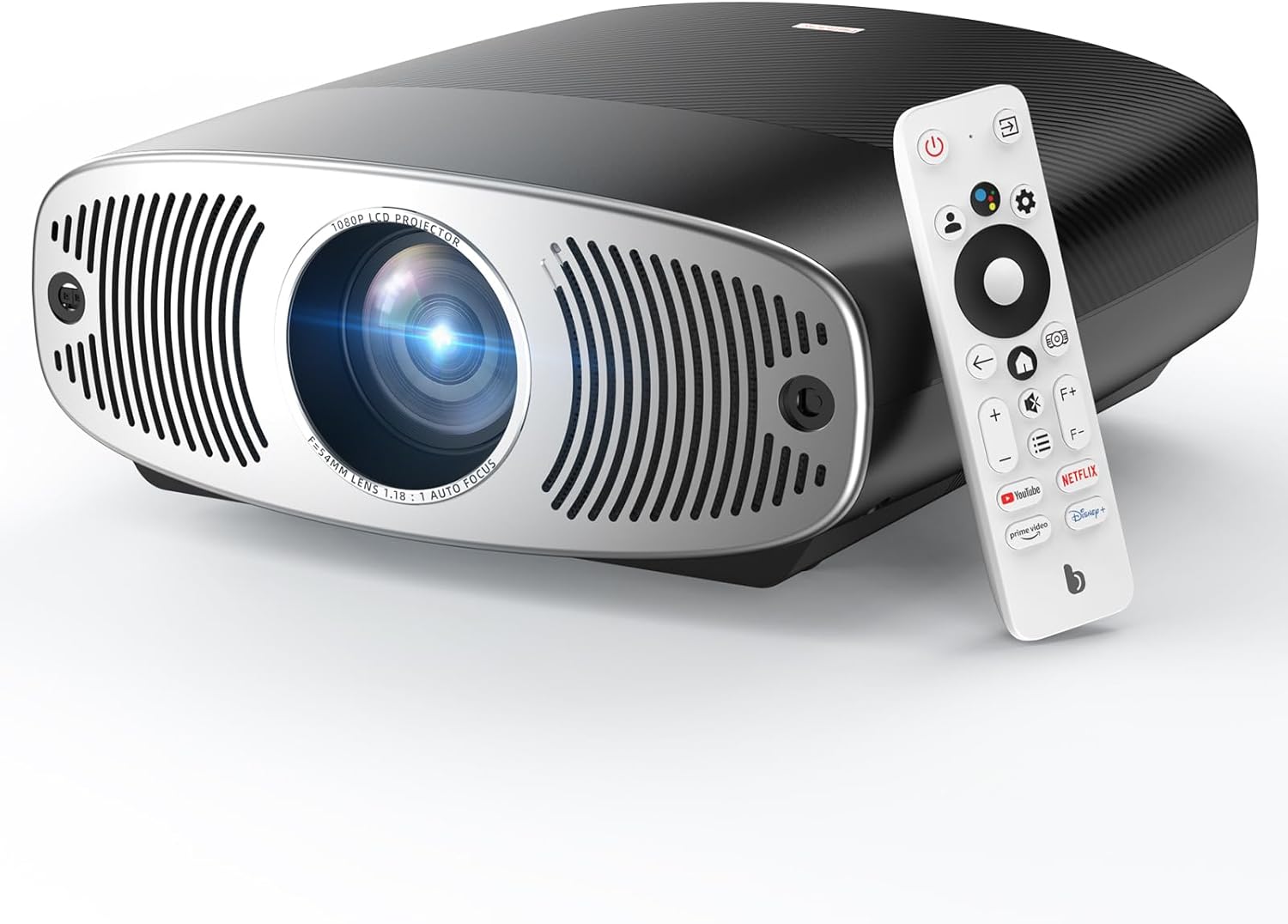
Image: The Bettdow AC1061 Google TV Smart Projector, black model, shown with its remote control.

Image: Infographic highlighting key features such as 4K support, 850 ANSI lumens, closed optical engine, 2GB RAM + 32GB storage, WiFi 6, auto-focus, auto keystone correction, 10W dual speakers with Dolby effect, 30,000-hour lifespan, Google TV, Google Assistant, and Netflix integration.
2. What's in the Box
Upon unboxing your Bettdow AC1061 projector, please ensure all the following items are present:
- Bettdow AC1061 Projector
- User Manual (this document)
- Power Cord
- HDMI Cable
- Remote Control
3. Setup
3.1 Remote Control Battery Installation
The remote control requires 2 AAA batteries (not included). Open the battery compartment cover on the back of the remote and insert the batteries, ensuring correct polarity (+/-). Close the cover securely.

Image: The remote control with its battery cover removed, illustrating the correct placement for two AAA batteries.
3.2 Power Connection
Connect the provided power cord to the projector's AC input port and then plug the other end into a standard electrical outlet (AC 100V-240V).
3.3 Connecting External Devices
The projector offers various ports for connectivity:
- HDMI 2.0: For connecting laptops, game consoles, Blu-ray players, etc.
- USB 2.0: For connecting USB drives to play media files.
- 3.5mm Audio Jack: For connecting external headphones or speakers.

Image: Rear view of the projector highlighting USB, Headphone Jack, and HDMI ports, along with icons representing compatible devices such as mobile phones, laptops, Bluetooth earphones, TVs, game consoles, and USB drives.
3.4 Initial Power-On and Network Configuration
Press the power button on the projector or remote control to turn it on. Follow the on-screen prompts to complete the initial setup, including connecting to your Wi-Fi network (2.4G+5G dual-band WiFi 6 supported) and logging into your Google account for Google TV access.
4. Operating Instructions
4.1 Navigating Google TV
The Bettdow AC1061 comes with official Google TV, providing a user-friendly interface for accessing content. Use the remote control's directional pad and OK button to navigate through menus, select apps, and browse content. The home screen provides personalized recommendations and quick access to your installed applications.

Image: The Google TV home screen displayed by the projector, featuring popular streaming services and content recommendations.
4.2 Using Google Voice Assistant
The integrated Google Voice Assistant allows for hands-free control. Press the dedicated voice assistant button on your remote and speak your commands. You can open apps, search for movies, check the weather, and control volume using your voice.
- To open an app: Say "Open Netflix."
- To find content: Say "Find Batman movie."
- For information: Say "What's the weather?"
- To adjust volume: Say "Increase the volume."

Image: Demonstrating the voice command "Open Netflix" to launch the Netflix application.

Image: Demonstrating the voice command "What's the weather?" to display the current weather forecast.
4.3 Smart Projection Features
The AC1061 is equipped with advanced smart features for optimal image display:
- Auto Focus: Automatically detects and adjusts the focus to ensure a clear picture without manual adjustments.
- Auto Screen Fit: Automatically recognizes the edges of the screen or wall to ensure the picture fits perfectly and is square.
- Automatic Obstacle Avoidance: Built-in sensors detect obstacles (like furniture) and automatically adjust the projection angle to ensure an undisturbed picture.

Image: Visual representation of the auto-focus feature, ensuring a sharp image automatically.

Image: Visual representation of the auto screen fit feature, adjusting the image to perfectly match the screen or wall.

Image: Visual representation of the automatic obstacle avoidance feature, adjusting the projection to avoid obstructions.
4.4 Wireless Screen Sharing
The projector supports wireless screen sharing, allowing you to mirror content from your mobile phone or other compatible devices directly to the large screen. This feature is ideal for presentations, sharing photos, or enjoying mobile games on a larger display.
Video: Demonstrates the various features of the Bettdow AC1061 projector, including its optical machine, LCD display, resolution capabilities, auto-focus, auto keystone, obstacle avoidance, screen adaptation, high-performance chips, efficient heat dissipation, dual speakers, and wireless screen sharing. It highlights the projector's versatility and ease of use.
4.5 Media Playback from USB
Insert a USB drive into the USB 2.0 port. The projector's media player will allow you to browse and play supported video, audio, and image files directly from the drive.
4.6 Office Document Viewing
The projector supports direct viewing of common office documents (TXT, Word, Excel, PowerPoint, PDF). This feature is useful for presentations or reviewing documents without needing a separate computer.

Image: The projector displaying an office document, demonstrating its capability to open and present files directly.
4.7 Audio Features
The projector features dual 10W speakers with Dolby Audio support, providing immersive 360° surround sound. It also supports one-touch switching to Bluetooth speaker mode, allowing you to use it as a standalone Bluetooth speaker.

Image: Illustration of the projector's dual 10W speakers and Dolby Atmos effect for immersive sound.
Video: Showcases the Bettdow AC1061 Google TV Projector's features, including its official Google TV license, 10,000+ authorized apps, immersive Dolby Atmos effect, 4K support, 850 ANSI lumens, native 1080P, closed engine, 2GB+32GB storage, 2.4+5G WiFi, 10W dual speakers, 30,000H lifespan, Google Assistant, comfortable viewing experience with various projection sizes, automatic keystone correction, auto focus, automatic obstacle avoidance, and wide applications for home theater, outdoor use, and more.
5. Maintenance
5.1 Cleaning the Projector
To maintain optimal performance and image quality, regularly clean your projector:
- Lens: Use a soft, lint-free cloth specifically designed for optical lenses. Gently wipe the lens in a circular motion. Do not use abrasive cleaners or excessive force.
- Exterior: Wipe the projector's exterior with a soft, dry cloth. For stubborn marks, a slightly damp cloth can be used, followed by a dry wipe.
5.2 Dust Prevention and Longevity
The Bettdow AC1061 features a fully enclosed optical engine, which effectively prevents dust from entering the interior. This design minimizes black spots, reduces noise, and improves cooling efficiency, thereby extending the projector's lifespan to approximately 30,000 hours.

Image: Illustration of the fully-sealed engine design, emphasizing its dustproof, low noise, and low maintenance benefits for extended lifespan.
5.3 Storage
When not in use for extended periods, store the projector in a cool, dry place, away from direct sunlight and extreme temperatures. It is recommended to cover the lens to protect it from dust.
6. Troubleshooting
If you encounter any issues with your Bettdow AC1061 projector, please refer to the following common problems and solutions:
| Problem | Possible Cause | Solution |
|---|---|---|
| Projector does not power on | No power supply; loose power cable | Ensure power cable is securely connected and outlet is functional. Try a different outlet. |
| No image or blurry image | Incorrect focus; input source not selected; cable connection issue | Allow auto-focus to adjust or manually adjust if needed. Check input source selection. Ensure HDMI/USB cables are securely connected. |
| No sound | Volume too low; external audio device not connected; incorrect audio output setting | Increase volume. Check external audio connections. Verify audio output settings in Google TV. |
| Cannot connect to Wi-Fi | Incorrect password; router issue; signal interference | Double-check Wi-Fi password. Restart router. Move projector closer to router or reduce interference. |
| Remote control not working | Dead batteries; obstruction; pairing issue | Replace batteries. Ensure no obstructions between remote and projector. Re-pair remote if necessary (refer to Google TV settings). |
If the issue persists after trying these solutions, please contact customer support.
7. Specifications
Below are the technical specifications for the Bettdow AC1061 Google TV Smart Projector:
| Feature | Specification |
|---|---|
| Model Number | AC1061 |
| Brand | Bettdow |
| Display Resolution | Native 1920 x 1080 (1080P) |
| Brightness | 600 ANSI Lumens |
| 4K Support | Yes |
| HDR Support | HDR10+ |
| Operating System | Android 9.0 + Google TV (Officially Licensed) |
| Voice Control | Google Voice Assistant |
| Connectivity | WiFi 6 (2.4G+5G Dual-Band), Bluetooth 5.0, HDMI 2.0, USB 2.0, 3.5mm Audio Jack |
| Audio | Dual 10W Speakers (Dolby Audio Support) |
| Projection Size | 50-200 inches |
| Special Features | Auto Focus, Auto Keystone Correction, Auto Obstacle Avoidance, Auto Screen Adaptation, Fully Enclosed Optical Engine, Direct Office Document Viewing |
| Bulb Lifespan | 30,000 hours |
| Dimensions | 11.65 x 11.22 x 4.65 inches |
| Weight | 5.29 pounds |

Image: Detailed product parameter diagram showing dimensions and key specifications of the projector.
8. Warranty and Support
The Bettdow AC1061 Smart Projector comes with a manufacturer's warranty. For detailed warranty information, technical support, or service inquiries, please refer to the warranty card included in your product packaging or visit the official Bettdow website. You may also contact the seller directly through the platform where you purchased the product.
