
Introduction
The RSH Air Tracker Tag is designed to help you easily locate your valuable items using the Google Find Hub app on your Android device. This manual provides detailed instructions for setting up, operating, maintaining, and troubleshooting your Air Tracker Tags to ensure a seamless experience.
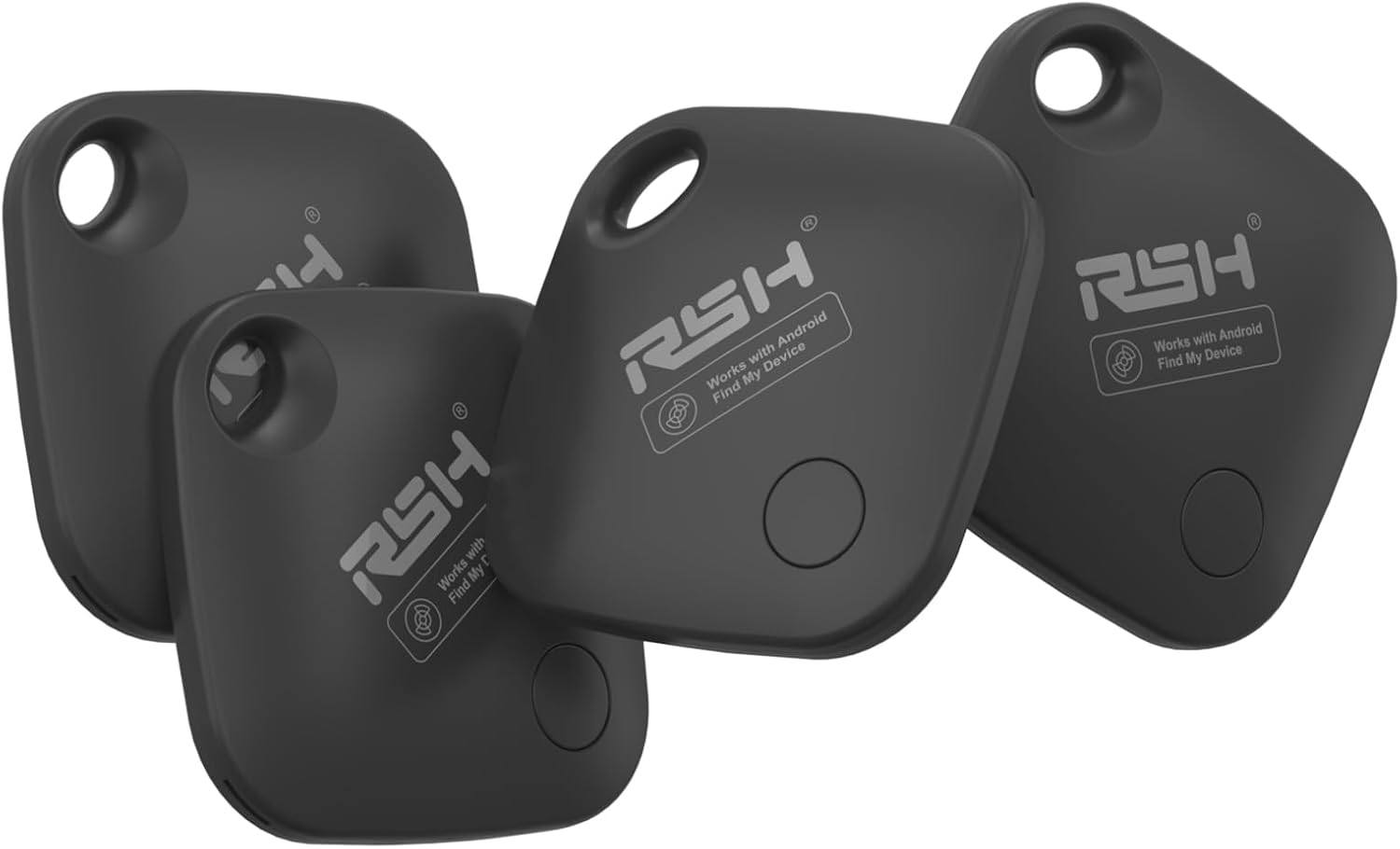
Image: A set of four RSH Air Tracker Tags, showcasing their compact design and branding.
Setup
The RSH Air Tracker Tag is optimized for Android 9.0 and above, offering quick Bluetooth 5.2 pairing and Google certification for instant location through Google Find Hub.
Easy Pairing
- Download the Google Find My Device app: Ensure you have the official Google Find My Device app installed on your Android phone from the Play Store.
- Activate the Tag: Simply turn on the Android Bluetooth tag. A pairing window will automatically pop up on your phone when the tag is nearby.
- Follow On-Screen Prompts: Complete the pairing process by following the instructions displayed on your Android device.

Image: Visual guide demonstrating the simple two-step pairing process for the RSH Air Tracker Tag.
Seamless Integration
The RSH Air Tracker Tag integrates seamlessly with most Android phones, including Samsung, Google Pixel, Xiaomi, OPPO, and Vivo, leveraging the Google Find My Device network.
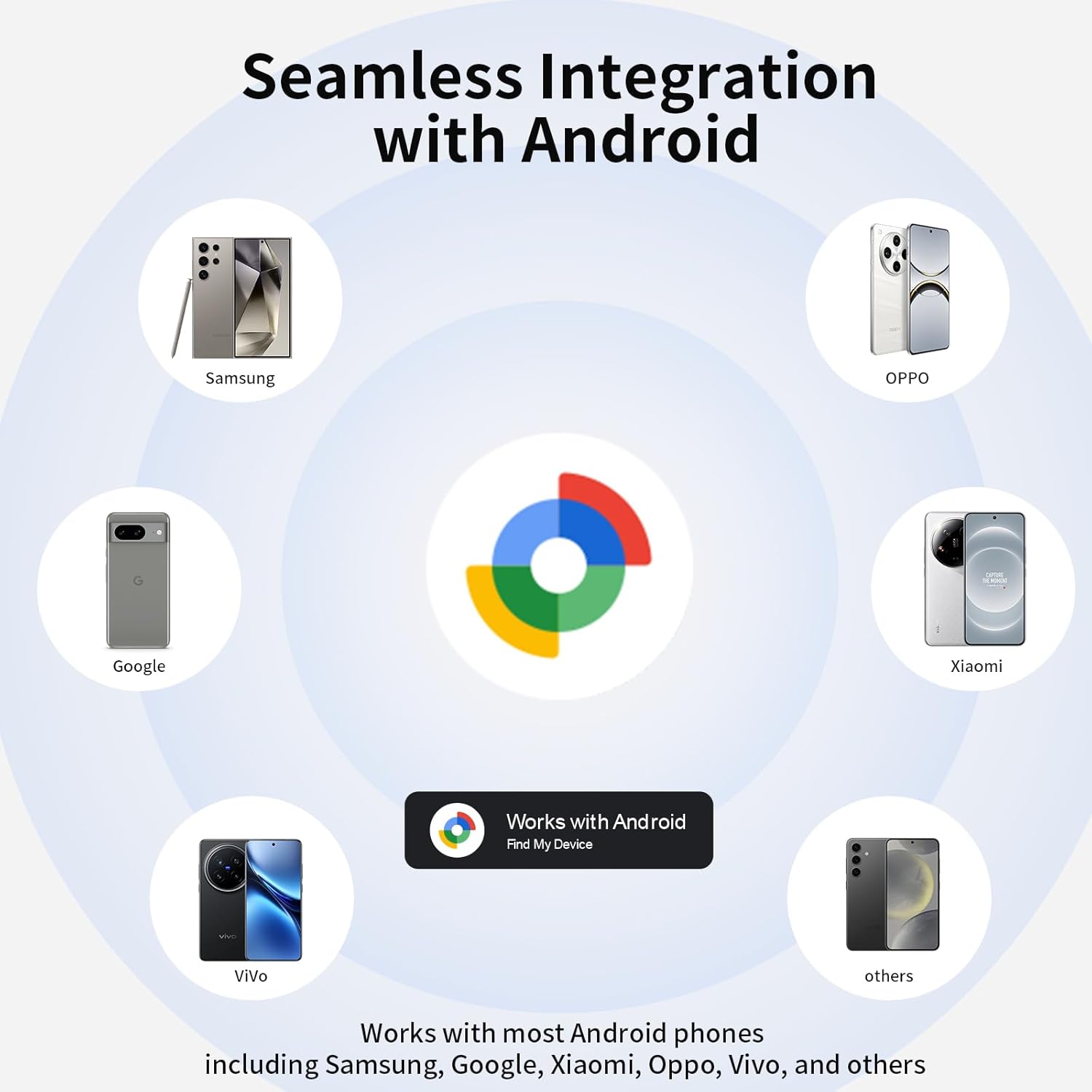
Image: An illustration highlighting the broad compatibility of the RSH Air Tracker Tag with diverse Android devices.
Operating Your Air Tracker Tag
Finding Nearby Items with Sound
When your item is within Bluetooth range (up to 60 meters or 200 feet), you can activate a sound to locate it. The RSH tag will ring loud enough to help you pinpoint its location.
- Open the Google Find Hub / Find My app on your Android device.
- Select your RSH Air Tracker Tag from the list of devices.
- Tap the 'Play Sound' button. The tag will emit a sound to guide you.
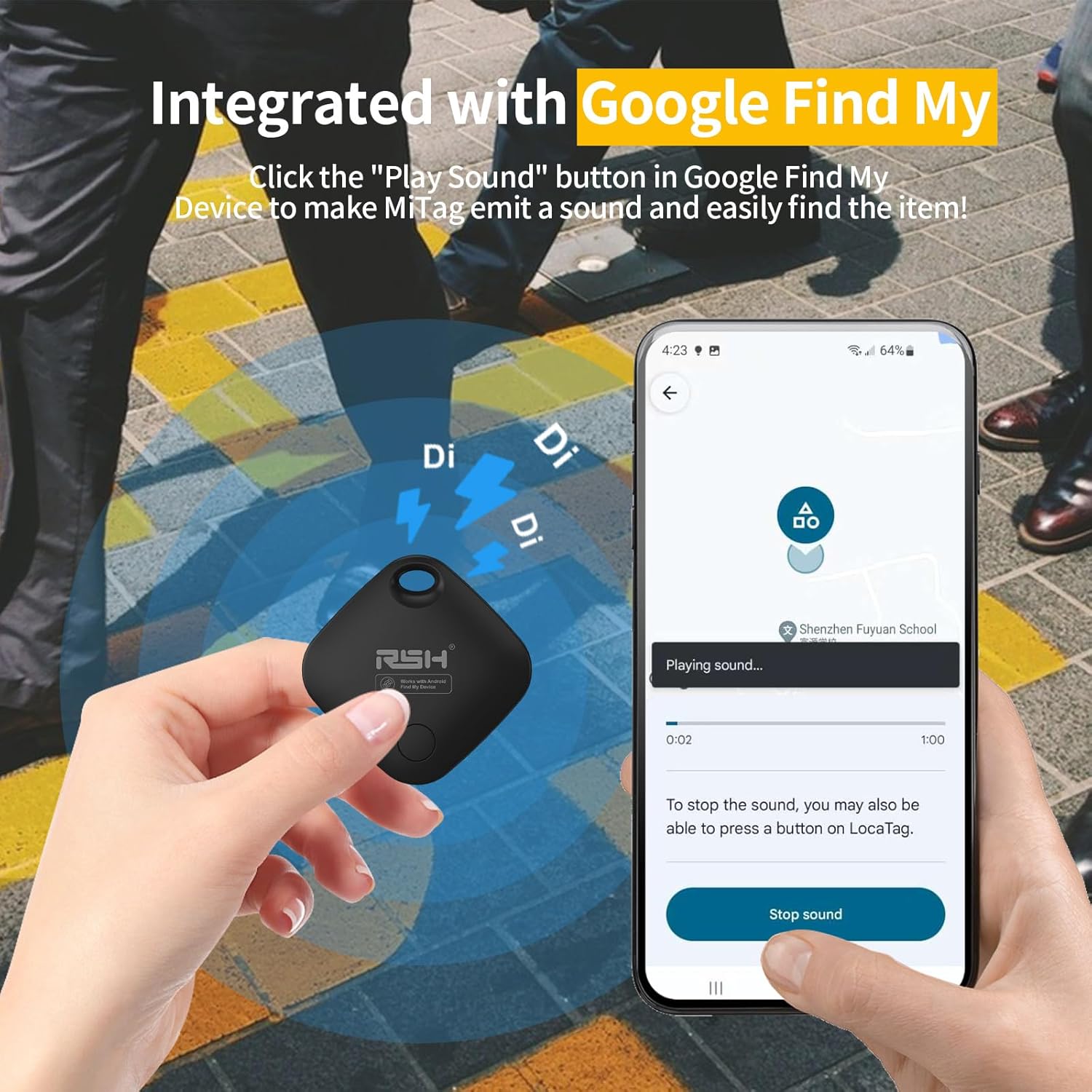
Image: Demonstrating the sound activation feature of the RSH Air Tracker Tag via the Google Find My app.

Image: The 'Make It Ring' feature, highlighting the sound function for locating nearby items.
Finding Faraway Items with Global Tracking
If your item is outside of Bluetooth range, you can still view its whereabouts on Google Maps within the Google Find My / Find Hub app. The Google Find My network, supported by millions of Android devices, provides location updates, often within 2 minutes in areas with high Android device density.

Image: The 'Locate Far Away' feature, showing how to check the worldwide location of your items on a map.
Lost Mode and Sharing Mode
The RSH Air Tracker Tag offers features to enhance security and collaboration:
- Lost Mode: If you lose your tag, you can set it to 'Lost Mode' in the app. This allows anyone who finds the tag to view contact information you've provided, increasing the chances of recovery.
- Sharing Mode: You can share the location of your RSH Google Air Smart Tag with family and friends, allowing them to help track important items.

Image: Setting the 'Lost Mode' to display contact information for anyone who finds your tag.

Image: The 'Share Device' feature, enabling you to share your tag's location with trusted individuals.
Attaching and Using Your Tag
The RSH Air Tracker Tag is designed to be easily attached to various items you wish to track.

Image: An RSH Air Tracker Tag securely attached to luggage, emphasizing its use for travel.

Image: The tag attached to a backpack, illustrating its versatility for everyday items.

Image: A collage demonstrating multiple applications of the RSH Air Tracker Tag, including keys, wallets, and luggage.
Maintenance
Battery Replacement
The RSH Air Tracker Tag uses a replaceable CR2 battery. Two batteries are included and can last up to 12 months. You can check the battery status directly within the Google Find My app and replace it when necessary to ensure continuous tracking.

Image: A close-up view of the RSH Air Tracker Tag demonstrating its replaceable battery feature.
Troubleshooting
If you encounter issues with your RSH Air Tracker Tag, please refer to the following common solutions:
- Tag not connecting: If your tag does not connect to your phone, try resetting the factory settings of the tag and then attempt to reconnect.
- Location accuracy: Ensure your Android device's location services are enabled and that the Google Find My Device app has the necessary permissions. Location updates rely on the density of Android devices in the area.
- Sound not playing: Check the tag's battery level in the Google Find My app. Ensure your phone's Bluetooth is enabled and the tag is within range.
Specifications
| Feature | Detail |
|---|---|
| Model Number | RSH-ITag03 |
| Package Dimensions | 4.57 x 3.74 x 0.75 inches |
| Item Weight | 2.89 ounces |
| Batteries | 1 CR2 battery required (included) |
| Number of Batteries Included | 1 (plus extra in package) |
| Battery Life | Up to 120 days (approx. 4 months) |
| Connectivity Technology | Bluetooth |
| Compatible Devices | Android devices (Android 9.0 and above) |
| Manufacturer | RSH |
| Date First Available | January 8, 2025 |
Warranty and Support
RSH is committed to providing reliable products and excellent customer service. While specific warranty details are not provided in this manual, we offer 7*24H service to assist you with any questions or issues you may encounter with your Air Tracker Tags.
For support, please refer to the contact information provided with your product packaging or visit the official RSH website.


