
NEWFAST NF-A882
NEWFAST A882 Outdoor Wi-Fi Access Point User Manual
Model: NF-A882
1. Introduction
This manual provides comprehensive instructions for the installation, operation, maintenance, and troubleshooting of your NEWFAST A882 Outdoor Wi-Fi Access Point. Please read this manual carefully before using the device to ensure optimal performance and safety.
The NEWFAST A882 is a high-performance AC1200 dual-band outdoor Wi-Fi access point designed to extend wireless network coverage in various outdoor environments. It features robust construction, Power over Ethernet (PoE) support, and multiple operating modes to suit diverse networking needs.
2. Product Features
- Professional Outdoor Network Performance: Integrates a high-performance triple chip, offering competitive speeds of 876 Mbps on 5 GHz and 300 Mbps on 2.4 GHz.
- Extended Coverage: Equipped with two external 5dBi adjustable antennas and high emission power, covering up to 50-200 meters in open spaces.
- Energy-Efficient PoE Power & Gigabit Connectivity: Powered via included 48V PoE (up to 100 meters), reducing electrical installation costs. Gigabit LAN/WAN ports ensure ultra-low latency.
- Versatile Installation & Smart Multi-Modes: Supports AP, Router, Repeater, and Bridge modes. Configurable via an intuitive web interface. Designed for wall or pole mounting.
- Extreme Durability & Weather Resistance: IP66 certified, resistant to temperatures from -10°C to 55°C and humidity. ABS casing protects against shocks, abrasive dust, and direct water jets.
- Wi-Fi Security Encryption: Supports WPA-PSK and WPA2-PSK security protocols for secure Wi-Fi connections.
3. Package Contents
Verify that all items are present in the package:
- 1 x NEWFAST AC1200 Wi-Fi Access Point (NF-A882)
- 2 x 5 dBi Antennas
- 1 x 48V 0.32A PoE Power Adapter
- 1 x Installation Fasteners Kit
- 1 x RJ-45 Network Cable
4. Hardware Overview
Familiarize yourself with the device components:

Figure 4.1: Front view of the NEWFAST A882 Outdoor Wi-Fi Access Point, highlighting its IP66 weather resistance with water splashes.

Figure 4.2: Diagram illustrating the NEWFAST A882's outdoor design, showing its ability to connect up to 76 devices within a 200-meter range, and compatibility with various network devices like modems, repeaters, and routers.
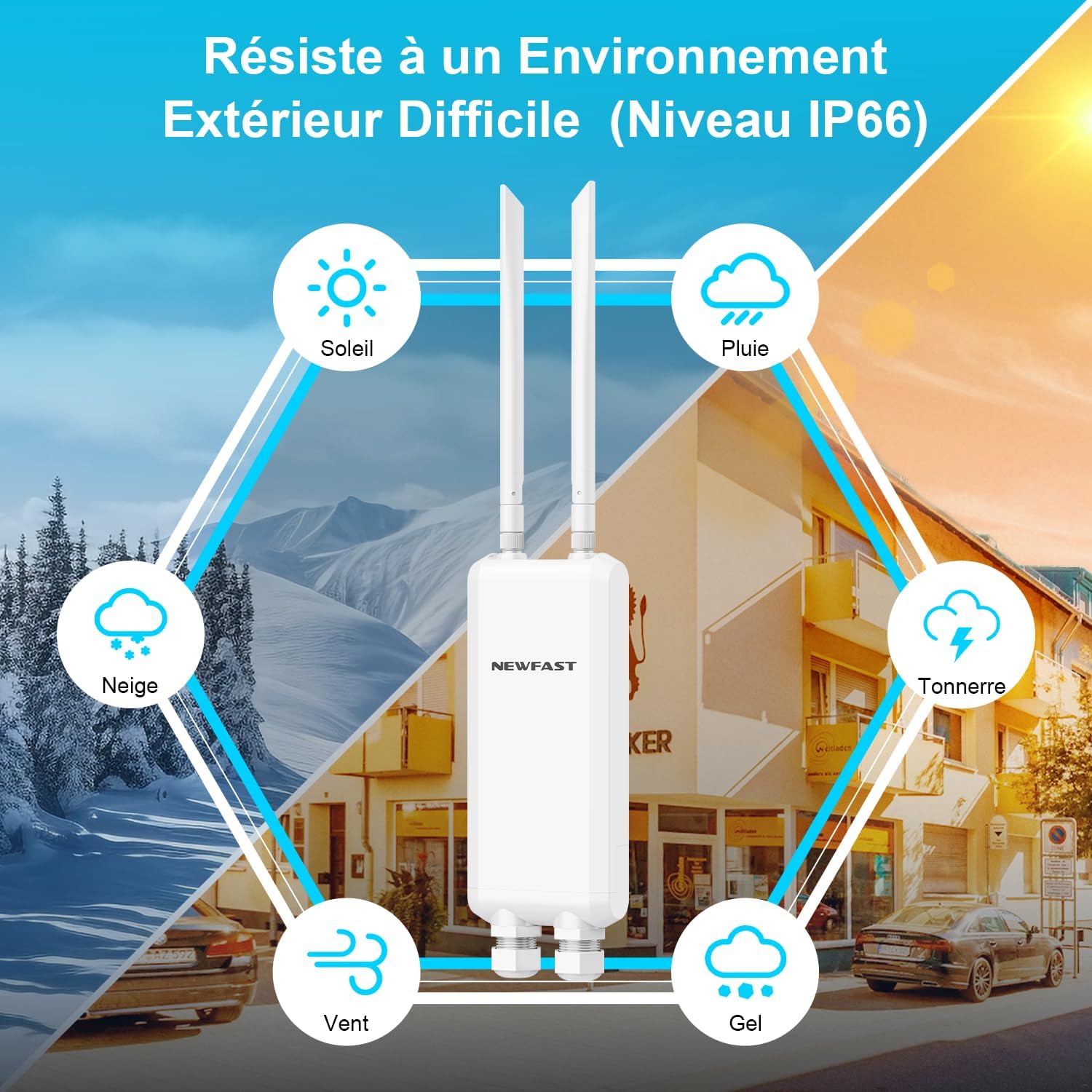
Figure 4.3: Visual representation of the NEWFAST A882's IP66 weather resistance, depicting its ability to withstand high temperatures, storms, low temperatures, wind, and sand.
5. Setup and Installation
5.1 Mounting the Device
The NEWFAST A882 can be mounted on a wall or a pole. Ensure the mounting location provides optimal signal coverage and is within reach of the PoE cable.
Pole Installation Steps:
- Attach the mounting bracket to the back of the access point.
- Secure the access point with the bracket to the pole using the provided fasteners.
- Ensure the device is firmly attached and oriented correctly for optimal signal.

Figure 5.1: Step-by-step diagram for pole installation of the NEWFAST A882, showing how to attach the device to a pole.
5.2 Powering the Device (PoE)
The NEWFAST A882 supports Power over Ethernet (PoE), allowing both power and data to be transmitted over a single Ethernet cable.
- Connect one end of the RJ-45 network cable to the LAN/PoE port on the NEWFAST A882.
- Connect the other end of the RJ-45 network cable to the PoE port on the included 48V PoE Power Adapter.
- Connect the LAN port of the PoE Power Adapter to your router or network switch.
- Plug the PoE Power Adapter into a power outlet.

Figure 5.2: Diagram illustrating flexible deployment with PoE, showing how the PoE adapter combines Ethernet and power cables into a single unit, connecting to the access point and a computer/network.
5.3 Initial Configuration
The device can be configured via a web-based interface.
- Connect your computer directly to the LAN port of the PoE Power Adapter using an Ethernet cable.
- Set your computer's IP address to be in the same subnet as the access point's default IP (refer to the device's label or quick start guide for default IP).
- Open a web browser and enter the access point's default IP address (e.g.,
192.168.1.1). - Log in using the default username and password (usually
admin/adminor similar, check device documentation). - Follow the on-screen wizard to configure the desired operating mode (AP, Router, Repeater, Bridge) and Wi-Fi settings (SSID, password, security type).
6. Operating Modes
The NEWFAST A882 supports multiple operating modes to adapt to various network requirements:
- AP (Access Point) Mode: Converts a wired network connection into a wireless one, ideal for extending an existing wired network wirelessly.
- Router Mode: Functions as a primary router, providing internet access to connected devices.
- Repeater Mode: Extends the coverage of an existing Wi-Fi network by re-transmitting the signal.
- Bridge Mode: Connects two wired networks wirelessly, or connects a wired device to a wireless network.

Figure 6.1: Illustration of the NEWFAST A882's various operating modes: Router/AP Mode, Repeater Mode, and Bridge Mode, showing their respective network configurations.
7. Maintenance
Regular maintenance ensures the longevity and optimal performance of your NEWFAST A882.
- Cleaning: Periodically wipe the device with a soft, dry cloth. Do not use liquid cleaners or aerosols.
- Firmware Updates: Check the manufacturer's website for the latest firmware updates. Keeping the firmware updated can improve performance, security, and add new features.
- Environmental Checks: Ensure the mounting area remains clear of obstructions and that the device is not exposed to extreme conditions beyond its IP66 rating.
8. Troubleshooting
If you encounter issues with your NEWFAST A882, refer to the following common troubleshooting steps:
| Problem | Possible Cause | Solution |
|---|---|---|
| No Power/LEDs Off | PoE adapter unplugged, faulty cable, power outage. | Check PoE adapter connection and power outlet. Ensure Ethernet cable is securely connected. |
| No Wi-Fi Signal | Incorrect configuration, antennas not attached/oriented, signal interference. | Verify operating mode and Wi-Fi settings in the web interface. Ensure antennas are securely attached and pointed correctly. Check for sources of interference. |
| Slow Connection Speed | Network congestion, distance from device, interference, outdated firmware. | Reduce number of connected devices. Move closer to the access point. Check for interference. Update firmware. |
| Cannot Access Web Interface | Incorrect IP address, network settings on PC, device not powered on. | Ensure PC IP is in the same subnet. Verify device is powered. Try a different browser. Reset device to factory defaults if necessary (press reset button for 10 seconds). |
9. Specifications
| Feature | Detail |
|---|---|
| Model Number | NF-A882 |
| Wi-Fi Standard | 802.11ac (AC1200) |
| Frequency Band | Dual Band (2.4 GHz & 5 GHz) |
| 2.4 GHz Speed | Up to 300 Mbps |
| 5 GHz Speed | Up to 876 Mbps |
| Ethernet Ports | 3 x Gigabit Ethernet (1 WAN/LAN, 2 LAN) |
| Antennas | 2 x 5 dBi External Omni-directional |
| Power Supply | 48V PoE (Power over Ethernet) |
| Weather Resistance | IP66 Certified |
| Operating Temperature | -10°C to 55°C |
| Security Protocols | WPA-PSK, WPA2-PSK |
| Max Connected Devices | Up to 76 |
| Coverage Range | 50-200 meters (open space) |
10. Warranty and Support
The NEWFAST A882 comes with a 1-year manufacturer's warranty.
For technical support, warranty claims, or further assistance, please contact NEWFAST customer service through the official website or your point of purchase. Please have your model number (NF-A882) and purchase details ready when contacting support.
Note: Information regarding spare parts availability and software updates is not available at this time.
Related documentsNF-A882


Ask a question about this manual
Ask about setup, troubleshooting, compatibility, parts, safety, or missing instructions. Manuals+ will review the question and use this page’s manual context to help answer it.