
1. Product Overview
The MADLIONS MAD 68 HE is a 65% compact RGB gaming keyboard featuring Hall Effect adjustable magnetic switches. Designed for high-performance gaming, it offers rapid trigger mode, customizable actuation points, and an 8K Hz hyper-polling rate for ultra-fast response times. This keyboard supports DKS/MT/TGL technology for advanced key functionality and is fully customizable via a web-based driver for both Windows and Mac operating systems.
Its compact 65% layout includes separate arrow keys, saving desk space while providing essential functionality. The keyboard is equipped with south-facing LEDs and side-printed PBT keycaps for enhanced aesthetics and durability.
2. Setup Guide
2.1 Package Contents
Before you begin, ensure all items are present in the package:
- MAD68 HE Keyboard
- USB Cable (Type-C)
- Keycap Puller
- Keyboard Ribbon (Customizable strap)
2.2 Connecting the Keyboard
- Connect the provided USB Type-C cable to the port on the MAD68 HE keyboard.
- Connect the other end of the USB cable to an available USB port on your computer (PC or Mac).
- The keyboard will automatically be recognized by your operating system. Drivers are typically not required for basic functionality.

Image: MADLIONS MAD 68 HE keyboard connected via USB-C cable.
2.3 Attaching the Keyboard Ribbon
The MADLIONS MAD 68 HE keyboard includes a customizable ribbon. To attach it:
- Locate the two magnetic attachment points on the left side of the keyboard.
- Align the metal buttons on the keyboard ribbon with these magnetic points and press firmly until they snap into place.

Image: Hands attaching the MADLIONS branded ribbon to the keyboard.
2.4 Initial Power On and RGB Lighting
Upon connecting, the keyboard's RGB lighting will illuminate. The default lighting profile will activate. You can customize this later using the web driver.
3. Operating Instructions
3.1 Rapid Trigger Mode and Adjustable Actuation
The MAD68 HE features a Rapid Trigger mode, allowing keys to activate and deactivate with minimal travel, ideal for fast-paced gaming. The Hall Effect magnetic switches offer adjustable actuation from 0.08mm to 3.5mm. This allows you to fine-tune the sensitivity of each key to your preference.
Additionally, the press-sensitive and reset-sensitive points can be set individually through the software, providing precise control over key behavior.

Image: Close-up view of Hall Effect Magnetic Switches on the MADLIONS keyboard.
3.2 DKS/MT/TGL Technology and 8K Hz Polling Rate
The keyboard supports DKS (Dynamic Keystroke), MT (Macro Trigger), and TGL (Toggle) technologies. These features enable dynamic functionality based on key travel, tap/hold actions, or release distance, enhancing macro capabilities beyond traditional limitations.
An 8000 Hz hyper-polling rate ensures ultra-low input latency and increased accuracy, crucial for competitive gaming.
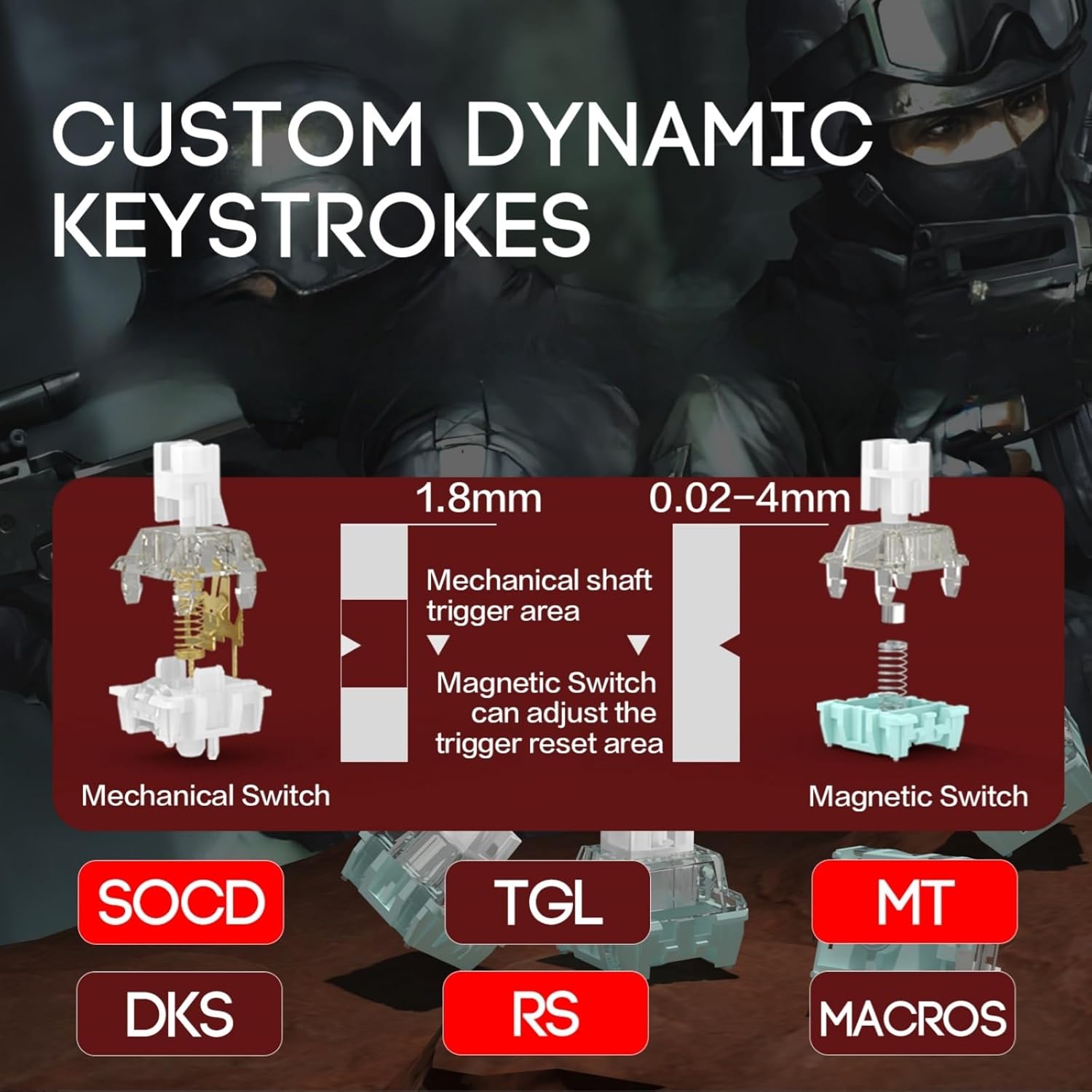
Image: Diagram illustrating custom dynamic keystrokes and magnetic switch operation compared to mechanical switches.
3.3 RGB Lighting and Keycaps
The MAD68 HE features south-facing RGB backlighting, providing vibrant illumination. The keyboard comes with durable PBT keycaps, which have side-printed translucent characters to allow the RGB light to shine through, enhancing visibility and aesthetics.
3.4 Web-Based Customization Driver
This keyboard offers extensive customization through a web-based driver, eliminating the need to download software. The web driver is compatible with both Windows and Mac, allowing you to:
- Adjust Rapid Trigger (RT) settings.
- Create custom key combinations.
- Program macros.
- Reassign keys.
- Personalize RGB lighting effects.
Refer to the official ZMX website or the included documentation for the specific URL to access the web driver.

Image: Screenshot of the web-based customization driver interface for the MADLIONS keyboard.
4. Maintenance
4.1 Cleaning the Keyboard
To ensure the longevity and optimal performance of your MADLIONS MAD 68 HE keyboard, regular cleaning is recommended:
- Dust Removal: Use a can of compressed air to blow away dust and debris from between the keycaps. Hold the can upright and spray in short bursts.
- Keycap Cleaning: For deeper cleaning, use the provided keycap puller to carefully remove the keycaps. Wipe them with a soft, damp cloth and mild soap solution if necessary. Ensure keycaps are completely dry before reattaching.
- Surface Cleaning: Wipe the keyboard's surface with a soft, lint-free cloth. Avoid using harsh chemicals or abrasive materials that could damage the finish.
4.2 Switch Care
The Hall Effect magnetic switches are designed for durability. Avoid spilling liquids directly onto the switches. If a spill occurs, disconnect the keyboard immediately and allow it to dry completely before reconnecting. Do not attempt to disassemble the switches unless you are experienced with keyboard modification.
5. Troubleshooting
If you encounter issues with your MADLIONS MAD 68 HE keyboard, please refer to the following common solutions:
5.1 Keyboard Not Responding
- Check USB Connection: Ensure the USB-C cable is securely connected to both the keyboard and your computer. Try a different USB port.
- Test on Another Device: Connect the keyboard to another computer to determine if the issue is with the keyboard or your original computer's setup.
- Restart Computer: A simple restart can often resolve connectivity issues.
5.2 RGB Lighting Issues
- Check Web Driver Settings: Ensure that the RGB lighting is enabled and configured correctly in the web-based customization driver.
- Brightness Adjustment: Verify that the brightness level is not set to minimum.
- Firmware Update: Check the official ZMX website for any available firmware updates for your keyboard, as these can sometimes resolve lighting glitches.
5.3 Keys Not Registering or Double-Typing
- Clean Under Keycaps: Remove the affected keycaps and clean any debris that might be obstructing the switch.
- Adjust Actuation Point: Use the web driver to adjust the actuation point for the problematic keys. A very low actuation point might cause unintended activations.
- Reset Settings: If issues persist, consider resetting the keyboard settings to default via the web driver.
6. Product Specifications
| Feature | Detail |
|---|---|
| Brand | ZMX |
| Model Number | MAD68 HE |
| Keyboard Description | Rapid Trigger Magnetic Switch Mechanical Keyboard |
| Layout | 65% Compact (61 keys) with separate arrow keys |
| Switch Type | Hall Effect Magnetic Switch |
| Actuation Point | Adjustable from 0.08mm to 3.5mm |
| Polling Rate | 8000 Hz |
| Connectivity | USB-C Wired |
| Backlighting | RGB (South-Facing LEDs) |
| Keycaps | PBT with Side Printed Translucent Characters |
| Customization | Web-based Driver (Win/Mac) for RT adjustment, macros, key remapping, RGB |
| Product Dimensions | 11.5"L x 4.5"W x 1.1"H |
| Item Weight | 1.1 Pounds |
| Compatible Devices | Gaming Console, Laptop, PC, Projector, Tablet |
7. Warranty Information
The MADLIONS MAD 68 HE Rapid Trigger RGB Gaming Keyboard comes with a 1-Year Limited Warranty from the date of purchase. This warranty covers manufacturing defects and issues arising from normal use. It does not cover damage caused by misuse, accidents, unauthorized modifications, or improper maintenance.
For warranty claims or detailed terms and conditions, please refer to the warranty certificate included in your package or visit the official ZMX website.
8. Customer Support
For further assistance, technical support, or inquiries regarding your MADLIONS MAD 68 HE keyboard, please contact ZMX customer service through the following channels:
- Online Support: Visit the official ZMX website for FAQs, drivers, and support resources.
- Brand Store: Explore other ZMX products and information at the ZMX Amazon Store.
- Email Support: Refer to your product packaging or the official website for customer service email addresses.