
1. Overview
The HealthTree O2Ring Pulse Oximeter is a lightweight, rechargeable device designed for continuous monitoring of blood oxygen saturation (SpO2) and pulse rate (PR). It features Bluetooth connectivity for seamless data transfer to a free mobile application, allowing for detailed reporting and customizable alerts. The device is intended for general wellness and sports use, not for medical diagnosis or treatment.
- Lightweight Comfort: Weighing just 13g, the smooth silicone ring fits comfortably on most adult fingers, allowing for extended wear during sleep, workouts, or daily activities without discomfort.
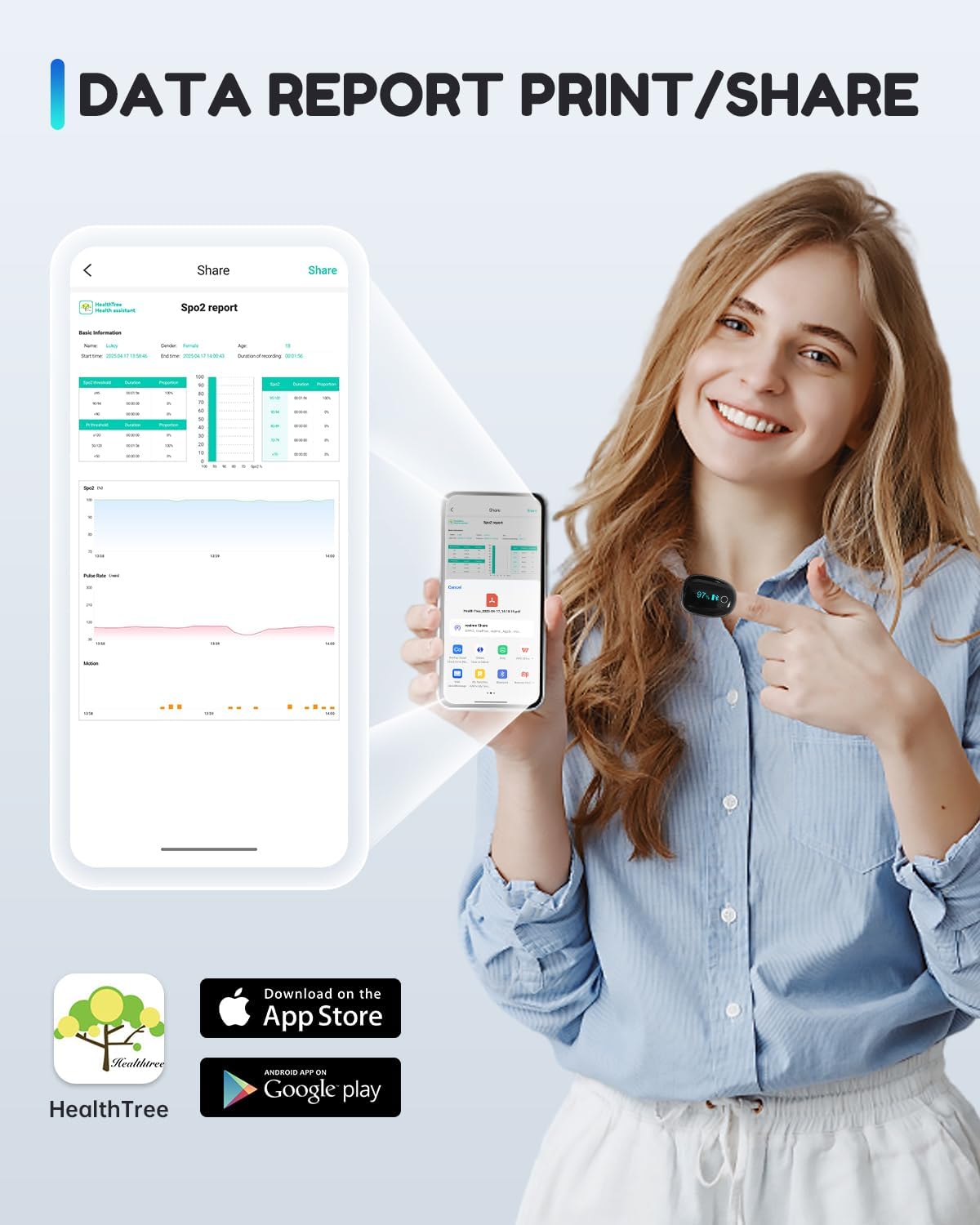
- Audible Alerts & PDF Report: Customize SpO2 and pulse rate thresholds. Receive phone beep alarms when readings exceed preset ranges. Generate and export detailed PDF reports.
- One-touch Operation: Press and hold the circular button for 1-2 seconds to initiate automatic measurement. The screen alternates between SpO2 and pulse rate measurements at 4-second intervals.
- Type-C Fast Charging & Smart Power Saving: Charges in 2 hours for 15 hours of continuous tracking. The screen automatically turns off when connected via Bluetooth to conserve power.
2. What's Included
Upon unboxing your HealthTree O2Ring, please ensure all the following items are present:
- O2Ring Pulse Oximeter Device x1
- USB Type-C Charging Cable x1
- User Manual x1
- Lanyard x1

3. Device Components
Familiarize yourself with the different parts of your O2Ring device:
- Touch Key: For power on/off and screen interaction.
- Screen: Displays SpO2, Pulse Rate, battery level, and Bluetooth connection status.
- Light Emitter: Emits light for SpO2 measurement.
- USB Port: Type-C port for charging.
- Oxygen Level Indicator: Shows current SpO2 percentage.
- Pulse Rate Indicator: Shows current beats per minute (BPM).
- Connect Bluetooth Icon: Indicates Bluetooth connection status.
- Pulse Strength Bar: Visual representation of pulse signal strength.

4. Setup & Charging
4.1 Charging the Device
Before first use, fully charge your O2Ring. Connect the provided USB Type-C cable to the device's USB port and a power source. A full charge typically takes 2 hours and provides up to 15 hours of continuous tracking.
4.2 Attaching the Lanyard
To attach the lanyard, thread the thin loop of the lanyard through the lanyard hole on the side of the device. Then, pass the larger part of the lanyard through the loop you just created and pull it tight to secure.
4.3 Wearing the Device
The O2Ring is designed to be worn on your finger. Choose the most comfortable finger for continuous wear. The device should sit snugly but not too tightly on the fingertip. The light emitter and detector should be positioned correctly for accurate readings.

4.4 App Download & Bluetooth Connection
Download the 'HealthTree' application from your device's app store (available for iOS and Android). Ensure Bluetooth is enabled on your smartphone. Open the app, and it will automatically search for and connect to your O2Ring device when it's turned on and within range.
For iOS users, the app can be found here.
5. Operation
5.1 Starting Measurement
Once the device is worn correctly, press and hold the circular touch key on the screen for 1-2 seconds. The device will power on and automatically begin measuring your SpO2 and pulse rate. Readings will alternate on the device screen every 4 seconds.
5.2 Real-time Monitoring with the App
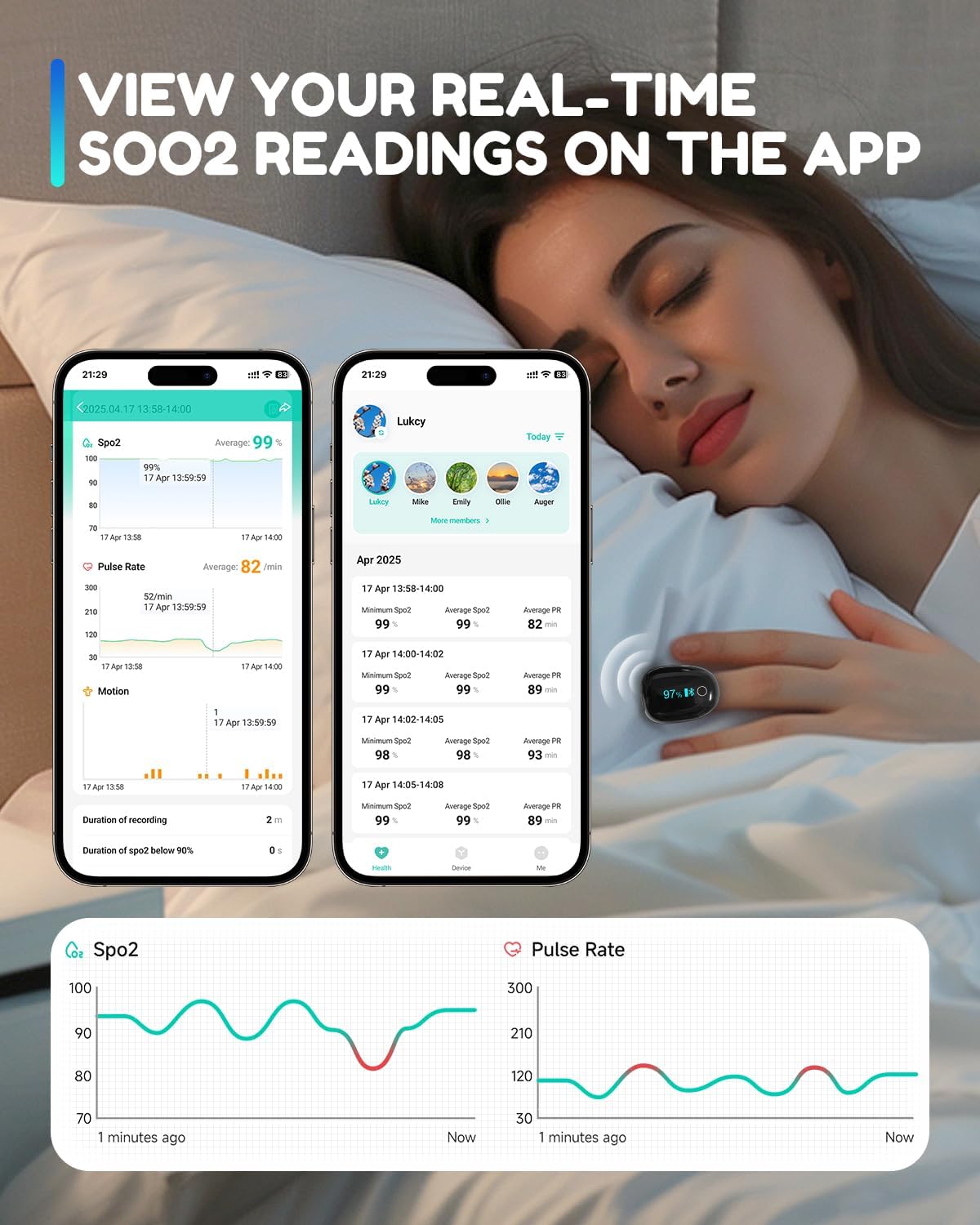
When connected via Bluetooth, the HealthTree app displays your SpO2, pulse rate, and motion data in real-time. The app provides clear graphs and trend reports for easy observation of value fluctuations.
5.3 Customizing Alerts
Within the app settings, you can set custom high and low thresholds for SpO2 and pulse rate. If your readings fall outside these ranges, the app will trigger audible beep alarms on your phone, alerting you to potential issues.

5.4 Data Memory and Export
The O2Ring device can store up to 12 hours of data internally, even when not connected to your phone. This data will sync to the app once a connection is re-established. The app allows you to view historical data, generate detailed reports, and export them as PDF files or images for sharing or personal records.
5.5 Multi-User Functionality
The HealthTree app supports multiple user profiles, allowing different individuals in a household to track and manage their data separately. This feature ensures personalized tracking and data integrity for each user.

6. Maintenance
To ensure the longevity and accuracy of your HealthTree O2Ring, follow these maintenance guidelines:
- Cleaning: Wipe the device with a soft, dry cloth. Do not use abrasive cleaners or immerse the device in water.
- Storage: Store the device in a cool, dry place away from direct sunlight and extreme temperatures.
- Battery Care: Charge the device regularly, even if not in frequent use, to maintain battery health.
7. Troubleshooting
If you encounter issues with your HealthTree O2Ring, refer to the following common troubleshooting tips:
- No Reading/Inaccurate Reading: Ensure the device is worn correctly on your finger, with the light emitter and detector properly aligned. Avoid excessive movement during measurement. Ensure your finger is clean and dry.
- Bluetooth Connection Issues: Make sure Bluetooth is enabled on your smartphone and the O2Ring is powered on. Restart both the device and the app. Ensure the device is within range of your phone.
- App Not Displaying Data: Verify the Bluetooth connection. Check if the app has necessary permissions (e.g., location, Bluetooth access) on your phone.
- Device Not Turning On: The battery might be depleted. Connect the device to the charging cable and allow it to charge for at least 30 minutes before attempting to turn it on again.
8. Specifications
| Feature | Detail |
|---|---|
| Package Dimensions | 5.2 x 4 x 1.6 inches |
| Item Weight | 4.8 ounces |
| Manufacturer | HealthTree |
| Date First Available | January 7, 2025 |
9. Important Safety Information
Statements regarding dietary supplements have not been evaluated by the FDA and are not intended to diagnose, treat, cure, or prevent any disease or health condition. This device is not intended for medical use. Consult with a healthcare professional for any health concerns.
10. Warranty & Support
For warranty information and customer support, please refer to the official HealthTree website or contact their customer service directly. Keep your purchase receipt as proof of purchase for warranty claims.


