
1. Introduction
Thank you for purchasing the ULTIMEA Aura A30 U2501 5.1ch Sound Bar System. This system is designed to enhance your home entertainment experience with virtual surround sound, deep bass, and versatile connectivity options. This manual provides essential information for safe operation, setup, and maintenance of your device. Please read it thoroughly before use and retain it for future reference.
2. Safety Information
- Do not expose this appliance to dripping or splashing water.
- Do not place objects filled with liquids, such as vases, on the apparatus.
- Ensure proper ventilation. Do not block any ventilation openings.
- Place the sound bar on a stable, flat surface.
- Use only the power adapters provided by the manufacturer.
- Disconnect the power plug during lightning storms or when unused for long periods.
- Refer all servicing to qualified service personnel.
3. Package Contents
Verify that all items listed below are included in your package:
- 1 x ULTIMEA Soundbar
- 1 x Wired Subwoofer
- 2 x Surround Speakers
- 1 x Remote Control (Batteries not included)
- 1 x User Manual
- 1 x Surround Cable (6m)
- 1 x Digital Optical Cable
- 1 x Power Adaptor for Soundbar
- 1 x Power Adaptor for Surround Speaker
- 8 x Wall Mount Kit
- 4 x Wall Bracket
- 4 x Mounting Screws for Speakers

Image: All components of the ULTIMEA Aura A30 U2501 Sound Bar System, including the soundbar, subwoofer, two surround speakers, remote control, and a smartphone showing the control app interface.
4. Product Overview
4.1 Soundbar
The main soundbar unit houses three full-range drivers, providing clear dialogue and a broad soundstage for your audio content. It features touch controls on the top panel and various input ports on the rear.

Image: An internal view of the soundbar, highlighting its three full-range audio drivers designed for crisp sound reproduction.
4.2 Subwoofer
The 4-inch wired subwoofer utilizes ULTIMEA's BassMX technology to deliver deep, resonant bass, enhancing the impact of action sequences and music. It connects to the soundbar via a wired connection.
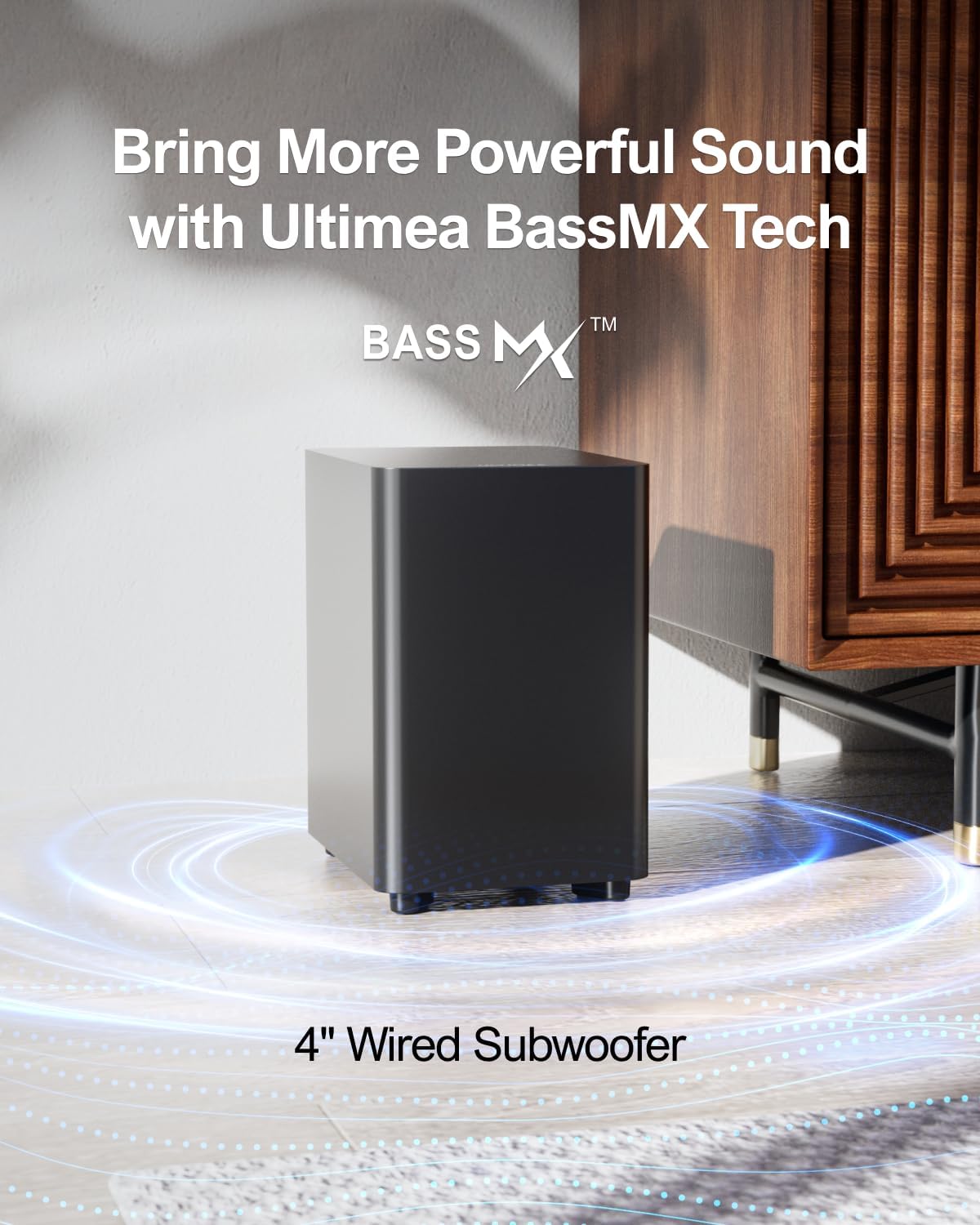
Image: The 4-inch wired subwoofer, designed to provide deep bass, shown in a home environment.
4.3 Surround Speakers
Two compact surround speakers work in conjunction with the soundbar to create a virtual 5.1 channel surround sound field, immersing you in your audio content. These speakers connect to each other via a cable, and one speaker pairs wirelessly with the soundbar.
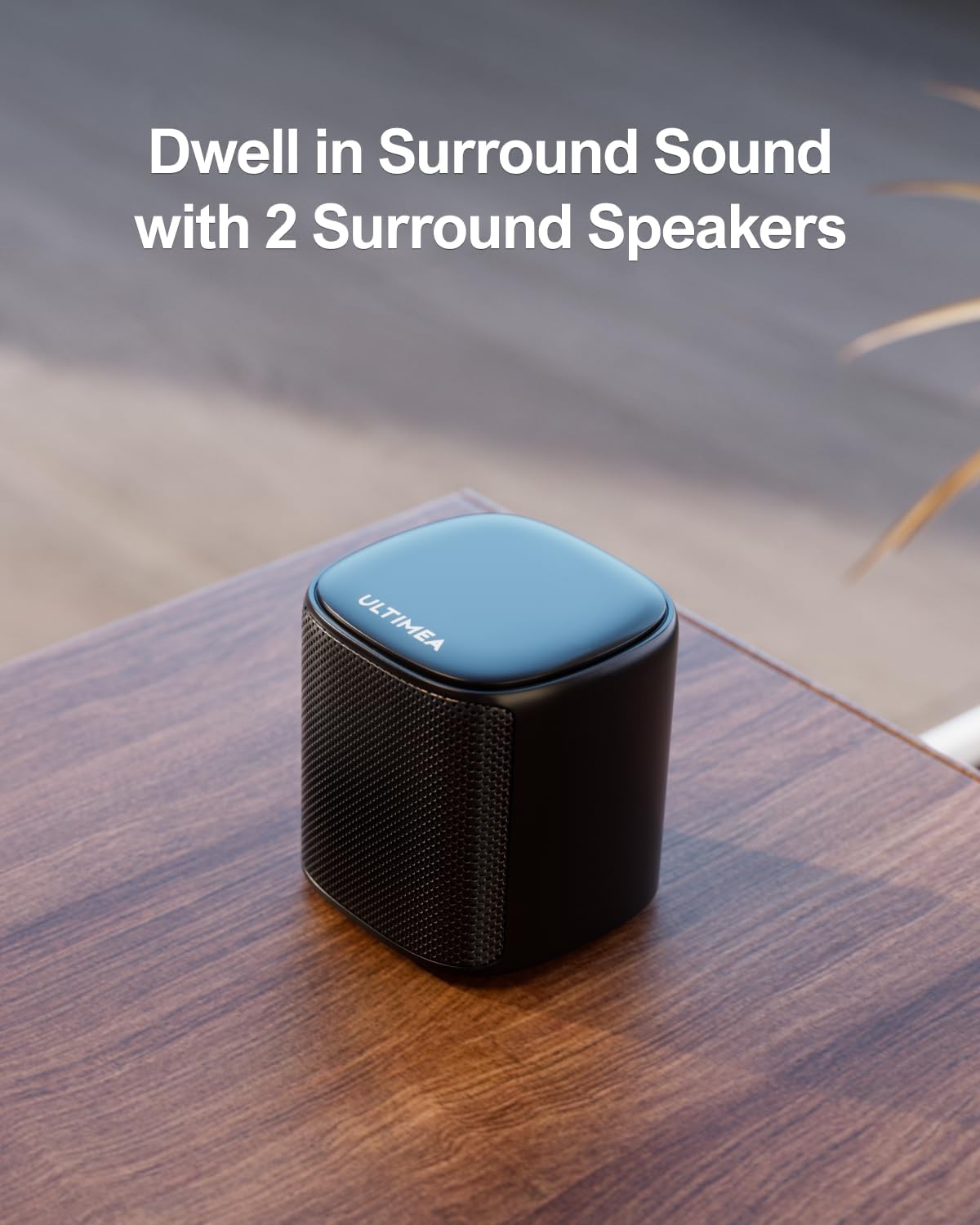
Image: One of the compact surround speakers, designed to deliver virtual surround sound.
4.4 Rear Panel Connections
The rear panel of the soundbar provides various ports for connecting to your audio sources.

Image: The rear connection panel of the soundbar, indicating ports for Optical, USB, AUX, Sub Out, and DC IN.
5. Setup
5.1 Placement
- Soundbar: Place the soundbar centrally below your TV.
- Subwoofer: Position the subwoofer on the floor, ideally in a corner or near a wall for optimal bass response.
- Surround Speakers: Place the surround speakers behind your listening position, to the left and right, for the best virtual surround effect. The recommended space for optimal performance is 108 to 215 square feet (10 to 20 square meters).

Image: An illustration of a typical living room setup, demonstrating the recommended placement of the soundbar, subwoofer, and surround speakers for a 5.1 virtual surround sound experience.
5.2 Connecting Surround Speakers
The two surround speakers connect to each other via a wired cable, and one speaker then pairs wirelessly with the soundbar.
- Connect the two surround speakers using the provided 6-meter surround cable.
- Power the right surround speaker using its dedicated power adapter. This speaker will then wirelessly pair with the soundbar.
- If pairing fails, ensure the speakers and soundbar are within 1.5 feet of each other. Hold the SURROUND button on the remote for 5 seconds until "SUR" blinks on the soundbar display. Then, hold the PAIR button on the right surround speaker for 5 seconds until its light flashes. Once paired, the light will remain solid, and the speakers can be moved to their desired positions.

Image: Connection diagram illustrating how the soundbar, subwoofer, and surround speakers are interconnected.
5.3 Power Connection
- Connect the soundbar power adapter to the DC IN port on the soundbar and then to a power outlet.
- Connect the subwoofer power cable to the subwoofer and then to a power outlet.
- Connect the surround speaker power adapter to the right surround speaker and then to a power outlet.
5.4 Audio Connections
The ULTIMEA Aura A30 U2501 supports Optical, AUX, and USB connections. Note: This system does not support HDMI connection.
5.4.1 Optical Connection
- Insert one end of the digital optical cable into your TV's OPTICAL OUT port.
- Insert the other end of the optical cable into the soundbar's OPTICAL port.
- On the soundbar remote control, press the OPT button to select the Optical input.
- Ensure your TV's audio output settings are configured to PCM (Pulse Code Modulation) if you experience no sound.

Image: Step-by-step guide for connecting the soundbar using an optical cable.
5.4.2 AUX Connection
- Insert one end of a 3.5mm audio cable (not included) into your TV's AUDIO OUT (headphone) port.
- Insert the other end of the audio cable into the soundbar's AUX port.
- On the soundbar remote control, press the AUX button to select the AUX input.

Image: Step-by-step guide for connecting the soundbar using an AUX cable.
5.4.3 USB Connection
Insert a USB drive containing audio files into the soundbar's USB port. The soundbar will automatically switch to USB input and begin playback.
6. Operating Instructions
6.1 Power On/Off
Press the Power button on the remote control or the soundbar to turn the system on or off.
6.2 Input Selection
Press the SOURCE button on the remote control or the soundbar to cycle through available input modes (Optical, AUX, USB, Bluetooth).
6.3 Volume Control
Use the Volume + and Volume - buttons on the remote control or the soundbar to adjust the master volume.
6.4 Bluetooth Pairing
- Press the BT button on the remote control to switch the soundbar to Bluetooth mode. The LED indicator will flash.
- Enable Bluetooth on your mobile device and search for "ULTIMEA Aura A30".
- Select the soundbar from the list to pair. Once connected, the LED indicator will stop flashing and remain solid.

Image: A smartphone connected to the soundbar via Bluetooth, ready for audio streaming.
6.5 Sound Modes and Equalizer Settings
The ULTIMEA Aura A30 U2501 offers various sound modes and extensive equalizer customization through the ULTIMEA Smart App.
- Preset EQ Modes: Choose from 6 specially designed EQ modes: Movie, Music, Voice, Sport, Game, and Night, optimized for different content types.
- 10-Band Equalizer: Use the ULTIMEA Smart App to fine-tune the audio frequency response with a 10-band equalizer, allowing adjustments to treble, midrange, and bass.
- 121 Preset EQ Matrices: The app also provides 121 preset equalizer matrices customized for 4 sound profiles: Bass, Pop, Classical, and Rock, for quick style adjustments.

Image: The ULTIMEA Smart App displaying the 10-band equalizer for detailed audio adjustments.

Image: The ULTIMEA Smart App interface showcasing 121 preset EQ matrices for different music genres and listening preferences.
6.6 ULTIMEA Smart App Control
Download the ULTIMEA Smart App from the App Store or Google Play to gain intuitive control over your sound bar system. The app allows you to switch EQ settings, adjust bands, manage matrices, and receive OTA updates for continuous improvement of your audio experience.
7. Maintenance
- Clean the surfaces of the sound bar, subwoofer, and speakers with a soft, dry cloth.
- Do not use liquid cleaners or aerosol sprays, as they may damage the finish or internal components.
- Keep the ventilation openings clear of dust and debris.
- Avoid placing the system in direct sunlight or near heat sources.
8. Troubleshooting
| Problem | Possible Cause | Solution |
|---|---|---|
| No power | Power cable not connected or outlet not active. | Ensure all power cables are securely connected and the power outlet is functioning. |
| No sound | Incorrect input selected, TV audio settings, or volume too low. | Select the correct input source. Check TV audio output settings (e.g., set to PCM for Optical). Increase volume. |
| Surround speakers not pairing | Speakers too far from soundbar, or pairing process not initiated correctly. | Move speakers closer to the soundbar (within 1.5 ft). Re-initiate pairing: hold SURROUND on remote for 5s, then PAIR on right surround speaker for 5s. |
| Bluetooth connection issues | Soundbar not in pairing mode, or device too far. | Ensure soundbar is in Bluetooth mode. Move device closer. Try unpairing and re-pairing. |
| Distorted sound | Volume too high, or audio source quality. | Reduce volume. Check the audio source for distortion. Adjust EQ settings via the app. |

Image: TV audio settings menu, showing the option to select PCM for digital audio output, which is often required for optical connections.
9. Specifications
| Feature | Detail |
|---|---|
| Model Name | Aura A30 |
| Item Model Number | U2501 |
| Speaker Type | 5.1ch Virtual Surround Sound System |
| Speaker Maximum Output Power | 250 Watts |
| Subwoofer Diameter | 5.25 Inches |
| Connectivity Technology | Bluetooth 5.3, Optical, AUX, USB (No HDMI support) |
| Wireless Communication Technology | Bluetooth 5.3, App Control |
| Bluetooth Range | 15 Meters |
| Control Method | App, Remote |
| Product Dimensions | 16"D x 3.54"W x 3"H (Soundbar) |
| Item Weight | 4.3 Kilograms (9.46 pounds) |
| Material | Metal, Plastic |
| Mounting Type | Tabletop Mount, Wall Mount |
| Special Features | 5.1CH Surround Sound, Ultimea Smart App Control, 10 Band EQ, 121 Preset EQ Matrices, Adjustable Bass/Midrange/Treble, Wired Subwoofer, BassMX Technology, 2 Surround Speakers, SurroundX Technology |
10. Warranty
This ULTIMEA product comes with a limited warranty. Please refer to the warranty card included in your package or visit the official ULTIMEA website for detailed warranty terms and conditions. Keep your purchase receipt as proof of purchase for warranty claims.
11. Support
For technical assistance, troubleshooting, or customer service inquiries, please contact ULTIMEA support through the following channels:
- Official Website: Visit the ULTIMEA official website for FAQs, support resources, and contact information.
- Email Support: Refer to your warranty card or the ULTIMEA website for the customer support email address.
- In-App Support: Utilize the support features within the ULTIMEA Smart App for direct assistance.
Please have your model number (U2501) and purchase details ready when contacting support.