
1. Introduction
The Rii K22S is a versatile dual-mode wireless keyboard designed for seamless control across multiple devices. Featuring both 2.4G wireless and Bluetooth connectivity, an integrated touchpad with multi-finger gestures, and dedicated multimedia keys, it offers a convenient and efficient input solution for various operating systems and devices. This manual provides detailed instructions for setup, operation, and maintenance to ensure optimal performance.
2. Package Contents
- Rii K22S Dual Mode Wireless Bluetooth Keyboard
- USB Cable (for charging)
- 2.4G USB Receiver (stored in the keyboard's battery compartment)
- User Manual
3. Product Overview

Figure 1: Top view of the Rii K22S Dual Mode Wireless Bluetooth Keyboard, highlighting its compact design and integrated touchpad.

Figure 2: The Rii K22S keyboard in use, demonstrating its suitability for home entertainment control.
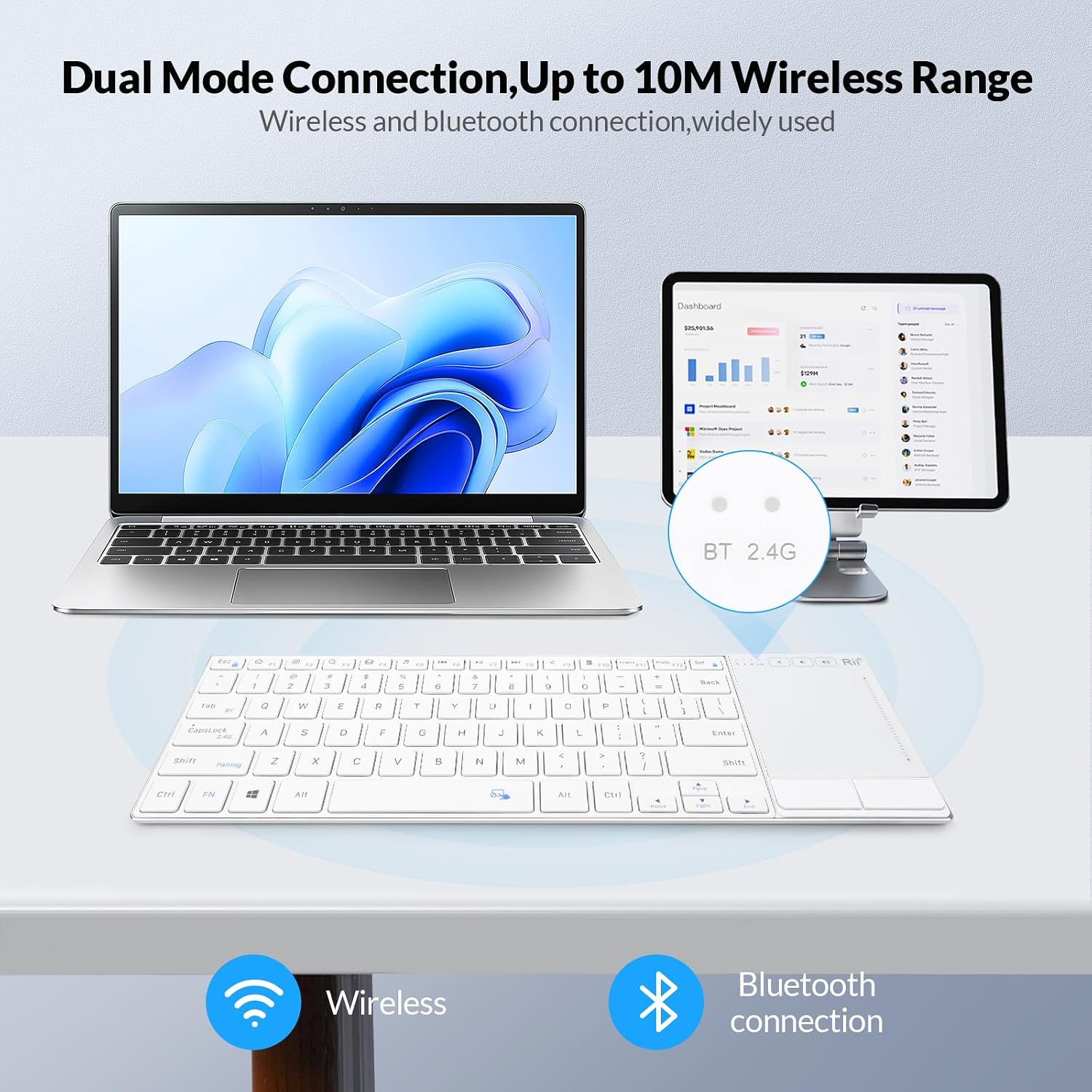
Figure 3: Diagram illustrating the dual mode connectivity options: 2.4G wireless and Bluetooth, allowing connection to multiple devices.

Figure 4: Detailed view of the integrated touchpad, showing icons for various multi-finger gestures for enhanced navigation.

Figure 5: The keyboard's multimedia function keys (F1-F12) and a note about the automatic sleep feature for power saving.

Figure 6: Close-up of the Type-C charging port and indicators for battery status and charging time.
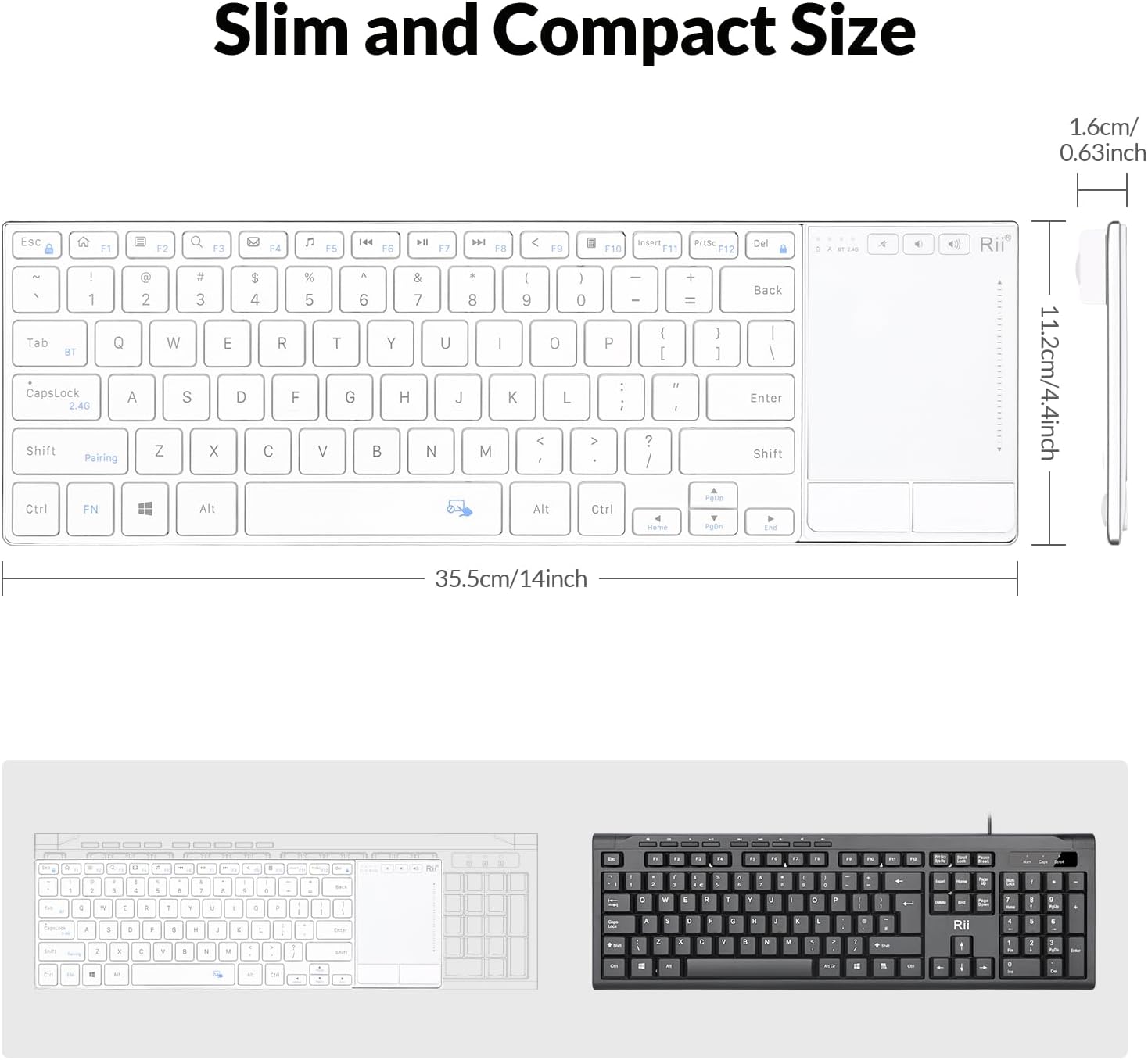
Figure 7: Visual representation of the Rii K22S keyboard's slim and compact dimensions.

Figure 8: Illustration of the keyboard's broad compatibility with various devices including smartphones, Android boxes, HTPCs, projectors, tablets, PCs, and Smart TVs.

Figure 9: The Rii K22S Rechargeable Wireless Keyboard with Trackpad, designed for home entertainment and work.

Figure 10: Diagram illustrating the scissor-switch key mechanism for comfortable typing.

Figure 11: Overview of key features including Dual Mode Connection, Multi-function Trackpad, Long Usage Distance, Rechargeable Battery, Scissor-Switch Buttons, Plug & Play, and Metal Keyboard Backpad.
4. Setup Instructions
4.1. 2.4G Wireless Connection
- Locate the 2.4G USB receiver. It is typically stored in the battery compartment on the underside of the keyboard.
- Plug the USB receiver into an available USB port on your device (e.g., PC, Smart TV, Android Box).
- Slide the power switch on the keyboard to the 'ON' position. The keyboard should automatically connect to your device.
- The 2.4G indicator light on the keyboard will illuminate to confirm connection.
4.2. Bluetooth Connection
- Ensure the keyboard is powered 'ON'.
- Press and hold the Fn key and then press the F1 key (or the designated Bluetooth pairing key, often marked with a Bluetooth icon) for approximately 3 seconds until the Bluetooth indicator light starts flashing. This indicates the keyboard is in pairing mode.
- On your device (e.g., laptop, tablet, smartphone), navigate to the Bluetooth settings.
- Search for available Bluetooth devices. The Rii K22S keyboard should appear in the list (it might be named 'Rii K22S' or similar).
- Select the keyboard from the list to initiate pairing. Follow any on-screen prompts to complete the connection.
- Once successfully paired, the Bluetooth indicator light on the keyboard will stop flashing and remain solid.
- To switch between connected Bluetooth devices or the 2.4G connection, use the dedicated Easy-Switch keys (e.g., BT, 2.4G, or numbered keys if available).
5. Operating Instructions
5.1. Touchpad Functions
- Single-finger tap: Left-click.
- Two-finger tap: Right-click.
- Two-finger slide (vertical): Scroll up or down.
- Fn + Spacebar: Toggle the touchpad on/off. This is useful if you prefer using an external mouse or wish to prevent accidental touches.
5.2. Multimedia Keys
The top row of keys (F1-F12) includes dedicated multimedia functions. To activate these functions, press the Fn key simultaneously with the desired F-key.
- Fn + F1: Escape
- Fn + F2: Mute
- Fn + F3: Volume Down
- Fn + F4: Volume Up
- Fn + F5: Previous Track
- Fn + F6: Play/Pause
- Fn + F7: Next Track
- Fn + F8: Search
- Fn + F9: Home
- Fn + F10: Mail
- Fn + F11: Browser
- Fn + F12: Lock Screen
5.3. Power Management (Auto Sleep)
The keyboard features an automatic sleep mode to conserve battery power. If there is no activity for 10 minutes, the keyboard will enter sleep mode. To wake it up, simply press any key. Note: The touchpad cannot be used to wake up the keyboard.
5.4. Compatibility
The Rii K22S keyboard is compatible with a wide range of operating systems and devices, including:
- Windows (XP/Vista/CE/7/8/10)
- macOS / iOS
- Linux
- Android
- Compatible devices include Laptops, PCs, Smart TVs, Tablets, Smartphones, Android Boxes, HTPCs, and Projectors.
6. Charging and Battery
The Rii K22S keyboard is equipped with a built-in rechargeable lithium battery. To charge the keyboard, connect the provided USB cable to the Type-C charging port on the keyboard and the other end to a USB power source (e.g., computer USB port, USB wall adapter). The charging indicator light will show the charging status. A full charge typically takes approximately 1.5 hours and provides up to 32 hours of continuous use or 12 months of standby time.
7. Troubleshooting
- Keyboard not responding: Ensure the keyboard is powered on and fully charged. Re-establish the 2.4G or Bluetooth connection as per the setup instructions.
- Touchpad not working: Check if the touchpad has been accidentally disabled. Press Fn + Spacebar to toggle it on/off.
- Intermittent connection: Ensure the keyboard is within the 10-meter (33 feet) wireless range of your device. Avoid obstructions that may interfere with the signal.
- Typing issues: Verify that the correct input language and keyboard layout are selected on your operating system.
8. Specifications
| Product Dimensions | 13.98 x 4.42 x 0.65 inches |
| Item Weight | 1.15 pounds |
| Manufacturer | Rii |
| Connectivity Technology | Bluetooth, 2.4G Wireless (USB-C for charging) |
| Keyboard Description | Multi Functional with Integrated Touchpad |
| Special Feature | Ergonomic, Low-Profile Key, Rechargeable, Trackpad, Quiet Scissor-Switches |
| Material | Aluminum, Stainless Steel |
| Batteries | 1 12V battery required (included) |
9. Warranty and Support
For warranty information and technical support, please refer to the documentation included with your product packaging or visit the official Rii website. Contact details for customer service are typically provided on the manufacturer's support page.


