
1. Introduction
This manual provides detailed instructions for the ZMUIPNG USB C Docking Station (Model MH18). This 15-in-1 docking station is designed to expand the connectivity of your laptop, supporting dual and triple monitor setups, high-speed data transfer, power delivery, and network connectivity. Please read this manual thoroughly before use to ensure proper operation and to maximize the product's capabilities.

Image 1.1: Overview of the ZMUIPNG 15-in-1 USB C Docking Station with connected devices.
2. Product Features
The ZMUIPNG USB C Docking Station offers a comprehensive set of features to enhance your productivity:
- 15-in-1 Connectivity: Includes 2*4K HDMI, VGA, 5Gbps USB-C, 100W USB-C PD, 2*USB 3.0, 3*USB 2.0, 1Gbps Ethernet, SD/Micro SD card reader, and a 3.5mm audio jack.
- Triple Display Support: Supports dual and triple monitor setups for Windows systems (MST and SST modes). Mac systems support mirrored display only.
- High-Resolution Video Output: Up to 4K@60Hz via single HDMI 1, 4K@30Hz via HDMI 2, and 1080P@60Hz via VGA.
- Monitor Control Button: A dedicated button to easily turn displays on or off without unplugging cables.
- Fast Data Transfer: USB 3.0 and USB-C ports for rapid file transfers, with USB 2.0 ports for peripherals.
- 100W Power Delivery: Provides up to 87W charging to your laptop (13W consumed by the docking station).
- Gigabit Ethernet: Ensures stable and fast wired network connectivity (10/100/1000BASE-T).
- SD/TF Card Reader: Supports simultaneous use of SD and TF cards.
- Audio/Mic Port: Integrated 3.5mm audio/mic combo jack.
- Status Indicator Lights: Blue light for power delivery/data/video support, white light for hub function.
3. Port Layout
Familiarize yourself with the various ports available on the docking station:

Image 3.1: Detailed diagram of the 15-in-1 docking station ports.
- Turn-off Button: To turn off/wake up the monitor.
- USB C PD (100W): Power Delivery input for charging the laptop.
- USB C 3.0 (5Gbps): High-speed data transfer port.
- SD/TF (104Mb/s): Card reader for SD and Micro SD cards.
- HDMI 1 (4K@60Hz for DP1.4, 4K@30Hz for DP1.2): Primary HDMI output.
- HDMI 2 (4K@30Hz): Secondary HDMI output.
- VGA (up to 1080P@60Hz): VGA video output.
- RJ45 (1000Mbps): Gigabit Ethernet port.
- USB A 2.0 (480Mbps): Three standard USB 2.0 ports for peripherals.
- USB A 3.0 (5Gbps): Two high-speed USB 3.0 ports.
- Audio/Mic (3.5mm): Combined audio input/output jack.
4. Setup Guide
Follow these steps to set up your docking station:
- Connect to Power (Optional but Recommended): If you wish to charge your laptop via the docking station, connect a USB-C power adapter (not included) to the USB C PD port on the docking station.
- Connect to Laptop: Plug the integrated USB-C cable from the docking station into a compatible USB-C port on your laptop. Ensure your laptop's USB-C port supports Power Delivery, Data Transfer, and DisplayPort functions for full functionality.
- Connect Monitors:
- For HDMI displays, connect HDMI cables from your monitors to the HDMI 1 and/or HDMI 2 ports on the docking station.
- For VGA displays, connect a VGA cable from your monitor to the VGA port on the docking station.
- Connect Peripherals: Plug in your USB devices (mouse, keyboard, external hard drives, webcam) into the available USB-A 2.0, USB-A 3.0, or USB-C 3.0 ports.
- Connect Network: For a wired internet connection, connect an Ethernet cable to the RJ45 port.
- Connect Audio: If desired, plug headphones or a headset into the 3.5mm audio/mic combo port.
The docking station is plug-and-play; no drivers are typically required for most operating systems.
5. Operating Instructions
5.1. Indicator Lights
The docking station features two indicator lights:
- Blue Light: Indicates that your connected USB-C port supports power delivery, data transfer, and video output.
- White Light: Indicates that the USB-C hub is functioning properly.
When both lights are illuminated, the docking station is fully compatible and operational with your laptop.

Image 5.1: Docking station in use, showing indicator lights and the monitor control button.
5.2. Monitor Control Button
The dedicated monitor control button allows you to quickly turn your connected displays on or off with a single click. This feature helps protect privacy and simplifies display management without needing to unplug cables.
5.3. Multi-Display Modes
The docking station supports various display configurations:
- For Windows Systems: Supports both MST (Multi-Stream Transport) and SST (Single-Stream Transport) modes, allowing for extended or mirrored displays across multiple monitors.
- For Mac Systems: Supports only mirrored display (SST Extend Mode). Multi-Stream Transport (MST) is not supported by macOS.

Image 5.2: Windows Multi-Display Modes (Dual and Triple Monitors).
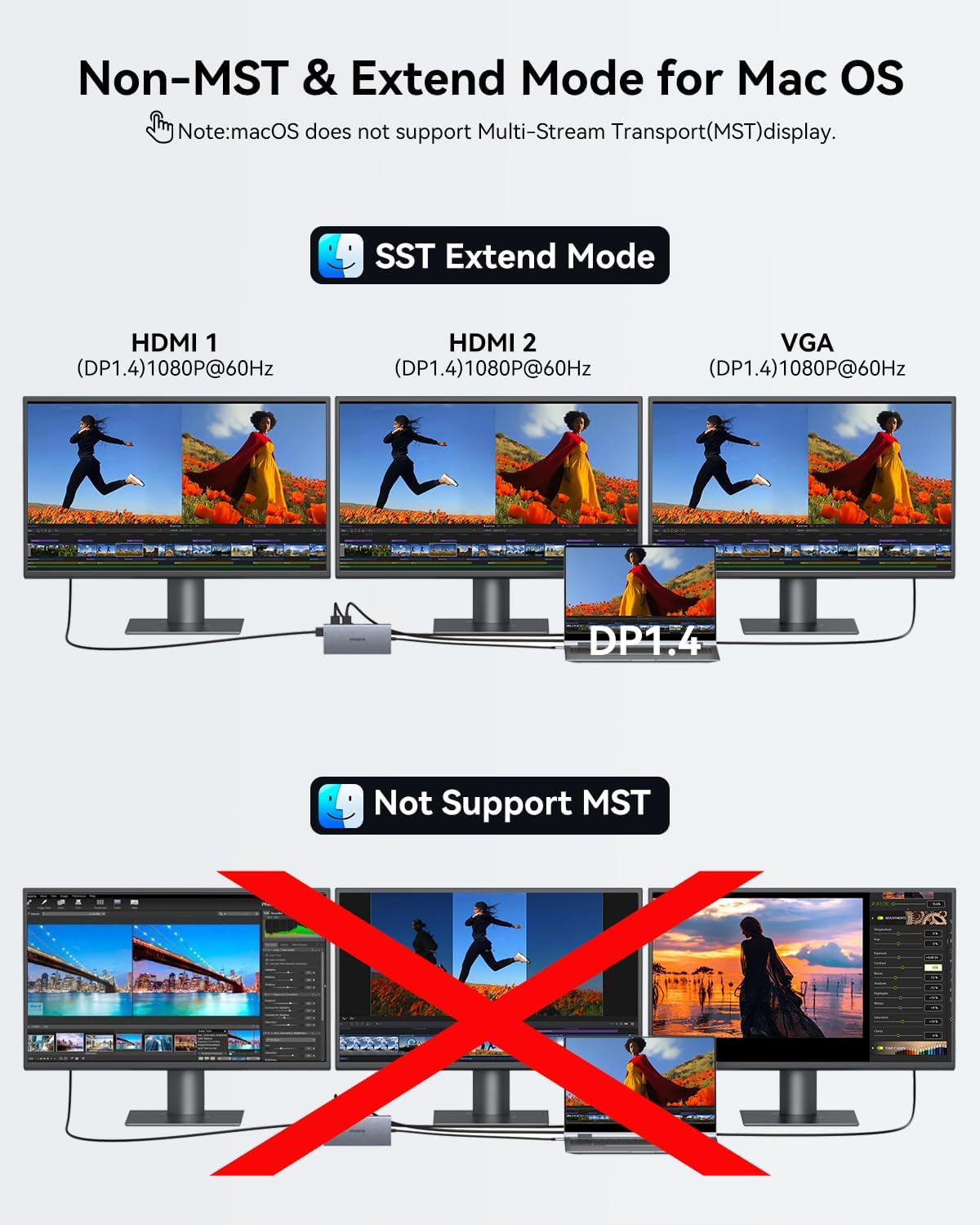
Image 5.3: Mac OS Display Modes (SST Extend Mode supported, MST not supported).
5.4. Power Delivery (PD) Charging
The docking station supports up to 100W Power Delivery input. While the docking station itself consumes approximately 13W, it can deliver up to 87W of power to charge your connected laptop. A power adapter and cable are not included and must be purchased separately.

Image 5.4: Laptop charging via the 100W Power Delivery port.
5.5. High-Speed Data Transfer
Utilize the USB 3.0 and USB-C 3.0 ports for rapid data transfer speeds up to 5Gbps. The USB 2.0 ports are suitable for connecting standard peripherals like mice and keyboards. The integrated SD/TF card reader supports simultaneous use for seamless data access.

Image 5.5: Connecting peripherals for high-speed data transfer.
5.6. Stable Network Connection
The Gigabit Ethernet (RJ45) port provides a stable and fast wired network connection, supporting 10/100/1000Mbps speeds. This is ideal for situations requiring reliable internet access.
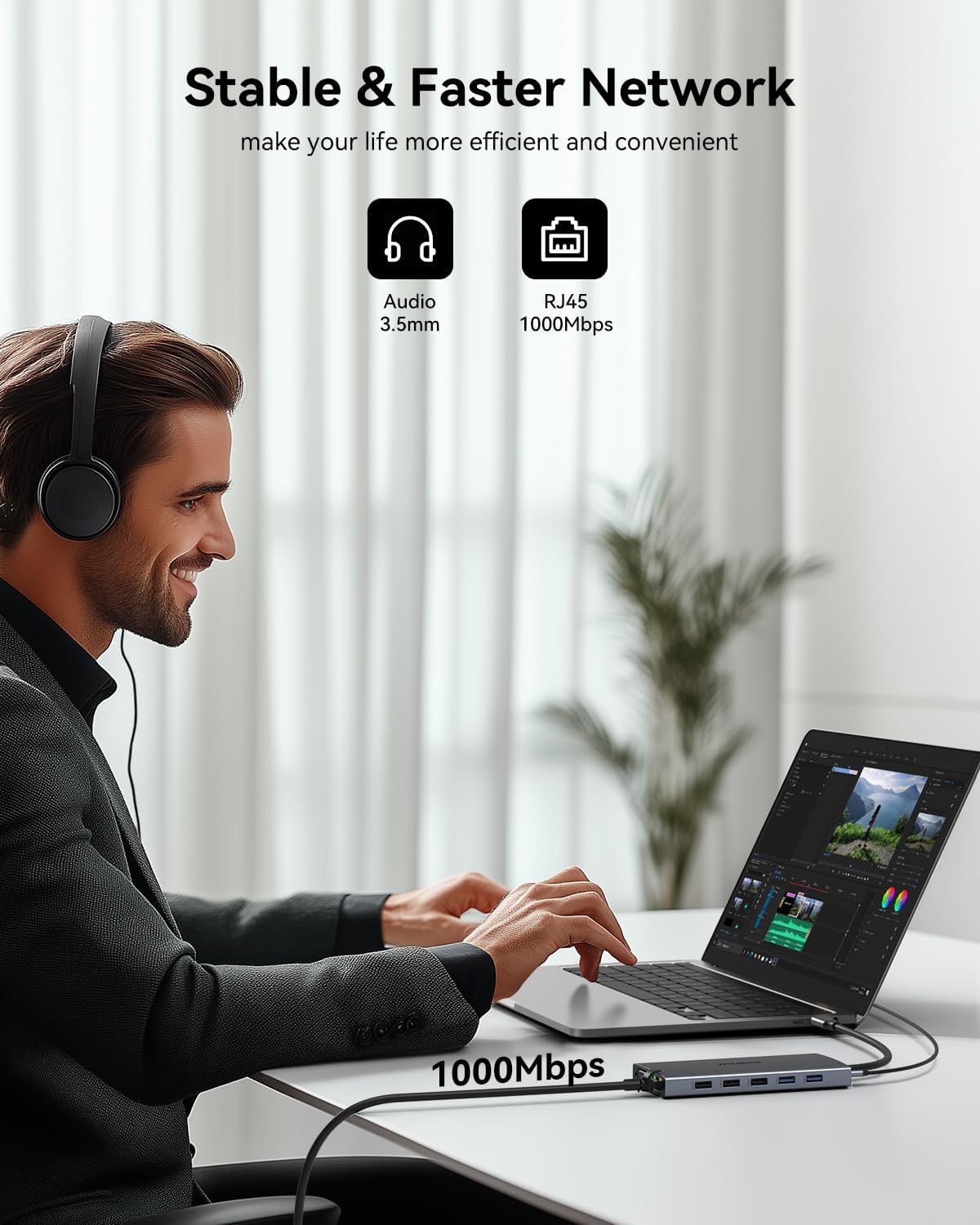
Image 5.6: Utilizing the Gigabit Ethernet port for a stable network.
6. Compatibility
The ZMUIPNG USB C Docking Station is designed for broad compatibility. However, full functionality depends on your laptop's USB-C port capabilities. It is compatible with laptops featuring Thunderbolt 3/4, USB-C 3.1 Gen 1/Gen 2, and USB-C 3.2 Gen 1/Gen 2 with Power Delivery and DisplayPort functions.

Image 6.1: USB-C Port Compatibility Check. Ensure your laptop's USB-C port supports Power Delivery, DisplayPort, and Data Transfer for optimal performance.
Supported Operating Systems: Windows, macOS, Linux, iPad OS, Android.
6.1. Compatible Devices (Partial List)

Image 6.2: Partial list of compatible Dell and HP laptops.

Image 6.3: Partial list of compatible Lenovo, Surface, and Apple laptops.
6.2. Incompatible Devices (Partial List)
Please note that the following devices or types of ports may not be fully compatible or supported:

Image 6.4: Partial list of incompatible devices (Part 1).

Image 6.5: Partial list of incompatible devices (Part 2).
If you are unsure about your laptop's compatibility, please refer to your laptop's manufacturer specifications or contact ZMUIPNG support with your exact laptop model.
7. Troubleshooting
If you encounter issues, please refer to the following common troubleshooting steps:
- No Display Output:
- Ensure your laptop's USB-C port supports DisplayPort Alt Mode. Refer to Image 6.1.
- Check all cable connections (USB-C to laptop, HDMI/VGA to monitors).
- Verify that the monitor input source is correctly selected (e.g., HDMI 1, HDMI 2, VGA).
- Restart your laptop and reconnect the docking station.
- For Windows, check display settings (Display Settings > Multiple Displays). For Mac, check System Preferences > Displays.
- No Power Delivery/Charging:
- Ensure your USB-C power adapter is connected to the PD port on the docking station and is functional.
- Verify your laptop's USB-C port supports Power Delivery. Refer to Image 6.1.
- Check the blue indicator light on the docking station. If it's not on, the laptop's USB-C port may not support PD.
- USB Devices Not Working:
- Ensure the white indicator light on the docking station is on, indicating proper function.
- Try connecting the USB device directly to the laptop to confirm device functionality.
- Reconnect the docking station to the laptop.
- For wireless 2.4GHz devices, it is recommended to connect them to USB 2.0 ports for a more stable connection.
- Ethernet Connection Issues:
- Check the Ethernet cable connection to both the docking station and your router/modem.
- Verify network settings on your laptop.
- Try a different Ethernet cable.
8. Specifications
| Feature | Detail |
|---|---|
| Model Number | MH18 |
| Brand | ZMUIPNG |
| Connectivity | 15-in-1 (2x HDMI, 1x VGA, 1x USB-C PD, 1x USB-C 3.0, 2x USB-A 3.0, 3x USB-A 2.0, 1x RJ45, 1x SD, 1x MicroSD, 1x 3.5mm Audio/Mic) |
| Video Output |
|
| Power Delivery | Up to 100W input, 87W output to laptop |
| Data Transfer Speed |
|
| Ethernet | 10/100/1000Mbps Gigabit Ethernet |
| Audio | 3.5mm Audio/Mic Combo Jack |
| Dimensions | 6.5 x 4.06 x 0.75 inches |
| Item Weight | 5.9 ounces |
9. Official Product Video
Watch the official product video for a visual guide on the ZMUIPNG USB C Docking Station's features and usage:
Video 9.1: Official ZMUIPNG USB C Docking Station product overview and demonstration. This video showcases the various ports, connectivity options, and how to set up multiple displays with the docking station.
10. Warranty and Support
ZMUIPNG products are designed for reliability and performance. For warranty information, technical support, or any inquiries regarding your docking station, please refer to the contact information provided with your product packaging or visit the official ZMUIPNG website. Please retain your proof of purchase for warranty claims.
For further assistance, you may also contact the seller directly via the platform where the product was purchased.


