Introduction
The My Arcade Atari Pixel Pocket Pro is a portable, officially licensed Atari video game system designed for on-the-go entertainment. This compact device includes 25 classic Atari games, offering a nostalgic gaming experience in a convenient keychain format. This manual provides essential information for setting up, operating, and maintaining your device.
Package Contents
- My Arcade Atari Pixel Pocket Pro device
- User Guide (this document)

Image: The My Arcade Atari Pixel Pocket Pro device shown within its retail packaging, highlighting the product's branding and key features.
Product Overview
The Pixel Pocket Pro features a 2-inch full-color screen and intuitive button controls for an authentic arcade experience. Its compact design includes a keychain for easy portability.

Image: Front view of the My Arcade Atari Pixel Pocket Pro, displaying the screen, directional pad, SELECT, START, VOLUME, and 'A' buttons.
Image: The My Arcade Atari Pixel Pocket Pro with visual callouts indicating 25 officially licensed Atari titles, a 2-inch full-color screen, and power via 3 AAA batteries.
Setup
Battery Installation
- Locate the battery compartment on the back of the device.
- Using a small Phillips head screwdriver (not included), carefully remove the screw securing the battery compartment cover.
- Remove the cover.
- Insert three (3) AAA batteries (not included) into the compartment, ensuring correct polarity (+/-) as indicated inside the compartment.
- Replace the battery compartment cover and secure it with the screw.
Note: Always use fresh batteries and dispose of old batteries responsibly. Do not mix old and new batteries or different types of batteries.

Image: Back view of the My Arcade Atari Pixel Pocket Pro, showing the location of the battery compartment cover.
Operating Instructions
Power On/Off
- To power on the device, press the START button.
- To power off the device, press and hold the START button for approximately 3 seconds until the screen turns off.
Game Selection
- After powering on, use the directional pad to navigate through the list of available games.
- Press the A button to select a game and begin playing.
Volume Control
- Use the VOLUME button to adjust the sound level. Pressing it cycles through different volume settings.
Gameplay
- The directional pad controls movement within the game.
- The A button typically serves as the action or fire button.
- The SELECT button may be used for in-game options or pausing, depending on the specific game.
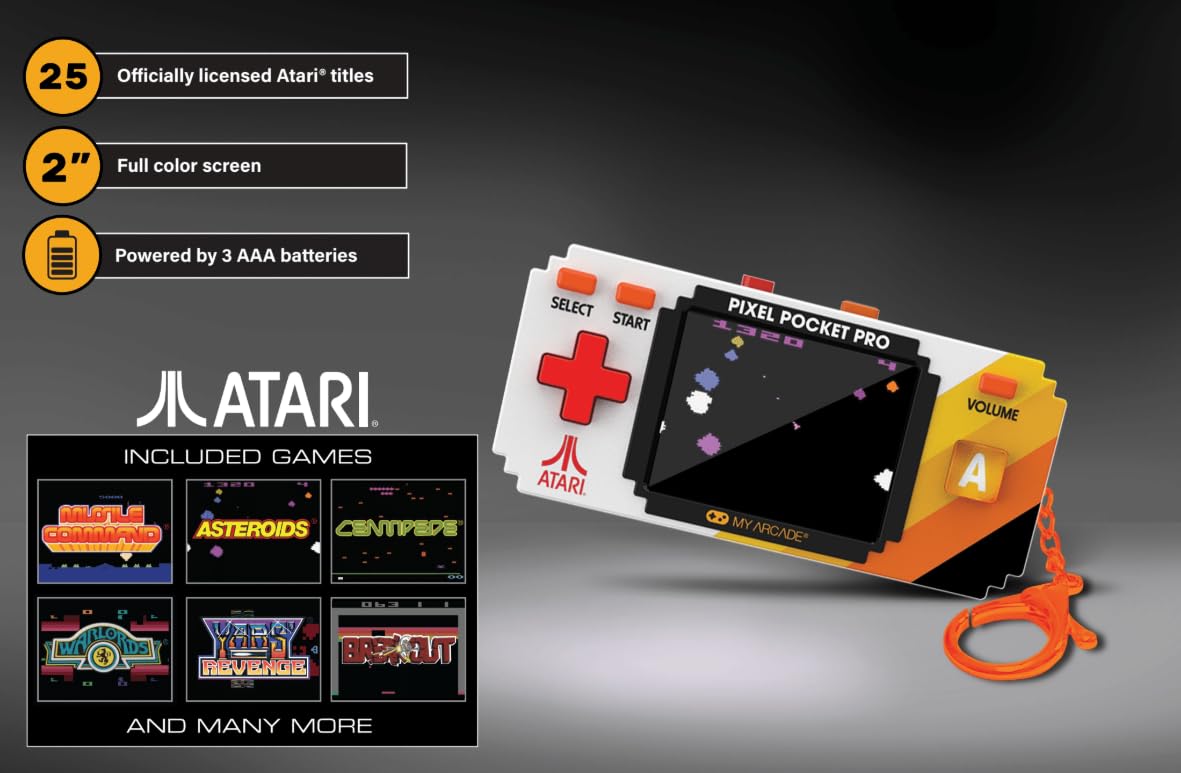
Image: A hand holding the My Arcade Atari Pixel Pocket Pro, demonstrating its portable size and how it is used for gameplay.
Maintenance
Cleaning
- Wipe the device with a soft, dry cloth.
- Do not use liquid cleaners or abrasive materials, as these can damage the screen or casing.
Battery Care
- Remove batteries if the device will not be used for an extended period to prevent leakage.
- Store the device in a cool, dry place away from direct sunlight.
Troubleshooting
Device Does Not Power On
- Ensure batteries are inserted correctly with the correct polarity.
- Replace with fresh AAA batteries.
- Check that the battery compartment cover is securely closed.
No Sound or Low Sound
- Press the VOLUME button to increase the sound level.
- Ensure the speaker is not obstructed.
Screen Issues (e.g., Blurry, Flickering)
- Ensure the screen is clean and free of smudges.
- Replace batteries, as low power can sometimes affect screen performance.
- If the issue persists, contact customer support.
Specifications
| Model Number | DGUNL-7134 |
| Brand | My Arcade |
| Screen Size | 2 inches (full color) |
| Controller Type | Button Control |
| Power Source | Battery Powered |
| Batteries Required | 3 x AAA (not included) |
| Dimensions (W x H x D) | 1.75" x 3.8" x 1" (approximately) |
| Weight | 4.5 ounces (approximately) |
| Material | Plastic |
| Number of Games | 25 Officially Licensed Atari Titles |
Warranty and Support
For warranty information or technical support, please refer to the contact details provided on the product packaging or visit the official My Arcade website. Keep your purchase receipt as proof of purchase.
Image: A QR code for collecting more My Arcade products. Scan this code to explore other available items.
Explore more My Arcade products: https://qrco.de/collectthem


