
SLIDE 643620036105
SLIDE Waterproof Smartwatch Model 643620036105 User Manual
Comprehensive instructions for setup, operation, and maintenance.
1. Introduction
Thank you for choosing the SLIDE Waterproof Smartwatch Model 643620036105. This manual provides essential information for setting up, operating, and maintaining your new smartwatch. Please read these instructions carefully to ensure optimal performance and longevity of your device.

Image 1.1: The SLIDE Waterproof Smartwatch, featuring a blue band and an additional orange band. The watch face displays various application icons.
2. Package Contents
Please verify that all items are present in your package:
- SLIDE Waterproof Smartwatch (Model 643620036105)
- Blue Watch Band (pre-installed or separate)
- Orange Watch Band (additional)
- Magnetic USB Charging Cable
- User Manual (this document)
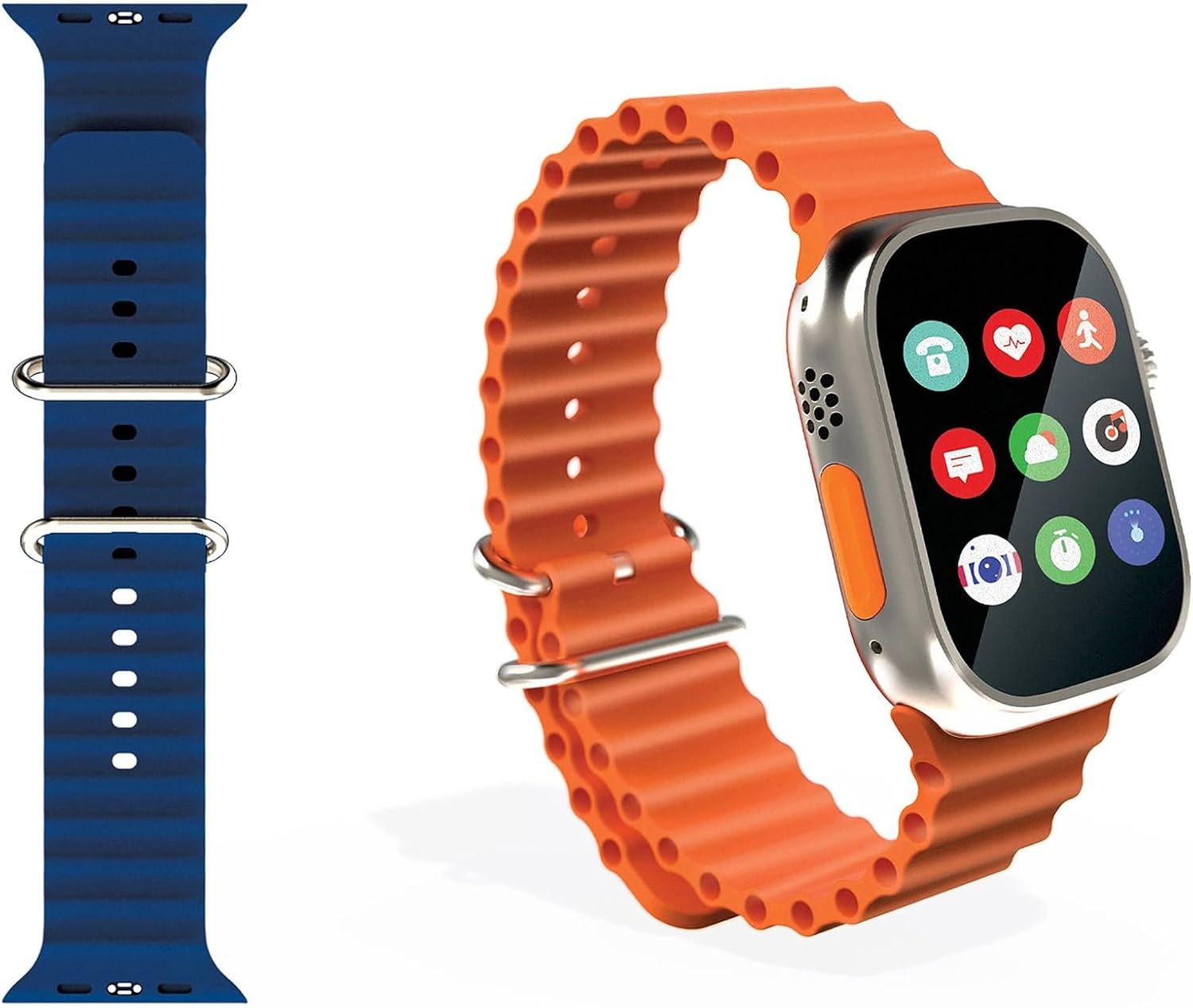
Image 2.1: The SLIDE Smartwatch alongside its interchangeable blue and orange bands, ready for customization.
3. Setup
3.1. Charging the Smartwatch
Before first use, fully charge your smartwatch.
- Connect the magnetic USB charging cable to a USB power adapter (not included) or a computer's USB port.
- Align the magnetic end of the charging cable with the charging contacts on the back of your smartwatch. The magnets will snap it into place.
- The watch screen will indicate charging status. Allow approximately 2 hours for a full charge.
3.2. Installing/Changing Watch Bands
Your SLIDE Smartwatch comes with two interchangeable bands.
- To remove a band, locate the quick-release pins on the underside of the watch where the band connects to the watch body.
- Slide the pin inwards and gently pull the band away from the watch.
- To attach a new band, insert one end of the pin into the watch lug hole.
- Slide the quick-release pin inwards, align the other end with the opposite lug hole, and release the pin. Gently tug the band to ensure it is securely fastened.
3.3. Pairing with Your Smartphone
The SLIDE Smartwatch connects to most smartphones via Bluetooth.
- Ensure your smartwatch is charged and powered on.
- On your smartphone, enable Bluetooth in the settings.
- Download and install the companion app for your SLIDE Smartwatch from your phone's app store (e.g., Google Play Store or Apple App Store). Refer to the packaging or quick start guide for the specific app name.
- Open the companion app and follow the on-screen instructions to search for and pair with your smartwatch.
- Confirm the pairing request on both your smartphone and smartwatch if prompted.
Once paired, your smartwatch will synchronize data and receive notifications from your phone.
4. Operating Instructions
4.1. Basic Navigation
The smartwatch features a 2-inch touch screen for interaction.
- Swipe Up/Down: Navigate through menus or notifications.
- Swipe Left/Right: Access different widgets or quick settings.
- Tap: Select an item or open an application.
- Press Side Button/Crown: Typically returns to the home screen or activates a specific function (refer to app for customization).
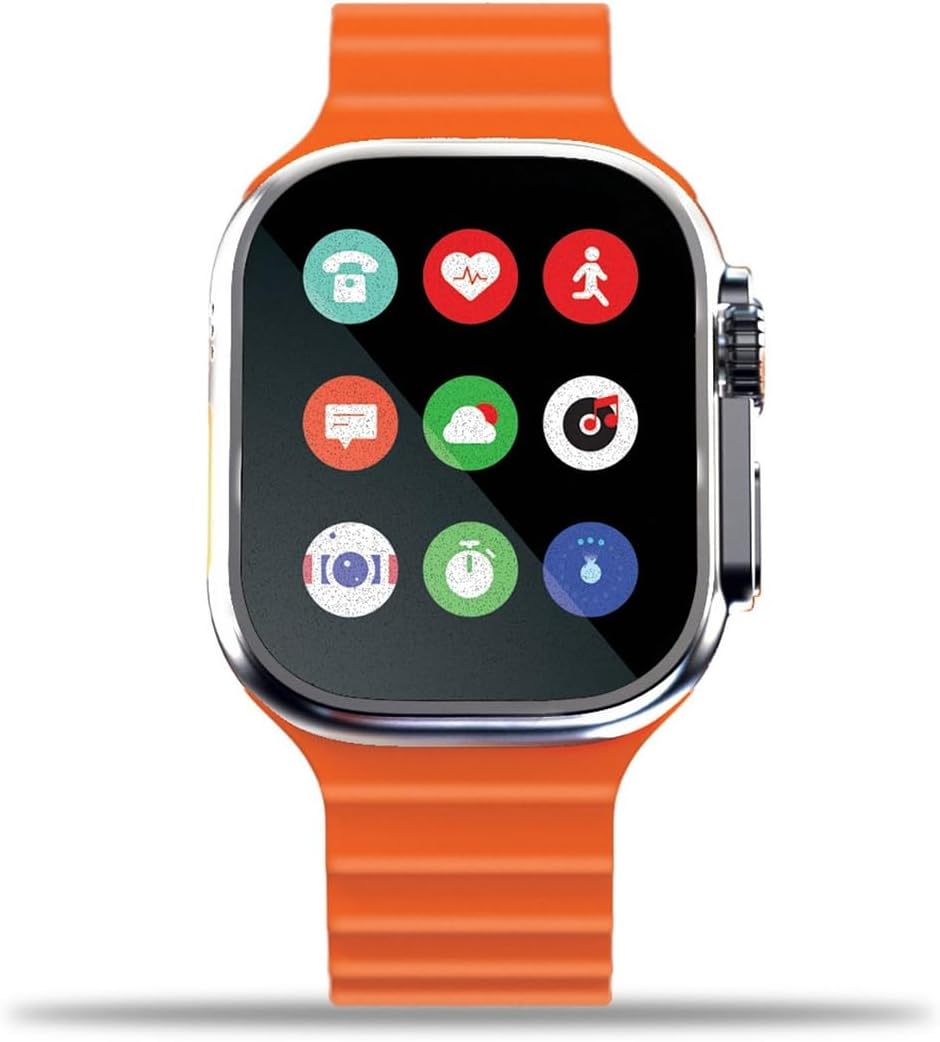
Image 4.1: The smartwatch screen showing a grid of application icons, including phone, heart rate, activity tracker, messages, weather, and music.
4.2. Notifications and Communication
Stay connected by receiving notifications directly on your wrist.
- Incoming Calls: View caller ID and accept or reject calls from your wrist.
- Messages: Read incoming text messages and app notifications.
- App Alerts: Receive alerts from various smartphone applications configured in the companion app.
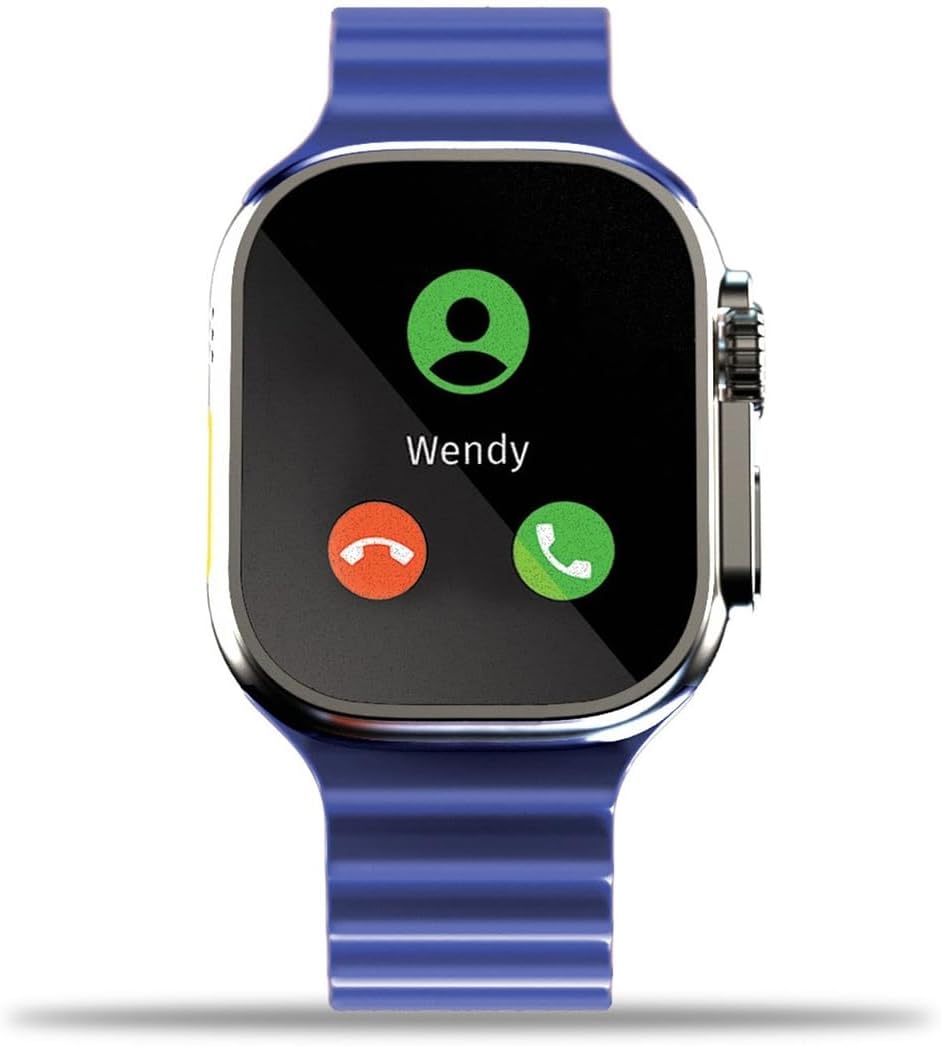
Image 4.2: The smartwatch screen showing an incoming call notification from "Wendy" with options to accept or decline.
4.3. Health and Activity Tracking
Monitor your health and fitness progress with built-in tracking features.
- Activity Tracking: Records steps, distance, and calories burned.
- Heart Rate Monitoring: Provides real-time heart rate data.
- Sleep Monitoring: Tracks sleep patterns (requires wearing the watch during sleep).
Detailed data and historical trends can be viewed in the companion smartphone app.

Image 4.3: The smartwatch screen showing an active workout timer (00:20:00), heart rate (082 BPM), and calories burned (600 Kcal).
4.4. Remote Control Functions
Control your smartphone's camera and music playback directly from your smartwatch.
- Remote Photo Shutter: Open your phone's camera app, then use your smartwatch to remotely trigger the shutter.
- Music Control: Play, pause, skip tracks, and adjust volume for music playing on your connected smartphone.
4.5. Voice Assistant Compatibility
The smartwatch is compatible with Siri and Google Assistant.
- Activate your phone's voice assistant through the smartwatch interface (specific activation method may vary, refer to companion app settings).
- Speak commands into the smartwatch microphone to interact with Siri or Google Assistant.
5. Maintenance
5.1. Water Resistance (IP67)
Your SLIDE Smartwatch is IP67 rated, meaning it is protected from dust and can withstand immersion in water up to 1 meter for up to 30 minutes.
- It is suitable for daily use, such as washing hands or being caught in the rain.
- Avoid prolonged immersion, hot water, or exposure to high-pressure water jets.
- Do not operate buttons or the crown while the watch is submerged.
- After exposure to water, especially saltwater, gently wipe the watch dry with a soft cloth.
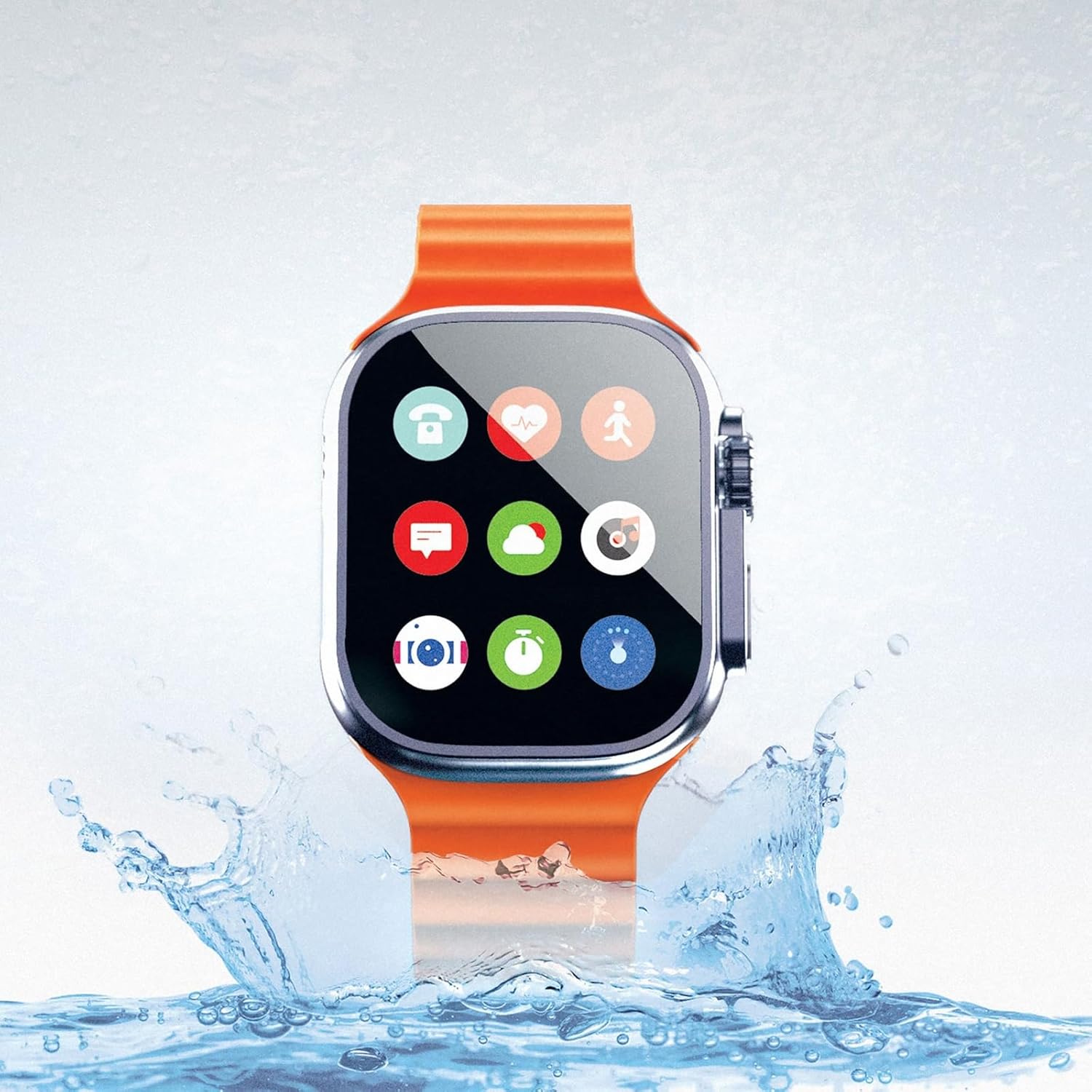
Image 5.1: The SLIDE Smartwatch, with an orange band, shown amidst a water splash, illustrating its IP67 water resistance.
5.2. Cleaning
To maintain your smartwatch's appearance and functionality:
- Wipe the screen and watch body with a soft, lint-free cloth.
- For stubborn dirt, slightly dampen the cloth with water. Avoid harsh chemicals or abrasive materials.
- Clean the charging contacts periodically to ensure proper charging.
6. Troubleshooting
If you encounter issues with your smartwatch, try the following steps:
- Watch Not Turning On: Ensure the watch is fully charged. Connect it to the magnetic charger and wait a few minutes before attempting to power it on again.
- Cannot Pair with Smartphone:
- Ensure Bluetooth is enabled on your smartphone.
- Make sure the smartwatch is within Bluetooth range (typically 10 meters).
- Restart both your smartphone and the smartwatch.
- Try unpairing and re-pairing the device through the companion app.
- Notifications Not Appearing:
- Check notification settings in your smartphone's Bluetooth settings and the smartwatch companion app.
- Ensure the companion app is running in the background on your phone.
- Inaccurate Health Data: Ensure the watch is worn snugly on your wrist, but not too tight. Clean the sensor on the back of the watch.
For further assistance, refer to the support section of the companion app or contact customer support.
7. Specifications
| Feature | Detail |
|---|---|
| Brand | SLIDE |
| Model Number | 643620036105 |
| Product Dimensions | 3.55 x 3.35 x 6.11 inches |
| Item Weight | 8.2 ounces |
| Screen Size | 2 Inches (320x385 resolution touch screen) |
| Operating System | Android (compatible) |
| Connectivity Technology | Bluetooth |
| Wireless Communication Standard | Bluetooth |
| GPS | No GPS |
| Water Resistance | IP67 (submergible in water) |
| Battery Life | All-day battery with 30-day standby time |
| Compatible Devices | Smartphone |
| Band Length | 8 inches (10 inches with watch attached) |
8. Warranty Information
The SLIDE Waterproof Smartwatch Model 643620036105 comes with a 1-year limited manufacturer warranty. This warranty covers defects in materials and workmanship under normal use. It does not cover damage caused by misuse, accidents, unauthorized modifications, or normal wear and tear.
For warranty claims or detailed terms and conditions, please refer to the documentation included with your purchase or contact SLIDE customer support.
9. Support
If you require further assistance or have questions not covered in this manual, please:
- Consult the FAQ section within the SLIDE companion app.
- Visit the official SLIDE product support website (if available).
- Contact SLIDE customer service directly. Contact information can typically be found on the product packaging or the official brand website.
Ask a question about this manual
Ask about setup, troubleshooting, compatibility, parts, safety, or missing instructions. Manuals+ will review the question and use this page’s manual context to help answer it.