
Facmogu G9 - White
Facmogu G9 Audio Mixer User Manual
Model: G9 - White
Brand: Facmogu
Introduction
The Facmogu G9 Audio Mixer is an essential tool designed for gamers, streamers, and podcasters. It offers exceptional sound quality, customizable sound effects, and immersive RGB lighting, all within a compact and user-friendly design. This manual provides comprehensive instructions for setting up, operating, and maintaining your G9 Audio Mixer to ensure optimal performance for your live streaming, podcast recording, and gaming experiences.
Key features include a pro-preamp with 48V phantom power for XLR microphones, one-click noise reduction, custom sound effects (female, male, baby, robot voice changes), custom sound pads, reverb, sidechain features, Bluetooth input, one-click mute, and Loopback functionality. The device also features customizable RGB lighting and wide compatibility with various devices and software platforms.

Figure 1: Facmogu G9 Audio Mixer. This image shows the top view of the white G9 mixer with its various knobs, faders, and colorful buttons, highlighting its compact design.
Setup Guide
Follow these steps to set up your Facmogu G9 Audio Mixer:
- Power Connection: Connect the provided USB-C data cable to the DC-5V port on the back of the mixer and the other end to a power source (e.g., computer USB port, USB wall adapter).
- Microphone Connection: For XLR microphones, connect your microphone cable to the XLR input port on the back of the mixer. If your XLR condenser microphone requires phantom power, activate the 48V phantom power button on the mixer. For 1/4" microphones, use the same input port.
- Audio Output: Connect your headphones to the "Headphones" output jack for monitoring. For external speakers, connect them to the "OUT" jack.
- Auxiliary Input: Use the "AUX IN" port to connect external audio sources like a phone or tablet for background music or sound effects.
- Computer Connection: Connect the mixer to your computer using the USB data cable. The mixer will be recognized as an audio input/output device.
- Bluetooth Connection: To connect a Bluetooth device, press the "BT" button. The indicator light will flash, indicating pairing mode. Search for "Facmogu G9" on your device and connect.

Figure 2: Rear panel connections of the Facmogu G9 Audio Mixer. This image illustrates the various input and output ports including DC-5V power, USB, AUX IN, OUT, Headset, and XLR/1/4" Mic Input, along with examples of devices that can be connected.

Figure 3: Facmogu G9 Audio Mixer with an XLR microphone connected. This image highlights the XLR input and the 48V phantom power feature, showing a glowing blue connection for the microphone.
Operating Instructions
1. Basic Audio Control
- Mic Gain Knob: Adjusts the input sensitivity of your microphone. Turn clockwise to increase gain, counter-clockwise to decrease.
- Reverb Knob: Controls the amount of reverb effect applied to your microphone audio.
- Headphones Knob: Adjusts the volume of the headphone output for monitoring.
- Mic Fader: Controls the overall volume level of the microphone.
- Music Fader: Controls the volume level of the background music or auxiliary input.
- Mute Button: Press to instantly mute your microphone output.

Figure 4: Individual Channel Control. This image provides a close-up view of the Mic Gain, Reverb, and Headphones knobs, illustrating their function for precise audio adjustments.
2. Voice Enhancement and Effects
- 48V Phantom Power: Press the "48V" button to enable phantom power for condenser microphones that require it. Ensure your microphone is connected before activating.
- Voice Change: Press the "Voice Change" button to cycle through various voice effects such as female, male, baby, or robot.
- Noise Reducer: Activate the "Noise Reducer" button for one-click noise reduction, ensuring clearer audio. The mixer offers 3 levels of noise reduction.
- SideChain: Use the "SideChain" feature to automatically duck background music volume when you speak, making your voice stand out.
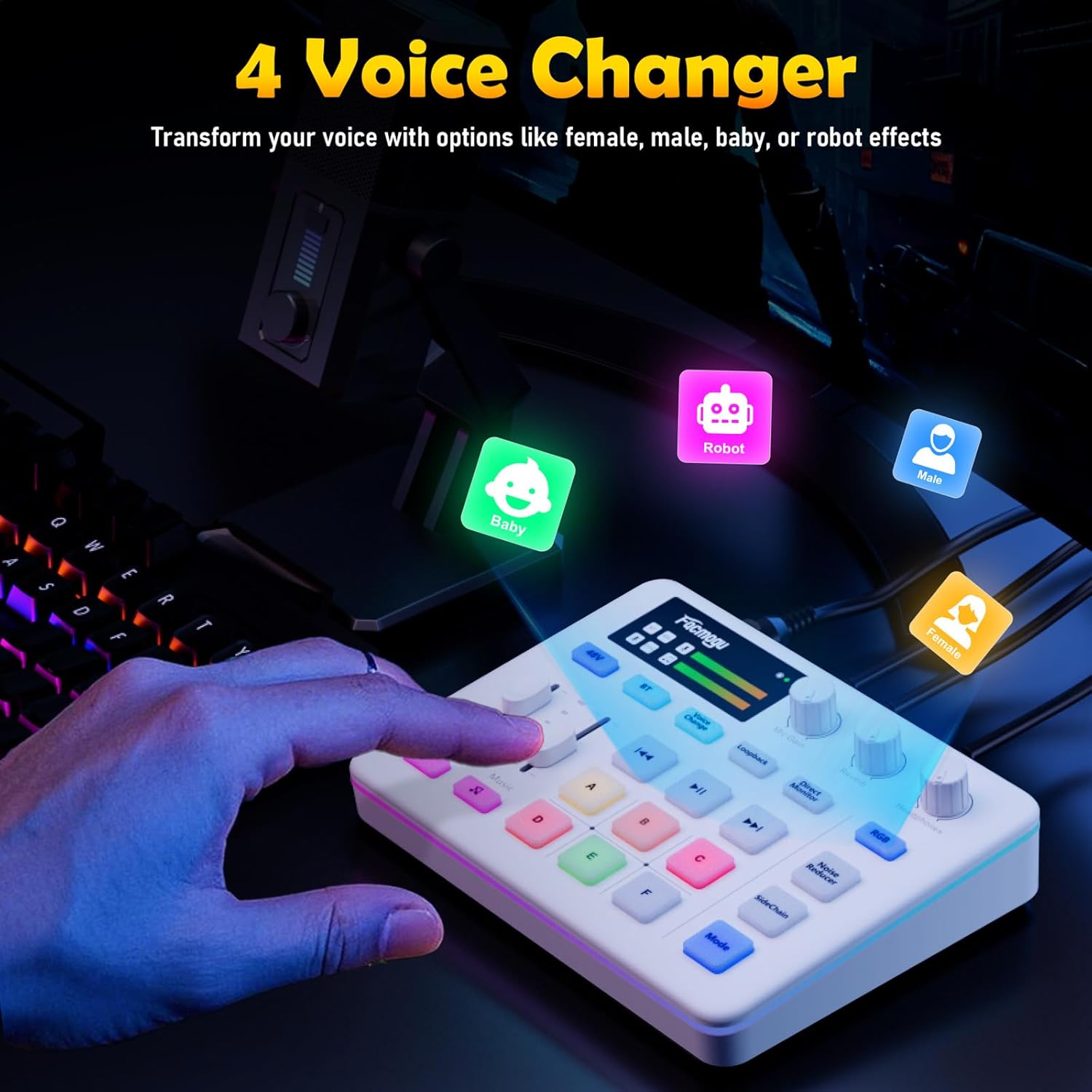
Figure 5: Voice Changer Functionality. This image shows the mixer with icons representing different voice effects: Baby, Robot, Male, and Female, indicating the voice transformation capabilities.
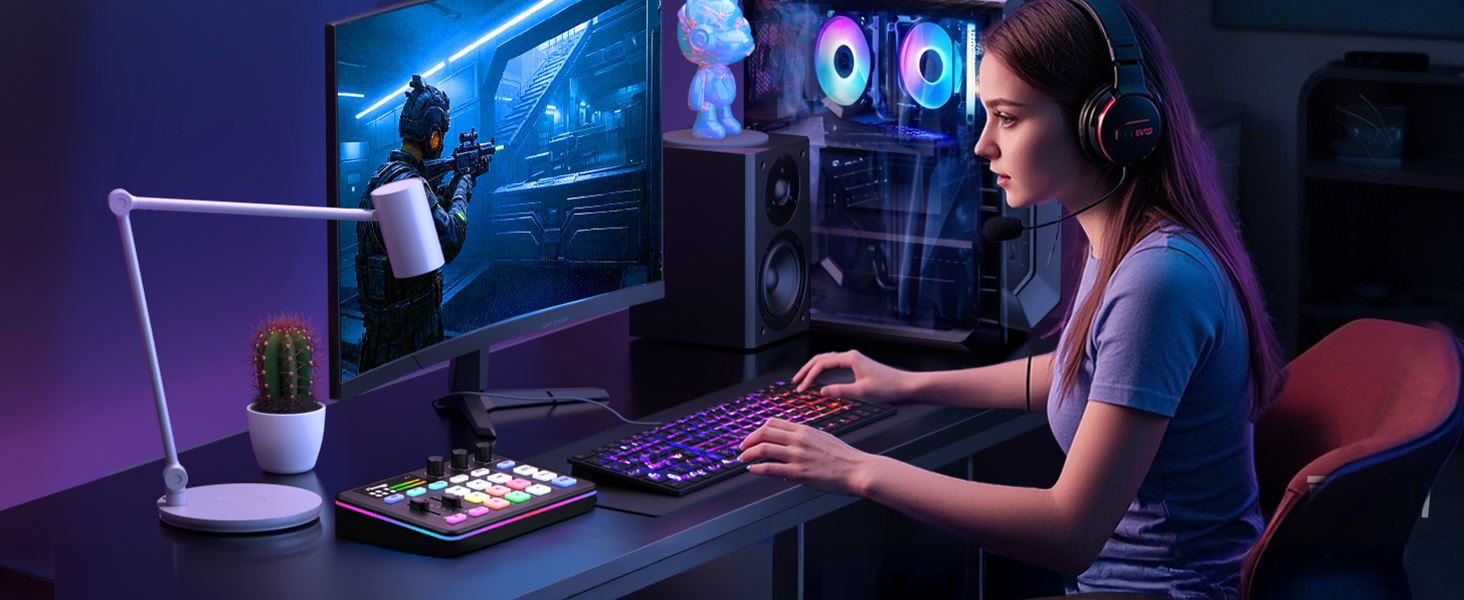
Figure 6: 3-Level Noise Reduction. This image displays the mixer alongside a graph illustrating the audio waveform before and after noise reduction, demonstrating its effectiveness in cleaning up sound.
3. Custom Sound Effects and Pads
- Custom Sound Pads (A, B, C, D, E, F): These programmable pads allow you to load and trigger your own custom sound effects. Refer to the software instructions (if applicable) for loading custom sounds.
- Pre-loaded Sound Effects: The mixer may come with pre-loaded sound effects accessible via dedicated buttons (e.g., music note icon).
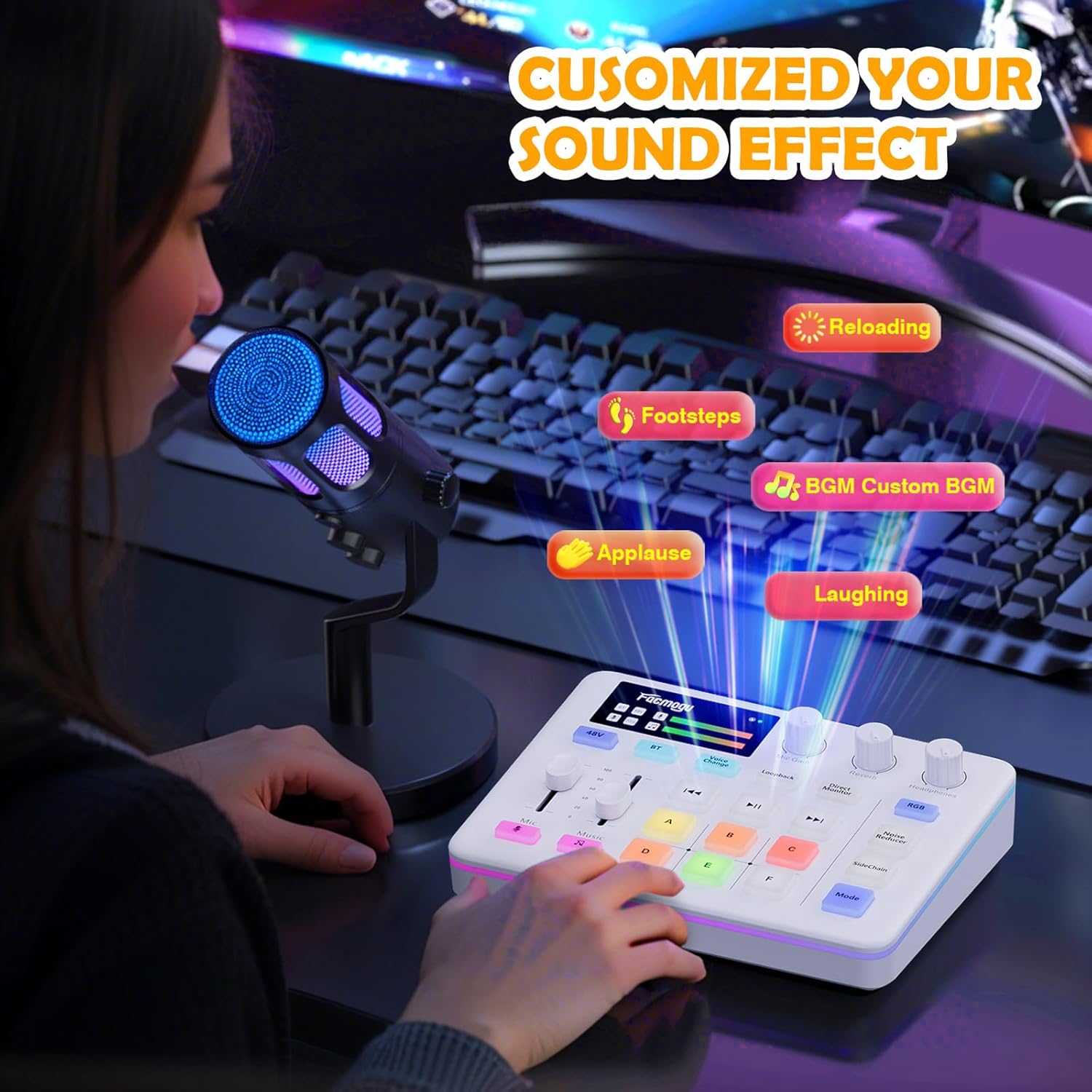
Figure 7: Customized Sound Effects. This image shows the mixer with various sound effect labels like "Reloading," "Footsteps," "BGM Custom BGM," "Applause," and "Laughing," indicating the range of effects that can be triggered.
4. RGB Lighting
- RGB Button: Press the "RGB" button to cycle through 12 different RGB color variations for the buttons and light strips, allowing you to customize the aesthetic of your setup.
5. Loopback Function
- Loopback Button: The "Loopback" feature allows you to capture all audio playing on your computer (including game audio, music, and microphone input) and send it back to your streaming software. This is essential for live streaming to ensure your audience hears everything you hear.
6. Direct Monitor
- Direct Monitor Button: Activates direct monitoring, allowing you to hear your microphone input directly through your headphones with zero latency, without processing through your computer.
Wide Compatibility
The Facmogu G9 Audio Mixer is designed for broad compatibility with various devices and software:
- Devices: Compatible with phones, computers (Windows, macOS), tablets, PS4, and PS5.
- Software: Works seamlessly with popular streaming and recording software such as OBS, Discord, Twitch, TikTok, and YouTube.
- Important Note: This mixer is not compatible with Xbox devices or USB microphones. The 48V phantom power is exclusively for XLR condenser microphones.

Figure 8: Compatibility Overview. This image displays the mixer alongside logos for Windows, macOS, Android, iOS, and PS5, indicating its broad device compatibility.
Maintenance
To ensure the longevity and optimal performance of your Facmogu G9 Audio Mixer, follow these maintenance guidelines:
- Cleaning: Use a soft, dry, lint-free cloth to clean the exterior of the mixer. Avoid using abrasive cleaners, solvents, or strong chemicals, as they may damage the surface.
- Storage: When not in use, store the mixer in a cool, dry place away from direct sunlight and extreme temperatures.
- Handling: Handle the mixer with care. Avoid dropping it or subjecting it to strong impacts.
- Cable Management: Ensure cables are not kinked or strained, which can lead to damage over time.
Troubleshooting
If you encounter issues with your Facmogu G9 Audio Mixer, refer to the following common problems and solutions:
| Problem | Possible Cause | Solution |
|---|---|---|
| No sound output from headphones/speakers. |
|
|
| Microphone not working or low volume. |
|
|
| Excessive background noise. |
|
|
| Bluetooth connection issues. |
|
|
Specifications
| Feature | Detail |
|---|---|
| Model Number | G9 - White |
| Item Weight | 1.26 pounds |
| Product Dimensions | 1.1 x 4.65 x 1.1 inches |
| Power Source | Corded Electric |
| Number of Channels | 3 |
| Connectivity Technology | USB, Bluetooth |
| Output Connector Type | TRS, USB Type B |
| Microphone Input | XLR, 1/4" |
| Phantom Power | 48V (for XLR condenser mics) |

Figure 9: Product Dimensions and Included Accessories. This image shows the G9 mixer with its dimensions (13.8cm/5.4in x 18cm/7.1in) and the included Type-C Data Cable, 3.5mm TRS Audio cable, and USB-C Data Cable, along with the user manual.
Warranty and Support
Specific warranty details are typically provided with your product packaging or on the manufacturer's official website. Please refer to those resources for precise warranty terms and conditions.
For technical support, product inquiries, or further assistance, please visit the official Facmogu store or contact their customer service through the channels provided at the point of purchase or on their website.
You can visit the Facmogu Store on Amazon: Facmogu Store
Related Documents - G9 - White
 |
Maonocaster E2 Audio Interface: User Guide and Setup Instructions Comprehensive guide to setting up and using the Maonocaster E2 audio interface for podcasting, streaming, gaming, education, and music recording. Includes instructions on microphone gain, phantom power, and interface connections. |
 |
Tenlamp G9 Audio Mixer User Manual Comprehensive user manual for the Tenlamp G9 Audio Mixer. Learn how to set up, connect devices, adjust sound effects, and troubleshoot your podcasting and streaming equipment. |
 |
Elgato Wave XLR Quick Start Guide: Setup and Controls Concise guide to setting up and using the Elgato Wave XLR audio interface, including controls, connections, phantom power, and software integration. |
 |
G1 Audio Console User Manual: Portable Sound Mixer for Streaming & Podcasting This user manual provides detailed information on the Tenlamp G1 Audio Console, a multi-function sound mixer for beginners. It covers product overview, specifications, panel layout, connection guides for smartphones and computers, Bluetooth setup, troubleshooting, and noise treatment tips for live streaming, podcasting, and recording. |
 |
VeGue F11 Live Sound Card User Manual Comprehensive user manual for the VeGue F11 Live Sound Card, detailing product profile, packaging, system requirements, software support, connection diagrams, specifications, and charging. |
 |
G9 Audio Mixer: User Manual, Features, and Setup Guide Comprehensive guide to the G9 Audio Mixer, featuring setup instructions, button functions, specifications, and troubleshooting tips for live streaming, podcasting, and content creation. |
Ask a question about this manual
Ask about setup, troubleshooting, compatibility, parts, safety, or missing instructions. Manuals+ will review the question and use this page’s manual context to help answer it.