1. Introduction
This manual provides detailed instructions for the installation, operation, and maintenance of your VORGUT VRUS-SQ03 Dual Lens 2K Wireless Outdoor Security Camera. Please read this manual thoroughly before using the product to ensure proper functionality and safety. This camera is designed for both indoor and outdoor surveillance, offering advanced features for comprehensive home security.
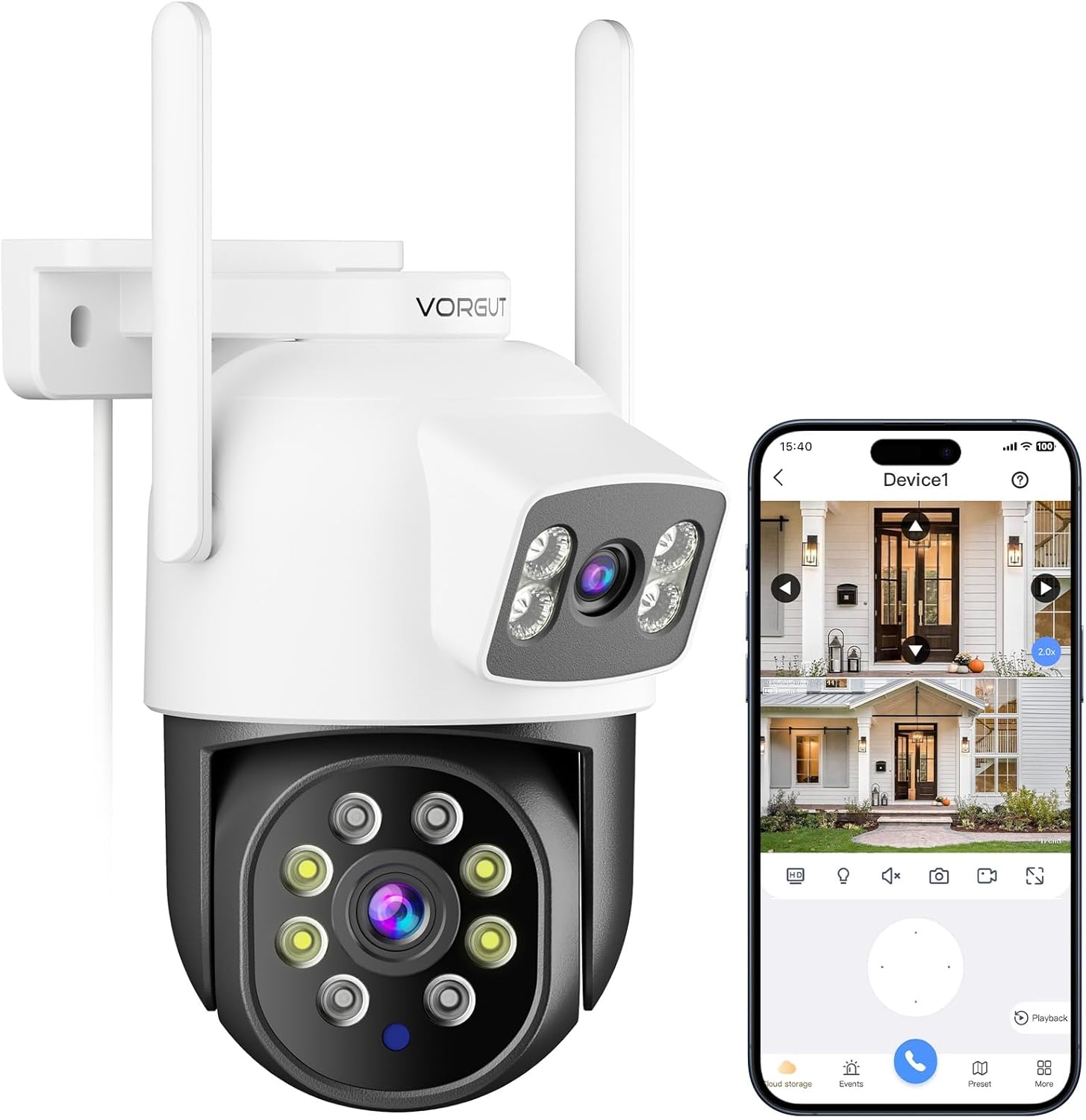
Image: The VORGUT VRUS-SQ03 Dual Lens 2K Wireless Outdoor Security Camera, showing its dual-lens design and two antennas, alongside a smartphone displaying the camera's live feed.
2. Package Contents
Verify that all items listed below are included in your package. If any items are missing or damaged, please contact customer support.
- 1 x VORGUT VRUS-SQ03 Security Camera
- 1 x Power Adapter
- 1 x User Manual
- Mounting Screws and Wall Plugs

Image: Contents of the VORGUT VRUS-SQ03 package, including the camera, power adapter, user manual, and mounting hardware.
3. Product Features
- Dual-Lens, Dual-View, 355° Coverage: Features an innovative dual-lens design with a fixed lens and a rotating PTZ lens (355° horizontal, 75° vertical) for seamless 360° monitoring and real-time split-screen viewing.
- High-Performance 3MP & Dual-Lens Functionality: Equipped with a 2K 3MP image sensor. The upper fixed lens provides a wide, steady view, while the lower PTZ camera offers flexible rotation for detailed coverage.
- PIR Human Detection & Alarm: Advanced PIR human body detection technology recognizes human shapes, sending instant alarm notifications to your smartphone. Includes audible sirens and light alerts to deter intruders.
- Auto-Tracking & Smart Night Vision: Intelligently follows detected human movement. Smart night vision starts in infrared black-and-white mode and automatically switches to full-color night vision upon human detection.
- 2.4Ghz WiFi & Weatherproof Design: Supports 2.4GHz WiFi for stable connection. IP66 waterproof and dustproof certification ensures reliable operation in various weather conditions (-40°C to 50°C, up to 85% humidity).
- Two-Way Audio: Enables communication with visitors or deterrence of unwanted guests.
- Local & Cloud Storage: Supports Micro SD card (up to 128GB, not included) and cloud storage (subscription required).
4. Setup Guide
4.1. Physical Installation
The camera can be mounted on a wall or ceiling. Choose a location that provides the desired viewing angle and is within range of your 2.4GHz Wi-Fi network and a power outlet.
- Mark the drilling spots using the mounting template (if provided).
- Drill holes and insert wall plugs.
- Secure the camera bracket to the wall or ceiling using the provided screws.
- Attach the camera to the bracket.
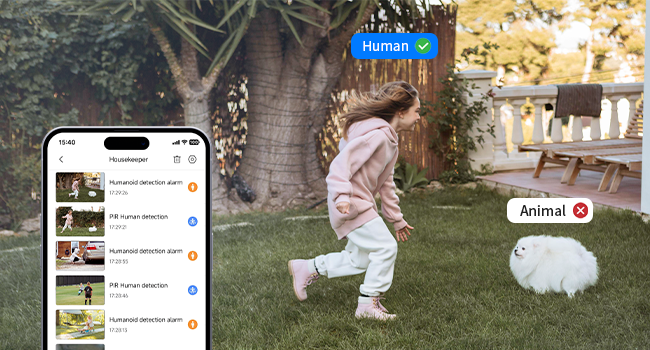
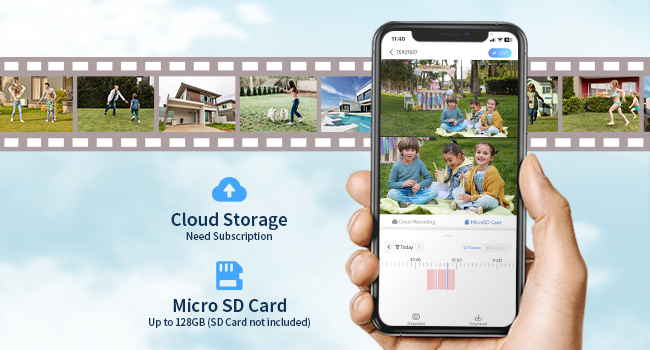
Image: Illustrations showing the camera mounted on a wall and on a ceiling, demonstrating flexible installation options.
The VORGUT VRUS-SQ03 camera is IP66 weatherproof, designed to withstand various outdoor conditions, including rain, snow, and intense sunlight. This ensures reliable operation in temperatures ranging from -40°C to 50°C and humidity up to 85%.

Image: The VORGUT VRUS-SQ03 camera installed outdoors during rainfall, highlighting its IP66 weatherproof rating.
Connect the power adapter to the camera and plug it into a power outlet. The camera will power on and initiate its startup sequence.
4.2. App Installation and Pairing
- Download the "Eseecloud" app from your smartphone's app store (iOS or Android).
- Register for a new account or log in if you already have one.
- Tap the "+" icon to add a new device.
- Select "Scan QR Code" and scan the QR code located on the camera body.
- Follow the on-screen prompts to connect the camera to your 2.4GHz Wi-Fi network. Ensure your phone is also connected to the 2.4GHz network during setup.
- Once connected, you can name your camera and begin live viewing.

Image: A diagram illustrating the process of scanning the camera's QR code with a smartphone to connect it to the 2.4G WiFi network via the app.
5. Operating Instructions
5.1. Dual-Lens Viewing
The camera features two lenses: a fixed lens for a panoramic view and a PTZ (Pan-Tilt-Zoom) lens for detailed, adjustable viewing. The app allows for real-time split-screen viewing, showing both perspectives simultaneously.
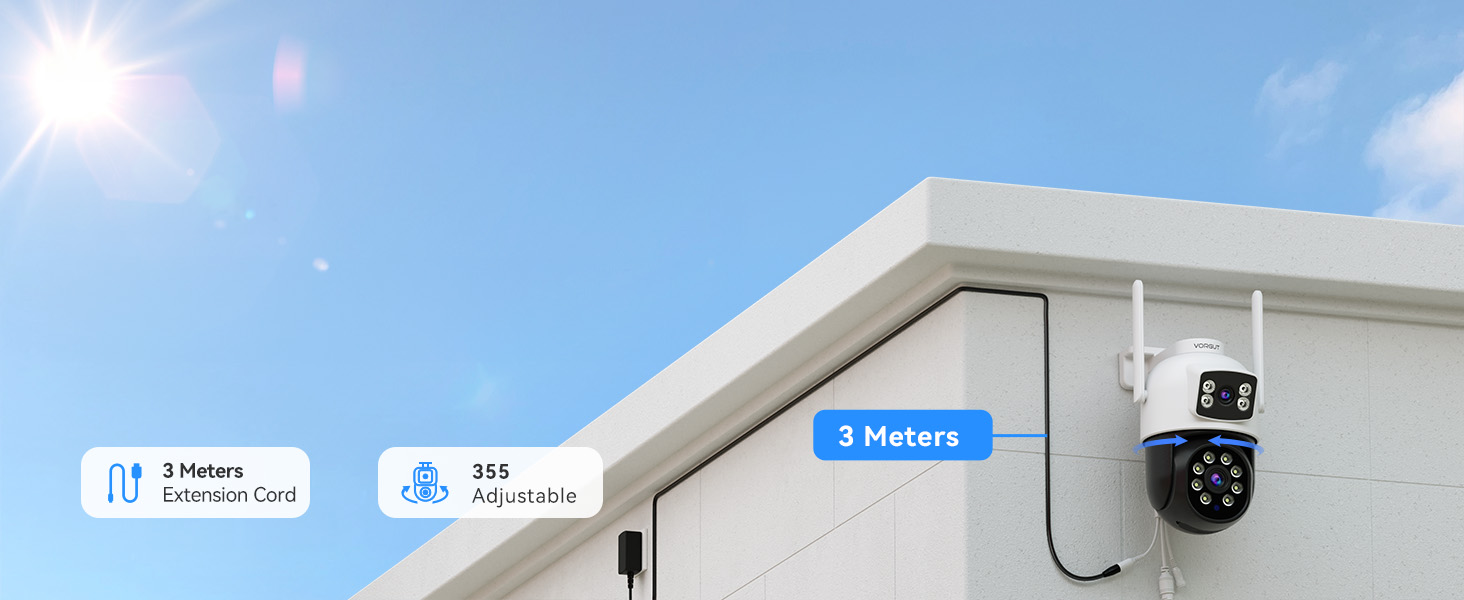
Image: A visual representation of the dual-lens functionality, showing a wide panoramic view from the fixed lens and a detailed PTZ view from the rotating lens.
Use the controls within the Eseecloud app to pan (355° horizontally) and tilt (75° vertically) the lower PTZ lens to adjust your viewing area.
5.2. PIR Human Detection and Alarm
The camera uses Passive Infrared (PIR) technology to detect human shapes, minimizing false alarms from pets or inanimate objects. When human motion is detected:
- An instant notification is sent to your smartphone.
- The camera can activate an audible siren.
- The camera's lights can illuminate to deter intruders.
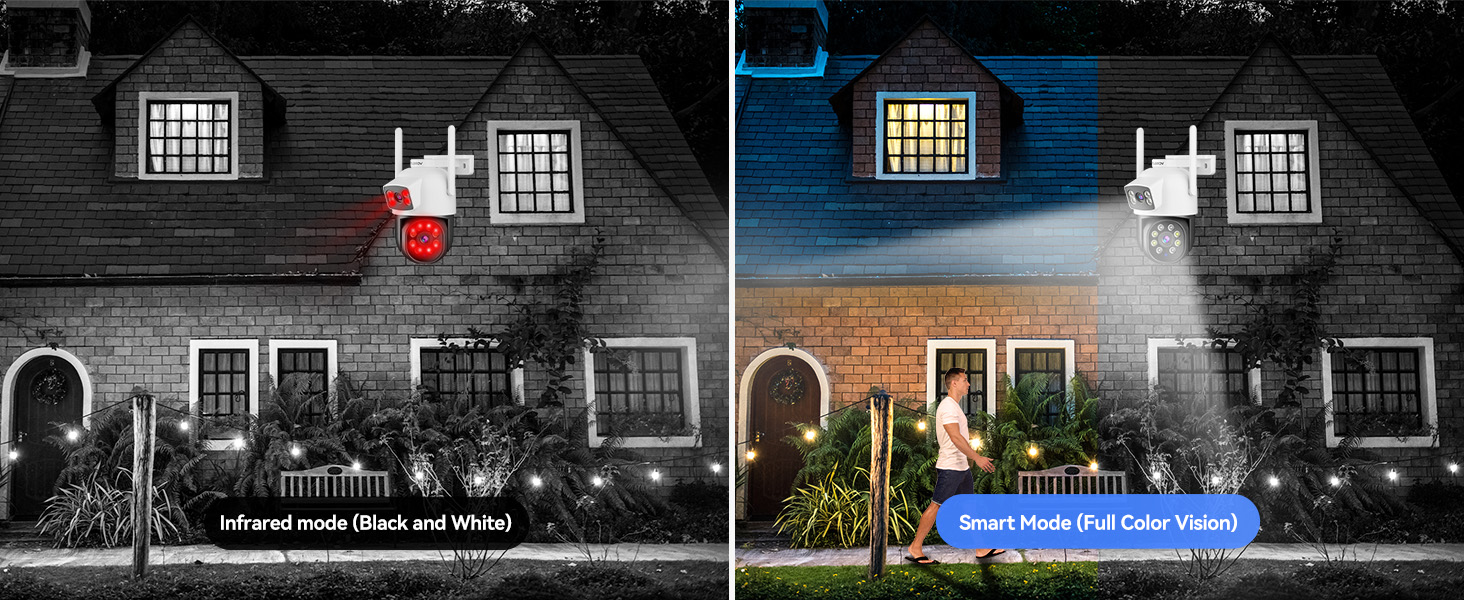
Image: A scene depicting a person walking into a detection area, triggering a smartphone notification, siren, and light alarm from the camera.

Image: A scene showing an intruder being detected by the camera, triggering an alarm and notification.
5.3. Auto-Tracking
When a human is detected, the camera's PTZ lens will automatically track their movement within its field of view, ensuring continuous surveillance of the subject.
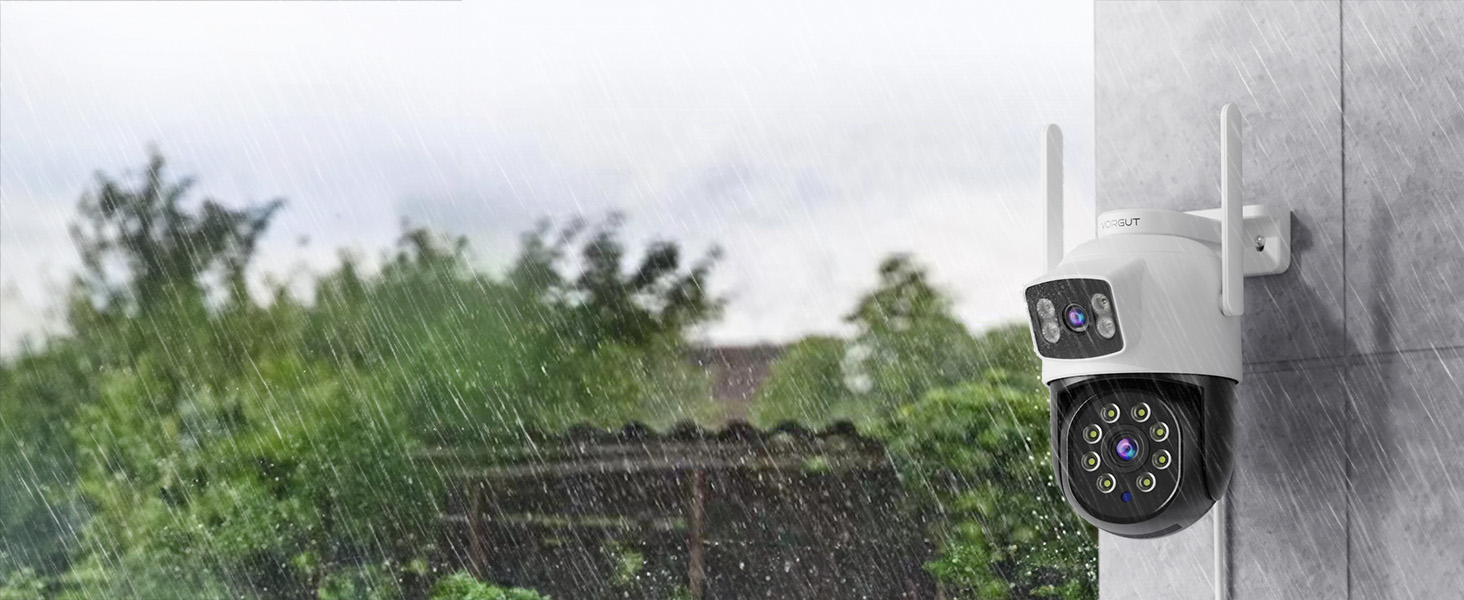
Image: A sequence showing the camera automatically tracking a person's movement across an outdoor area.
5.4. Smart Night Vision
The camera offers intelligent night vision modes:
- Infrared Mode: Default black-and-white night vision for energy efficiency.
- Full-Color Night Vision: Automatically activated when a human is detected, providing clear and vivid color footage even in complete darkness.

Image: A comparison showing the camera's infrared black-and-white night vision and its smart full-color night vision when a person is detected.
5.5. Two-Way Talk & Multiple Viewer
The built-in microphone and speaker allow for two-way audio communication through the app. You can speak to visitors or warn off intruders. The app also supports multiple users viewing the camera feed simultaneously.

Image: A composite image illustrating two-way communication with a delivery person and multiple family members viewing the camera feed on their smartphones.
5.6. Local & Cloud Storage
Recordings can be stored in two ways:
- Micro SD Card: Insert a Micro SD card (up to 128GB, not included) into the designated slot on the camera for local storage.
- Cloud Storage: A cloud storage subscription is available for secure, remote storage of your video footage.

Image: A graphic showing the camera with icons for Micro SD card and cloud storage, indicating available recording options.
5.7. Custom Detection Zones
You can define specific areas within the camera's view as custom detection zones through the app. The camera will only trigger alarms and send notifications if motion is detected within these designated zones, reducing irrelevant alerts.
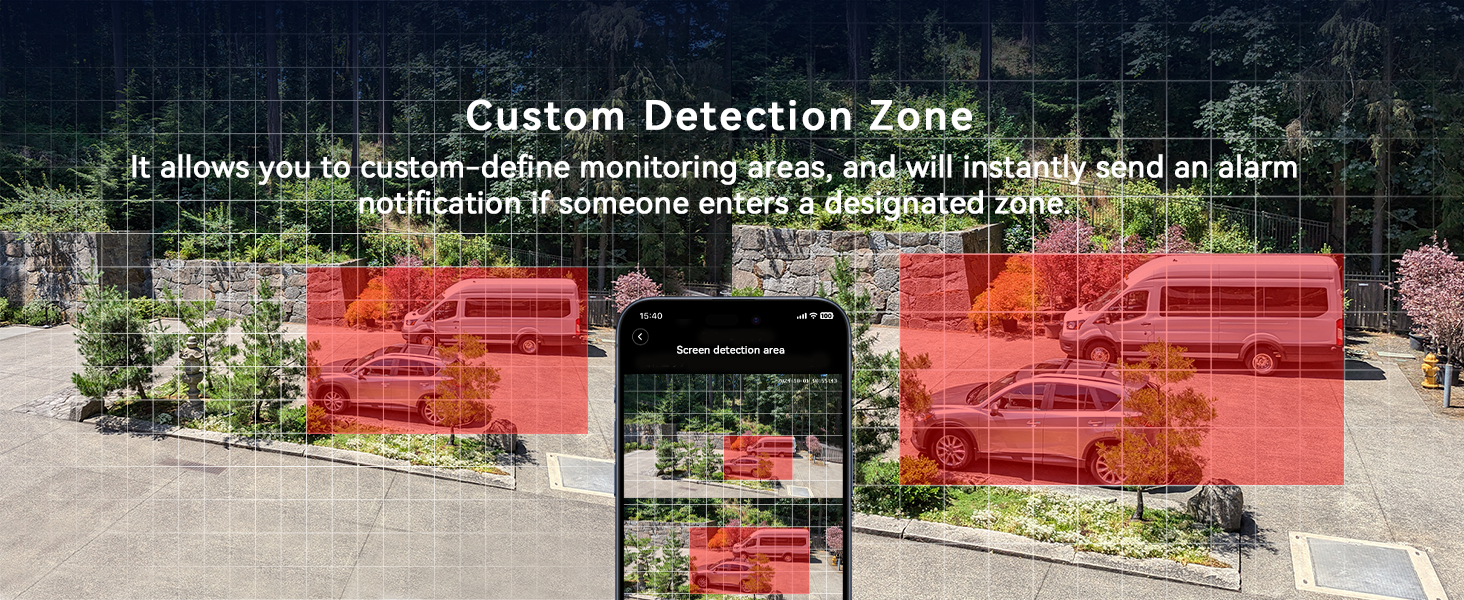
Image: A screenshot from the app showing how to set up custom detection zones, highlighting specific areas for monitoring.
6. Maintenance
- Cleaning: Gently wipe the camera lens and body with a soft, dry cloth. Avoid using harsh chemicals or abrasive materials.
- Firmware Updates: Regularly check the Eseecloud app for available firmware updates to ensure optimal performance and security.
- Power Supply: Ensure the camera is connected to a stable power source.
- Network Connection: Verify your 2.4GHz Wi-Fi network is stable for uninterrupted operation.
7. Troubleshooting
| Problem | Possible Cause | Solution |
|---|---|---|
| Camera not connecting to Wi-Fi | Incorrect Wi-Fi password; camera too far from router; 5GHz Wi-Fi network selected. | Ensure correct 2.4GHz Wi-Fi password. Move camera closer to router. Confirm connection to a 2.4GHz network. |
| No live view in app | Network issue; camera offline; app malfunction. | Check Wi-Fi connection. Restart camera and app. Verify camera power. |
| Motion detection not working | PIR sensitivity too low; detection zones not set correctly; camera obstructed. | Adjust PIR sensitivity in app. Review and configure detection zones. Ensure clear line of sight. |
| Poor night vision quality | Infrared lights obstructed; external light interference. | Clear any obstructions from the camera's view. Minimize strong external light sources near the camera. |
| SD card not recording | SD card full or corrupted; incorrect recording settings. | Format or replace SD card. Check recording settings in the app. |
8. Specifications
| Feature | Detail |
|---|---|
| Model Name | VRUS-SQ03 |
| Indoor/Outdoor Usage | Outdoor |
| Video Capture Resolution | 2K (3MP+3MP) / 1440p |
| Connectivity Technology | Wireless (2.4GHz Wi-Fi) |
| Pan/Tilt Range | Pan 355°, Tilt 75° |
| Power Source | Corded Electric |
| Controller Type | Eseecloud App |
| Mounting Type | Wall Mount, Ceiling Mount |
| Special Feature | Dual Lens, PIR Human Detection, Auto Tracking, Color Night Vision, Two-Way Audio, Weatherproof (IP66) |
| Storage Options | Micro SD Card (up to 128GB), Cloud Storage |
| Operating Temperature | -40°C to 50°C |
| Dimensions (L x W x H) | 5 x 5 x 0.01 inches |
| Item Weight | 1.39 pounds |
9. Warranty and Support
VORGUT products are designed for reliability and performance. For warranty information, technical support, or customer service inquiries, please refer to the contact information provided on the product packaging or visit the official VORGUT website. Please retain your proof of purchase for warranty claims.

