1. Introduction
Thank you for choosing the Janwold 4K UHD Dash Camera. This manual provides essential information for setting up, operating, and maintaining your dash camera. Please read it thoroughly before use to ensure proper functionality and safety.
The Janwold DC308S is a dual dash camera system designed to record high-quality video of your journeys, offering advanced features for enhanced driving safety and evidence collection.
2. Package Contents
Verify that all items are present in your package:
- Janwold 4K UHD Front Dash Camera
- Rear Camera
- 64GB MicroSD Card
- Car Charger
- Rear Camera Connection Cable
- Pry Tool (for cable management)
- User Manual

This image displays the main components included with the Janwold DC308S dash camera system, including the front camera unit, the rear camera, a 64GB memory card, and the car charger.
3. Key Features
- 4K + 1080P Dual Recording: Records video up to Ultra HD 4K resolution for the front camera and 1080P for the rear camera. This allows for clear capture of details such as license plates. The front camera features a 170-degree wide angle, and the rear camera has a 150-degree wide angle.
- Night Vision: Equipped with an F1.8 large aperture and an 8-layer optical lens, the high-sensitivity sensor enhances light capture in low-light environments for improved night recording clarity.
- Magnetic Bracket: Facilitates easy installation and removal of the main dash camera unit from its base for data export, lens cleaning, or equipment replacement.
- Reliable Safety Features: Includes loop recording, G-sensor emergency lock, built-in Wi-Fi, built-in GPS, and 24-hour parking mode for continuous monitoring and critical footage preservation.
- 3-inch IPS UHD Full Screen: Provides a clear and intuitive split-screen interface. Supports mobile phone Wi-Fi connection and GPS positioning.

This image illustrates the wide-angle views of both the front (170 degrees, 4K UHD) and rear (150 degrees, 1080P HD) cameras, highlighting their ability to capture a broad perspective of the road.

This graphic summarizes the main functionalities of the dash cam, including its 4K resolution, Wi-Fi and GPS connectivity, advanced night vision, parking monitoring, included 64GB card, and loop recording capability.
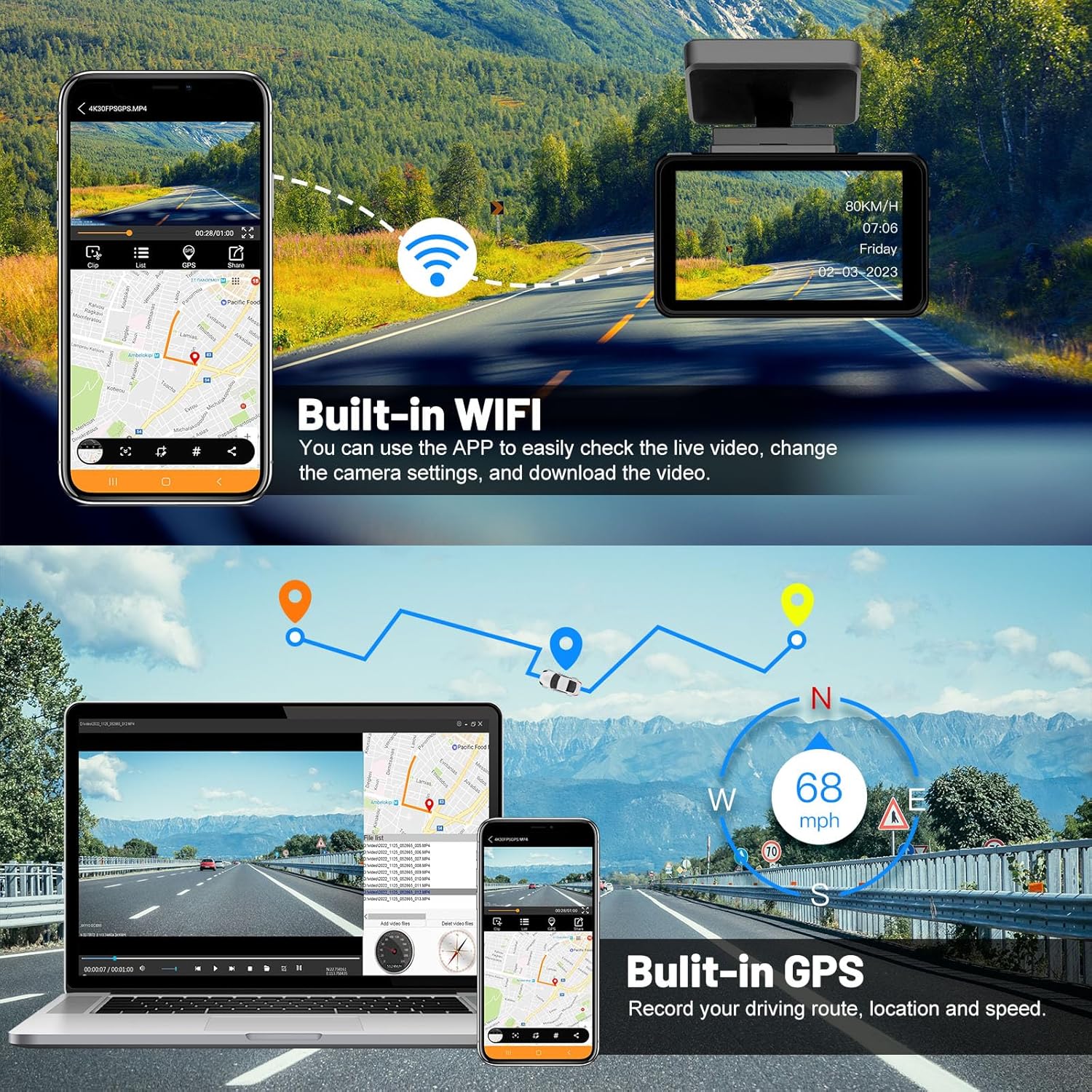
This image illustrates the integrated Wi-Fi, allowing users to connect to a mobile app for live viewing, settings adjustments, and video downloads. It also highlights the built-in GPS for recording driving routes, location, and speed.
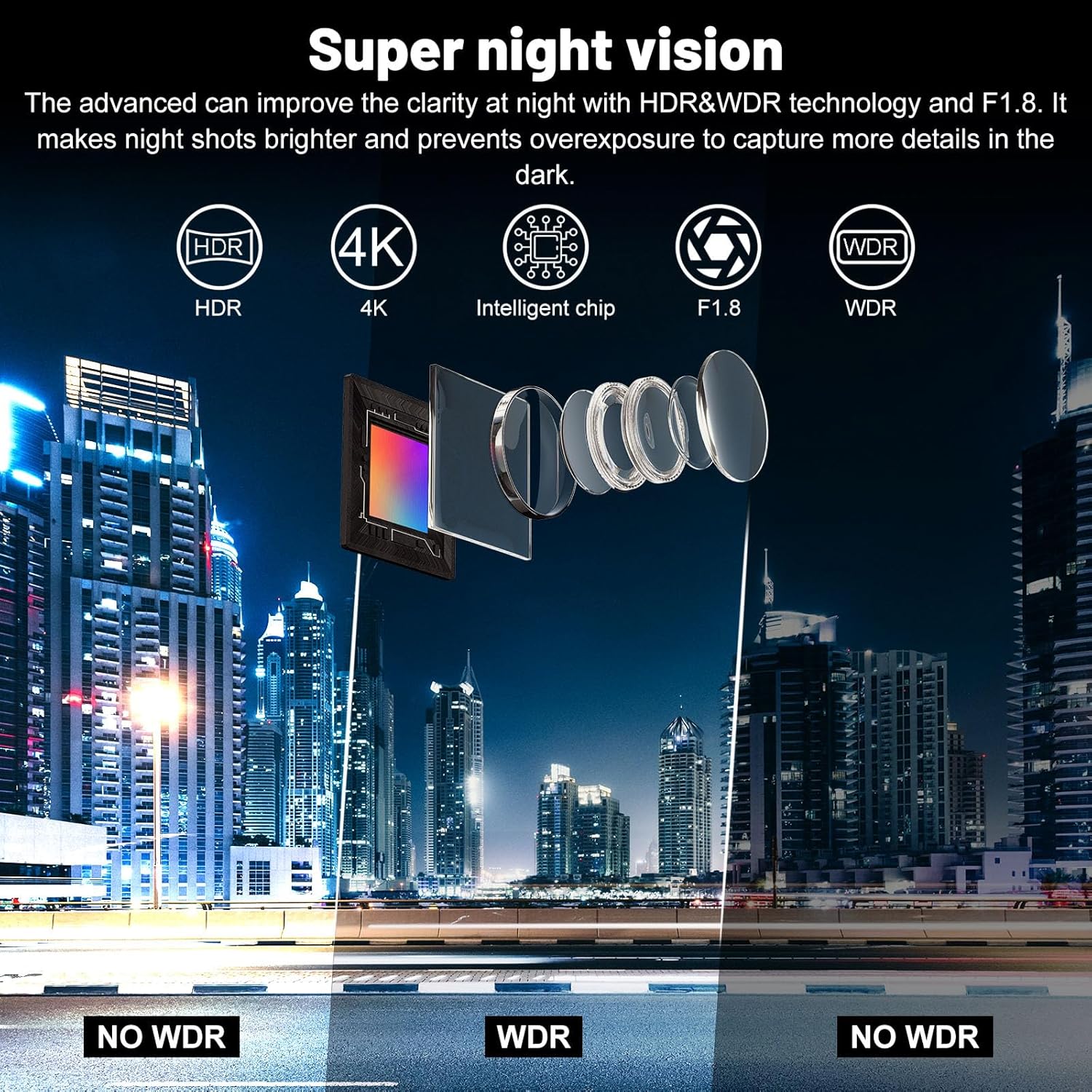
This visual explains the "Super Night Vision" feature, detailing how HDR, 4K resolution, an intelligent chip, F1.8 aperture, and WDR (Wide Dynamic Range) technology work together to improve clarity in low-light conditions, making night shots brighter and preventing overexposure.

This image demonstrates the G-Sensor, which locks video upon collision, the 24-hour parking monitoring that records 1-minute videos when vibration is detected, and the loop recording feature that automatically overwrites old, unlocked recordings when the memory card is full.
4. Setup and Installation
4.1 Front Camera Installation
- Clean the windshield area where the dash camera will be mounted.
- Attach the magnetic mount to the windshield.
- Slide the main dash camera unit onto the magnetic mount until it clicks into place.
- Adjust the camera angle to ensure a clear view of the road.
4.2 Rear Camera Installation
- Mount the rear camera on the rear windshield or license plate area.
- Route the rear camera connection cable from the rear of the vehicle to the front dash camera. Use the included pry tool to tuck the cable neatly along the vehicle's interior trim.
- Connect the rear camera cable to the designated port on the front dash camera.
- For reversing assistance, connect the red wire of the rear camera to the positive pole of the reversing light.

This diagram illustrates the straightforward installation process, highlighting the adjustable magnetic mount for the main dash cam unit and the routing of the rear camera connection cable.
4.3 Power Connection
- Insert the included 64GB MicroSD card into the dash camera's card slot.
- Connect the car charger to the dash camera and plug it into your vehicle's cigarette lighter socket.
- The dash camera will automatically power on and begin recording when the vehicle's ignition is turned on.
5. Operation
5.1 Basic Recording
Once powered on, the dash camera will automatically start continuous loop recording. Video segments are saved to the MicroSD card. When the card is full, the oldest unlocked videos will be overwritten.
5.2 G-Sensor (Emergency Lock)
The built-in G-sensor detects sudden movements or collisions. When triggered, it automatically locks the current video segment to prevent it from being overwritten by loop recording.
5.3 24-Hour Parking Mode
In parking mode, the dash camera detects vehicle vibrations and automatically records a 1-minute video. This feature requires a continuous power supply (hardwire kit, sold separately, may be needed for continuous power when the vehicle is off).

This image demonstrates the 24-hour parking monitor, which utilizes time-lapse recording at 1 frame per second to continuously monitor your car without consuming excessive storage capacity.
5.4 Wi-Fi Connectivity and App Control
The built-in Wi-Fi allows you to connect your smartphone to the dash camera via a dedicated app. Through the app, you can:
- View live footage.
- Change camera settings.
- Download recorded videos to your phone.
5.5 GPS Functionality
The integrated GPS module records your driving route, location, and speed, providing valuable data that can be viewed alongside your video footage.
5.6 Smart Voice Control
The dash camera supports 11 voice commands, allowing hands-free operation for functions such as turning on Wi-Fi, locking videos, turning on the screen, and taking photos.

This image highlights the smart voice control feature, listing examples of commands like "Turn on Wi-Fi," "Lock the video," "Turn on screen," and "Take photo," enabling hands-free operation while driving.
5.7 Backup Rear Camera Function
The rear camera supports reversing assistance. When the reversing light is activated (and the red wire is correctly connected), the recorder automatically switches to a full-screen image of the rear camera to aid in parking maneuvers.

This image shows the dash cam's screen displaying the rear camera feed with parking guidelines, indicating its function as a backup camera when reversing.
6. Maintenance
- Cleaning: Use a soft, dry cloth to clean the camera lens and screen. Avoid abrasive cleaners.
- MicroSD Card: Format the MicroSD card regularly (e.g., once a month) to ensure optimal performance and prevent data corruption. Back up important files before formatting.
- Firmware Updates: Check the manufacturer's website periodically for firmware updates to ensure your device has the latest features and bug fixes.
7. Troubleshooting
- Camera not powering on:
- Ensure the car charger is securely connected to both the camera and the vehicle's power outlet.
- Check if the vehicle's power outlet is functioning.
- Recording issues:
- Ensure a MicroSD card is inserted and properly formatted.
- Check if the MicroSD card is full; if so, format it or replace it.
- Use a high-speed (Class 10 or U3) MicroSD card from a reputable brand.
- Wi-Fi connection problems:
- Ensure Wi-Fi is enabled on the dash camera and your smartphone.
- Restart both the dash camera and your smartphone.
- Ensure you are within close proximity to the dash camera.
- GPS not working:
- Ensure the dash camera has a clear view of the sky for satellite reception.
- It may take a few minutes for the GPS signal to be acquired.
8. Specifications
| Feature | Detail |
|---|---|
| Product Dimensions | 0.78"D x 3.62"W x 1.67"H |
| Item Weight | 1.1 pounds |
| Connectivity Technology | Wi-Fi |
| Special Features | Built-In GPS, Built-In WiFi |
| Video Capture Resolution | 1080p, 4K |
| Included Components | Car Charger |
| Mounting Type | Windshield Mount |
| Color | Black |
| Manufacturer | Janwold |
| Model Name | DC308S |
| Vehicle Service Type | Car |
9. Product Videos
No relevant product videos for the Janwold 4K UHD Dash Camera DC308S were provided in the available product data.
10. Warranty and Support
The Janwold 4K UHD Dash Camera comes with a manufacturer's warranty. For detailed warranty information, technical support, or customer service inquiries, please refer to the contact information provided on the product packaging or the official Janwold website.
Janwold offers customer-focused support, including 24/7 technical assistance, to ensure a smooth user experience.
