
KEINONE GQ-ZD-55H-01
KEINONE Interactive Smart Board User Manual
Model: GQ-ZD-55H-01
Introduction
The KEINONE Interactive Smart Board is a versatile multimedia center designed to enhance collaboration and learning in various environments, including classrooms, home offices, and studios. This 55-inch 4K touchscreen smartboard features a built-in Android OS, 8GB RAM, and 128GB SSD, offering a seamless and intuitive user experience. It functions as a TV, projector, and high-resolution monitor, providing unparalleled clarity and interactive capabilities.
What's Included
Upon unboxing your KEINONE Interactive Smart Board, please verify that all the following components are present:
- Smart Board Body
- Mounting Hardware (for wall mounting)
- Instructions & Remote control
- 3m Power Strip
- 1.8m Power Line
- 2m HDMI Cable

Image: All components included in the KEINONE Smart Board package, showing the smart board, wall mount, remote, cables, and accessories.
Setup
1. Unpacking and Placement
Carefully remove the smart board and all accessories from the packaging. Choose a suitable location for installation, considering viewing angles, power access, and network connectivity. The board can be wall-mounted using the provided hardware or placed on an optional mobile stand (not included).
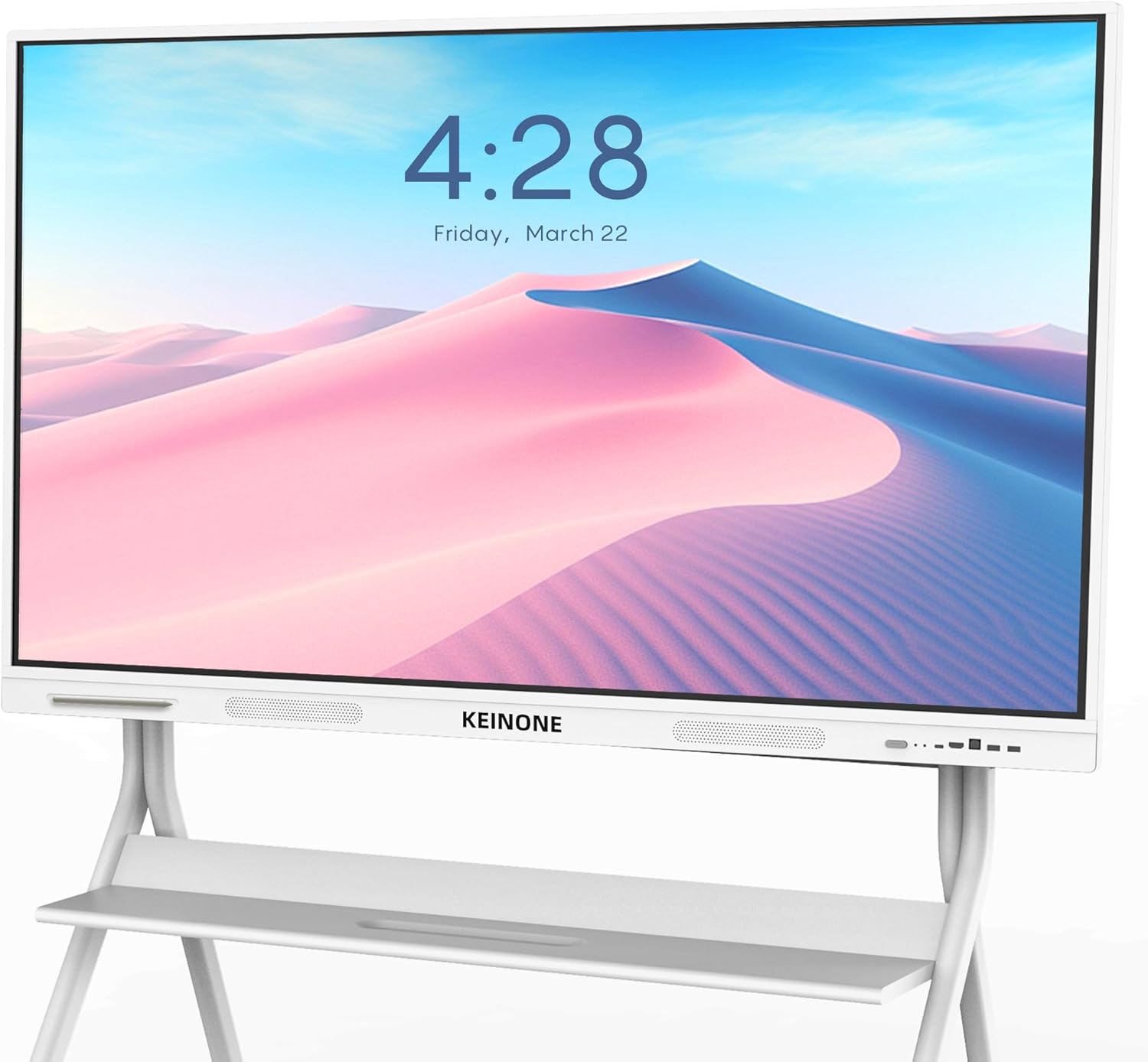
Image: The KEINONE Smart Board displayed on a mobile stand, suitable for various environments.
2. Power Connection
Connect the 1.8m power line to the smart board's power input and then to the 3m power strip. Plug the power strip into a standard electrical outlet. Ensure the power source is stable and meets the board's power requirements.
3. Initial Power On
Press the power button on the smart board or the remote control to turn on the device. Follow the on-screen prompts for initial setup, including language selection, network configuration, and time zone settings.
Operating Instructions
Android OS Interface
The smart board runs on a built-in Android OS, providing a familiar and intuitive interface. Navigate using the touchscreen or the remote control. The home screen provides access to pre-installed applications and settings.

Image: The Android operating system interface on the KEINONE Smart Board, showing various application icons.
Interactive Whiteboard Functionality
Access the integrated whiteboard application for dynamic presentations and collaborative sessions. The whiteboard supports 20-point multi-touch, allowing multiple users to write simultaneously. Utilize the included touch pen for precise input.
- Drawing Tools: Select various brush types, colors, and thicknesses.
- Text Recognition: Convert handwritten text to standard fonts.
- Insert Media: Embed images, PDFs, and videos directly into your whiteboard session.
- QR Code Sharing: Generate a QR code to quickly share whiteboard content with other devices.

Image: A teacher interacting with the KEINONE Smart Board in a classroom, demonstrating its use for educational purposes.

Image: Detailed view of the KEINONE Whiteboard features, including options for color, thickness, pen types, text identification, and inserting various elements.
Screencasting and Collaboration
The smart board supports seamless content projection from various devices. Utilize AirPlay, WiFi, Type-C, and HDMI for wired or wireless screen mirroring. The split-screen function allows up to 6 screens to be displayed simultaneously, and up to 4 devices can cast their screens at once.
Image: A group of professionals conducting a meeting using the KEINONE Smart Board, demonstrating its seamless meeting and screen sharing capabilities.

Image: Illustration of effortless projection, showing various devices casting their screens to the KEINONE Smart Board for presentations and collaboration.
For remote collaboration, the smart board's advanced teleconferencing capabilities ensure clear video quality and impactful interactions.
Connectivity
The KEINONE Smart Board offers a comprehensive range of connectivity options to integrate with your existing devices and networks.
Front Interface Ports:
- Type-C: For modern device connections, supporting video, audio, and data.
- HDMI: High-Definition Multimedia Interface for video and audio input.
- TOUCH: USB port for touch functionality when connected to an external PC.
- USB 3.0 x 2: High-speed USB ports for peripherals and data transfer.
Rear Interface Ports:
- Type-C: Additional Type-C port.
- PC AUDIO: Audio input for PC connection.
- VGA IN: Video Graphics Array input for older devices.
- HDMI IN (multiple): Multiple HDMI inputs for various sources.
- TOUCH: Additional USB port for touch functionality.
- USB 3.0: High-speed USB port.
- USB 2.0: Standard USB port.
- RS232: Serial port for control systems.
- HDMI OUT: HDMI output for connecting to another display.
- Audio Out: For external speakers or audio systems.
- Coaxial: Digital audio output.
- MIC IN: Microphone input.
- RJ45 IN/OUT: Ethernet ports for wired network connection.

Image: Detailed diagram illustrating all front and rear connectivity ports available on the KEINONE Smart Board.
Maintenance
Proper maintenance ensures the longevity and optimal performance of your KEINONE Interactive Smart Board.
- Cleaning the Screen: Use a soft, lint-free cloth slightly dampened with a non-abrasive, screen-safe cleaner. Avoid harsh chemicals or abrasive materials that can damage the screen surface.
- General Cleaning: Wipe down the frame and back panel with a dry or slightly damp cloth.
- Ventilation: Ensure proper airflow around the board. Do not block ventilation openings.
- Software Updates: Regularly check for and install system software updates to ensure optimal performance and security.
- Storage: If storing the board for an extended period, ensure it is in a cool, dry place, protected from dust and extreme temperatures.
Troubleshooting
This section addresses common issues you might encounter with your KEINONE Interactive Smart Board.
| Problem | Possible Cause | Solution |
|---|---|---|
| No Power | Power cable disconnected; Power outlet issue. | Check power cable connection to board and outlet. Test outlet with another device. |
| No Display | Incorrect input source; Cable connection issue. | Verify correct input source is selected. Check HDMI/VGA cable connections. |
| Touchscreen Unresponsive | Calibration needed; Software glitch; Obstruction on screen. | Recalibrate touchscreen via settings. Restart the board. Ensure screen is clean. |
| Cannot Connect to Wi-Fi | Incorrect password; Router issue; Signal interference. | Double-check Wi-Fi password. Restart router. Move board closer to router or reduce interference. |
| Audio Not Working | Volume too low; Muted; Incorrect audio output selected. | Increase volume. Check mute settings. Select correct audio output in settings. |
If you encounter issues not listed here or if the suggested solutions do not resolve the problem, please contact KEINONE customer support for assistance.
Specifications
| Feature | Detail |
|---|---|
| Brand | KEINONE |
| Model Number | GQ-ZD-55H-01 |
| Screen Size | 55 Inches |
| Resolution | 3840 x 2160 Pixels (4K UHD) |
| Aspect Ratio | 16:9 |
| Operating System | Android OS |
| RAM | 8GB |
| Storage (SSD) | 128GB |
| Touch Points | 20-point touch |
| Latency | 6ms (ultra-responsive) |
| Connectivity | Wi-Fi 6, AirPlay, Type-C, HDMI (multiple), USB 3.0, USB 2.0, VGA, RS232, Audio In/Out, Coaxial, MIC In, RJ45 In/Out |
| Item Weight | 69.9 pounds |
| Product Dimensions | 3.15 x 49.61 x 30.31 inches |
| Color | White |
Warranty and Support
KEINONE is committed to providing high-quality products and excellent customer service.
Warranty Information
Specific warranty details are typically provided with your purchase documentation. Please refer to the warranty card or contact KEINONE customer support for information regarding your product's warranty period and coverage.
Customer Support
For any questions, technical assistance, or service requests, please contact KEINONE customer service. They provide 24-hour customer service to assist you with any inquiries.
You can often find contact information on the KEINONE official website or through the retailer where you purchased the product. For Amazon purchases, you can reach out to the seller "KEINONE" directly through your order history.
Ask a question about this manual
Ask about setup, troubleshooting, compatibility, parts, safety, or missing instructions. Manuals+ will review the question and use this page’s manual context to help answer it.