
Product Overview
The DreamSky Wooden Digital Alarm Clock (Model DS2208) is designed for clear time display and reliable alarm functionality. It features large, easy-to-read numbers, adjustable brightness, multiple display colors, and a robust alarm system with volume control. Its wooden design integrates seamlessly into various home and office environments.

Front view of the DreamSky Wooden Digital Alarm Clock, showcasing its large digital display.
Package Contents
- DreamSky Wooden Digital Alarm Clock (Model DS2208)
- Power Adapter (5V/1.2A)
- User Manual
Note: AAA batteries for backup are not included and must be purchased separately.

The alarm clock with its power adapter and user manual, illustrating product dimensions.
Setup
1. Power Connection
- Connect the provided 5V/1.2A power adapter to the DC IN port on the back of the clock.
- Plug the adapter into a standard electrical outlet. The display will illuminate.

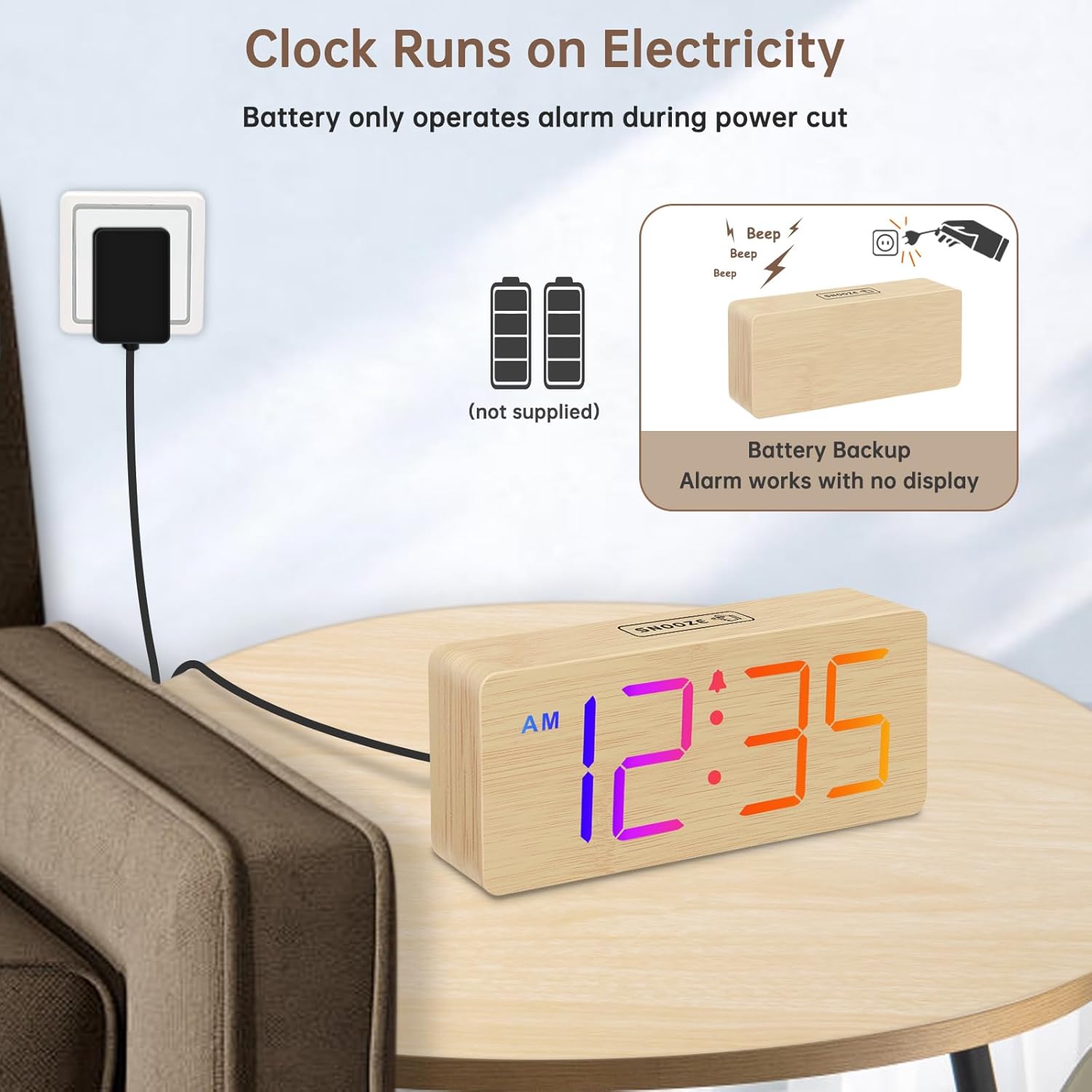
The alarm clock connected to a power outlet, indicating it runs on electricity.
2. Battery Backup Installation (Optional)
For alarm functionality during a power outage and to retain settings, install 3 AAA batteries (not included) into the battery compartment on the back of the clock. The display will not be lit during battery backup mode, but the alarm will still function.

Illustration of battery backup feature, showing batteries (not supplied) and alarm function during power cut.
3. Setting the Time
- Press and hold the TIME SET button (usually on the back) until the hour digits flash.
- Use the UP and DOWN buttons to adjust the hour. Pay attention to the AM/PM indicator.
- Press TIME SET again to confirm the hour and move to minute setting.
- Use the UP and DOWN buttons to adjust the minutes.
- Press TIME SET one last time to save the time.
4. 12/24 Hour Format
To switch between 12-hour and 24-hour time formats, press the 12/24HR button (often located on the back or top of the clock). The display will instantly change.

Icon representing the 12/24 hour time format switch.
Operation
1. Display Brightness Adjustment
The clock features 6 dimmable brightness levels (L1 to L5, plus OFF). To adjust, press the DIMMER button (or the SNOOZE button on top) repeatedly to cycle through the brightness levels. This allows for comfortable viewing in various lighting conditions, from dark bedrooms to bright daytime settings.

Visual representation of the 6 adjustable brightness levels for the clock display.
2. Display Color Modes
The clock offers 8 color changing display modes. To cycle through these modes, press the COLOR button (or similar button on the back). You can also "freeze" a specific color by pressing the button again when your desired color is displayed.
- RGB Changing
- RGB Right to Left Flowing
- RGB Bottom to Top Flowing
- Fixed RGB
- White
- Blue
- Red
- Green
The clock showcasing its 8 distinct color display modes.

Icon indicating the color freeze function.
3. Setting the Alarm
- Press and hold the ALARM SET button (usually on the back) until the alarm hour digits flash.
- Use the UP and DOWN buttons to adjust the alarm hour.
- Press ALARM SET again to confirm the hour and move to alarm minute setting.
- Use the UP and DOWN buttons to adjust the alarm minutes.
- Press ALARM SET one last time to save the alarm time.
4. Alarm Volume Control
The alarm volume can be adjusted to 5 levels (V1 to V5), ranging from 70dB to 105dB. During alarm setting, or when the alarm is sounding, use the VOLUME buttons (or UP/DOWN buttons) to select your preferred volume level.

Visual guide to the 5 adjustable alarm volume levels.
5. Snooze Function
When the alarm sounds, press the large SNOOZE button on the top of the clock to temporarily silence the alarm for 9 minutes. The alarm will sound again after the snooze period.

Icon representing the snooze function.
6. USB Charging Port
The clock includes a USB port on the back for charging other devices. Refer to the product's physical markings for its exact location and output specifications.
Maintenance
- Clean the clock with a soft, dry cloth. Do not use abrasive cleaners or solvents.
- Avoid exposing the clock to extreme temperatures, direct sunlight, or high humidity.
- Ensure proper ventilation around the clock.
Troubleshooting
| Problem | Possible Cause | Solution |
|---|---|---|
| Display is off. | Clock is not plugged in or power outage. | Ensure the power adapter is securely plugged into both the clock and a working outlet. If there's a power outage, the display will remain off, but the alarm will function if backup batteries are installed. |
| Alarm does not sound during power outage. | No backup batteries installed or batteries are depleted. | Install 3 fresh AAA batteries for backup functionality. |
| Time or alarm settings are lost. | No backup batteries installed or batteries are depleted. | Install 3 fresh AAA batteries to retain settings during power interruptions. |
| Display is too bright/dim. | Brightness level needs adjustment. | Press the DIMMER or SNOOZE button repeatedly to cycle through brightness levels. |
| Cannot change display color. | Incorrect button pressed or color is "frozen". | Press the COLOR button to cycle through modes. If a color is frozen, press it again to unfreeze and cycle. |
Specifications
- Model: DS2208
- Brand: DreamSky
- Display Type: Digital
- Display Digit Size: 1.8 inches
- Product Dimensions: 6.1"W x 2.8"H x 1.6"D
- Power Source: Corded Electric (5V/1.2A adapter included)
- Battery Backup: 3 x AAA batteries (not included)
- Alarm Volume: 5 adjustable levels (70dB - 105dB)
- Brightness: 6 dimmable levels (L1-L5 + OFF)
- Display Colors: 8 RGB color modes
- Material: Wood
- Item Weight: 9.6 ounces
Warranty and Support
This DreamSky product comes with a 1-year replacement warranty from the date of purchase. For warranty claims, technical support, or any inquiries regarding your product, please contact DreamSky customer service through the retailer where the product was purchased or refer to the contact information provided in the original packaging.