
1. Introduction
This manual provides detailed instructions for the proper use and maintenance of your OnRetul OBD2 Car Diagnostic Scan Tool, Model B03. This advanced diagnostic tool is designed to help you understand and manage your vehicle's engine health by reading and clearing fault codes, monitoring live data, and performing various system tests. It is compatible with most 1996 and newer OBDII/EOBD compliant vehicles, including domestic and imported cars, SUVs, and light trucks.
The device supports connectivity with iOS, Android, and Windows systems, offering a user-friendly interface for both professional mechanics and car enthusiasts.
2. Package Contents
Please verify that all items are present in your package:
- OnRetul OBD2 Car Diagnostic Scan Tool (Model B03)
- User Manual (this document)
3. Product Overview
The OnRetul OBD2 Car Diagnostic Scan Tool is a compact device designed for easy vehicle diagnostics. It features indicator lights for power, PC connection, and OBD status, along with a standard OBD-II connector for vehicle interface.
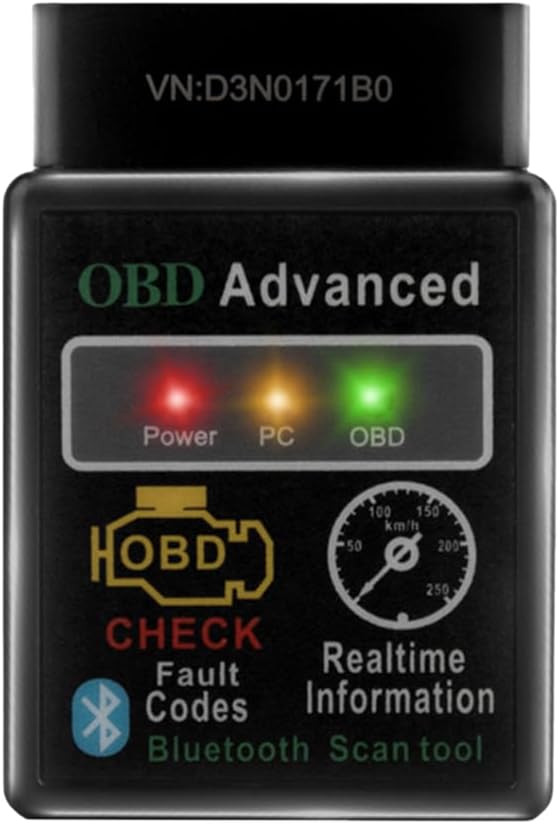
Image 3.1: Front view of the OnRetul OBD2 Car Diagnostic Scan Tool. The device is black with 'OBD Advanced' printed on it, and features three indicator lights (Power, PC, OBD) and icons for 'Check Fault Codes' and 'Realtime Information', along with a Bluetooth symbol.
The device is designed to be universally compatible with OBDII/EOBD protocols, covering a wide range of vehicles manufactured since 1996 in the United States, 1998 in Canada, 2004 in the European Union, 2007 in Australia, and 2006 in Mexico. It supports various communication protocols including SAE J1850 PWM, SAE J1850 VPW, ISO9141-2, ISO14230-4 KWP, and ISO15765-4 CAN.

Image 3.2: This image illustrates the wide coverage of the OnRetul OBD2 scanner, indicating compatibility with over 10,000 models and 90+ brands. It specifies model year compatibility for various regions and lists supported OBDII protocols.
4. Setup
4.1 Connecting to Your Vehicle
- Locate your vehicle's OBD-II port. This port is typically found under the dashboard on the driver's side, but its exact location may vary by vehicle model. Refer to your vehicle's owner's manual if you cannot find it.
- Ensure your vehicle's ignition is in the OFF position.
- Firmly plug the OnRetul OBD2 Scan Tool into the vehicle's OBD-II port.
- Turn the vehicle's ignition to the ON position (do not start the engine unless instructed by the diagnostic application). The Power indicator light on the scan tool should illuminate.
4.2 Pairing with a Device (iOS/Android/Windows)
The OnRetul OBD2 Scan Tool connects wirelessly via Bluetooth to your smartphone, tablet, or PC. You will need a compatible OBD-II diagnostic application installed on your device.

Image 4.1: This image displays the OnRetul OBD2 scanner alongside icons representing Windows, iOS, and Android devices, indicating its broad compatibility with these operating systems for diagnostic software.
- Install a Compatible App: Download and install a suitable OBD-II diagnostic application from your device's app store (e.g., Torque Lite/Pro for Android, Car Scanner ELM OBD2 for iOS/Android, or various PC software for Windows).
- Enable Bluetooth: On your smartphone, tablet, or PC, enable Bluetooth.
- Pair the Device:
- For Android/Windows: Go to your device's Bluetooth settings and search for new devices. Select the OBD2 device (it may appear as 'OBDII', 'V-LINK', or similar). Enter the pairing code if prompted (common codes are '1234' or '0000').
- For iOS: iOS devices typically pair directly through the diagnostic app. Open your chosen OBD-II app and navigate to its settings or connection menu. Select the Bluetooth OBD-II adapter from the list within the app. iOS does not usually require pairing through the system Bluetooth settings for OBD-II devices.
- Connect via App: Open your diagnostic application and configure it to connect to the OnRetul OBD2 Scan Tool via Bluetooth. Follow the app's instructions to establish a connection. The OBD indicator light on the scan tool should illuminate or flash when a successful connection is made.
5. Operating Instructions
Once connected, your diagnostic application will provide the interface for interacting with the scan tool. The OnRetul OBD2 Scan Tool supports a range of functions:

Image 5.1: This image highlights the professional functions of the OnRetul OBD2 Scan Tool, including View Freeze Frame, Read Codes, Erase Codes, DTC Code Lookup, MIL Fault Indicator Light, Live Data, O2 Sensor Test, EVAP System Test, Vehicle Info, and I/M Readiness.
5.1 Reading and Clearing Engine Fault Codes
- In your diagnostic app, select the 'Read Codes' or 'DTCs' option. The tool will scan your vehicle's Engine Control Unit (ECU) for stored Diagnostic Trouble Codes (DTCs).
- The app will display the codes and their descriptions.
- To clear codes, select the 'Clear Codes' or 'Erase DTCs' option. Warning: Clearing codes will turn off the Check Engine Light but does not fix the underlying problem. Ensure you have addressed the issue before clearing codes to prevent recurrence.
5.2 Live Data Monitoring
Monitor various engine parameters in real-time, such as RPM, vehicle speed, coolant temperature, fuel system status, O2 sensor readings, and more. This feature is crucial for diagnosing intermittent problems and verifying repairs.
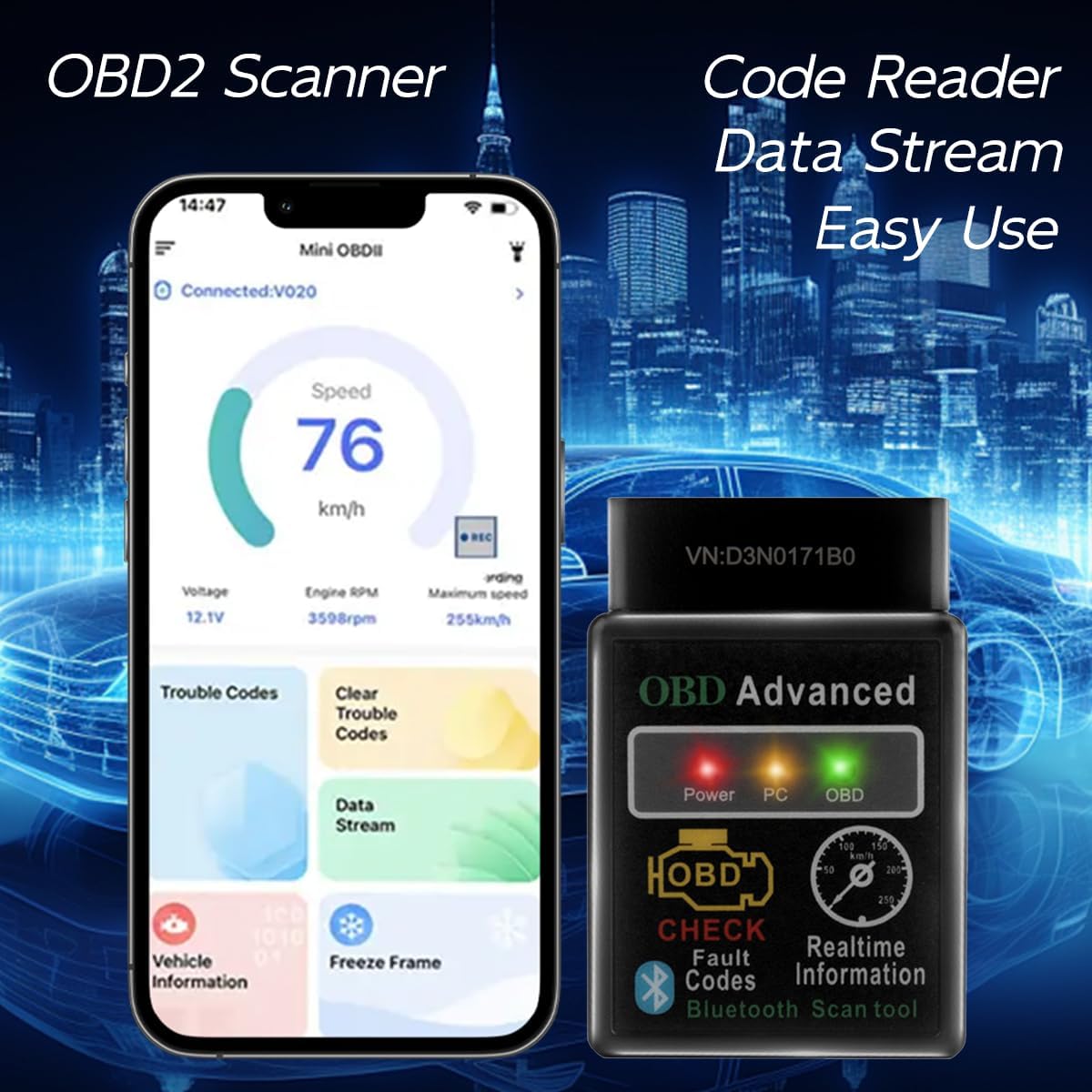
Image 5.2: This image depicts the OnRetul OBD2 scanner connected to a smartphone running a diagnostic app. The app displays live data such as speed (76 km/h), voltage (12.1V), and engine RPM (3598rpm), along with options for trouble codes and data stream.
5.3 O2 Sensor Test
This function allows retrieval and viewing of O2 sensor monitor test results for the most recently completed tests from the vehicle's on-board computer.
5.4 I/M Readiness Status
Check the readiness status of various emission-related systems to determine if the vehicle is ready for an emissions test. This includes monitors for misfire, fuel system, comprehensive components, O2 sensor, EVAP system, and more.
5.5 View Freeze Frame Data
When an emission-related fault occurs, the vehicle's computer records certain operating conditions at the time of the fault. This 'freeze frame' data can help identify the cause of the malfunction.
5.6 EVAP System Test
Initiates a leak test for the vehicle's Evaporative Emission Control System (EVAP). This test is performed by the vehicle's ECU and may take some time to complete.
5.7 Vehicle Information
Retrieve vehicle information such as Vehicle Identification Number (VIN), Calibration ID (CALID), and Calibration Verification Number (CVN).
6. Maintenance
6.1 Cleaning
To maintain the device's performance and appearance, clean it regularly with a soft, dry cloth. Avoid using abrasive cleaners, solvents, or harsh chemicals, as these can damage the casing or internal components.
6.2 Storage
When not in use, store the scan tool in a cool, dry place, away from direct sunlight, extreme temperatures, and excessive moisture. Keep it in its original packaging or a protective case to prevent physical damage.
6.3 Software Updates
Periodically check your chosen diagnostic application's store page for updates. Software updates often include bug fixes, performance improvements, and expanded vehicle compatibility.
7. Troubleshooting
If you encounter issues with your OnRetul OBD2 Scan Tool, refer to the following common problems and solutions:
- Device does not power on:
- Ensure the scan tool is firmly plugged into the vehicle's OBD-II port.
- Verify the vehicle's ignition is in the ON position.
- Check your vehicle's fuse box for any blown fuses related to the OBD-II port (consult your vehicle's manual).
- Cannot connect via Bluetooth:
- Ensure Bluetooth is enabled on your smartphone/tablet/PC.
- Confirm the scan tool is powered on (Power indicator lit).
- Close and reopen your diagnostic application.
- For Android/Windows, try unpairing and re-pairing the device in Bluetooth settings.
- For iOS, ensure you are connecting through the app's settings, not the system Bluetooth settings.
- Try restarting both your mobile device and the vehicle (by turning ignition off and on).
- No data or 'Link Error' message:
- Verify the vehicle is OBD-II compliant (1996 or newer for most regions).
- Ensure the scan tool is securely connected to the OBD-II port.
- Confirm the diagnostic app is correctly configured to communicate with the scan tool.
- Try the tool on a different OBD-II compliant vehicle to rule out a vehicle-specific issue.
- Check Engine Light remains on after clearing codes:
- Clearing codes only resets the ECU; it does not fix the underlying problem. The light will return if the fault persists.
- Ensure the vehicle has completed a full drive cycle after repairs and code clearing for all monitors to run.
8. Specifications
| Feature | Specification |
|---|---|
| Brand | OnRetul |
| Model Number | B03 |
| Product Name | Car Scanner |
| Manufacturer | Shenzhen jixinwei Electronic Commerce Co.,Ltd. |
| Item Weight | 1.44 ounces (approx. 40.8 grams) |
| Product Dimensions (L x W x H) | 2.56 x 0.98 x 1.77 inches (approx. 6.5 x 2.5 x 4.5 cm) |
| Automotive Fit Type | Universal Fit (OBDII/EOBD compliant vehicles) |
| Software Compatibility | iOS, Android, Windows (via compatible diagnostic apps) |
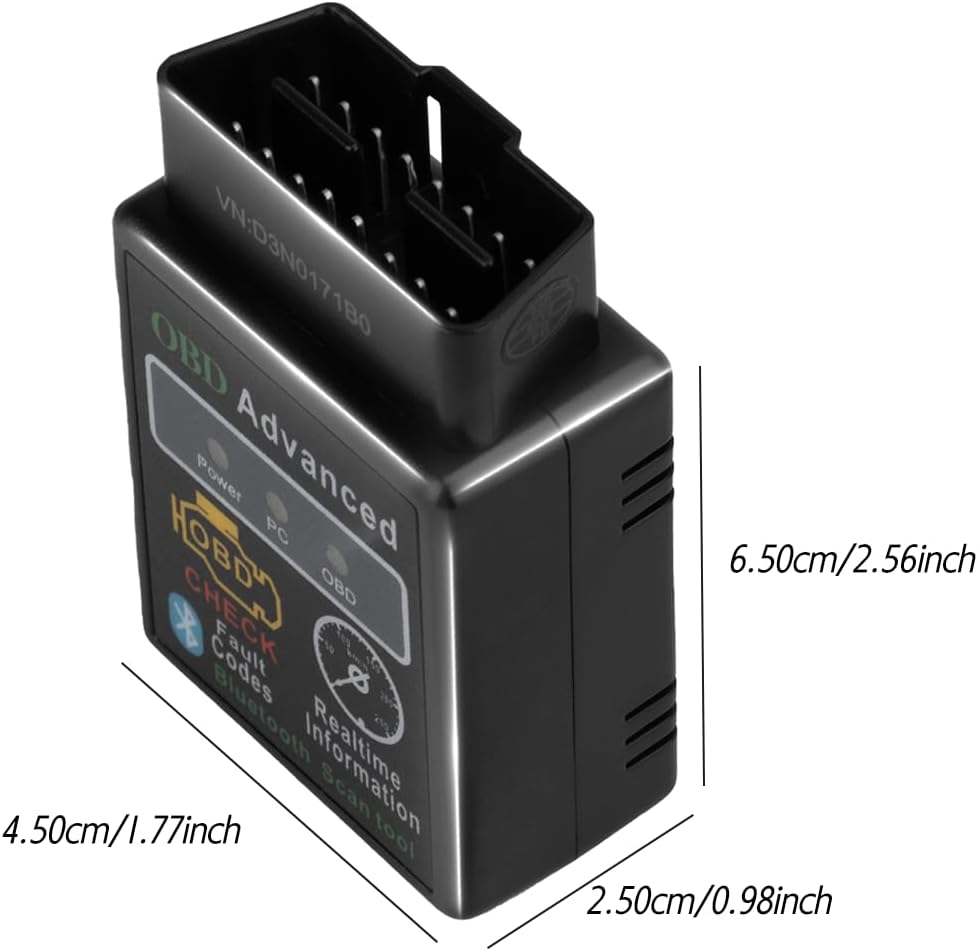
Image 8.1: This image provides a visual representation of the OnRetul OBD2 scanner's dimensions, indicating its length as 6.50cm/2.56 inches, width as 2.50cm/0.98 inches, and height as 4.50cm/1.77 inches.
9. Warranty Information
OnRetul products are manufactured to high-quality standards. For specific warranty details, including coverage period and terms, please refer to the warranty card included with your product packaging or contact the seller directly. Keep your purchase receipt as proof of purchase for any warranty claims.
10. Customer Support
If you have any questions, require technical assistance, or encounter issues not covered in this manual, please contact OnRetul customer support or the retailer from whom you purchased the product. Please have your product model (B03) and purchase information ready when contacting support.