
Introduction
This manual provides essential information for the safe and effective use of your Minolta MNB5Z 56MP Dual Lens Point & Shoot Digital Camera. Please read this manual thoroughly before using the camera and keep it for future reference. The Minolta MNB5Z is designed to capture high-quality photos at 56MP and record videos in 5K Ultra HD, featuring a 5x optical zoom and a user-friendly 2.8-inch IPS touchscreen.
Safety Information
- Do not expose the camera to water or moisture. This camera is not water resistant.
- Avoid dropping the camera or subjecting it to strong impacts.
- Keep the camera away from direct sunlight, high temperatures, and dusty environments.
- Use only specified batteries and accessories.
- Do not attempt to disassemble or modify the camera. Refer all servicing to qualified personnel.
- Keep out of reach of children.
Package Contents
Verify that all items are present in your package:
- Minolta MNB5Z 56MP Digital Camera
- USB Charging Cable
- Rechargeable Lithium-Ion Battery
- MicroSDHC Ultra 64GB Memory Card
- Flexible Vlogging Tripod
- Memory Card Wallet
- USB Card Reader (SD/microSD)
- Camera Bag
- Cleaning Kit
- Corel Photo, Video, & Art Suite Deluxe Software (Download information may be included)
Setup
1. Battery Installation
- Locate the battery compartment cover on the bottom of the camera.
- Slide the cover latch to open the compartment.
- Insert the Lithium-Ion battery according to the polarity indicators (+/-).
- Close the battery compartment cover securely until it clicks into place.
2. Memory Card Installation
The Minolta MNB5Z supports microSD and microSDHC cards up to 256GB.
- Open the battery compartment cover. The microSD card slot is usually located near the battery.
- Insert the microSD card with the gold contacts facing down, gently pushing until it clicks into place.
- To remove, push the card in again until it springs out.
- Close the battery compartment cover.
3. Charging the Battery
- Connect the small end of the USB charging cable to the camera's USB port.
- Connect the other end of the USB cable to a USB power adapter (not included) or a computer's USB port.
- The charging indicator light (CHG) will illuminate during charging and turn off when fully charged.
4. Initial Power On
- Press and hold the ON/OFF button located on the top of the camera.
- The camera will power on, and the display screen will activate.
- Follow any on-screen prompts for initial setup, such as setting the date and time.
Operating the Camera
1. Camera Layout and Controls
Familiarize yourself with the camera's buttons and touchscreen interface.

Image: Rear view of the Minolta MNB5Z camera, highlighting the touchscreen display and physical control buttons for navigation and function selection.
- ON/OFF Button: Powers the camera on or off.
- Shutter Button: Press halfway to focus, fully to take a photo.
- Zoom Lever: Controls the 5x optical zoom.
- Mode Button: Switches between different shooting modes (Photo, Video, Playback, etc.).
- Directional Pad (DISP/OK): Navigates menus and confirms selections.
- Playback Button: Enters playback mode to view photos and videos.
- Menu Button: Accesses camera settings and options.
- 2.8-inch IPS Touchscreen: For intuitive navigation and reviewing content.
2. Taking Photos
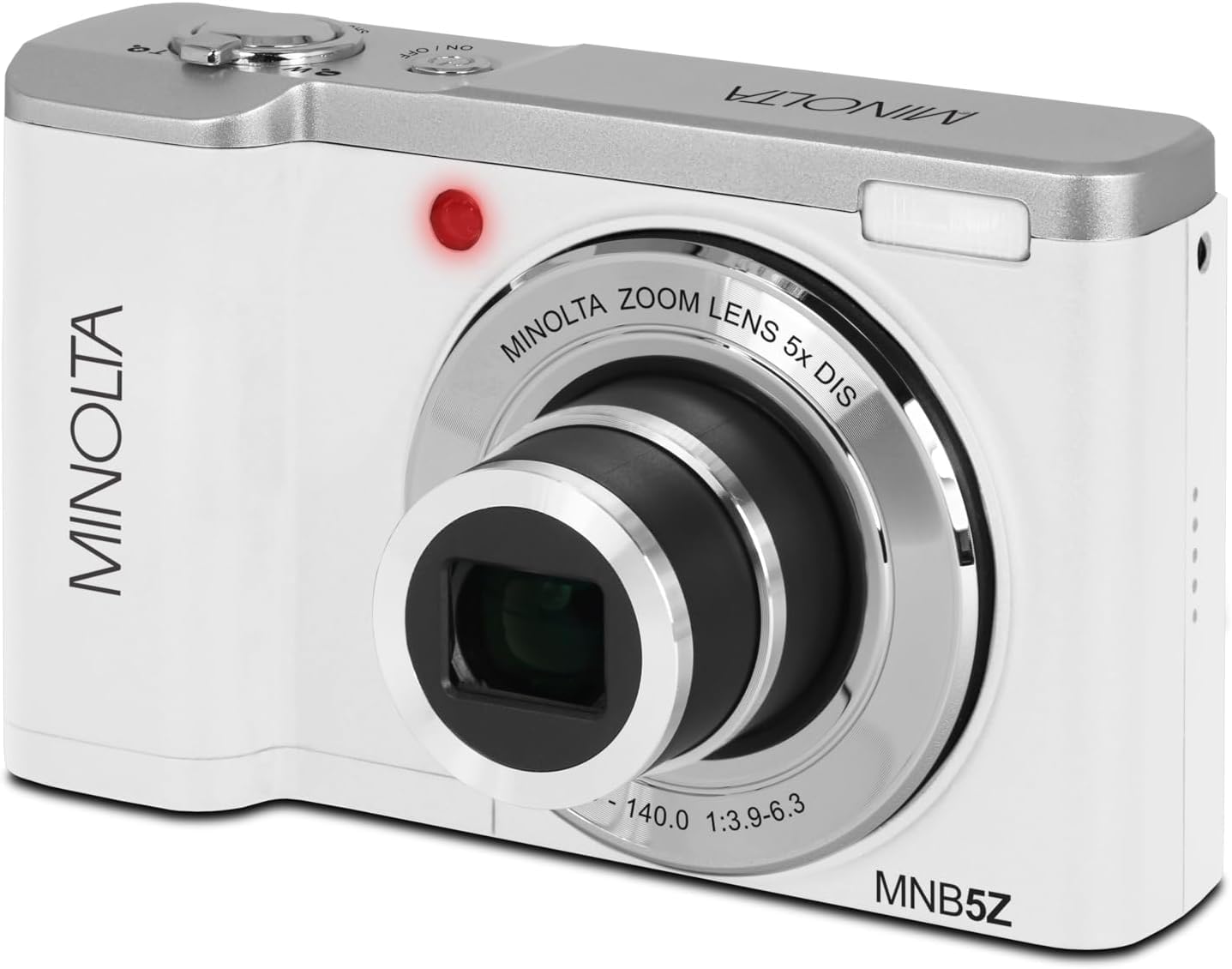
Image: Front view of the Minolta MNB5Z camera, showing the lens extended for capturing images, with the Minolta branding visible.
- Turn on the camera and ensure it is in Photo mode.
- Frame your shot using the 2.8-inch IPS touchscreen.
- Use the zoom lever to adjust the 5x optical zoom.
- Press the shutter button halfway down to allow the camera to focus. The focus indicator will confirm focus.
- Press the shutter button fully to capture the photo.
- Flash: The built-in flash can be set to Auto, On/Fill, or Off via the menu.
- Shooting Modes: Access various modes like Photo Burst, Time-Lapse, and Slow Motion via the Mode button or touchscreen menu.
3. Recording Videos
- Turn on the camera and switch to Video mode using the Mode button.
- Frame your subject on the touchscreen.
- Press the shutter button to start recording. A recording indicator will appear on the screen.
- Press the shutter button again to stop recording.
- The camera records in 5K Ultra HD resolution and includes a built-in microphone for audio capture.
4. Playback
- Press the Playback button to enter playback mode.
- Use the directional pad or swipe on the touchscreen to browse through your photos and videos.
- Press the OK button to view a video or zoom into a photo.
- Press the Playback button again to exit playback mode.
5. Camera Settings
- Press the Menu button to access camera settings.
- Use the directional pad or touchscreen to navigate through options such as resolution, white balance, ISO, exposure compensation, and color filters.
- Select an option and press OK to confirm or adjust.
- Press the Menu button again to exit the menu.
6. Connecting to a Computer (USB)
- Ensure the camera is powered off.
- Connect the camera to your computer using the provided USB cable.
- Turn on the camera. It should be recognized as a removable disk or media device.
- You can now transfer photos and videos to your computer.
7. Wi-Fi Connectivity
The Minolta MNB5Z features Wi-Fi connectivity for wireless transfer of images and remote control via a compatible smartphone application (if available). Refer to the camera's on-screen menu for Wi-Fi setup instructions and pairing with your device.
Maintenance
1. Cleaning the Camera
- Use a soft, lint-free cloth to clean the camera body.
- For the lens and screen, use a specialized lens cleaning cloth and solution. Avoid harsh chemicals.
- Gently blow away dust from the lens surface before wiping.
2. Storage

Image: Front view of the Minolta MNB5Z camera with its lens retracted, demonstrating its compact form factor for easy storage in the included camera bag.
- When not in use, store the camera in the provided camera bag to protect it from dust and scratches.
- Remove the battery if the camera will not be used for an extended period.
- Store in a cool, dry place, away from extreme temperatures and humidity.
Troubleshooting
| Problem | Solution |
|---|---|
| Camera does not power on. | Ensure the battery is correctly inserted and fully charged. Try charging the battery for at least 2 hours. |
| Cannot take photos/videos. | Check if the memory card is inserted correctly and has sufficient free space. Ensure the camera is in the correct mode (Photo/Video). |
| Images are blurry. | Ensure the lens is clean. Press the shutter button halfway to allow the camera to focus before fully pressing. Use digital image stabilization in shaky conditions. |
| Flash is not working. | Check flash settings in the menu to ensure it is not set to 'Off'. |
| Camera freezes or becomes unresponsive. | Remove the battery, wait a few seconds, and reinsert it to reset the camera. |
Specifications
| Feature | Detail |
|---|---|
| Model Name | MNB5Z |
| Photo Resolution | 56 Megapixels |
| Video Resolution | 5K Ultra HD (30 FPS) |
| Optical Zoom | 5x |
| Image Stabilization | Digital |
| Screen Size | 2.8 Inches IPS Touchscreen |
| Memory Card Support | microSD, microSDHC (up to 256GB) |
| Connectivity | USB, Wi-Fi |
| Battery Type | Lithium Ion |
| Flash | Built-In (Auto, On/Fill) |
| Sensor Type | CMOS |
| Minimum Shutter Speed | 1/4000 sec |
| Supported File Formats | JPEG (Photos), MP4 (Videos) |
| Item Weight | 2.37 Pounds |
Warranty and Support
Minolta products are manufactured to the highest quality standards. For information regarding your product's warranty, please refer to the warranty card included in your package or visit the official Minolta support website. For technical assistance, troubleshooting, or service inquiries, please contact Minolta customer support.
Online Support: Visit the official Minolta website for FAQs, driver downloads, and contact information.
Customer Service: Refer to your product packaging or the Minolta website for customer service contact details.


