
QAONIE Ky102
QAONIE KY102 Drone User Manual
Model: Ky102
1. Introduction
This manual provides detailed instructions for the safe operation, setup, maintenance, and troubleshooting of your QAONIE KY102 Drone. The KY102 features a screen controller, brushless motors, optical flow localization, and active obstacle avoidance for an enhanced flight experience. Please read this manual thoroughly before operating the drone to ensure proper function and safety.
2. Safety Guidelines
- Pre-Flight Check: Always inspect the drone, propellers, and batteries for any damage before each flight.
- Flight Environment: Fly in open areas, away from people, animals, buildings, and power lines. Avoid flying in strong winds or adverse weather conditions.
- Battery Safety: Use only original batteries and chargers. Do not overcharge or puncture batteries. Discontinue use if batteries are swollen or damaged.
- Propeller Safety: Keep hands, face, and loose clothing away from rotating propellers.
- Line of Sight: Maintain visual line of sight with the drone at all times during flight.
- Responsible Operation: Do not operate the drone under the influence of alcohol or drugs.
3. What's in the Box
Verify that all components are present in your package:
- KY102 Drone
- Screen Controller
- 2 x Lithium Ion Batteries (for drone)
- USB Charging Cable
- Spare Propellers
- Screwdriver
- Handbag
- SD Card
- User Manual (this document)

Image 3.1: Contents of the KY102 Drone package, including the drone, screen controller, batteries, and various accessories.
4. Product Overview
4.1. KY102 Drone
The KY102 drone features a compact, foldable design with brushless motors for stable and efficient flight. It is equipped with a 4K camera for high-resolution video and photos, optical flow positioning for stable hovering, and 360° active obstacle avoidance for enhanced safety.

Image 4.1: The KY102 drone highlighting its optical flow positioning system, HD dual camera, and 360° obstacle avoidance capabilities.
4.2. Screen Controller
The included screen controller provides seamless operation and live HD video playback directly on its integrated display. It offers intuitive controls for flight maneuvers and camera functions.

Image 4.2: The KY102 drone and its screen remote control, emphasizing stable graph transmission.
5. Setup
5.1. Charging Batteries
Before first use, fully charge both the drone batteries and the screen controller's internal battery. Connect the USB charging cable to a suitable USB power adapter (5V/2A recommended).
- Drone Batteries: Insert the drone battery into the charging hub (if provided) or connect directly to the charging cable. Charging indicators will show progress.
- Screen Controller: Connect the USB charging cable to the charging port on the controller. The charging indicator on the controller will illuminate during charging and turn off when fully charged.
A full charge typically takes approximately 60-90 minutes for drone batteries and 120 minutes for the controller.
5.2. Installing Drone Batteries
Ensure the drone is powered off. Insert a fully charged battery into the battery compartment on the rear of the drone until it clicks securely into place.
5.3. Attaching Propellers
If not pre-installed, attach the propellers according to the markings (A and B) on the propellers and motor arms. Ensure they are securely fastened. Use the provided screwdriver if necessary.
5.4. SD Card Insertion
Locate the SD card slot on the drone's camera or body. Insert the provided SD card with the metal contacts facing down until it clicks into place. This card is essential for recording 4K video and storing images.
6. Operating Instructions
6.1. Powering On/Off
- Drone: Press and hold the power button on the drone until the indicator lights turn on.
- Controller: Press and hold the power button on the screen controller until the screen illuminates.
- Power Off: Repeat the process to power off both devices.
6.2. Pairing Drone and Controller
After powering on both devices, place the drone on a flat, level surface. The drone and controller should automatically attempt to pair. Once paired, the indicator lights on the drone will become solid, and the controller screen will display the live video feed.
6.3. Pre-Flight Checks
- Ensure batteries are fully charged.
- Check that propellers are securely attached and undamaged.
- Verify the drone and controller are successfully paired.
- Confirm GPS signal (if applicable) and clear flight path.
6.4. One-Key Takeoff/Landing
Press the One-Key Takeoff/Landing button on the controller. The drone will automatically ascend to a safe altitude or descend and land gently.
6.5. Basic Flight Controls
Familiarize yourself with the joystick functions on the screen controller:
- Left Joystick (Throttle/Yaw): Up/Down controls altitude. Left/Right controls rotation (yaw).
- Right Joystick (Pitch/Roll): Up/Down controls forward/backward movement (pitch). Left/Right controls left/right movement (roll).
6.6. Advanced Features
- Optical Flow Localization: The bottom optical flow positioning system helps the drone maintain a stable hover at a high altitude, making it easier to control, especially for beginners.
- Active Obstacle Avoidance: The KY102 drone features 360° intelligent obstacle avoidance technology, automatically detecting and preventing collisions with objects in its path.
- Waypoint Fly: Utilize the companion app (if available) to set specific waypoints on a map, and the drone will automatically follow the designated flight path.
- 4K Camera & HD Transmission: The integrated 4K camera captures high-resolution photos and videos. The screen controller provides real-time HD video transmission for live viewing during flight.
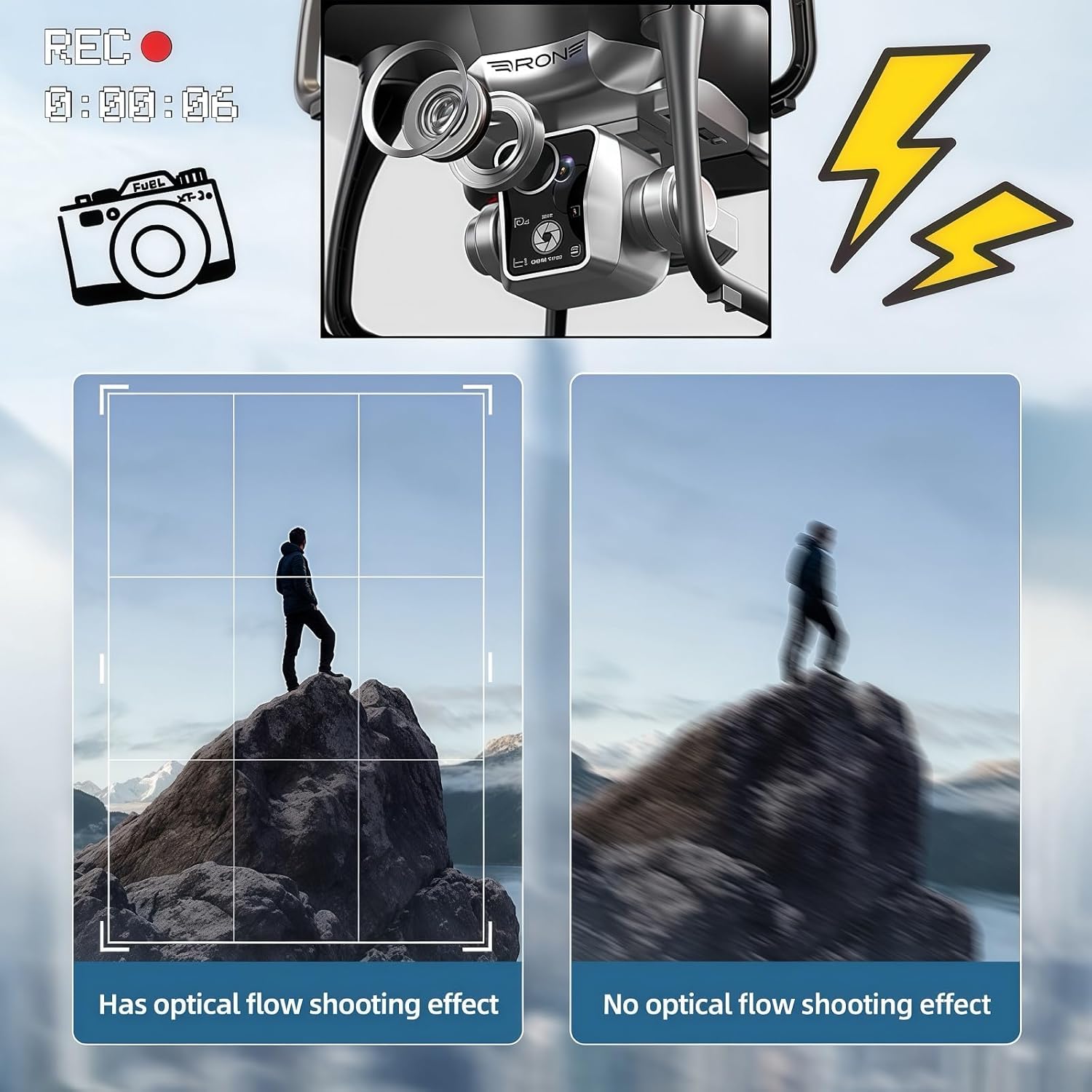
Image 6.1: Comparison demonstrating the stable shooting effect achieved with optical flow positioning versus without it.

Image 6.2: Visual representation of the drone's 360° obstacle avoidance system, designed to prevent collisions.
7. Maintenance
7.1. Cleaning
Regularly clean the drone and controller with a soft, dry cloth. Avoid using harsh chemicals or solvents. Ensure no dust or debris accumulates in the motors or camera lens.
7.2. Propeller Replacement
Inspect propellers for cracks, bends, or chips before each flight. Replace damaged propellers immediately using the provided spare parts and screwdriver. Ensure correct A/B propeller orientation.
7.3. Battery Care
- Store batteries in a cool, dry place away from direct sunlight.
- Do not store fully charged or completely depleted batteries for extended periods. Charge them to about 50-60% for long-term storage.
- If a battery swells, leaks, or shows signs of damage, discontinue use and dispose of it properly.
7.4. Storage
When not in use, store the drone and its accessories in the provided handbag or a protective case to prevent damage from dust, moisture, and impacts.
8. Troubleshooting
| Problem | Possible Cause | Solution |
|---|---|---|
| Drone does not power on | Low battery; Battery not installed correctly | Charge battery; Reinstall battery securely |
| Drone and controller fail to pair | Incorrect pairing procedure; Interference | Ensure both are powered on and close; Restart both devices; Move to an area with less interference |
| Unstable flight / Drifting | Uncalibrated gyroscope; Damaged propellers; Strong wind | Perform gyroscope calibration (refer to controller instructions); Replace damaged propellers; Fly in calm conditions |
| No live video feed on controller | Poor connection; Camera issue | Ensure drone and controller are paired and within range; Restart both devices; Check camera connection |
| Cannot record video/take photos | SD card full or not inserted; SD card error | Insert/reinsert SD card; Format SD card (backup data first); Use a new SD card |
9. Specifications
- Brand: QAONIE
- Model Name: Ky102
- Color: 2 batteries - Red
- Video Capture Resolution: 4K
- Video Output Resolution: 1920x1080 Pixels
- Video Capture Format: MP4
- Connectivity Technology: Bluetooth, Wi-Fi
- Control Type: Remote Control (with integrated screen)
- Optical Sensor Technology: Optical Flow, CMOS
- Battery Type: Lithium Ion (2 included for drone)
- Estimated Flight Time: Approximately 15 minutes per battery (based on 1800mAh)
- Item Weight: 0.4 Pounds (approx. 6.4 ounces)
- Product Dimensions: 6.1"L x 2.4"W x 6.1"H
- Special Features: Extended flight time, screen controller, one-key takeoff and landing, advanced navigation technology, active obstacle avoidance
- Age Range (Description): Adult
- UPC: 762949573228
- Manufacturer: Shantou Kehang Intelligent Technology Co., Ltd
10. Warranty and Support
For warranty information and technical support, please refer to the contact details provided on the product packaging or the official QAONIE website. Keep your purchase receipt as proof of purchase for any warranty claims.
Ask a question about this manual
Ask about setup, troubleshooting, compatibility, parts, safety, or missing instructions. Manuals+ will review the question and use this page’s manual context to help answer it.