
Fafeicy Fafeicy4s6f9adkwr
Fafeicy 1080P Video Doorbell with 4.3-inch LCD Display User Manual
Model: Fafeicy4s6f9adkwr
1. Introduction
Thank you for choosing the Fafeicy 1080P Video Doorbell. This device is designed to enhance your home security with its advanced features, including a 4.3-inch LCD display, 1080P camera, motion detection, and night vision capabilities. This manual provides detailed instructions for installation, operation, and maintenance to ensure optimal performance and longevity of your product.
Please read this manual thoroughly before using the product and retain it for future reference.

Image 1.1: Fafeicy 1080P Video Doorbell display unit showing a delivery person at the door.
2. Safety Information
To ensure safe and proper operation, please observe the following safety precautions:
- Do not expose the device to extreme temperatures, humidity, or direct sunlight.
- Avoid dropping or subjecting the device to severe impact.
- Do not attempt to disassemble, repair, or modify the device yourself. Contact qualified service personnel for assistance.
- Use only the provided power cable and accessories.
- Keep the device away from water and other liquids.
- Dispose of batteries and electronic components according to local regulations.
3. Package Contents
Please check the package for the following items:
- 1 x Display Monitor
- 1 x Doorbell Camera Unit
- 1 x Installation Bracket
- 8 x Installation Screws
- 2 x Washers
- 1 x Power Cable (USB)
- 2 x User Manual (English, Chinese)

Image 3.1: All components included in the Fafeicy Video Doorbell package.
4. Specifications
| Feature | Description |
|---|---|
| Item Type | Smart Video Doorbell |
| Material | ABS |
| Operating System | For LiteOS |
| Camera Pixel | 1080P |
| Screen Size | 4.3 inch LCD |
| App Compatibility | For Android, for iOS |
| Battery Capacity | 5000mAh Lithium Battery (included) |
| Wide Angle | 120 degrees |
| Key Features | Infrared Night Vision, Auto Snapshot, Monitoring Intercom, Motion Detection |
| External Storage | Supports up to 128GB memory card (not included) |
| Suitable Door Thickness | Approx. 35 to 120mm / 1.38 to 4.72in |
| Applicable Door Hole Diameter | Approx. 14 to 30mm / 0.55 to 1.18in |
| Operating Environment Temperature | -20 to 55℃ |
| Languages | English, Chinese |
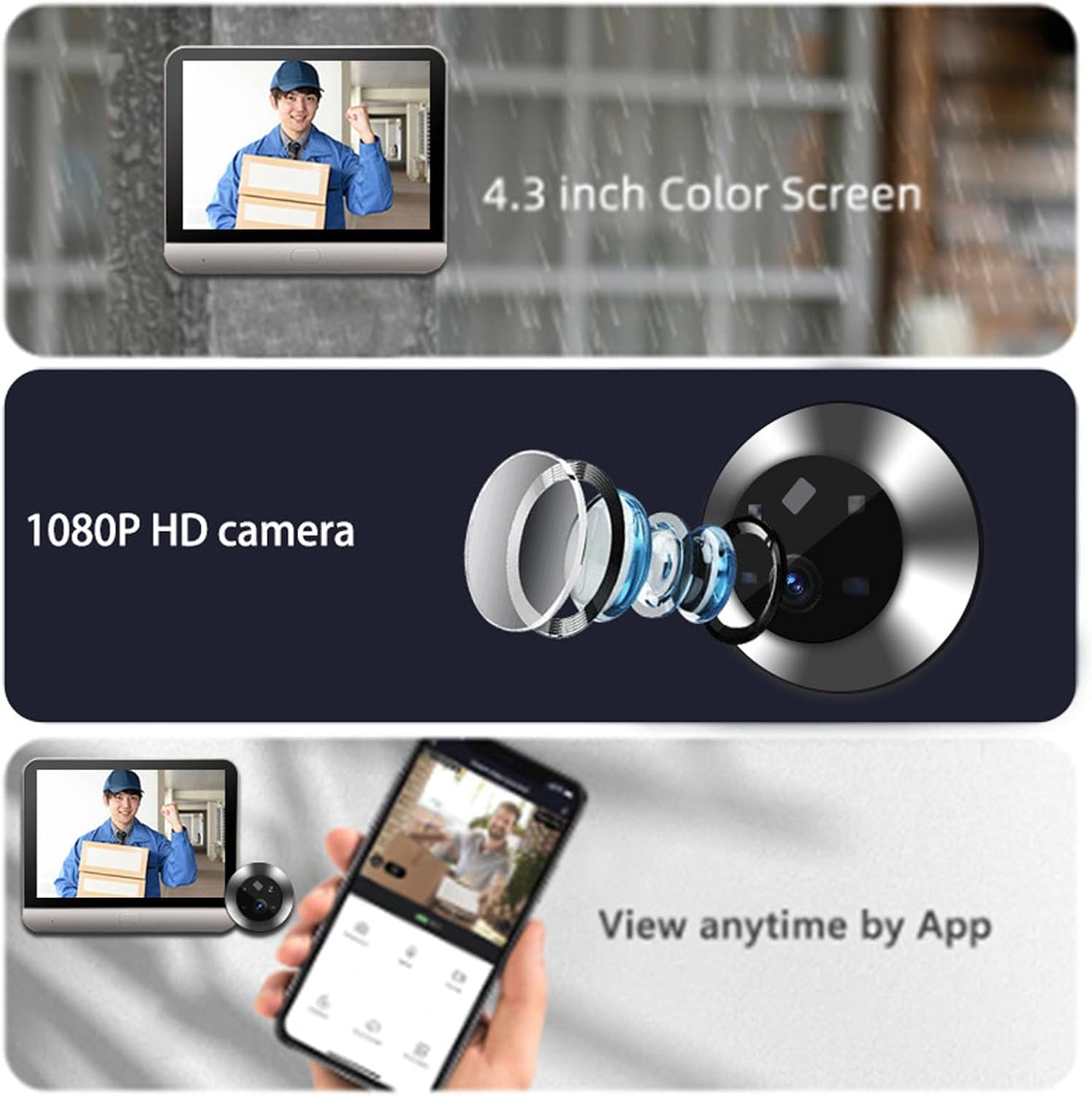
Image 4.1: Key features of the Fafeicy Video Doorbell, including screen size, camera resolution, and app integration.
5. Setup and Installation
5.1 Initial Charging
Before installation, ensure the display monitor's 5000mAh battery is fully charged using the provided USB power cable. A low battery reminder will appear when charging is needed.
5.2 Physical Installation
Follow these steps to install the doorbell camera and display monitor:
- Step 1: Select Screws. Choose two screws that match the thickness of your door and insert them into the bolt machine (doorbell camera unit).
- Step 2: Thread Cable. At the door, thread the camera unit's cable through the doorway's peephole.
- Step 3: Straighten Cable. After straightening out the cable lines as shown in the figure, thread the screw through the hanging plate.
- Step 4: Tighten Hanging Plate. Successively tighten the screws to fix the hanging plate securely to the door.
- Step 5: Buckle Wire Cover. Buckle the upper wire protection cover onto the hanging plate.
- Step 6: Attach Display. Attach the display monitor to the hanging plate. Ensure all connections are secure.

Image 5.1: Step-by-step installation guide for the video doorbell.
5.3 App Connection (Optional)
For remote monitoring and communication, connect the doorbell camera to your router via the compatible mobile application (available for Android and iOS). The setup process typically involves scanning a QR code and following voice prompts within the app.

Image 5.2: Illustration of WiFi connection and remote monitoring via the mobile application.
6. Operating Instructions
6.1 Basic Functions
- Doorbell Ring: When a visitor presses the doorbell button, the indoor display monitor will activate, showing the live video feed from the camera.
- Intercom: Use the display monitor to communicate verbally with visitors at your door.
- Monitoring: Manually activate the display to view the live feed from the camera at any time.
- Auto Snapshot: The doorbell can be configured to automatically take snapshots when motion is detected or a visitor rings the bell.
- Night Vision: The infrared night vision feature ensures clear visibility even in low-light conditions.
6.2 Motion Detection
The doorbell is equipped with PIR motion detection. When movement is detected within the camera's field of view, the device can automatically capture video or snapshots and send push notifications to your connected mobile phone (if the app is configured).

Image 6.1: PIR Motion Detection capabilities and alert notification.

Image 6.2: Example of a motion detection alert on the display monitor.
6.3 Mobile App Features
When connected to the mobile app, you can:
- Receive remote calls and video notifications from the doorbell.
- View live video feed from anywhere.
- Engage in two-way communication with visitors.
- Review recorded snapshots and videos (requires memory card).
- Share access with other users.

Image 6.3: Overview of key features and app functionalities.
6.4 Language Settings
The device supports English and Chinese languages. Refer to the device's settings menu to switch between languages.
6.5 External Storage
The doorbell supports an external memory card up to 128GB (not included) for storing snapshots and video recordings. Insert the memory card into the designated slot on the display monitor.
7. Maintenance
- Cleaning: Use a soft, dry cloth to clean the display monitor and camera lens. Do not use abrasive cleaners or solvents.
- Battery Charging: Recharge the 5000mAh battery when the low battery indicator appears. Use the provided USB cable for charging.
- Firmware Updates: Check the mobile application or manufacturer's website periodically for any available firmware updates to ensure optimal performance and new features.
- Memory Card: Regularly back up important recordings from the memory card and format it periodically to maintain performance.
8. Troubleshooting
| Problem | Possible Cause | Solution |
|---|---|---|
| Device does not power on. | Battery is depleted. | Charge the display monitor using the USB cable. |
| No image on display. | Camera cable not properly connected. | Check the connection between the camera unit and the display monitor. |
| Cannot connect to Wi-Fi. | Incorrect Wi-Fi password; device too far from router; router issues. | Verify Wi-Fi password. Move device closer to router. Restart router. |
| Motion detection not working. | Settings incorrect; obstruction in detection area. | Check motion detection settings in the device menu or app. Ensure clear line of sight for the sensor. |
| Poor night vision quality. | Infrared sensors obstructed or dirty. | Clean the camera lens and infrared sensors. |
| Memory card not recording. | Card full or not formatted; card incompatible. | Check card capacity. Format the card (this will erase data). Ensure card is compatible (up to 128GB). |
9. Warranty and Support
Fafeicy products are designed and manufactured to the highest quality standards. For warranty information, technical support, or service inquiries, please refer to the warranty card included in your package or contact your retailer. You may also visit the official Fafeicy brand store on Amazon for additional resources and contact information:
Ask a question about this manual
Ask about setup, troubleshooting, compatibility, parts, safety, or missing instructions. Manuals+ will review the question and use this page’s manual context to help answer it.