
1. Introduction and Overview
The DEWIN WiFi Three Phase Electric Consumption Meter is an advanced device designed for precise measurement and monitoring of three-phase electrical energy. It integrates WiFi connectivity, allowing users to remotely control and view real-time data through the Tuya Smart application. This meter features a clear color LCD screen for easy data interpretation and supports two-way energy measurement, making it suitable for applications such as solar power generation systems. Additionally, it incorporates intelligent protection functions including over-voltage, under-voltage, over-current, and leakage protection to ensure safe and reliable operation.

Image 1.1: The DEWIN WiFi Three Phase Electric Consumption Meter shown alongside a smartphone displaying its monitoring application. The meter features a digital display showing kWh, voltage, current, and temperature readings.
2. Key Features
- WiFi Connectivity: Enables remote monitoring and control via the Tuya Smart app.
- Real-time Data Display: Shows power, current, voltage, leakage, frequency, and accumulated energy.
- Color LCD Screen: Provides clear and easy-to-read measurement results.
- Two-way Measurement: Accurately measures energy flow for both consumption and generation (e.g., solar systems).
- Intelligent Protection: Includes over-voltage, under-voltage, over-current, and leakage protection.
- DIN Rail Installation: Designed for standard 35mm DIN rail mounting.

Image 2.1: The DEWIN meter with a graphical overlay highlighting its key features: Graffiti Tuya smart chip, WiFi remote monitoring, guide rail installation, real-time data, LCD display, and two-way measurement.
3. Specifications
| Parameter | Value |
|---|---|
| Connection Platform | Tuya Smart APP |
| Rated Voltage | AC 380V |
| Maximum Current | 100A |
| Operating Voltage | AC 80-300V |
| Power Display Range | 0-99999.9 kWh |
| Rated Frequency | 50/60Hz |
| Surge Protection | 120-300 VAC (Adjustable) |
| Low Voltage Protection | 80-210V (Adjustable) |
| Over Current Protection | 1.0-100A (Accuracy 0.1A) |
| Reconnection Time (Delay) | 1-9999 seconds (Default 3 seconds) |
| Over Current & Leakage Protection Time | 1-30 seconds (Default: 5 seconds) |
| Display Mode | Color Screen |
| Installation Method | DIN rail 35 mm |
| Ambient Temperature Range | -30-70℃ |
| Product Size | 9 x 7.5 x 7.5 cm |
| Product Weight | 430g |
| Model Number | QYIEREQEB-GS98894 |

Image 3.1: Front and side views of the DEWIN meter with dimensions indicated: 89mm height, 75mm width (front), and 35mm depth (side).
4. Setup Instructions
4.1 Mechanical Installation
- Mounting: Securely attach the DEWIN meter onto a standard 35mm DIN rail within your electrical panel. Ensure it is firmly clipped into place.
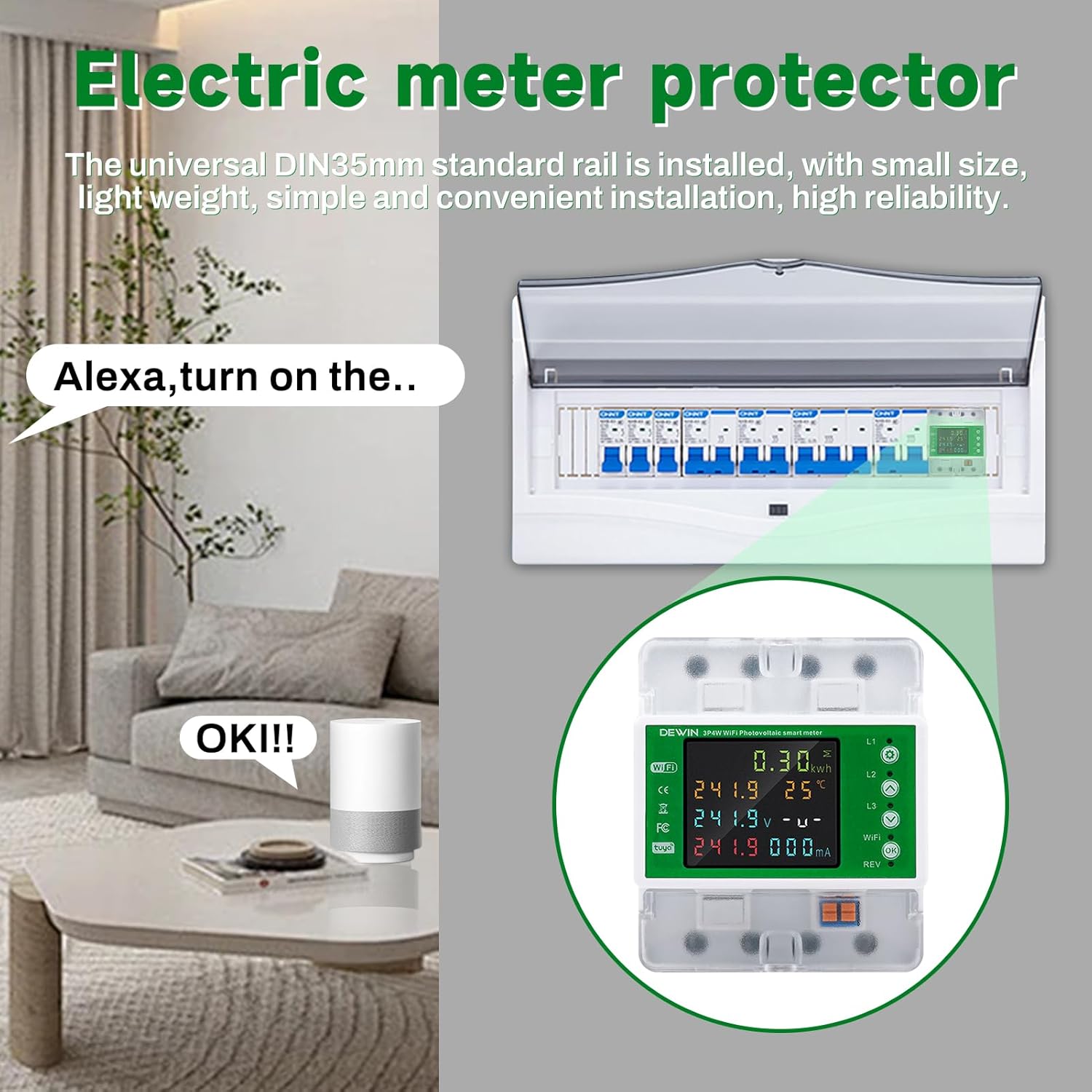
Image 4.1: The DEWIN electric meter shown installed within a standard electrical distribution box, demonstrating its DIN rail compatibility.
4.2 Electrical Wiring
Connect the three-phase power lines to the designated terminals on the meter. Refer to the wiring diagram provided on the device or in the included physical manual for correct phase and neutral connections. Ensure all connections are tight and secure to prevent electrical hazards.
4.3 Tuya Smart App Connection
- Download App: Download the 'Tuya Smart' app from your smartphone's app store (iOS or Android).
- Register/Login: Open the app and register for a new account or log in with an existing one.
- Add Device: In the Tuya Smart app, tap the '+' icon to add a new device. Select 'Electrical' > 'Energy Meter (Wi-Fi)'.
- Pairing Mode: On the DEWIN meter, press and hold the 'OK' button (or the third button from the top, as indicated in some user feedback) for approximately 5 seconds until the WiFi indicator light on the meter blinks rapidly. This indicates the device is in pairing mode.
- Connect to WiFi: Follow the on-screen instructions in the Tuya Smart app to connect the meter to your 2.4GHz WiFi network. Enter your WiFi password when prompted.
- Device Added: Once connected, the app will confirm the device has been added successfully. You can then rename the device for easier identification.
5. Operating Instructions
5.1 LCD Display Interpretation
The color LCD screen displays various real-time electrical parameters. Common readings include:
- kWh: Accumulated energy consumption.
- V: Voltage per phase (L1, L2, L3).
- A: Current per phase (L1, L2, L3).
- mA: Leakage current.
- Hz: Frequency.
- °C: Internal temperature.
Use the navigation buttons (up/down arrows) on the meter to cycle through different display screens and view additional parameters.
5.2 Tuya Smart App Usage
After successful setup, the Tuya Smart app provides comprehensive control and monitoring capabilities:
- Remote Monitoring: View real-time power, current, voltage, and energy consumption from anywhere.
- Historical Data: Access historical consumption graphs and reports.
- Protection Settings: Adjust over-voltage, under-voltage, over-current, and leakage protection thresholds.
- Time Control: Set schedules for power on/off if supported by the specific model's firmware.
- Automation: Integrate with other Tuya-compatible smart home devices for automated scenarios.
5.3 Adjusting Protection Parameters
Protection parameters (e.g., over-voltage, over-current) can typically be adjusted via the Tuya Smart app. Navigate to the device settings within the app and locate the 'Protection Settings' or similar menu. Follow the prompts to set desired thresholds. Changes will be applied to the meter automatically.
6. Maintenance
- Cleaning: Periodically wipe the meter's exterior with a dry, soft cloth to remove dust. Do not use liquid cleaners or solvents.
- Connection Check: Annually inspect all electrical connections to ensure they remain tight and free from corrosion.
- Software Updates: Keep the Tuya Smart app updated to the latest version to ensure optimal performance and access to new features.
- Environmental Conditions: Ensure the meter operates within the specified ambient temperature range (-30-70℃) and avoid excessive humidity.
7. Troubleshooting
- No Power Display:
- Verify that the main power supply to the meter is active.
- Check all wiring connections for proper installation and tightness.
- WiFi Connection Issues:
- Ensure your WiFi network is 2.4GHz. The meter does not support 5GHz networks.
- Confirm the WiFi password entered in the Tuya app is correct.
- Make sure the meter is within range of your WiFi router.
- Re-enter pairing mode on the meter (hold 'OK' button for 5 seconds) and try connecting again.
- Inaccurate Readings:
- Double-check the wiring configuration to ensure correct phase connections.
- If issues persist, contact technical support.
- Protection Tripping Frequently:
- Identify if the tripping is due to actual over-voltage, under-voltage, over-current, or leakage.
- Review and adjust the protection thresholds in the Tuya Smart app if they are set too sensitively for your electrical system.
- Consult a qualified electrician if the issue cannot be resolved.
8. Warranty and Support
For detailed warranty information, terms, and conditions, please refer to the documentation included with your product packaging or visit the official DEWIN website. For technical assistance, troubleshooting beyond this manual, or to report a defect, please contact DEWIN customer service through the contact information provided on the product packaging or their official support channels.