
1. Introduction
This manual provides instructions for the installation, operation, and maintenance of the Ocypus Iota L24 240mm AIO Liquid CPU Cooler. This all-in-one liquid cooling system is designed to efficiently manage CPU temperatures, featuring a digital display for real-time temperature monitoring and ARGB lighting control.
Please read this manual thoroughly before installation and use to ensure proper function and longevity of your product.
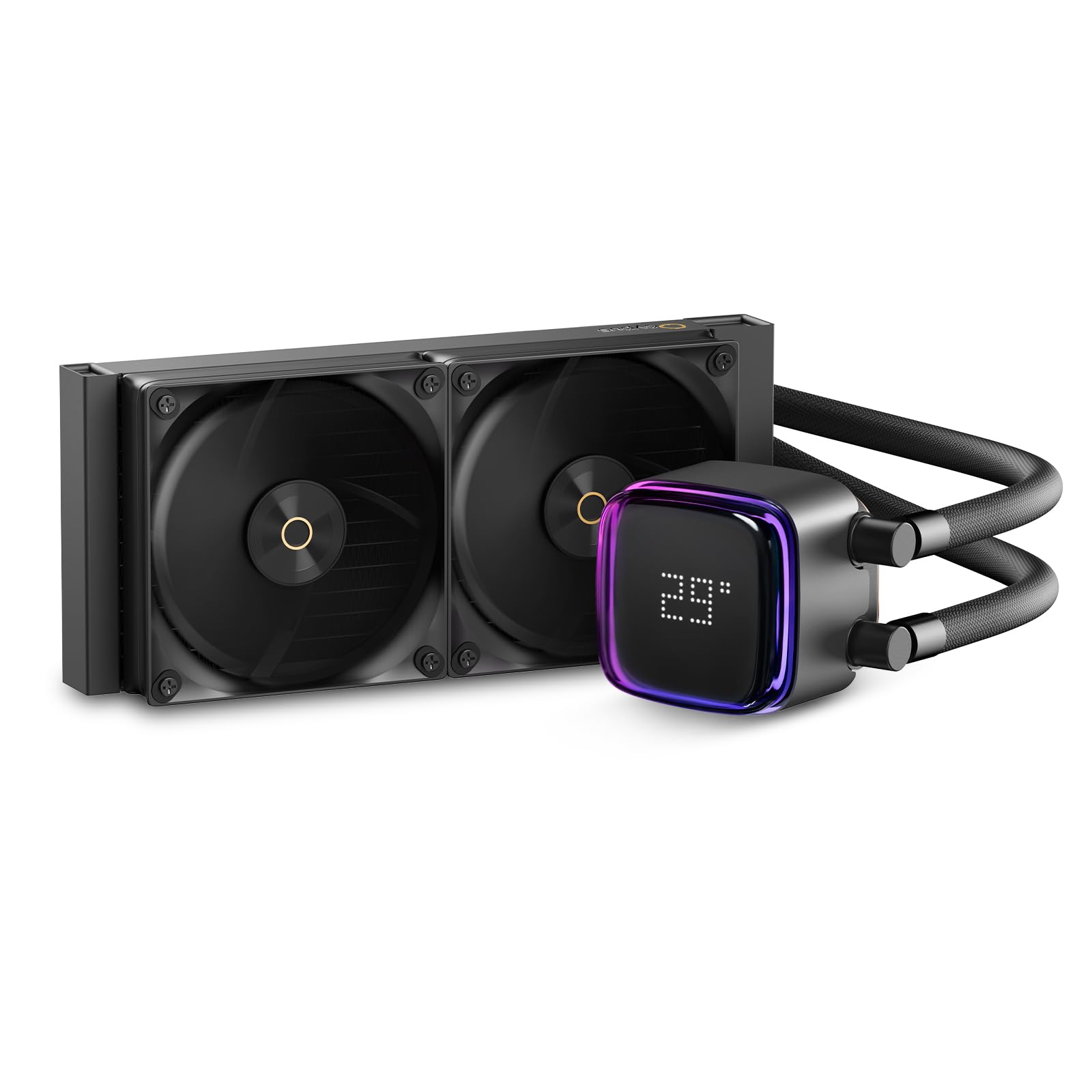
Figure 1: Ocypus Iota L24 240mm AIO Liquid CPU Cooler (Black model).
2. Setup and Installation
The Ocypus Iota L24 liquid CPU cooler is designed for straightforward installation and includes all necessary metal mounting hardware. It supports both Intel and AMD mainstream platforms.
2.1. Package Contents
Before beginning installation, ensure all components are present:
- Ocypus Iota L24 Radiator with integrated pump and tubing
- 2 x 120mm Fans
- Intel mounting brackets (LGA 115X/1200/1700/1851)
- AMD mounting brackets (AM4/AM5)
- Mounting screws and accessories
- Thermal paste
- USB 2.0 connection cable for digital display

Figure 2: Included mounting hardware and accessories.
2.2. Pre-Installation Steps
- Prepare your Motherboard: Identify the correct mounting holes for your CPU socket (Intel LGA or AMD AM).
- Apply Thermal Paste: Apply a small amount of thermal paste to the center of your CPU's integrated heat spreader (IHS).
- Attach Mounting Brackets: Secure the appropriate Intel or AMD mounting brackets to the pump block.

Figure 3: All-metal mounting brackets for Intel and AMD platforms.
2.3. Cooler Installation
- Mount Radiator and Fans: Install the radiator and fans into your PC case. Ensure proper airflow direction (typically exhausting air out of the case).
- Secure Pump Block: Carefully place the pump block onto the CPU, aligning the mounting holes. Secure it with the provided screws, tightening them in a cross pattern until snug.
- Connect Cables:
- Connect the pump's 3-pin power connector to the CPU_FAN or AIO_PUMP header on your motherboard.
- Connect the fan cables to available fan headers on your motherboard.
- Connect the ARGB lighting cable to a compatible 3-pin ARGB header on your motherboard.
- Connect the USB 2.0 cable from the pump block to an available USB 2.0 header on your motherboard for digital display functionality.

Figure 4: Example of cooler installation within a PC system.
3. Operating Instructions
The Ocypus Iota L24 features a real-time digital temperature display and customizable ARGB lighting.
3.1. Digital Temperature Display
The pump block features a floating digital display that shows the real-time temperature of your CPU or GPU. This functionality requires a connection to a USB 2.0 header on your motherboard and the installation of the Ocypus Digital software.

Figure 5: Digital display showing CPU/GPU temperature.
3.2. Ocypus Digital Software
To utilize the full features of the digital display, including switching between Celsius and Fahrenheit, and monitoring CPU or GPU temperature, install the Ocypus Digital software.
- Download Software: Search for "Ocypus Digital" in your browser or refer to the product manual for the official Ocypus website.
- Installation: Download and install the software. It is recommended to add the software to your antivirus whitelist during installation.
- Functionality: The software supports Windows 10 and Windows 11. Ensure the USB 2.0 connection is correctly established for the digital function to work.

Figure 6: Ocypus Digital software interface.
3.3. ARGB Lighting Control
The Iota CPU water cooler supports ARGB independent control. Connect the ARGB cable to a compatible 3-pin ARGB header on your motherboard. You can then manage the pump and fan lighting effects using your motherboard's lighting control software (e.g., ASUS Aura Sync, MSI Mystic Light Sync, Gigabyte RGB Fusion, ASRock Polychrome Sync).

Figure 7: ARGB lighting on the pump block.
4. Maintenance
Regular maintenance helps ensure optimal performance and extends the lifespan of your liquid CPU cooler.
- Dust Removal: Periodically clean the radiator fins and fan blades to prevent dust buildup, which can impede airflow and cooling efficiency. Use compressed air or a soft brush.
- Check Tubing and Connections: Inspect the tubing for any signs of kinks, leaks, or damage. Ensure all connections are secure.
- Monitor Temperatures: Regularly check CPU/GPU temperatures using the digital display or monitoring software to ensure the cooler is performing effectively.
- Software Updates: Keep the Ocypus Digital software and your motherboard's drivers updated for best compatibility and performance.
5. Troubleshooting
If you encounter issues with your Ocypus Iota L24 cooler, refer to the following common problems and solutions:
5.1. Digital Display Not Working
- Check USB Connection: Ensure the USB 2.0 cable from the pump block is securely connected to an active USB 2.0 header on your motherboard.
- Software Installation: Verify that the Ocypus Digital software is correctly installed and running.
- Antivirus Whitelist: Confirm that the Ocypus Digital software is whitelisted by your antivirus program.
- Reboot System: A system restart can sometimes resolve display issues.
5.2. High CPU/GPU Temperatures
- Thermal Paste Application: Ensure thermal paste was applied correctly and evenly between the CPU and pump cold plate. Reapply if necessary.
- Pump Operation: Check if the pump is running. Listen for a faint hum or feel for vibrations. Ensure the pump's power cable is connected to the correct motherboard header (CPU_FAN or AIO_PUMP) and receiving power.
- Fan Operation: Verify that both fans are spinning correctly and are connected to fan headers.
- Radiator Airflow: Ensure the radiator fins are not obstructed by dust or cables, and that case airflow is adequate.
- Mounting Pressure: Confirm the pump block is securely mounted to the CPU with even pressure.
5.3. ARGB Lighting Not Functioning
- ARGB Cable Connection: Ensure the ARGB cable is securely connected to a compatible 3-pin ARGB header on your motherboard.
- Motherboard Software: Use your motherboard's dedicated ARGB control software to manage lighting effects. Ensure the software is up-to-date.
- Power Supply: Verify that your power supply can provide sufficient power to all ARGB components.
6. Specifications
| Feature | Detail |
|---|---|
| Model Number | Iota L24 BK-CA |
| Product Dimensions (L x W x H) | 27.6 x 12 x 2.7 cm (Radiator) |
| Pump Dimensions (L x W x H) | 70 x 70 x 65 mm |
| Material | Aluminum, Copper, Plastic, Rubber |
| Cooling Method | Water |
| Compatible Devices | CPU |
| Intel Socket Compatibility | LGA 115X/1200/1700/1851 |
| AMD Socket Compatibility | AM4/AM5 |
| Pump Motor | Three-phase Six-pole Motor |
| Pump Bearing | Ceramic Bearing |
| Pump Rotational Speed | 3100 ±10% RPM |
| Pump Noise Level | ≤27 dB(A) |
| TDP (Thermal Design Power) | 280W |
| Fan Size | 2 x 120mm |
| Fan Bearing Type | Fluid Dynamic Bearing (FDB) |
| Fan Speed | 500~2000 ±10% RPM |
| Max Airflow | 77 CFM |
| Max Air Pressure | 4.65 mmH2O |
| Fan Noise Level | ≤29 dB(A) |
| Power Connector Type | 3-Pin (Pump), 4-Pin PWM (Fans) |
| Voltage | 12V DC |
| Wattage | 3.6 Watts |
| Included Components | Liquid cooler, Mounting tool |
| Country of Origin | China |
| Date First Available | Jan. 3, 2025 |

Figure 8: Product dimensions of the radiator and pump.

Figure 9: Supercharged Engine Pump details.

Figure 10: Low-Noise FDB Fans specifications.
7. Warranty Information
The Ocypus Iota L24 Liquid CPU Cooler comes with a 5-year warranty from the date of purchase. This warranty covers defects in materials and workmanship under normal use.
Please retain your proof of purchase for warranty claims.
8. Customer Support
For any questions regarding the use, installation, or troubleshooting of your Ocypus Iota L24 Liquid CPU Cooler, please contact Ocypus customer support.
Manufacturer Contact Information: Ocypus
Refer to the official Ocypus website for contact details and further assistance.

