
1. Introduction
Thank you for choosing the VECHTEL F133-QN8035 5.1 Inch Single Din Touchscreen Car Radio. This manual provides essential information for the safe and efficient operation of your new car stereo. Please read it thoroughly before installation and use, and keep it for future reference.
2. Safety Information
- Professional Installation Recommended: Due to the complexity of car electrical systems, professional installation is highly recommended to prevent damage to the unit or your vehicle.
- Power Supply: This unit is designed for a 12V DC negative ground electrical system. Ensure correct voltage and polarity.
- Wiring: Connect all wires correctly according to the wiring diagram. Incorrect wiring can cause damage or malfunction.
- Driving Safety: Do not operate the unit in a way that distracts you from driving. Always prioritize road safety.
- Temperature: Avoid exposing the unit to extreme temperatures or direct sunlight for prolonged periods.
- Moisture: Keep the unit dry. Exposure to moisture can cause electrical shock or damage.
3. Package Contents
Verify that all items are present in the package:
- 1 x Car MP5 Player (Main Unit)
- 1 x Remote Control
- 1 x HD Backup Camera
- 1 x User Manual
- 1 x Power Cable
- 1 x Horn Cable
- 1 x Microphone (MIC)
- 1 x Steering Wheel Control Remote
- Accessories (Mounting Brackets, Screws)

Image: Overview of the VECHTEL F133-QN8035 car radio, its dimensions, and included accessories such as the main unit, cables, remote control, user manual, microphone, steering wheel control, and backup camera.
4. Product Overview
The VECHTEL F133-QN8035 is a 5.1-inch single DIN touchscreen car radio designed to enhance your driving experience with modern connectivity and entertainment features.
Key Features:
- 5.1-inch HD Touchscreen Display
- Wireless CarPlay and Android Auto compatibility
- Bluetooth for hands-free calling and audio streaming
- Mirror Link function for iOS and Android devices
- FM/AM/RDS Radio tuner
- Multi-band Equalizer (EQ) settings
- Steering Wheel Control (SWC) support
- Dual USB interface for media playback and fast charging
- Includes HD Backup Camera with night vision and wide-angle view
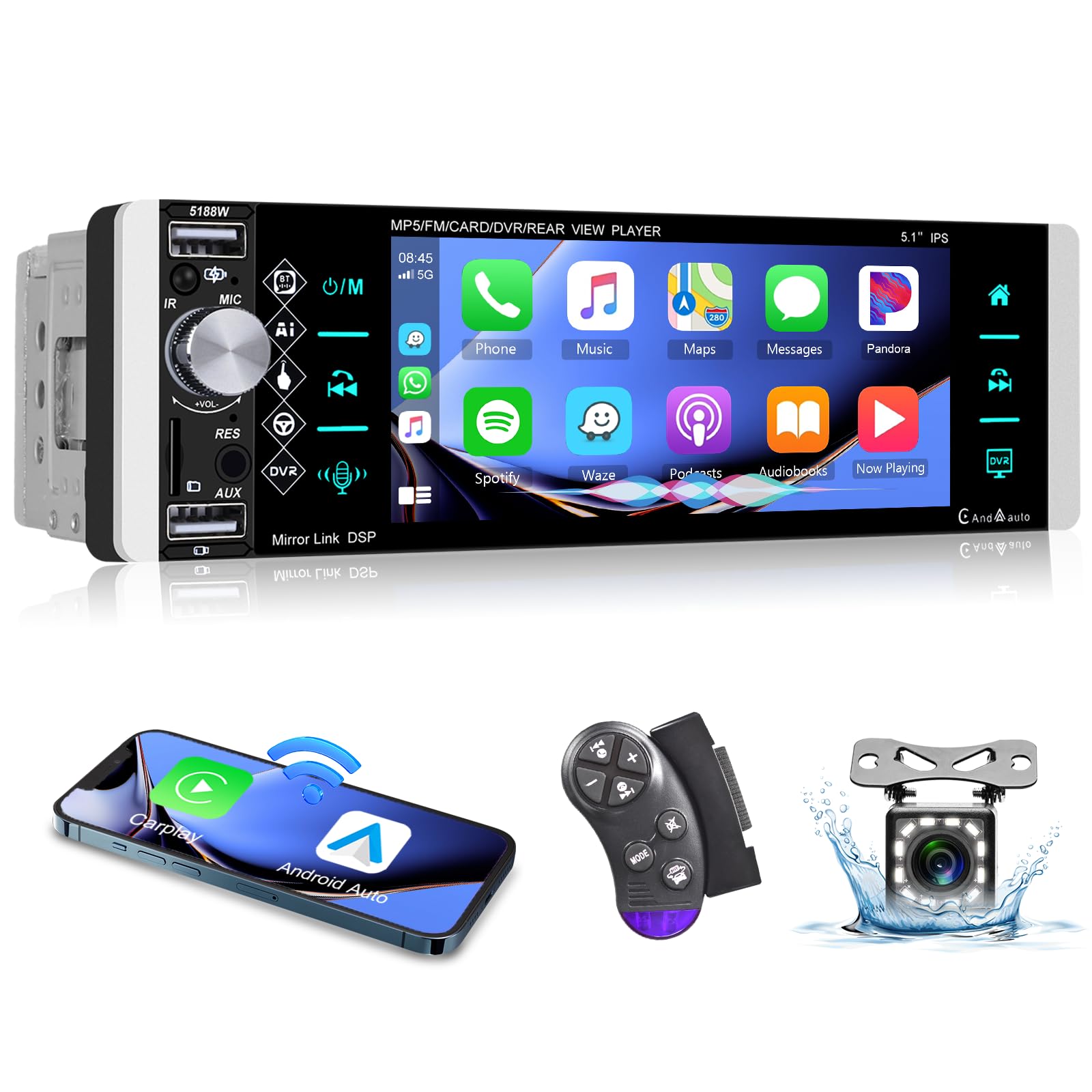
Image: The main unit of the VECHTEL F133-QN8035 car radio, showcasing its 5.1-inch touchscreen display and physical controls.
5. Installation
Proper installation is crucial for the performance and safety of your car radio. If you are unsure about any steps, consult a professional installer.
5.1 Wiring Diagram
Refer to the following diagram for correct wiring connections. Ensure all connections are secure and insulated.

Image: A comprehensive wiring diagram illustrating the connections for power (ACC, 12V+, Ground), speaker outputs (Front/Rear Left/Right), video inputs/outputs (CAMIN, V-OUT1), USB, and other auxiliary connections.
5.2 General Installation Steps
- Disconnect Battery: Before starting, disconnect the negative terminal of your vehicle's battery to prevent electrical shorts.
- Remove Old Unit: Carefully remove your existing car stereo from the dashboard.
- Connect Wiring Harness: Match the wires from the new unit's harness to your vehicle's wiring harness according to the wiring diagram. Pay close attention to power (constant 12V, accessory 12V, ground), speaker wires, and antenna.
- Connect Backup Camera: Route the backup camera cable from the rear of the vehicle to the head unit. Connect the video signal cable to the "CAMIN" input and the power cable to the reverse light circuit.
- Mount Unit: Secure the new car radio into the dashboard using the provided mounting brackets and screws.
- Reconnect Battery: Once all connections are made and secured, reconnect the negative terminal of your vehicle's battery.
- Test Functionality: Turn on the vehicle and test all functions of the car radio, including audio, radio, Bluetooth, CarPlay/Android Auto, and the backup camera.
6. Operating Instructions
6.1 Wireless CarPlay / Android Auto
This unit supports both Wireless CarPlay for iOS devices and Wireless Android Auto for Android devices, allowing seamless integration of your smartphone's features.
- Ensure Bluetooth is enabled on your smartphone.
- On the car radio, navigate to the CarPlay or Android Auto application.
- Pair your smartphone with the car radio via Bluetooth. Follow the on-screen prompts to confirm the pairing code.
- Once paired, the system will automatically connect to CarPlay or Android Auto. You can now access navigation, music, messages, and voice assistants directly from the car radio's screen.

Image: The car radio screen displaying the user interface for Wireless CarPlay and Android Auto, showing common applications and voice command functionality.
6.2 Bluetooth Connectivity (Hands-Free Calling & Music)
Connect your phone via Bluetooth for hands-free calls and wireless audio streaming.
- Enable Bluetooth on your smartphone.
- On the car radio, go to the Bluetooth menu.
- Search for available devices and select "VECHTEL" or a similar name.
- Confirm the pairing code on both devices.
- Once connected, you can make/receive calls and play music wirelessly. The unit features dual microphones for clear call quality.
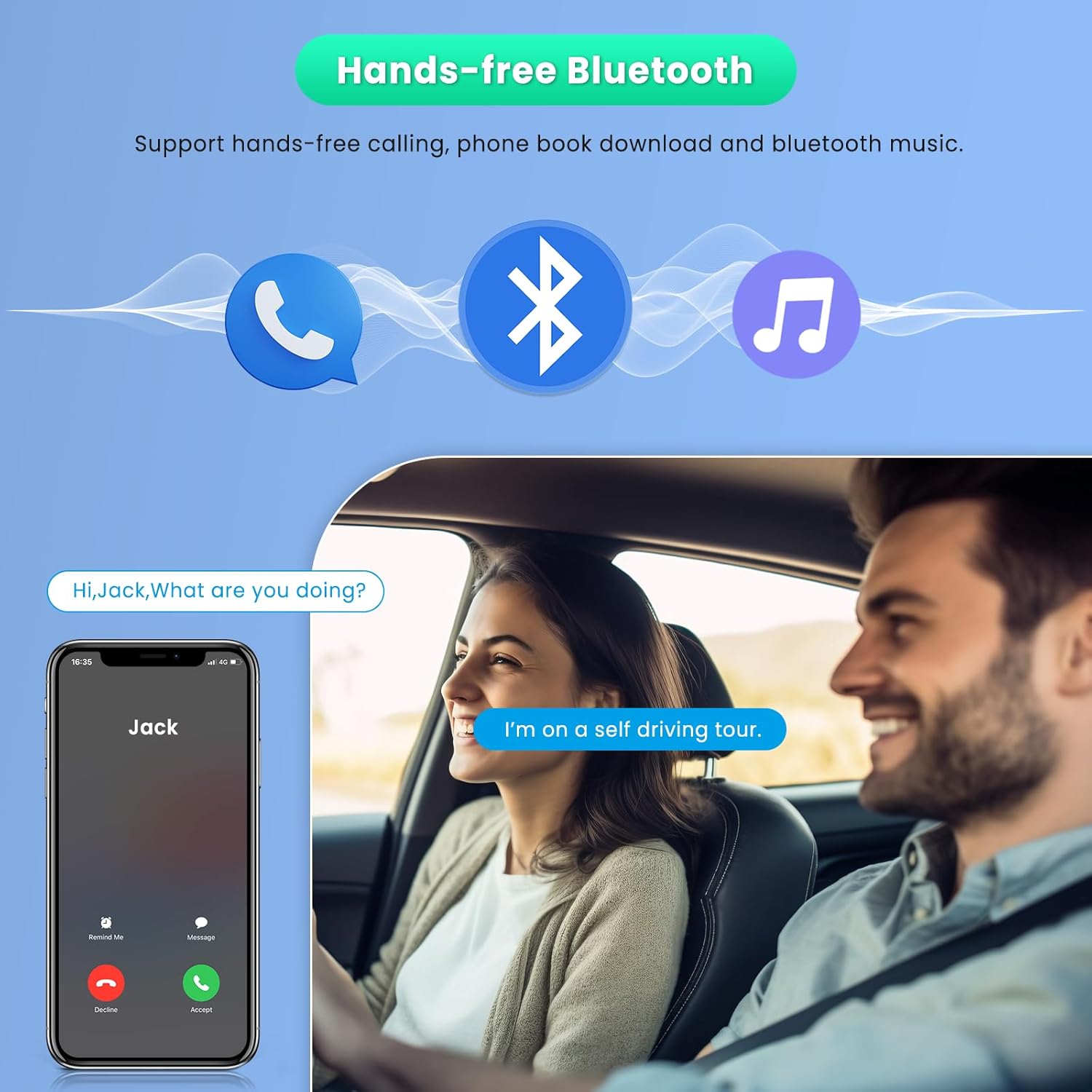
Image: A visual representation of the hands-free Bluetooth function, demonstrating how to make and receive calls safely while driving.
6.3 Mirror Link Function
Mirror Link allows you to display your smartphone's screen directly onto the car radio's display via a USB connection.
- Connect your iOS or Android smartphone to the car radio using a USB cable.
- On the car radio, select the "Mirror Link" option.
- Follow any on-screen prompts on both your phone and the car radio to establish the connection.
- Your phone's screen will now be mirrored on the car radio display, allowing you to view maps, videos, and other content.
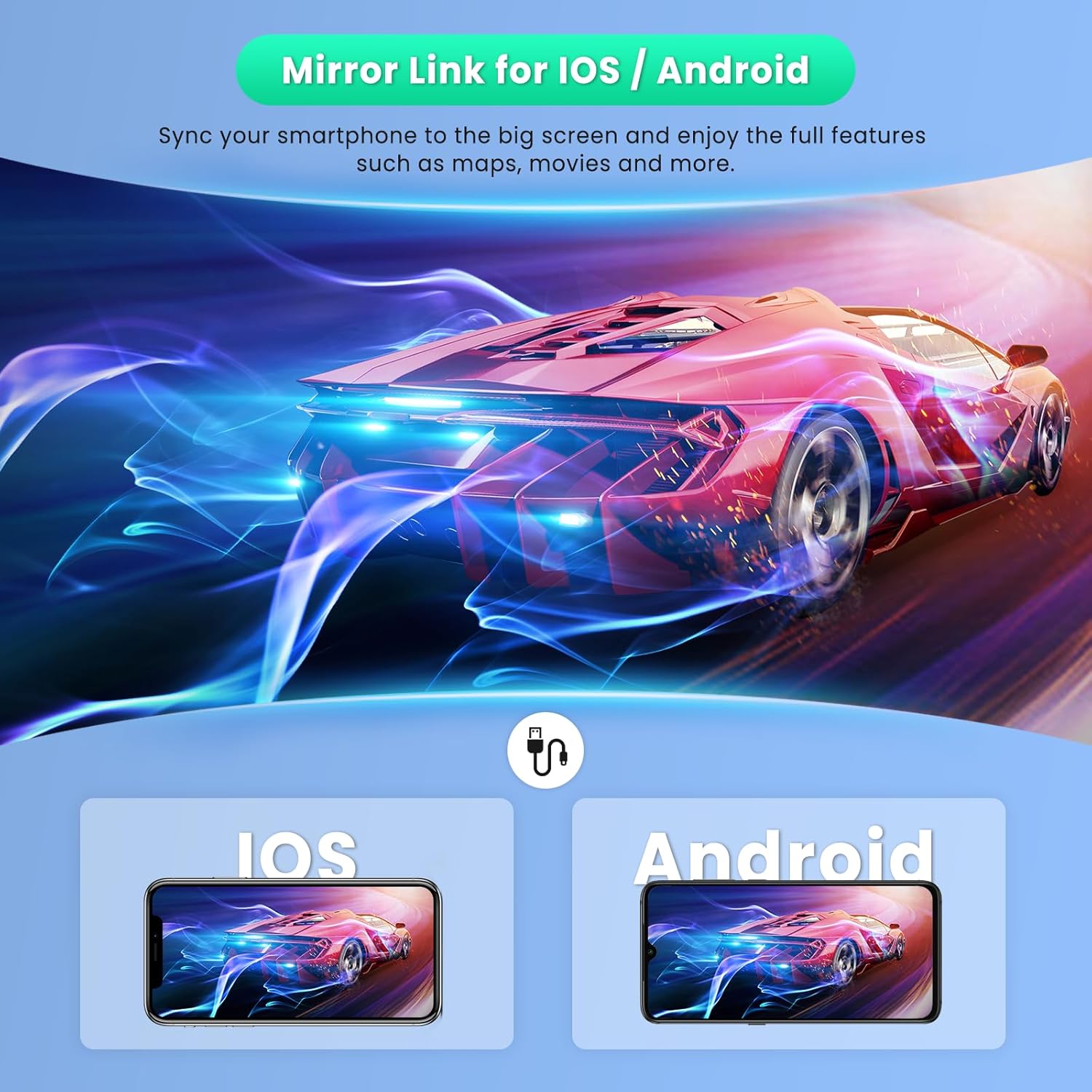
Image: The Mirror Link feature in action, demonstrating how to sync iOS and Android smartphone screens to the car stereo for viewing maps, movies, and other content.
6.4 USB Playback and Charging
The unit features dual USB ports. One port is for media playback from a USB flash drive, and the other supports fast charging for your mobile devices.
- USB Media: Insert a USB flash drive containing audio or video files into the designated USB port. The unit will automatically detect and allow you to browse and play media.
- USB Fast Charging: Connect your smartphone or other USB-powered device to the fast-charging USB port to quickly replenish its battery.

Image: A clear illustration of the dual USB interface, highlighting one port for USB flash drive connectivity and another for fast charging of mobile devices.
6.5 HD Backup Camera Operation
The included HD backup camera provides a clear view of the area behind your vehicle when reversing, enhancing safety.
- When the vehicle is shifted into reverse gear, the car radio display will automatically switch to the backup camera view.
- The camera features night vision for low-light conditions, a wide-angle lens for broad coverage, and IP69 waterproofing for durability.
- Guide lines may appear on the screen to assist with parking.

Image: The car radio screen displaying the HD reversing video from the backup camera, complete with parking assistance lines and indicators for its advanced features like night vision and wide-angle view.
6.6 FM/AM Radio and Multi-band EQ Setting
Access your favorite radio stations and customize your audio experience.
- Radio Tuning: Select the "Radio" application. Use the touchscreen to scan for stations, manually tune, or select from presets. The unit supports FM, AM, and RDS functions.
- Equalizer (EQ): Navigate to the "EQ" settings. Here you can adjust various frequency bands to tailor the audio output to your preference. Preset EQ modes (e.g., Pop, Rock, Jazz) are also available.

Image: The car radio interface displaying both the FM/AM radio tuner with station selection and the multi-band equalizer for fine-tuning audio output.
6.7 Steering Wheel Control (SWC)
If your vehicle supports steering wheel controls, you can connect them to the car radio for convenient operation without taking your hands off the wheel.
- Ensure the SWC wires are correctly connected during installation (refer to the wiring diagram).
- Access the "Steering Wheel Control" settings in the unit's menu.
- Follow the on-screen instructions to program each button on your steering wheel to the desired function (e.g., volume up/down, track skip, mode change).

Image: A visual guide to the Steering Wheel Control feature, showing how physical buttons on the steering wheel can be used to operate the car radio for enhanced driving safety.
7. Maintenance
- Cleaning the Screen: Use a soft, lint-free cloth to gently wipe the touchscreen. For stubborn smudges, slightly dampen the cloth with water or a screen-safe cleaner. Avoid harsh chemicals.
- General Cleaning: Keep the unit free from dust and debris. Use a soft, dry cloth for the body of the unit.
- Avoid Liquids: Do not spray liquids directly onto the unit.
- Temperature: Do not leave the unit in direct sunlight or in areas with extreme temperatures for extended periods.
8. Troubleshooting
If you encounter issues with your car radio, refer to the following common problems and solutions:
| Problem | Possible Cause | Solution |
|---|---|---|
| Unit does not power on. | Incorrect wiring (power/ground), blown fuse, vehicle battery issue. | Check power and ground connections. Inspect vehicle fuses and the unit's fuse. Ensure battery is charged. |
| No sound. | Speaker wires disconnected, volume too low, mute function active, incorrect audio source. | Verify speaker connections. Increase volume. Check if mute is active. Select correct audio source. |
| Bluetooth not connecting. | Bluetooth not enabled on phone/unit, incorrect pairing process, device already connected. | Ensure Bluetooth is on for both devices. Delete previous pairings and re-pair. Restart both devices. |
| CarPlay/Android Auto not starting. | Incorrect USB cable, phone not compatible, app not installed/updated, Bluetooth not connected. | Use a high-quality USB cable. Ensure phone OS and apps are updated. Confirm Bluetooth connection. |
| Backup camera not displaying. | Camera not powered, video cable disconnected, reverse trigger wire not connected. | Check camera power and video cable connections. Ensure the reverse trigger wire is correctly connected to the vehicle's reverse light circuit. |
| Touchscreen unresponsive. | Temporary software glitch, screen calibration needed. | Restart the unit (turn off and on vehicle ignition). If issue persists, check for a reset button (usually a small pinhole). |
9. Specifications
| Feature | Specification |
|---|---|
| Model Number | F133-QN8035 |
| Screen Size | 5.1 Inches |
| Display Type | HD Touchscreen |
| Connectivity | Bluetooth, USB |
| Special Features | Wireless CarPlay, Android Auto, Mirror Link, FM/AM/RDS Radio, EQ, SWC, Backup Camera |
| Compatible Devices | Smartphone (iOS/Android) |
| Audio Output Mode | MP3/WMA/WAV/APE/FLAC |
| Video Encoding | MKV/AVI/TS/TP/MP4/M4V |
| Output Power | 180 Watts |
| Item Weight | 1.76 pounds |
| Package Dimensions | 7.87 x 3.94 x 3.94 inches |
10. Warranty and Support
For warranty information, please refer to the terms provided at the point of purchase or contact your retailer. VECHTEL offers customer support for any questions or issues you may encounter.
Customer Support:
If you require technical assistance or have questions regarding your VECHTEL F133-QN8035 car radio, please contact VECHTEL customer service through the platform where you purchased the product. Look for options like "Contact Seller" or "Ask a question" on the product page.

Image: Instructions on how to access 24/7 technical support for VECHTEL products via the Amazon platform.