1. Product Overview
This manual provides detailed instructions for the installation, operation, and maintenance of your TMEZON A2 Video Doorbell Camera. This device is designed to integrate seamlessly with the TMEZON MZ-IP-V728TW-kit monitor and 1080P video intercom system, enhancing your home security and communication capabilities.
1.1 Key Features
- 1080p Video Capture Resolution for clear imaging.
- Two-Way Audio Communication for interactive conversations.
- Suitable for Outdoor Usage.
- Wi-Fi Connectivity for smartphone integration and remote access.
- Compatibility with TMEZON MZ-IP-V728TW-kit monitors and 1080P video intercom systems.
- Supports connection of up to 6 monitors, 2 doorbells, and 2 CCTV cameras within the system.
- Enables dual-way communication between the doorbell camera and indoor monitors, and between multiple indoor monitors.
- Allows call forwarding between all connected monitors.
- Provides the ability to open and unlock doors from any indoor monitor.
1.2 Package Contents
- 1 x TMEZON A2 Doorbell Camera
- Mounting Hardware (screws, anchors)
- User Manual
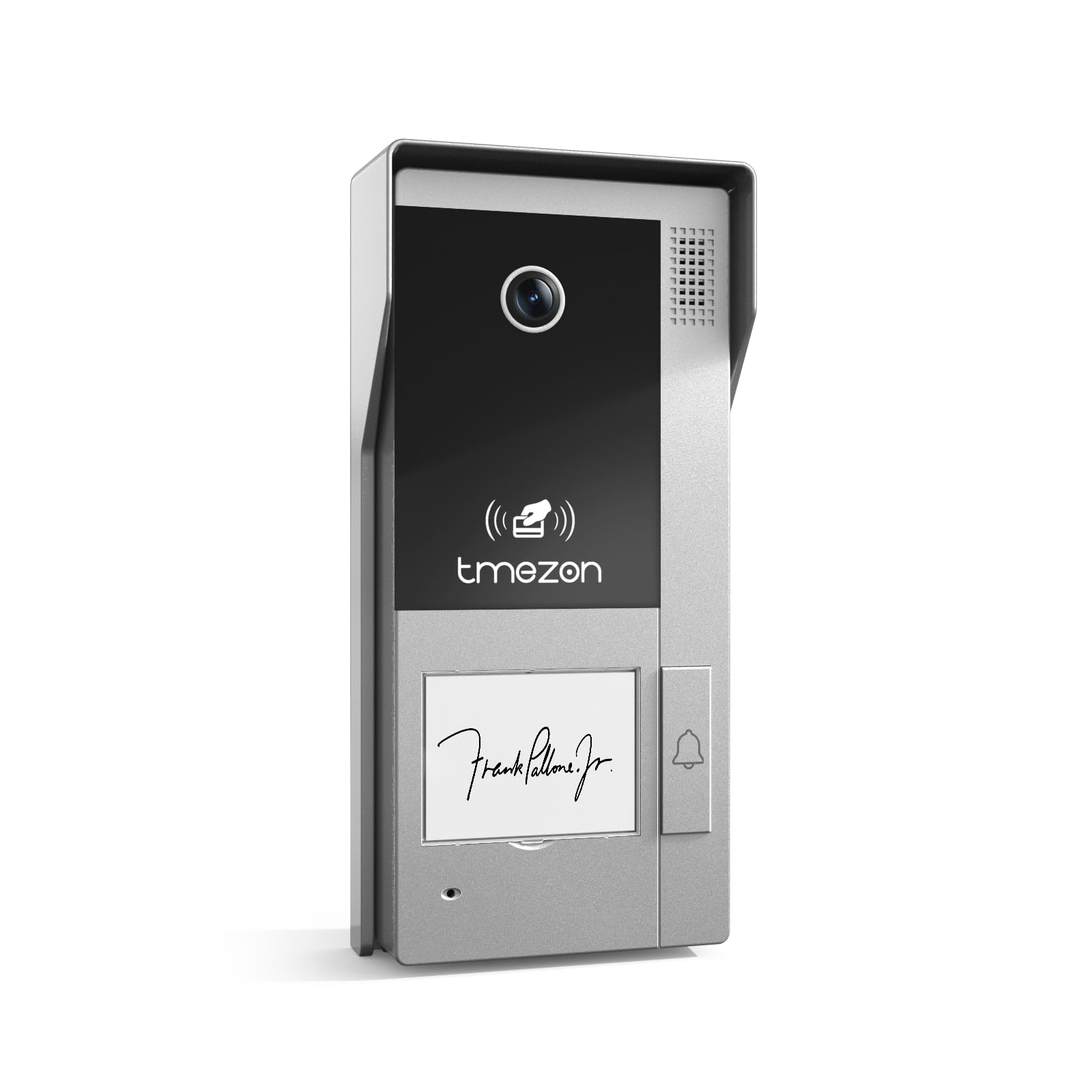
Image: TMEZON A2 Video Doorbell Camera, showing the camera lens, speaker grille, TMEZON logo, and doorbell button.
2. Important Safety Information
Please read all safety instructions carefully before installation and operation. Failure to follow these instructions may result in electric shock, fire, or damage to the product.
- Disconnect power before installation or servicing.
- Ensure all wiring is performed by a qualified electrician if you are unsure.
- Do not expose the device to extreme temperatures, humidity, or direct water immersion.
- Use only specified power sources and accessories.
- Keep out of reach of children.
3. Setup and Installation Guide
3.1 Before You Begin
Ensure you have the necessary tools: screwdriver, drill, wire strippers, and the TMEZON MZ-IP-V728TW-kit monitor. Verify the installation location is suitable for outdoor use and provides a clear view of the desired area.
3.2 Mounting the Doorbell Camera
- Choose a suitable mounting height, typically 48-60 inches (120-150 cm) from the ground, ensuring the camera has an optimal viewing angle.
- Use the provided mounting template (if applicable) to mark drill holes on the wall.
- Drill holes and insert wall anchors if necessary.
- Secure the mounting bracket to the wall using screws.
- Attach the doorbell camera to the mounting bracket.
3.3 Wiring Instructions
The TMEZON A2 Doorbell Camera uses a corded electric power source and wired connectivity for the intercom system.
- Power Connection: Connect the power wires from your existing doorbell wiring or a dedicated power supply (refer to your system's power requirements) to the designated terminals on the doorbell camera. Ensure correct polarity.
- Intercom System Connection: Connect the data/signal wires from the doorbell camera to the corresponding input terminals on your TMEZON MZ-IP-V728TW-kit monitor. Consult the wiring diagram provided with your complete intercom system kit for specific connections.
- Door Lock Integration (Optional): If connecting to an electronic door lock, wire the lock control wires from the doorbell camera to the lock mechanism. Test functionality before final assembly.
3.4 System Integration and Initial Configuration
After physical installation and wiring, power on your TMEZON MZ-IP-V728TW-kit monitor and the doorbell camera.
- Monitor Pairing: Follow the instructions in your MZ-IP-V728TW-kit monitor manual to pair the A2 doorbell camera with the indoor monitor.
- Wi-Fi Setup: Access the monitor's settings to configure Wi-Fi connectivity for the system. This enables smartphone control and remote access.
- Smartphone App: Download the TMEZON smartphone application (compatible with Android devices) and follow the in-app instructions to add your doorbell camera and monitor system.
- System Expansion: The system supports connecting up to 6 indoor monitors, 2 doorbell cameras, and 2 CCTV cameras. Refer to your main system manual for adding additional devices.
4. Operating Instructions
4.1 Basic Doorbell Function
When a visitor presses the doorbell button, the indoor monitor(s) will ring, and a live video feed from the A2 camera will display. To answer, press the "Answer" button on the monitor.
4.2 Two-Way Audio Communication
Once a call is answered, you can speak to the visitor at the door, and they can respond through the doorbell camera's built-in microphone and speaker.
4.3 Remote Access via Smartphone
With the TMEZON app connected, you will receive notifications on your smartphone when the doorbell is pressed. You can view the live feed, communicate with visitors, and unlock the door remotely.
4.4 Intercom System Features
- Monitor-to-Camera Communication: Initiate a call from an indoor monitor to view the doorbell camera feed and communicate with someone at the door.
- Monitor-to-Monitor Communication: If multiple indoor monitors are installed, you can make internal calls between them.
- Call Forwarding: Calls from the doorbell can be forwarded to other indoor monitors or even to your smartphone if configured.
- Door Unlock Function: From any connected indoor monitor or the smartphone app, you can remotely unlock an integrated electronic door lock.
5. Maintenance
5.1 Cleaning
Regularly wipe the camera lens and surrounding area with a soft, damp cloth to remove dust and dirt. Do not use harsh chemicals or abrasive cleaners.
5.2 Firmware Updates
Check the TMEZON website or your smartphone app periodically for firmware updates. Keeping your device updated ensures optimal performance and security.
5.3 System Check
Periodically test the doorbell, video, and audio functions to ensure proper operation.
6. Troubleshooting
6.1 No Video Feed on Monitor
- Check power connections to both the doorbell camera and the indoor monitor.
- Verify all wiring connections are secure and correct according to the wiring diagram.
- Ensure the doorbell camera is properly paired with the monitor.
6.2 No Audio / Poor Audio Quality
- Check microphone and speaker settings on the indoor monitor.
- Ensure there are no obstructions blocking the microphone or speaker on the doorbell camera.
- Verify network connection stability if audio issues occur during remote access.
6.3 Doorbell Not Ringing
- Confirm the doorbell button is functioning correctly.
- Check wiring from the doorbell button to the system.
- Ensure the monitor's ringtone volume is not muted.
6.4 Cannot Connect via Wi-Fi / Smartphone App
- Ensure your home Wi-Fi network is active and the signal strength at the doorbell location is adequate.
- Re-enter Wi-Fi credentials on the monitor.
- Restart your router, monitor, and doorbell camera.
- Ensure the smartphone app is updated to the latest version.
6.5 Door Unlock Function Not Working
- Verify the electronic door lock is correctly wired to the doorbell camera and receiving power.
- Check the lock control settings on the indoor monitor.
- Ensure the lock mechanism itself is functional.
7. Product Specifications
| Feature | Detail |
|---|---|
| Brand | TMEZON |
| Model Name | A2 |
| Indoor/Outdoor Usage | Outdoor |
| Compatible Devices | Smartphone |
| Power Source | Corded Electric |
| Connectivity Protocol | Wi-Fi |
| Controller Type | Android |
| Mounting Type | Doorbell Mount |
| Video Capture Resolution | 1080p |
| Number of Items | 1 (Doorbell camera) |
| Included Components | Doorbell camera |
| Wireless Communication Technology | Wi-Fi |
| Item dimensions L x W x H | 4 x 2 x 3 inches |
| Video Capture Format | MOV |
| Unit Count | 1.0 Count |
| Product Dimensions | 4 x 2 x 3 inches |
| ASIN | B0DS499SND |
| Date First Available | January 3, 2025 |
| Manufacturer | TMEZON |
| Recommended Uses For Product | Outdoor Security |
| Connectivity Technology | Wired |
| Special Feature | 2-Way Audio |
8. Warranty and Support
For warranty information and technical support, please refer to the official TMEZON website or contact TMEZON customer service directly. Keep your purchase receipt for warranty claims.
Online Support: Visit the TMEZON official website for FAQs, troubleshooting guides, and contact information.


