1. Introduction
The Sophos XGS 118 (Gen2) is a next-generation network security appliance designed for mid-sized businesses. It offers robust firewall capabilities, advanced threat protection, and flexible connectivity options to secure your network infrastructure.
Key features include:
- Xstream Protection: Provides zero-day defense, cloud sandboxing, email filtering, intrusion prevention, and advanced reporting.
- High Performance: Up to 15.5 Gbps firewall throughput with 9 x 2.5 GE copper ports and 1 SFP fiber port.
- Advanced Threat Inspection: Includes Deep Packet Inspection (DPI), TLS inspection, and Intrusion Prevention System (IPS) to block hidden threats.
- Integrated Security Heartbeat: Enables automatic threat isolation.
- Flexible Connectivity: Supports VPN and SD-WAN for reliable and secure connections.
- Cloud-Based Management: Managed through Sophos Central for unified policies and reporting.

Figure 1: Front view of the Sophos XGS 118 (Gen2) appliance.
2. Setup
2.1 Unpacking and Inspection
Carefully unpack the Sophos XGS 118 appliance and its accessories. Verify that all components are present and undamaged. If any items are missing or damaged, contact your vendor immediately.
2.2 Physical Connections
Before powering on the device, connect all necessary cables. Refer to the rear panel diagram for port identification.

Figure 2: Rear panel of the Sophos XGS 118 (Gen2) appliance showing various ports.
- Power: Connect the power adapter to the DC IN 1 or DC IN 2 port and then to a power outlet.
- Network Ports: Connect your WAN (Internet) cable to the designated WAN port (e.g., 2/WAN). Connect your internal network devices (switches, computers) to the LAN ports (e.g., 1/LAN, 3/DMZ, 4, 5, 6, 7, 8).
- SFP Port: For fiber optic connections, insert an SFP module into the F1 SFP port.
- USB Ports: USB 2.0 (front) and USB 3.0 (rear) ports are available for external storage or other compatible devices.
- Console Port (COM): Use the COM port for direct console access for initial configuration or troubleshooting.
2.3 Initial Configuration
After connecting the hardware, power on the appliance. The Sophos XGS 118 is typically managed via Sophos Central, a cloud-based platform. Follow the on-screen instructions or refer to the Sophos Central documentation for initial registration and configuration steps. This usually involves connecting a management computer to a LAN port and accessing the device's web interface or Sophos Central portal.
3. Operating the Appliance
The Sophos XGS 118 runs on Sophos Firewall OS, providing a comprehensive suite of security features. All management and monitoring are performed through Sophos Central.
3.1 Sophos Central Management
Sophos Central offers a unified console for managing your XGS 118 appliance. From Sophos Central, you can:
- Configure firewall rules and policies.
- Monitor network traffic and security events.
- Manage VPN connections and SD-WAN policies.
- Deploy and manage Xstream Protection features like sandboxing and IPS.
- Generate reports on network activity and security posture.

Figure 3: Example of Sophos Central dashboard for unified management.
3.2 Xstream Protection Features
The XGS 118, especially with Xstream Protection, provides advanced security capabilities:
- Deep Packet Inspection (DPI) & TLS Inspection: Scans encrypted traffic for hidden threats without compromising privacy.
- Intrusion Prevention System (IPS): Detects and blocks network intrusions and exploits.
- Cloud Sandboxing: Analyzes suspicious files in a secure, isolated environment to identify zero-day threats.
- Email Filtering: Protects against spam, phishing, and malware delivered via email.
- Automated Threat Response: Integrates with Sophos Security Heartbeat to automatically isolate compromised devices.

Figure 4: Overview of Xstream Protection features for comprehensive security.
4. Maintenance
Regular maintenance ensures optimal performance and security of your Sophos XGS 118 appliance.
4.1 Firmware Updates
Keep your appliance's firmware up-to-date to benefit from the latest security patches, features, and performance improvements. Firmware updates are managed through Sophos Central. Ensure you have a valid support subscription to receive these updates.
4.2 Monitoring and Reporting
Utilize Sophos Central's monitoring and reporting tools to regularly review network activity, security alerts, and system health. This proactive approach helps identify and address potential issues before they impact your network.
4.3 Physical Environment
Ensure the appliance is placed in a well-ventilated area, free from dust and extreme temperatures. Maintain proper airflow around the device to prevent overheating.
5. Troubleshooting
This section provides basic troubleshooting steps for common issues. For more complex problems, refer to the Sophos knowledge base or contact technical support.
5.1 Power Issues
- No Power: Verify the power adapter is securely connected to both the appliance and a working power outlet. Check the power LED indicators on the device.
- Intermittent Power: Ensure the power source is stable. Consider using a surge protector or uninterruptible power supply (UPS).
5.2 Network Connectivity Issues
- No Internet Access: Check WAN cable connection and status lights. Verify your ISP connection. Review firewall rules in Sophos Central to ensure traffic is allowed.
- Internal Network Problems: Confirm LAN cable connections. Check device IP configurations. Ensure Sophos Firewall OS is correctly configured for your internal network segments.
- Slow Performance: Monitor network usage and appliance performance in Sophos Central. High CPU or memory usage might indicate a bottleneck or misconfiguration.
5.3 Accessing Sophos Central
- Cannot Log In: Verify your Sophos Central credentials. Ensure your management device has internet access.
- Appliance Not Reporting: Check the appliance's internet connectivity. Ensure the appliance is properly registered with Sophos Central.
6. Specifications
Detailed technical specifications for the Sophos XGS 118 (Gen2) Network Security Appliance.
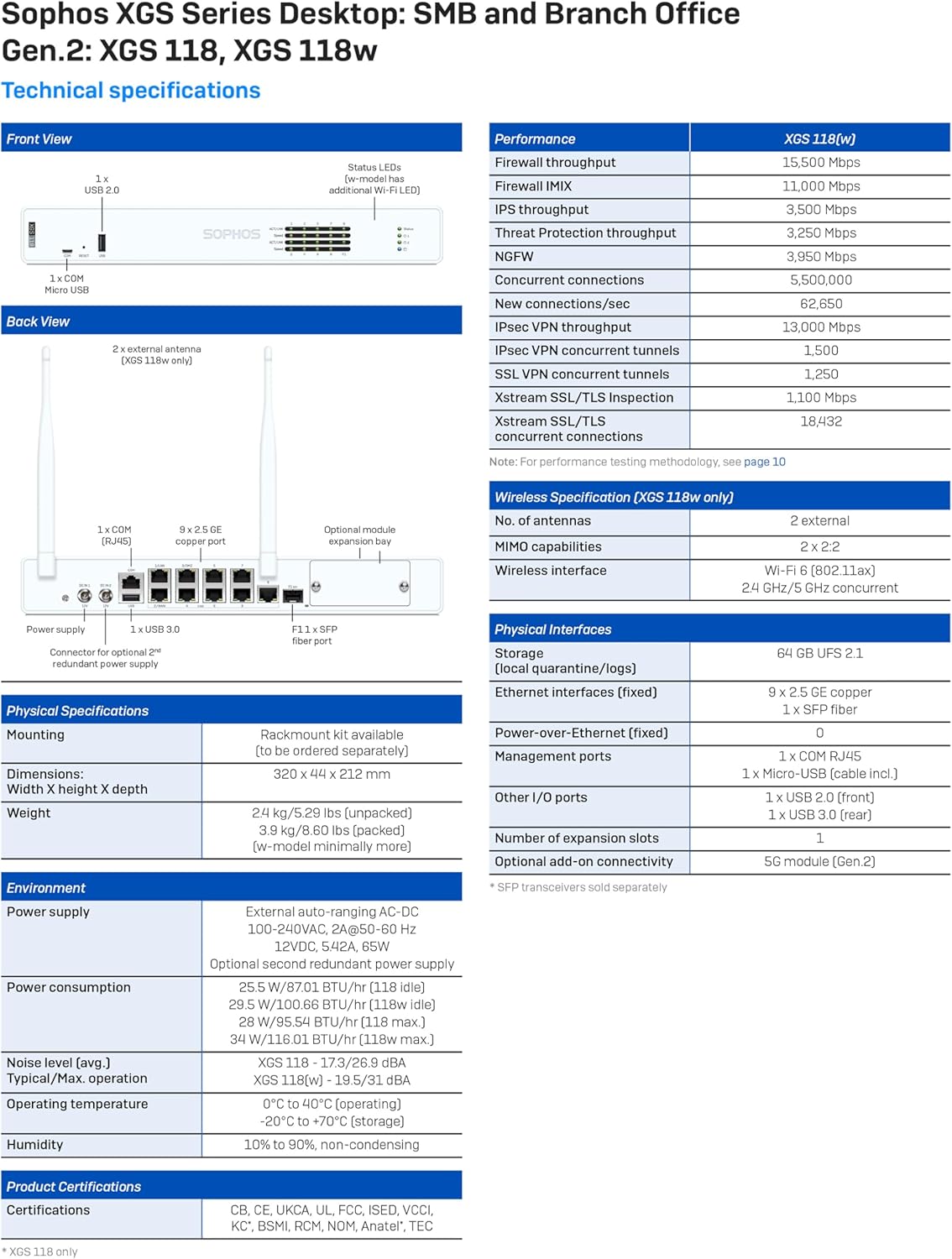
Figure 5: Comprehensive technical specifications for the Sophos XGS 118 (Gen2) appliance.
| Category | Specification |
|---|---|
| Model Name | XGS 118 |
| Firewall Throughput | 15.5 Gbps |
| Ports | 9 x 2.5 GE Copper Ports, 1 x SFP Fiber Port |
| Operating System | Sophos Firewall OS |
| Connectivity Technology | Ethernet, Fiber Optic, Wi-Fi (802.11ax for XGS 118w) |
| Dimensions (H x W x D) | 44 x 320 x 212 mm |
| Weight (unpacked) | 2.4 kg (5.29 lbs) |
| Power Supply | External auto-ranging AC-DC 100-240VAC |
| Operating Temperature | 0°C to 40°C (32°F to 104°F) |
| Humidity | 10% to 90%, non-condensing |
| Special Feature | Internet Security, Advanced Threat Protection |
For a complete list of specifications and performance metrics, refer to the official Sophos documentation or the detailed technical specifications image above.
7. Warranty and Support
7.1 Product Warranty
The Sophos XGS 118 (Gen2) appliance typically comes with a standard hardware warranty. This specific product includes 3 Years Xstream Protection, which bundles advanced security features and support services.
7.2 Support Services
A valid support subscription is required to receive firmware upgrades and access to technical assistance. Enhanced support is included with all protection bundles, such as Xstream Protection. You can upgrade your support plan for additional services and faster response times.
Sophos Central provides comprehensive management and reporting capabilities, which are integral to your support experience. For detailed information on support tiers and services, please visit the official Sophos website or consult your sales representative.

Figure 6: Overview of Sophos licensing and support options.
7.3 Official Product Video
Video 1: An official video providing an overview of the Sophos XGS Series 2nd Gen Desktop Appliances. This video highlights key features and benefits of the product line.


