
Cooler Master Devastator 3
Cooler Master Devastator 3 RGB Gaming Keyboard and Mouse Combo User Manual
Model: Devastator 3
Introduction
This manual provides detailed instructions for the setup, operation, and maintenance of your Cooler Master Devastator 3 RGB Gaming Keyboard and Mouse Combo. Please read this manual thoroughly before using the product to ensure optimal performance and longevity.

Image: The Cooler Master Devastator 3 RGB Gaming Keyboard and Mouse Combo, showcasing the keyboard with multi-color backlighting and the mouse with purple and blue lighting accents.
Package Contents
Verify that all items are present in your package:
- Cooler Master Devastator 3 RGB Gaming Keyboard
- Cooler Master Devastator 3 RGB Gaming Mouse
- User Manual (this document)
Setup Instructions
- Connect the Keyboard: Locate an available USB port on your computer. Plug the USB connector of the Cooler Master Devastator 3 Keyboard into the USB port.
- Connect the Mouse: Locate another available USB port on your computer. Plug the USB connector of the Cooler Master Devastator 3 Mouse into the USB port.
- Driver Installation: The keyboard and mouse are plug-and-play devices. Your operating system (Windows 10 or later recommended) should automatically detect and install the necessary drivers. No additional software installation is typically required for basic functionality.
- Initial Test: After connecting, test the keyboard by typing and the mouse by moving the cursor and clicking. The RGB lighting should illuminate automatically.

Image: Top-down view of the keyboard and mouse, showing the full QWERTY layout and the mouse's symmetrical design.
Keyboard Features and Operation
The Cooler Master Devastator 3 keyboard is designed for gaming and everyday use, featuring responsive membrane keys and customizable RGB lighting.
Dedicated Media Keys
Located at the top of the keyboard, these keys provide quick access to media controls:
- Play/Pause: Control media playback.
- Volume Up/Down: Adjust audio output level.
- Mute: Instantly mute or unmute audio.
- Previous/Next Track: Navigate through your playlist.
26-Key Rollover
The 26-key rollover feature ensures that up to 26 simultaneous key presses are registered accurately. This is particularly beneficial in fast-paced gaming scenarios where multiple commands are executed at once.
RGB Illumination (Keyboard)
The keyboard features 6-zone RGB illumination. Lighting modes and brightness can be adjusted directly on the keyboard. Refer to the "RGB Illumination Control" section for detailed instructions.

Image: Top-down view of the Cooler Master Devastator 3 keyboard, highlighting the full QWERTY layout and media keys.
Mouse Features and Operation
The Cooler Master Devastator 3 mouse is designed for precision and comfort, featuring an optical sensor and customizable RGB lighting.
Ambidextrous Design
The mouse features an ambidextrous design, making it comfortable for both left and right-handed users. It includes two side buttons, typically used for forward/backward navigation in web browsers or customizable in games.
Optical Sensor with Adjustable DPI
The mouse is equipped with a precise optical sensor. You can adjust the DPI (Dots Per Inch) sensitivity on the fly using the dedicated DPI button, usually located behind the scroll wheel. There are seven preset DPI options, up to 4800 DPI, allowing you to switch between different sensitivity levels to suit your task or game.
5-Zone RGB Illumination (Mouse)
The mouse features 5-zone RGB lighting for personalized aesthetics. Refer to the "RGB Illumination Control" section for detailed instructions on adjusting lighting modes and colors.
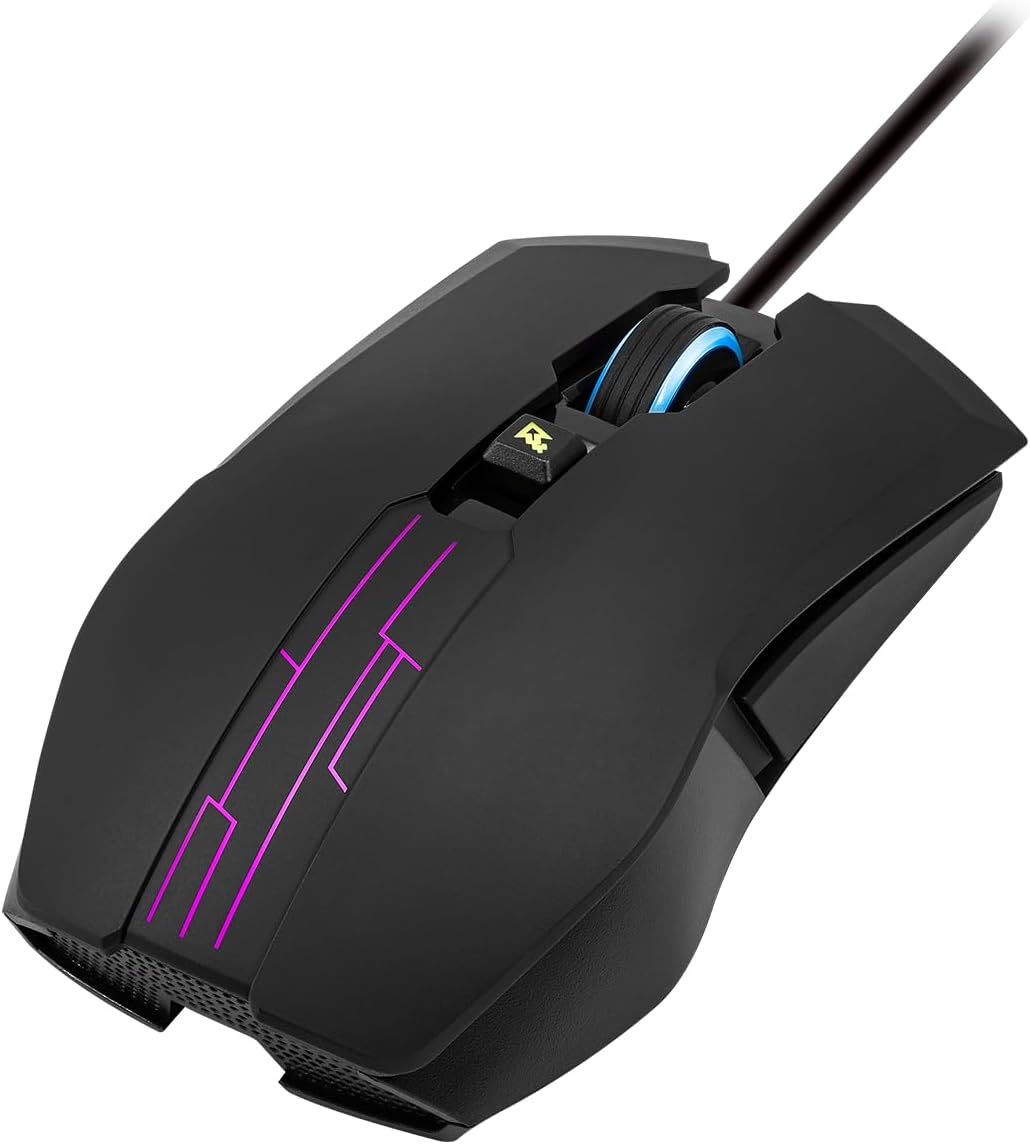
Image: Angled view of the Cooler Master Devastator 3 mouse, showing its ergonomic shape and RGB lighting accents.
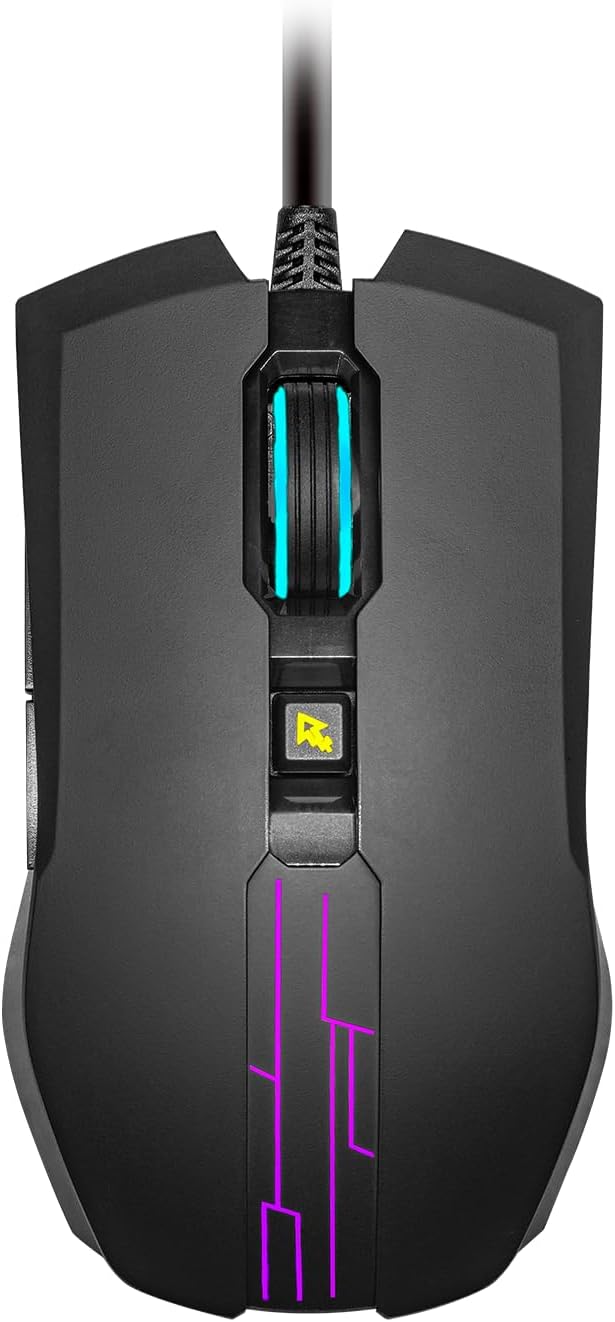
Image: Top-down view of the Cooler Master Devastator 3 mouse, highlighting the scroll wheel, DPI button, and RGB lighting zones.
RGB Illumination Control
Both the keyboard and mouse feature customizable RGB lighting. Specific controls are integrated directly into the devices.
Keyboard RGB Control
- Lighting Mode Button: Press the dedicated lighting mode button (often located near the right CTRL key or function keys) to cycle through various RGB lighting effects and colors.
- Brightness Adjustment: Use specific key combinations (e.g., Fn + Up/Down arrow keys, or dedicated brightness keys) to increase or decrease the brightness of the keyboard backlighting.
- Color Cycle: Some modes may allow cycling through static colors or adjusting the speed of dynamic effects.
Note: The exact location and function of lighting control keys may vary slightly. Refer to the keycap legends for specific symbols.
Mouse RGB Control
- The mouse RGB lighting typically cycles through preset modes automatically or can be adjusted via a combination of buttons (e.g., DPI button + a side button).
- Some mice may have a dedicated button on the underside or a combination with the DPI button to change lighting effects or turn them off.
Note: The mouse lighting is often less customizable than the keyboard's without additional software.
Maintenance
To ensure the longevity and optimal performance of your Cooler Master Devastator 3 combo, follow these maintenance guidelines:
- Cleaning: Use a soft, dry cloth to wipe down the surfaces of the keyboard and mouse. For stubborn dirt, slightly dampen the cloth with water or a mild cleaning solution. Avoid harsh chemicals or abrasive materials.
- Dust Removal: Use compressed air to remove dust and debris from between the keyboard keys and from the mouse's optical sensor area.
- Avoid Liquids: Do not spill liquids on the keyboard or mouse. If a spill occurs, immediately disconnect the device and allow it to dry completely before reconnecting.
- Cable Care: Avoid sharp bends or excessive pulling on the USB cables to prevent damage.
Troubleshooting
If you encounter issues with your Cooler Master Devastator 3 combo, refer to the following common solutions:
| Problem | Solution |
|---|---|
| Keyboard/Mouse not responding |
|
| RGB lighting not working or stuck |
|
| Mouse cursor erratic or unresponsive |
|
| Keys not registering or ghosting |
|
Specifications
| Feature | Detail |
|---|---|
| Brand | Cooler Master |
| Model | Devastator 3 |
| Color | Black |
| Connectivity Technology | USB |
| Keyboard Type | Membrane |
| Keyboard Backlighting | 6-Zone RGB |
| Keyboard Rollover | 26-Key Rollover |
| Mouse Sensor | Optical |
| Mouse DPI | Up to 4800 DPI (7 preset options) |
| Mouse Backlighting | 5-Zone RGB |
| Mouse Hand Orientation | Ambidextrous |
| Dedicated Media Keys | Yes |
| Compatible Devices | Gaming Console, Laptop, Personal Computer |
| Operating System | Windows 10 (and later) |
| Item Weight | 2.22 Pounds (combined) |
| UPC | 884102090103 |
| ASIN | B0DS3Q9HL6 |
Warranty and Support
The Cooler Master Devastator 3 RGB Gaming Keyboard and Mouse Combo comes with a 2-Year Manufacturer Warranty from the date of purchase. This warranty covers defects in materials and workmanship under normal use.
For technical support, warranty claims, or further assistance, please visit the official Cooler Master support website:
Please have your product model number (Devastator 3) and proof of purchase ready when contacting support.
Related documentsDevastator 3


Ask a question about this manual
Ask about setup, troubleshooting, compatibility, parts, safety, or missing instructions. Manuals+ will review the question and use this page’s manual context to help answer it.