
1. Introduction
This manual provides detailed instructions for the installation, operation, and maintenance of your ELSYS Digital Lock with Handle, model ESF-DE2000B. This smart lock offers multiple access methods including fingerprint recognition, numeric passcodes, and traditional mechanical keys, providing secure and convenient entry to your property.
The ESF-DE2000B is designed for residential and commercial applications, featuring a robust metal construction and advanced security functions such as an anti-peeping password feature and a lockout mechanism after multiple failed entry attempts. It operates on AAA alkaline batteries and includes a Micro USB port for emergency power.
2. Safety Information
- Read all instructions carefully before installation and use.
- Do not expose the lock to direct water or corrosive substances.
- Use only specified AAA alkaline batteries. Do not mix old and new batteries or different types of batteries.
- Keep mechanical keys in a secure location outside the property to prevent lockout in case of battery depletion or electronic malfunction.
- Ensure all components are securely fastened during installation to prevent accidental dislodgement.
- Avoid using abrasive cleaners on the lock's surface.
3. Package Contents
Verify that all components are present before beginning installation:
- ELSYS Digital Lock Assembly (Front and Rear Panels)
- Door Handle
- Latch Bolt Mechanism
- Mounting Hardware (Screws, Spindles, etc.)
- Mechanical Keys (2)
- User Manual (This document)
Note: AAA alkaline batteries are not included and must be purchased separately.
4. Installation and Setup
4.1 Pre-Installation Check
- Ensure your door thickness is between 1.38 inches (35mm) and 1.97 inches (50mm).
- Confirm the door's handing (left or right) as the handle is reversible.
4.2 Installation Steps
Follow the detailed diagrams provided in the physical user manual for precise installation. General steps include:
- Prepare the door: Ensure existing holes are correctly sized and positioned.
- Install the latch bolt: Insert the latch into the door edge and secure it.
- Install the exterior panel: Route the cable through the door and align the panel.
- Install the interior panel: Connect the cable, align the panel, and secure it with screws.
- Install batteries: Insert 4 AAA alkaline batteries into the battery compartment.
- Test the lock: Verify mechanical operation and initial electronic functions.
4.3 Initial Programming
Upon first power-up, the lock will be in factory default mode. Refer to the programming section for setting up administrator passwords and initial user access.

Figure 1: ELSYS Digital Lock with Handle ESF-DE2000B (Silver)
This image displays the complete ELSYS Digital Lock assembly in silver, featuring the keypad, handle, and fingerprint reader.
5. Operation
5.1 Access Methods
The ELSYS Digital Lock offers multiple ways to unlock your door:
- Fingerprint Recognition: Place your registered finger on the biometric reader for quick access. The lock supports up to 110 biometric passwords.
- Numeric Passcode: Enter your personalized numeric code on the touch keypad. The lock supports up to 9 administrator passwords and numerous user passcodes. An anti-peeping feature allows you to enter random digits before or after your actual code to prevent others from guessing it.
- Mechanical Key: Use one of the provided mechanical keys for manual access, typically used in emergencies or during initial setup.

Figure 2: Access Methods and User Capacity
This image illustrates the various opening methods (fingerprint, numeric password) and the lock's capacity for up to 300 users, including administrator and biometric passwords.

Figure 3: Easy Access with Biometric Reader
This image demonstrates a hand using the high-precision biometric reader on the ELSYS Digital Lock for quick and easy access.
5.2 User Management
The lock can accommodate up to 300 users, including various access methods. You can generate temporary codes for visitors or service providers, which can be set to expire after a specific duration or number of uses.
5.3 Dual Protection Mode
When activated, Dual Protection Mode requires both a numeric password and biometric verification (fingerprint) for unlocking, providing an additional layer of security.
5.4 Do Not Disturb Function
This function, when active, allows only registered administrators to unlock the door from the outside. It automatically deactivates when the door is opened from the inside.

Figure 4: Key Features
This image highlights features such as Dual Protection Mode, battery power, low battery warning, and the reversible handle design.
6. Maintenance
6.1 Battery Replacement
The ELSYS Digital Lock operates on 4 AAA alkaline batteries (not included). The lock will provide a low battery warning when power is running low. Replace all batteries promptly when this warning appears to ensure continuous operation.
6.2 Emergency Power
In the event of complete battery depletion, the lock is equipped with a Micro USB port for emergency charging. Connect a standard Micro USB power source (e.g., power bank) to temporarily power the lock and gain access using a registered fingerprint or passcode.
6.3 Manual Access
Always keep the mechanical keys in a safe, accessible location outside the door. These keys provide a reliable backup for manual access in any emergency situation, including electronic malfunction or battery failure.
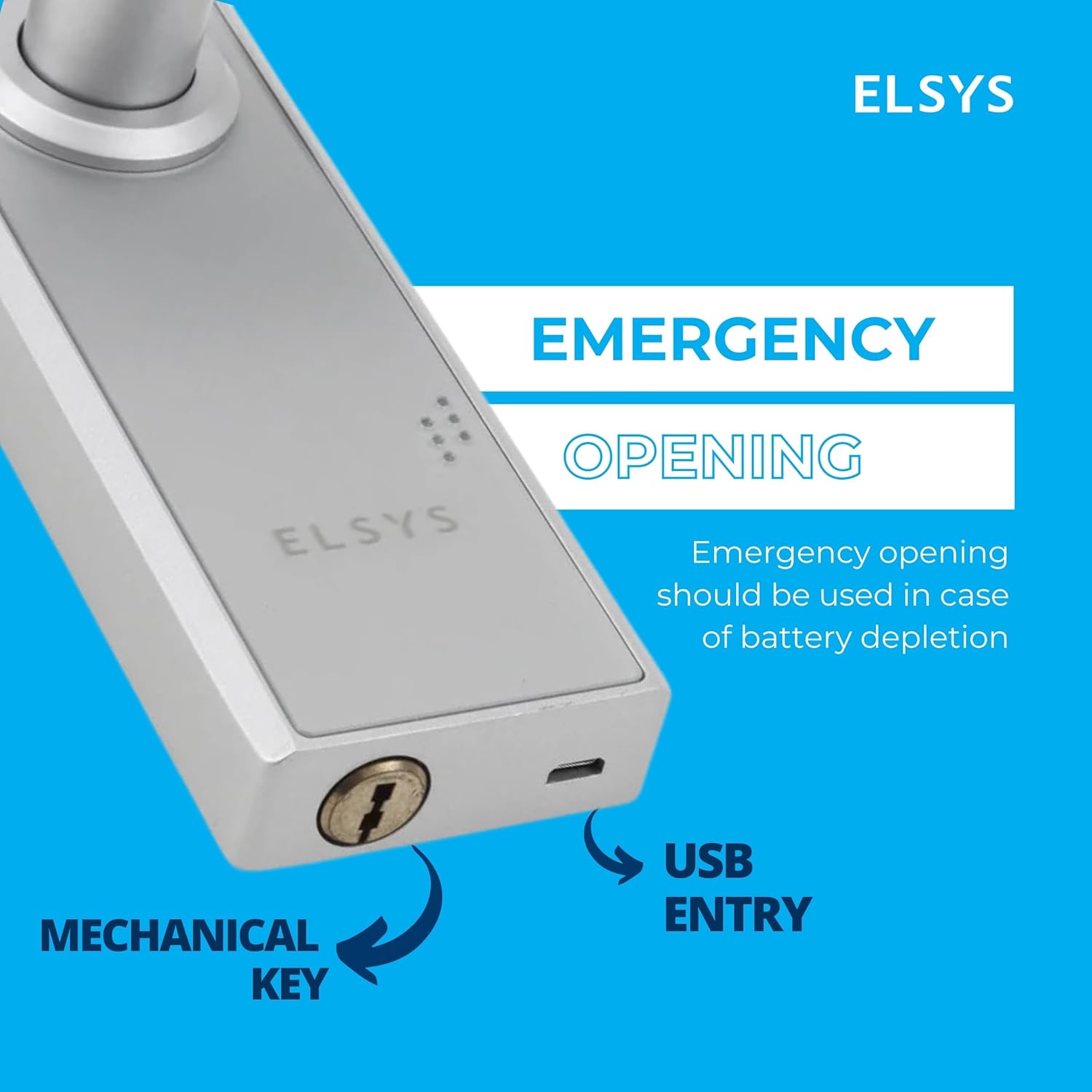
Figure 5: Emergency Opening
This image shows the mechanical keyhole and the Micro USB entry port for emergency opening in case of battery depletion.
6.4 Cleaning
Clean the lock's surface with a soft, dry cloth. Do not use harsh chemicals or abrasive materials, as these can damage the finish or electronic components.
7. Troubleshooting
- Lock does not respond: Check battery levels and replace if necessary. Use the Micro USB emergency power port or mechanical key.
- Fingerprint not recognized: Ensure your finger is clean and dry. Re-register your fingerprint if issues persist.
- Passcode not working: Verify the correct passcode is entered. Ensure the lock is not in a lockout state due to multiple failed attempts.
- Attempts of Violation: The lock will block access for 60 seconds after 5 consecutive failed opening attempts (fingerprint or passcode). Wait for the lockout period to expire before trying again.
- Door not locking/unlocking smoothly: Check for any obstructions around the latch bolt or door frame. Ensure the lock is installed correctly and aligned.
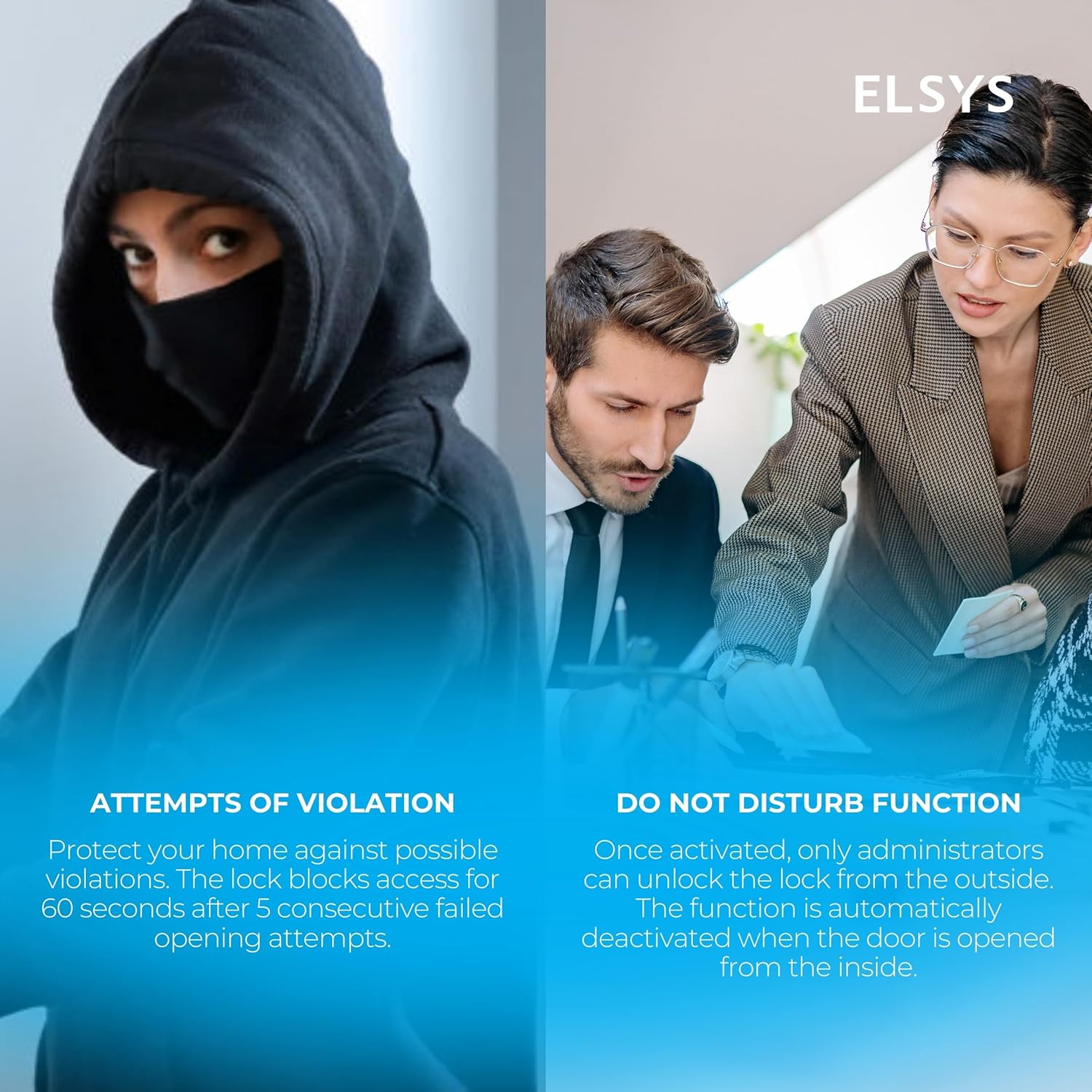
Figure 6: Security Features
This image illustrates the lock's security features, including the lockout mechanism after multiple failed attempts and the 'Do Not Disturb' function.
8. Specifications
| Brand | ELSYS |
| Model Name | Elsys Digital Lock ESF-DE2000B |
| Lock Type | Biometric, Digital, Keypad |
| Special Features | Biometric Reader, Keyless Entry, Touch Keypad |
| Material | Metal |
| Color | Silver |
| Item Dimensions (L x W x H) | 9.48 x 2.28 x 0.96 inches |
| Item Weight | 3.4 Pounds |
| Power Source | 4 x AAA Alkaline Batteries (not included) |
| Emergency Power | Micro USB Port |
| User Capacity | Up to 300 users (including various access methods) |
| Administrator Passwords | Up to 9 |
| Biometric Passwords | Up to 110 |
| Door Thickness Compatibility | 1.38 - 1.97 inches (35 - 50 mm) |
9. Warranty and Support
For specific warranty information regarding your ELSYS Digital Lock ESF-DE2000B, please refer to the warranty card included with your product or contact the retailer from whom you purchased the device. Warranty terms and conditions may vary by region and retailer.
For technical support, troubleshooting assistance beyond this manual, or to inquire about replacement parts, please contact ELSYS customer service through their official website or the contact information provided in your product packaging.

