
Introduction
This manual provides instructions for the JETech Keyboard Case, designed to enhance your iPad experience. It features a magnetic detachable Bluetooth keyboard, a protective case with a pencil holder, and multiple viewing angles.

Image: The JETech Keyboard Case in a closed position, showcasing its sleek design.
Compatibility
This keyboard case is specifically designed for the following iPad models:
- iPad (A16) 11th Generation (2025)
- iPad 10th Generation (2022)
Compatible iPad Model Numbers: A3354, A3355, A3356, A2696, A2757, A2777, A3162.
To verify your iPad model number, go to Settings > General > About, then tap the Model Number field to reveal the 'A' model number.
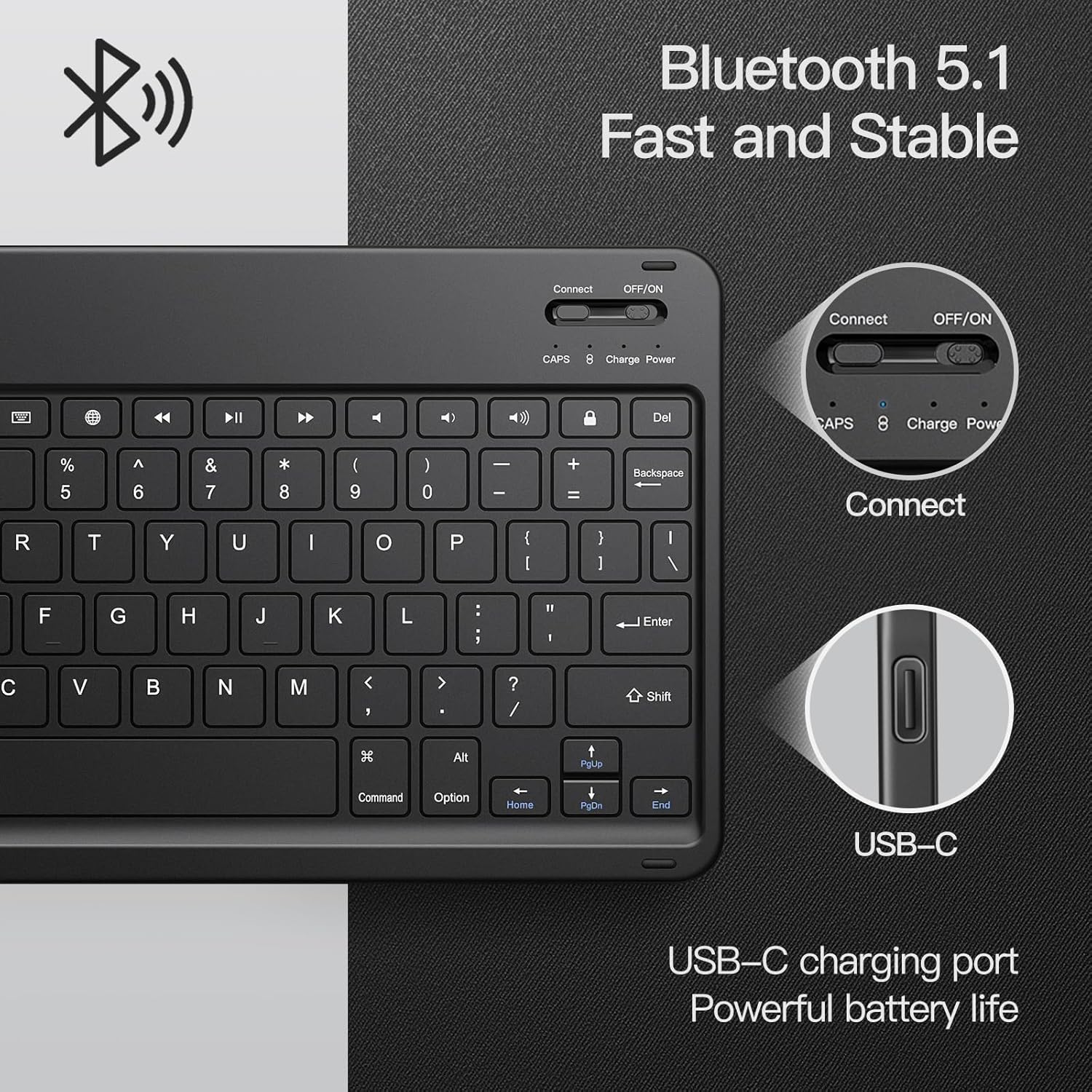
Image: Visual guide for identifying compatible iPad models and locating the model number in settings or on the device's back.
What's in the Box
- JETech Keyboard Case
- USB-C Charging Cable (for keyboard)
- Instruction Manual (this document)
Setup
1. Installing the iPad
- Gently align your iPad with the soft TPU back cover.
- Press the iPad firmly into the case, ensuring all corners are securely fitted.
- Verify that all ports and buttons are accessible and unobstructed.

Image: A close-up view of the case materials, highlighting the flexible TPU inner back for iPad protection.
2. Connecting the Keyboard (Bluetooth)
- Ensure the keyboard is charged.
- Slide the ON/OFF switch on the keyboard to the ON position.
- Press the Connect button on the keyboard. The Bluetooth indicator light will flash.
- On your iPad, go to Settings > Bluetooth.
- Turn Bluetooth on.
- Select "JETech Keyboard" (or similar name) from the list of available devices.
- Follow any on-screen prompts to complete the pairing process. The Bluetooth indicator light on the keyboard will stop flashing once connected.

Image: The detachable Bluetooth keyboard, showing the ON/OFF switch, Connect button, and USB-C charging port.
3. Charging the Keyboard
Connect the provided USB-C charging cable to the keyboard's charging port and to a USB power adapter (not included). The charging indicator light will illuminate during charging and turn off when fully charged. A full charge typically takes 2-3 hours and provides approximately 90 hours of continuous operation or up to 150 days of standby time.
Operating Instructions
1. Using the Magnetic Detachable Keyboard
The keyboard is magnetically attached to the case. You can easily place it in the desired typing position or remove it completely when not needed. The strong magnets ensure stability during use.

Image: Illustration of the keyboard's strong magnetic attachment to the case, preventing accidental detachment.
2. Adjusting Viewing Angles
The case features anti-slip grooves that allow you to prop up your iPad at three different angles. Adjust the iPad's position to find the most comfortable viewing or typing angle.

Image: The case configured to support the iPad at various angles for optimal viewing or typing.
3. Pencil Holder
A dedicated pencil holder is integrated into the case for convenient storage of your Apple Pencil (Pencil not included).
4. Auto Sleep/Wake Function
The case supports the Auto Sleep/Wake function when the keyboard is removed. If the keyboard is stored within the case, you may need to manually use the iPad's power button to wake or sleep the device.
Maintenance
Cleaning the Case
To clean the PU leather exterior and soft TPU interior, gently wipe with a soft, damp cloth. Avoid using harsh chemicals or abrasive cleaners, as these may damage the material.
Battery Care for Keyboard
To prolong battery life, avoid fully discharging the keyboard battery frequently. Charge the keyboard regularly, especially if it will not be used for an extended period.
Troubleshooting
- Keyboard not connecting via Bluetooth:
- Ensure the keyboard is charged and turned ON.
- Press the 'Connect' button on the keyboard to enter pairing mode.
- On your iPad, turn Bluetooth OFF and then ON again.
- Forget the device in iPad Bluetooth settings and attempt to re-pair.
- Keys not responding:
- Check keyboard battery level and charge if necessary.
- Ensure the keyboard is properly connected to your iPad via Bluetooth.
- Restart both the keyboard and your iPad.
- iPad not sleeping/waking automatically:
- Confirm the keyboard is detached or removed from the case. The auto sleep/wake function works best when only the case is covering the iPad.
- Ensure the iPad's Smart Cover Lock/Unlock setting is enabled (Settings > Display & Brightness > Lock/Unlock).
Specifications
| Brand | JETech |
| Model Number | 3161- |
| Compatible Devices | iPad (A16) 11th/10th Generation (2025/2022) |
| Color | Black |
| Material | Thermoplastic Polyurethane (TPU), PU Leather |
| Form Factor | Case |
| Additional Features | Auto Sleep/Wake, Scratch Resistant, Magnetic Detachable Keyboard, Pencil Holder |
| Item Dimensions | 10.08 x 8.03 x 0.83 inches |
| Item Weight | 520 Grams |
| Keyboard Battery Life | 90 hours (continuous operation), 150 days (standby) |
| Charging Time | 2-3 hours |
Warranty and Support
This JETech Keyboard Case comes with a 1-year warranty from the date of purchase. For warranty claims or technical support, please contact JETech customer service through their official website or the retailer where the product was purchased.