
Introduction
Welcome to the XPG INVADER X MINI ATX Mid Tower PC Case instruction manual. This guide provides detailed information on the installation, operation, and maintenance of your new PC case. The INVADER X MINI is designed for compact, stylish, and powerful gaming rig builds, offering impressive compatibility with ATX motherboards and optimal airflow with five pre-installed ARGB fans.
Please read this manual thoroughly before beginning assembly to ensure proper installation and safe operation.
Package Contents
Verify that all components are present in the package:
- XPG INVADER X MINI PC Case
- Accessory Box (screws, cable ties, standoffs, etc.)
- User Manual (this document)
Safety Precautions
- Always disconnect the power supply from the wall outlet before installing or removing any components.
- Handle components with care to avoid damage.
- Wear an anti-static wrist strap to prevent electrostatic discharge (ESD) damage to sensitive components.
- Keep small parts and screws away from children.
Setup and Installation
1. Preparing the Case
Carefully remove the case from its packaging. Place it on a stable, flat surface. Remove the side panels by unscrewing the thumb screws at the rear of the case and sliding the panels off.

Image: Front-side view of the XPG INVADER X MINI PC case, showcasing its tempered glass panels and the vibrant ARGB fans. This view highlights the compact elegance and panoramic design.
2. Motherboard Installation
- Install the I/O shield into the motherboard tray opening from the inside of the case.
- Align your ATX motherboard with the pre-installed standoffs. Ensure the screw holes on the motherboard match the standoffs.
- Secure the motherboard using the provided screws.
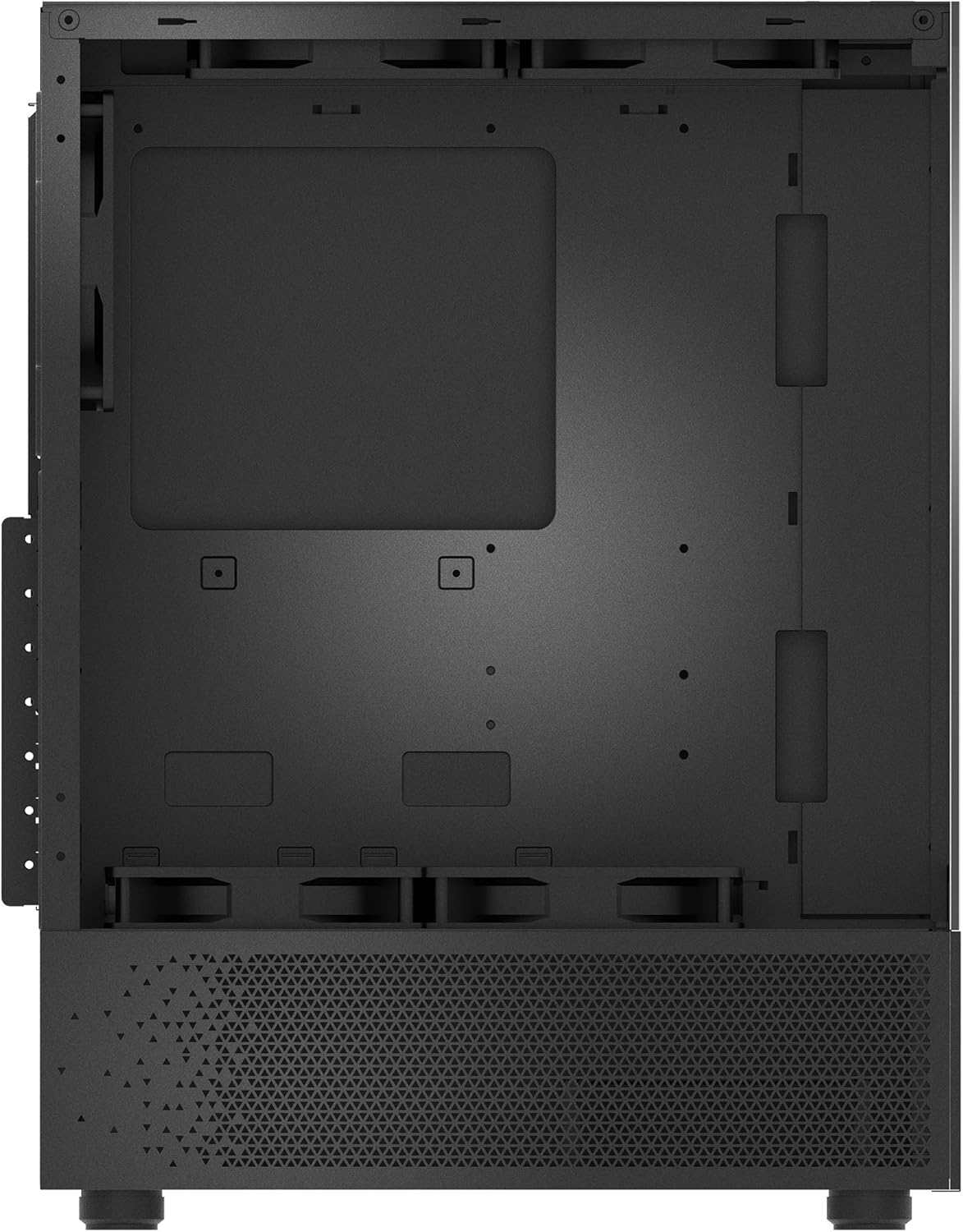
Image: Internal view of the PC case, illustrating the spacious motherboard tray and various mounting points for components. This image helps visualize the layout for component installation.
3. Power Supply Unit (PSU) Installation
The INVADER X MINI supports rear-mount power supplies. Slide your PSU into the designated compartment at the rear bottom of the case and secure it with screws from the outside.

Image: Rear internal view of the PC case, highlighting the power supply mounting area and cable routing channels behind the motherboard tray. This demonstrates the design for clean cable management.
4. Storage Drive Installation
Install 2.5" SSDs or 3.5" HDDs into the designated drive bays. Refer to the accessory box for specific mounting hardware.

Image: Detailed internal view of the PC case, focusing on the drive bays and fan mounting locations. This helps users identify where to install storage devices and additional cooling.
5. Graphics Card (GPU) and Expansion Card Installation
Remove the necessary PCIe slot covers from the rear of the case. Insert your graphics card or other expansion cards into the motherboard's PCIe slots and secure them with screws.

Image: Rear exterior view of the PC case, showing the PCIe expansion slots, the rear exhaust fan, and the I/O panel cutout. This view is crucial for installing expansion cards and connecting peripherals.
6. Cable Management
Utilize the cable routing cutouts and tie-down points behind the motherboard tray to manage cables neatly. This improves airflow and aesthetics.

Image: Side internal view of the PC case, illustrating the pre-installed ARGB fans and the internal layout for component placement. This perspective helps in planning component installation and cable routing.
7. Connecting Front Panel I/O
Connect the front panel cables (USB, audio, power switch, reset switch, LED indicators) to the corresponding headers on your motherboard. Refer to your motherboard manual for exact pin layouts.

Image: Top-down internal view of the PC case, showing the top fan mounts and the overall internal structure. This view is useful for understanding top-mounted radiator or fan installations.
Operating the PC Case
Powering On
Once all components are installed and cables are connected, replace the side panels. Connect your monitor, keyboard, mouse, and power cable to the PC. Press the power button on the front panel of the case to turn on your system.
ARGB Fan Control
The XPG INVADER X MINI comes with five pre-installed ARGB fans. These fans can be controlled via your motherboard's ARGB software (if compatible) or a dedicated ARGB controller (if included or purchased separately). Refer to your motherboard manual or ARGB controller instructions for specific lighting effects and synchronization.
Maintenance
Dust Filter Cleaning
The case is equipped with dust filters to prevent dust buildup inside. Regularly clean these filters (typically located at the top, front, and bottom) by removing them and gently brushing or washing them with water. Ensure they are completely dry before re-installing.
General Cleaning
Use a soft, damp cloth to wipe down the exterior of the case. Avoid abrasive cleaners or solvents that may damage the finish or tempered glass panels.
Troubleshooting
- System Not Powering On: Ensure all power cables (24-pin ATX, 8-pin CPU, GPU power) are securely connected. Check the power switch connection to the motherboard. Verify the PSU is switched on.
- Fans Not Spinning/ARGB Not Lighting Up: Check fan power connections to the motherboard or fan controller. Ensure ARGB headers are correctly connected and software is configured.
- No Display Output: Confirm the graphics card is properly seated in its PCIe slot and has adequate power. Ensure the monitor cable is connected to the graphics card, not the motherboard's integrated graphics ports (unless using integrated graphics).
- Overheating: Verify all fans are spinning correctly and are oriented for optimal airflow (intake/exhaust). Ensure CPU cooler and GPU fans are functioning. Clean dust filters.
Specifications
| Feature | Specification |
|---|---|
| Brand | XPG |
| Series | INVADER X MINI |
| Model Number | CJ11533856 |
| Case Type | Mid Tower |
| Motherboard Compatibility | ATX |
| Dimensions (LxWxH) | 14.13 x 8.27 x 18.11 inches |
| Item Weight | 12.54 pounds (5.7 Kilograms) |
| Color | Black |
| Material | Plastic, Tempered Glass |
| Pre-installed Fans | 5 x ARGB Fans |
| Cooling Method | Air |
| Power Supply Mounting Type | Rear Mount |
Warranty and Support
XPG products are designed and manufactured to the highest quality standards. For information regarding warranty coverage, please refer to the warranty card included with your product or visit the official XPG website.
For technical support, troubleshooting assistance, or to inquire about replacement parts, please contact XPG customer service through their official website or the contact information provided in your product's documentation.
Please have your product model number (INVADER X MINI) and serial number ready when contacting support.


