
1. Product Overview
The imokin USB C Docking Station MOUC3306 is a versatile 12-in-1 hub designed to expand the connectivity of your USB-C enabled laptop. It provides multiple ports for external displays, data transfer, network connectivity, and power delivery, enhancing your productivity and workstation setup.

Figure 1: Overview of the imokin 12-in-1 USB C Docking Station with all ports labeled.
Key Features:
- 12-in-1 Connectivity: Includes Dual HDMI 4K ports, 1080p VGA port, Gigabit Ethernet port, 3.5mm Audio port, USB C PD port, SD & TF card readers, 2x USB 3.0 ports, and 2x USB 2.0 ports.
- Triple Display Output: Supports multiple external monitors with varying resolutions and refresh rates depending on the operating system and configuration.
- High-Speed Data Transfer: Two USB 3.0 ports offer up to 5Gbps, and two USB 2.0 ports provide 480Mbps. SD and TF card slots support simultaneous reading at 104MB/s.
- 100W Power Delivery: The USB-C PD charging port supports up to 100W input, delivering up to 85W to your connected laptop.
- Gigabit Ethernet: Provides stable and fast wired network connectivity up to 1000Mbps.
- Plug and Play: No additional drivers are required for most operating systems.
2. Setup Instructions
Follow these steps to set up your imokin USB C Docking Station:
- Connect to Host Device: Plug the integrated USB-C cable from the docking station into a compatible USB-C port on your laptop. Ensure your laptop's USB-C port supports video output (DisplayPort Alternate Mode) and power delivery for full functionality.
- Connect Power Adapter (Optional but Recommended): For stable operation and to charge your laptop, connect your laptop's original USB-C power adapter to the PD (Power Delivery) port on the docking station. The docking station supports up to 100W input and provides up to 85W output to your laptop.
- Connect External Displays:
- For HDMI displays, connect HDMI cables from your monitors to the HDMI 1 and HDMI 2 ports on the docking station.
- For VGA displays, connect a VGA cable from your monitor to the VGA port on the docking station.
- Connect Peripherals:
- Plug USB devices (keyboard, mouse, external drives) into the USB 3.0 or USB 2.0 ports.
- Insert SD or TF cards into the corresponding slots.
- Connect an Ethernet cable to the RJ45 Gigabit Ethernet port for wired network access.
- Plug headphones or a microphone into the 3.5mm Audio/Mic jack.

Figure 2: Connecting the power adapter to the PD port on the docking station.

Figure 3: Connecting an Ethernet cable to the docking station for a fast internet connection.
3. Operating Instructions
3.1. Display Configuration
The docking station supports various display configurations. The behavior of external monitors depends on your operating system.
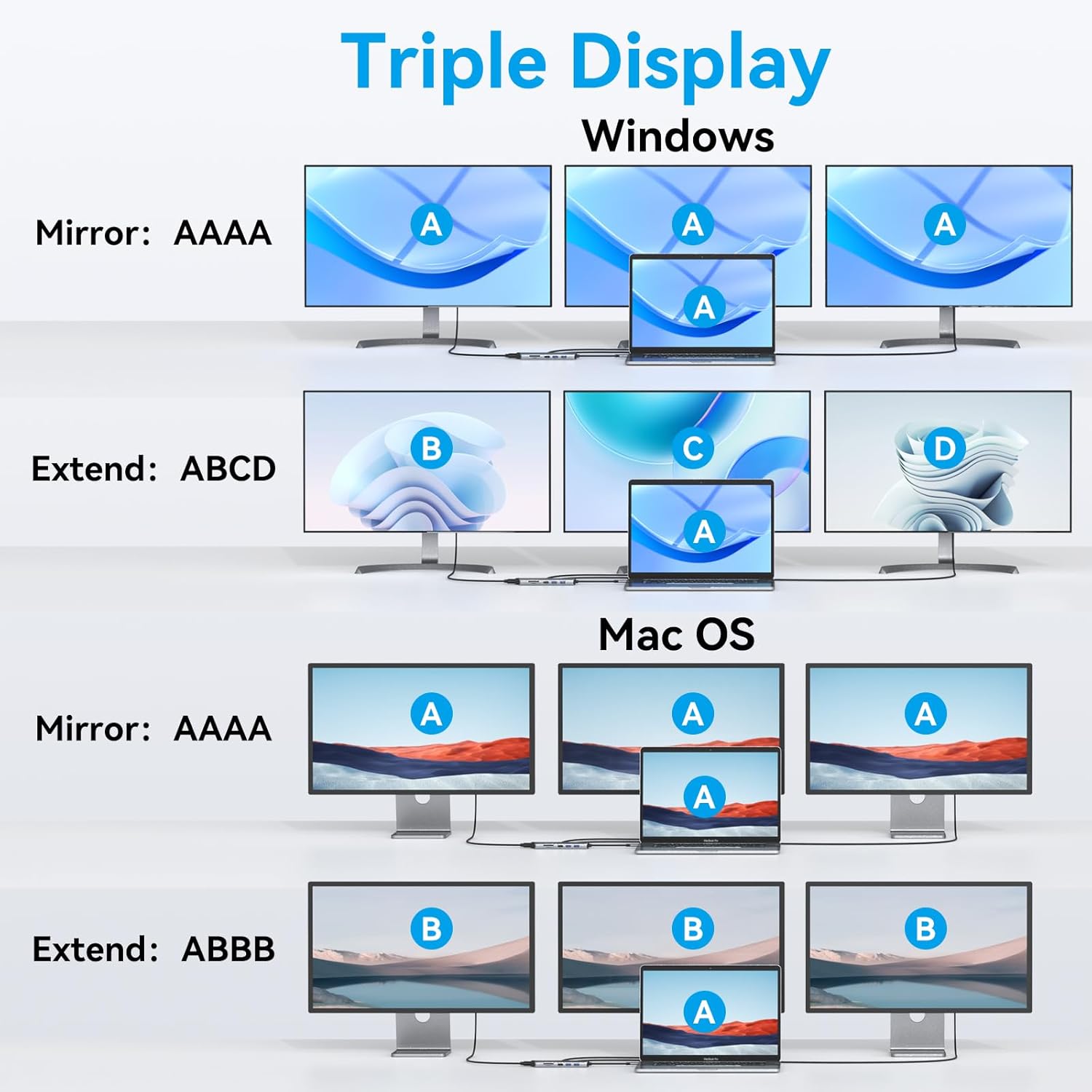
Figure 4: Visual representation of display modes for Windows and Mac OS.
Windows System:
- Mirror Mode (SST): All external monitors display the same content as your laptop screen.
- Extend Mode (MST): Each external monitor can display different content, extending your desktop across multiple screens. This allows for a triple display setup where the laptop screen and two external monitors show unique content.
Mac OS System:
- Mirror Mode: All external monitors display the same content as your laptop screen.
- Non-Mirror Mode: External monitors display the same content, but it is different from the laptop screen. Mac OS does not support true extended triple display (MST) where each external monitor shows unique content.
Resolution Guidelines:
- Single HDMI 1 (DP1.4 source): Up to 4K@60Hz.
- Dual HDMI: Up to 4K@30Hz when two monitors are connected simultaneously.
- Dual or Triple Display with VGA: Up to 1080P@60Hz.
3.2. Data Transfer
Utilize the USB ports and card readers for efficient data transfer:
- USB 3.0 Ports: Connect high-speed storage devices for data transfer up to 5Gbps.
- USB 2.0 Ports: Suitable for connecting peripherals like keyboards, mice, or older USB devices.
- SD/TF Card Slots: Insert your SD or Micro SD cards for quick access to photos and files. Both slots can be used simultaneously.

Figure 5: High-speed data transfer via USB 3.0 ports.
3.3. Network Connectivity
The Gigabit Ethernet port provides a reliable wired internet connection:
- Connect an Ethernet cable from your router or modem to the RJ45 port on the docking station.
- Enjoy stable network speeds up to 1000Mbps, ideal for streaming, gaming, and large file transfers.
3.4. Audio Output
The 3.5mm Audio/Mic 2-in-1 jack allows you to connect headphones, speakers, or a microphone for audio input and output.
4. Specifications
| Feature | Specification |
|---|---|
| Model Number | MOUC3306 |
| Product Dimensions | 6.5 x 0.6 x 3.74 inches |
| Item Weight | 0.106 ounces |
| HDMI Output | HDMI 1: Up to 4K@60Hz (DP1.4 source); HDMI 2: Up to 4K@30Hz. Dual HDMI: 4K@30Hz. |
| VGA Output | Up to 1080P@60Hz. Dual/Triple Display with VGA: 1080P@60Hz. |
| USB-C PD Port | 100W Power Input, 85W Power Output to laptop. (Requires PD protocol) |
| USB 3.0 Ports | 2 ports, up to 5Gbps data transfer. |
| USB 2.0 Ports | 2 ports, up to 480Mbps data transfer. |
| Ethernet Port | RJ45 Gigabit Ethernet, up to 1000Mbps. |
| Card Reader | SD and TF slots, 104MB/s, simultaneous reading. |
| Audio Port | 3.5mm Audio/Mic 2-in-1 Jack. |
| Compatible Devices | USB-C laptops with Thunderbolt 3 port or USB 3.1 Type C Gen2 port, monitors, Ethernet devices, SD/TF cards, and audio devices. |
5. Troubleshooting
- No Display Output:
- Ensure your laptop's USB-C port supports DisplayPort Alternate Mode (Alt Mode). Not all USB-C ports support video output.
- Check all cable connections (USB-C to laptop, HDMI/VGA to monitors).
- Verify that external monitors are powered on and set to the correct input source.
- For Windows, check display settings (Display Settings > Multiple displays) to detect and configure monitors.
- For Mac OS, check System Preferences > Displays. Remember Mac OS has limitations on extended triple display.
- Try connecting one monitor at a time to isolate the issue.
- Intermittent Connection/Flickering Screen:
- Ensure the docking station is receiving sufficient power, especially when multiple high-power devices or displays are connected. Connect your laptop's power adapter to the PD port.
- Use high-quality HDMI/VGA cables.
- Reduce the resolution or refresh rate of external displays if experiencing instability.
- Slow USB Data Transfer:
- Ensure you are using the USB 3.0 ports for high-speed devices.
- Verify that the connected device supports USB 3.0 speeds.
- No Internet Connection via Ethernet:
- Check the Ethernet cable connection to both the docking station and your router/modem.
- Ensure your network settings on your laptop are configured for a wired connection.
- Restart your router/modem and laptop.
- Laptop Not Charging:
- Ensure your laptop's original power adapter is connected to the PD port of the docking station.
- Verify that your laptop supports charging via its USB-C port and the PD protocol.
- Check the power adapter's wattage; it should be sufficient for your laptop's charging requirements.
6. Warranty and Support
For warranty information and technical support, please refer to the official imokin website or contact their customer service directly. Keep your purchase receipt for warranty claims.
Manufacturer: imokin
Date First Available: July 12, 2020
7. Product Video Demonstration
Video 1: A demonstration of the imokin 12-in-1 Triple Display USB C Hub with VGA, showcasing its features and connectivity options.