
Poco Xiaomi Poco X7 Pro 5G
Poco X7 PRO 5G User Manual
Model: Xiaomi Poco X7 Pro 5G | Brand: Poco
1. Introduction
This manual provides comprehensive instructions for the Poco X7 PRO 5G smartphone, covering its features, setup, operation, maintenance, and troubleshooting. Please read this manual carefully to ensure proper use and to maximize the device's performance and longevity.
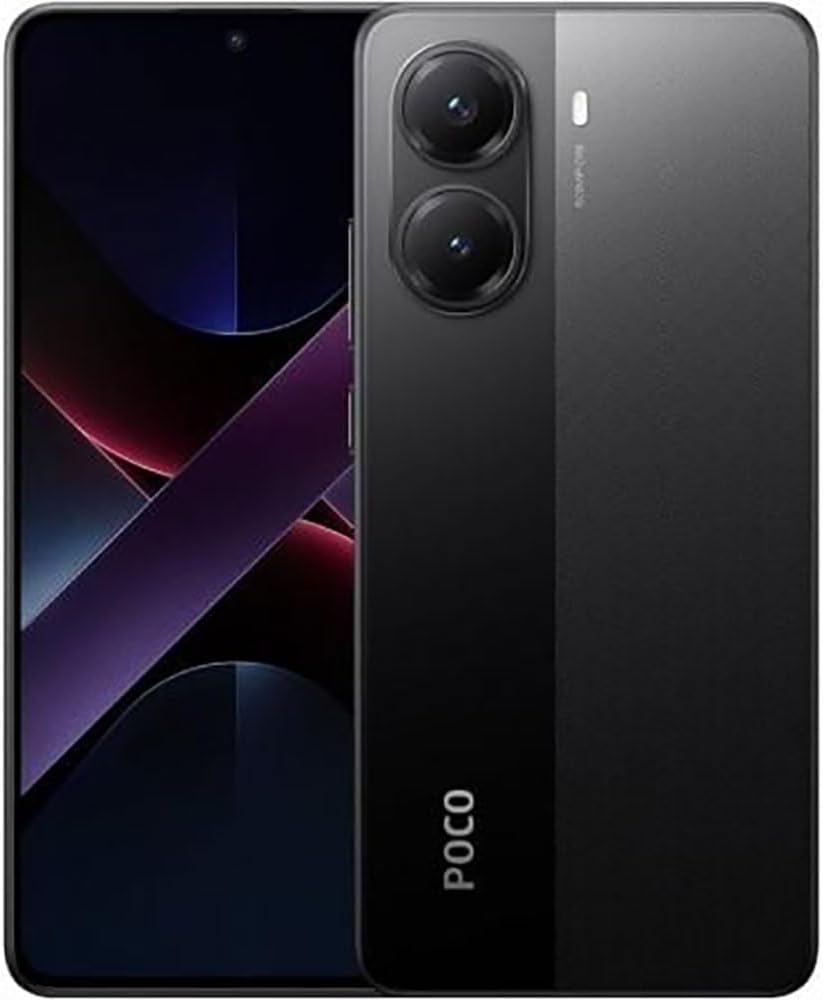
Figure 1: Poco X7 PRO 5G Smartphone. This image displays the Poco X7 PRO 5G smartphone. The front shows the display with a small punch-hole camera at the top center. The back features a prominent camera module with two large lenses and a flash, alongside the 'POCO' branding.
2. Initial Setup
2.1. Package Contents
Verify that your package contains the following items:
- Poco X7 PRO 5G Smartphone
- USB Type-C Cable
- SIM Eject Tool
- Quick Start Guide
- Protective Case (may vary by region)
Note: The charger may not be included in all regional packages. Please check your specific product details.
2.2. Charging the Device
Before first use, fully charge the device. Connect the USB Type-C cable to the phone's charging port and the other end to a compatible power adapter (not included) or a computer's USB port. The device supports 90W HyperCharge for rapid charging.
2.3. Inserting SIM Card(s)
- Locate the SIM card tray on the side of the device.
- Insert the SIM eject tool into the small hole next to the tray and press gently until the tray pops out.
- Place your Nano-SIM card(s) into the designated slots on the tray. Ensure the gold contacts face downwards.
- Carefully reinsert the tray into the device.
2.4. Powering On/Off
- To Power On: Press and hold the Power button until the Poco logo appears.
- To Power Off: Press and hold the Power button, then select "Power off" from the options on the screen.
- To Restart: Press and hold the Power button, then select "Restart" from the options.
2.5. Initial Configuration
Upon first power-on, the device will guide you through the initial setup wizard. Follow the on-screen prompts to:
- Select your language and region.
- Connect to a Wi-Fi network.
- Sign in with your Google account or create a new one.
- Set up screen lock (PIN, pattern, password, fingerprint, face unlock).
- Restore data from a previous device (optional).
3. Operating Your Poco X7 PRO 5G
3.1. Display and Navigation
The Poco X7 PRO 5G features a 6.67-inch AMOLED CrystalRes 1.5K display with a 120Hz refresh rate, offering vibrant colors and smooth visuals. Navigation is primarily touch-based:
- Tap: Select an item or open an application.
- Swipe: Scroll through screens or lists.
- Pinch: Zoom in or out on images and web pages.
- Long Press: Access contextual menus or move icons.
- Wet Touch Technology: The display is designed to improve touch accuracy even with wet or oily fingers.
3.2. Performance and Cooling
Equipped with the Dimensity 8400-Ultra processor and LiquidCool Technology 4.0, the Poco X7 PRO 5G delivers high performance for gaming and multitasking while maintaining optimal temperatures. The advanced cooling system uses separate channels for gas and liquid to ensure efficient heat dissipation.
3.3. Battery Management
The device is powered by a 6000 mAh battery, providing extended usage time. To optimize battery life:
- Adjust screen brightness.
- Disable Wi-Fi, Bluetooth, and GPS when not in use.
- Close background applications.
- Utilize power-saving modes available in settings.
3.4. Camera Usage
The Poco X7 PRO 5G features a 20 MP optical sensor resolution for its main camera. To take photos or record videos:
- Open the Camera application.
- Select your desired mode (Photo, Video, Portrait, Night, etc.).
- Tap the shutter button to capture an image or start/stop video recording.
- Adjust settings like zoom, flash, and filters as needed.
4. Maintenance and Care
4.1. Cleaning Your Device
To clean your Poco X7 PRO 5G:
- Use a soft, lint-free cloth to wipe the screen and body.
- Avoid using harsh chemicals, abrasive cleaners, or aerosol sprays.
- Do not expose the device to excessive moisture.
4.2. Software Updates
Regularly check for and install software updates to ensure optimal performance, security, and access to new features. You can typically find update options in the device's Settings menu under "About phone" or "System updates."
4.3. Battery Care
To prolong the life of your device's lithium-ion battery:
- Avoid extreme temperatures.
- Do not let the battery completely drain frequently.
- Avoid overcharging by unplugging once fully charged.
5. Troubleshooting
This section addresses common issues you might encounter with your Poco X7 PRO 5G. If the problem persists, contact customer support.
5.1. Device Not Turning On
- Ensure the battery is charged. Connect the device to a charger for at least 15 minutes.
- Press and hold the Power button for 10-15 seconds to force a restart.
5.2. Screen Unresponsive
- Force restart the device (see 5.1).
- Clean the screen with a soft, dry cloth.
- Ensure your fingers are clean and dry, although the Wet Touch technology should assist with minor moisture.
5.3. Slow Wi-Fi or Hotspot Connection
- Restart your Wi-Fi router or the device's hotspot function.
- Ensure you are within range of the Wi-Fi signal.
- Forget the network and reconnect.
- Check for any obstructions between the device and the Wi-Fi source.
5.4. Battery Drains Quickly
- Review battery usage in Settings to identify power-hungry apps.
- Reduce screen brightness and screen timeout.
- Disable unnecessary features like GPS, Bluetooth, and Wi-Fi when not in use.
- Close background applications.
6. Specifications
| Feature | Detail |
|---|---|
| Model Name | Xiaomi Poco X7 Pro 5G |
| Brand | Poco |
| Operating System | Android |
| Processor | MediaTek Dimensity 8400-Ultra (2.5 GHz) |
| RAM | 8 GB |
| Internal Storage | 256 GB |
| Display Size | 6.67 Pollici (AMOLED) |
| Display Resolution | 2560 x 1500 (CrystalRes 1.5K) |
| Refresh Rate | 120 Hz |
| Main Camera Resolution | 20 MP |
| Battery Capacity | 6000 mAh |
| Charging Technology | 90W HyperCharge |
| Connectivity | 5G, 4G |
| Material | Plastic |
| Weight | 200 g |
| Included Components | Xiaomi POCO X7 5G (phone), USB Type-C Cable, SIM Eject Tool |
7. Warranty and Support
7.1. Warranty Information
This product is sold as new from a specialized retailer. Standard manufacturer warranty terms apply. Please refer to the warranty card included with your product or contact your point of purchase for specific warranty duration and conditions.
7.2. Customer Support
For technical assistance, troubleshooting beyond this manual, or warranty claims, please contact the retailer or the official Poco customer support channels. Visit the official Poco website for up-to-date contact information and support resources.
Related documentsXiaomi Poco X7 Pro 5G


Ask a question about this manual
Ask about setup, troubleshooting, compatibility, parts, safety, or missing instructions. Manuals+ will review the question and use this page’s manual context to help answer it.