
Phomemo M160
Phomemo M160 Label Maker User Manual
Model: M160 | Brand: Phomemo
Introduction
The Phomemo M160 is a versatile Bluetooth thermal label maker designed for various labeling needs, including small business, mailing, logo, clothing, and general organization. It offers wireless connectivity to smartphones, tablets, and PCs, along with a wide range of customizable templates and fonts through its dedicated application. This manual provides comprehensive instructions for setting up, operating, maintaining, and troubleshooting your M160 label maker.
What's in the Box
Please verify that all items are present in your package:
- Phomemo M160 Bluetooth Label Maker x1
- User Guide x1
- Type-C Cable x1
- Complimentary 40x30mm thermal paper roll x1
Product Overview
Familiarize yourself with the components of your Phomemo M160 label maker.
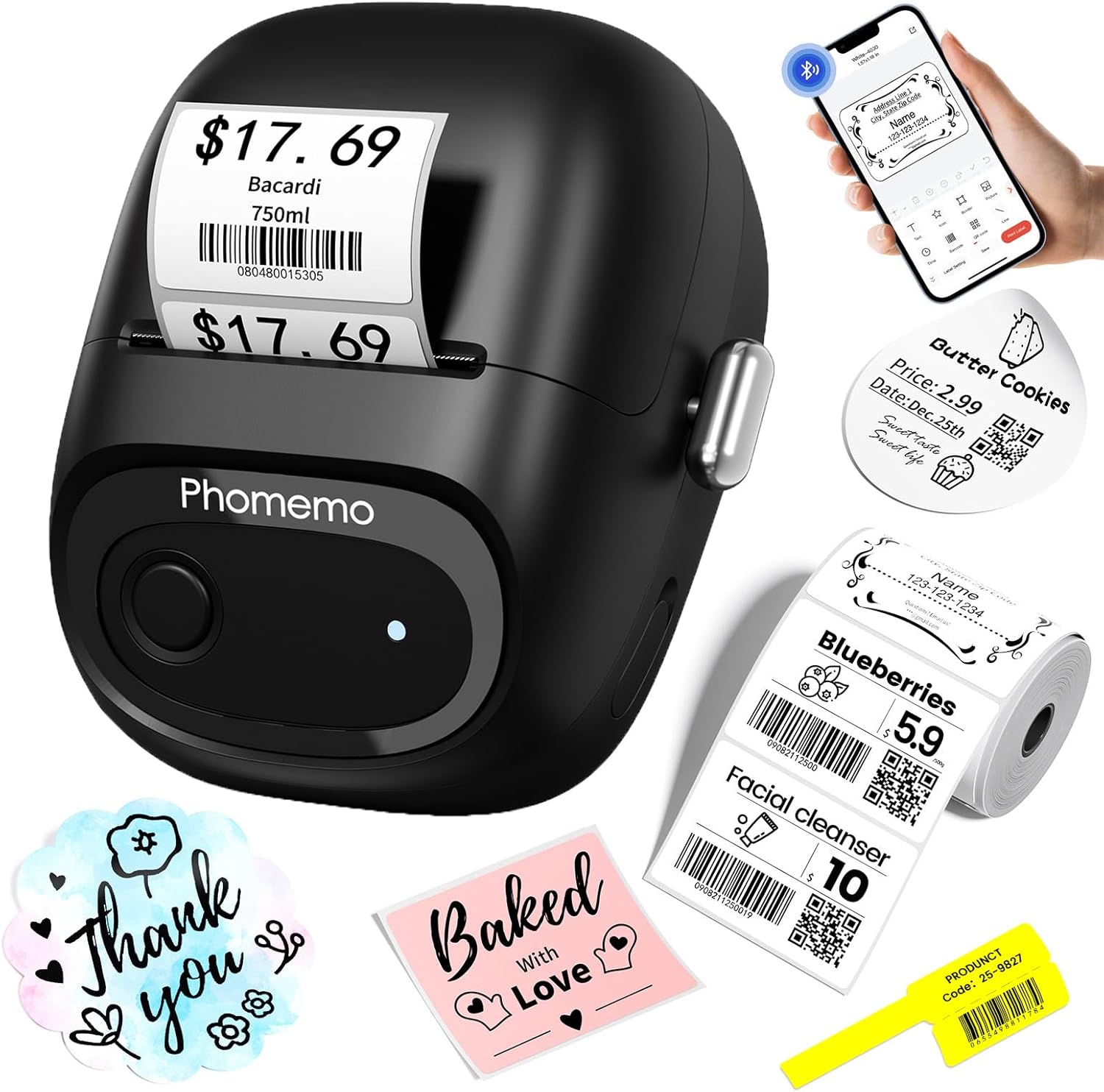
Figure 1: Phomemo M160 Label Maker and accessories.

Figure 2: Internal view of the Phomemo M160 highlighting key features like NTC technology for clear prints.
Key Components:
- Power Button: Used to turn the device on/off and initiate printing.
- Indicator Light: Shows device status (e.g., on, charging, error).
- Cover Open Lever: Releases the top cover for label roll installation.
- Paper Exit: Where printed labels emerge.
- Guide Lock & Paper Guides: Secure the label roll in place.
- USB Type-C Port: For charging and PC connection.
Setup
1. Initial Preparation:
Remove Protective Film: Gently peel off any protective film from the device, especially around the printing area and power button.

Figure 3: Steps for installing the label roll and preparing the printer.
Power On: Long press the Power Button for 3 seconds until the indicator light illuminates, indicating the printer is ready.
Install Label Roll:
- Open the top cover using the lever.
- Attach the label roll to the holder, ensuring the labels feed out from the top.
- Close the machine cover securely.
2. App Installation and Connection:
The Phomemo M160 requires the "Print Master" app for smartphone/tablet use or "Labelife" software for PC. Do not connect directly via your device's Bluetooth settings; connect through the app.

Figure 4: Steps for installing the "Print Master" app and connecting to the printer.
Download App: Search for "Print Master" on the App Store (iOS) or Google Play (Android), or scan the QR code provided in the Quick Start Guide. For PC, download "Labelife" from the official Phomemo website.
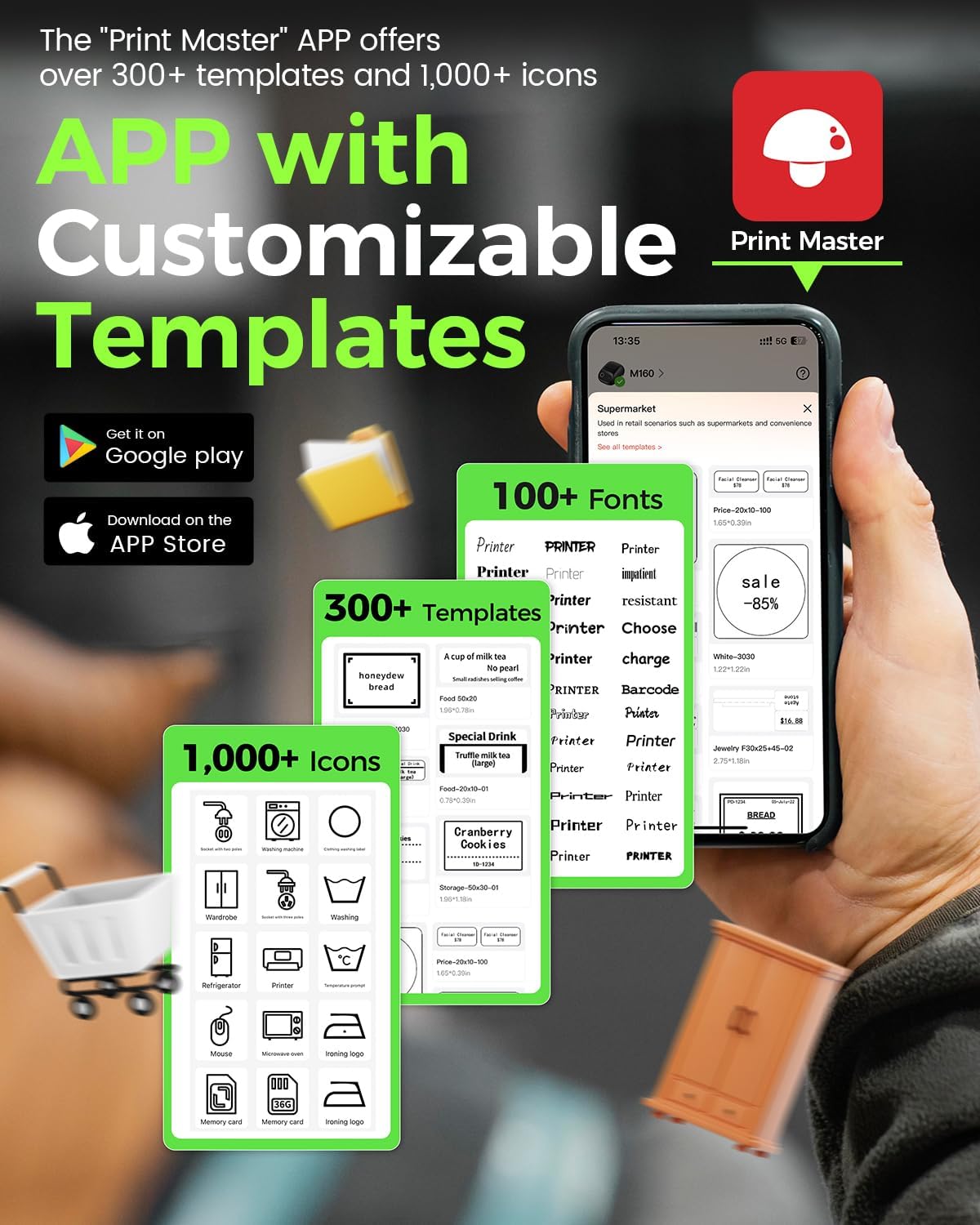
Figure 5: The "Print Master" app offers extensive customization options.
Open App and Connect: Open the "Print Master" app. The app will automatically search for and connect to the printer. If prompted, allow Bluetooth pairing. Ensure your phone's Bluetooth is enabled.
First Print: Once connected, you can edit your first label within the app. After editing, click "Print" to complete your first print.
Video 1: Overview of the M160 Bluetooth Label Maker for Small Business, demonstrating its ease of use and various applications.
Operating Instructions
Creating and Printing Labels:
Select Template or Create New: In the "Print Master" app, choose from over 300 templates or start a new blank label. You can also customize existing templates.
Edit Content: Use the app's editing tools to add text, images, barcodes, QR codes, and icons. Over 1,000 fonts are available. Adjust font size, style, and alignment as needed.
Adjust Label Size: Ensure the label size selected in the app matches the physical label roll installed in the printer. The M160 supports printing widths from 20mm to 50mm (0.78" to 2").
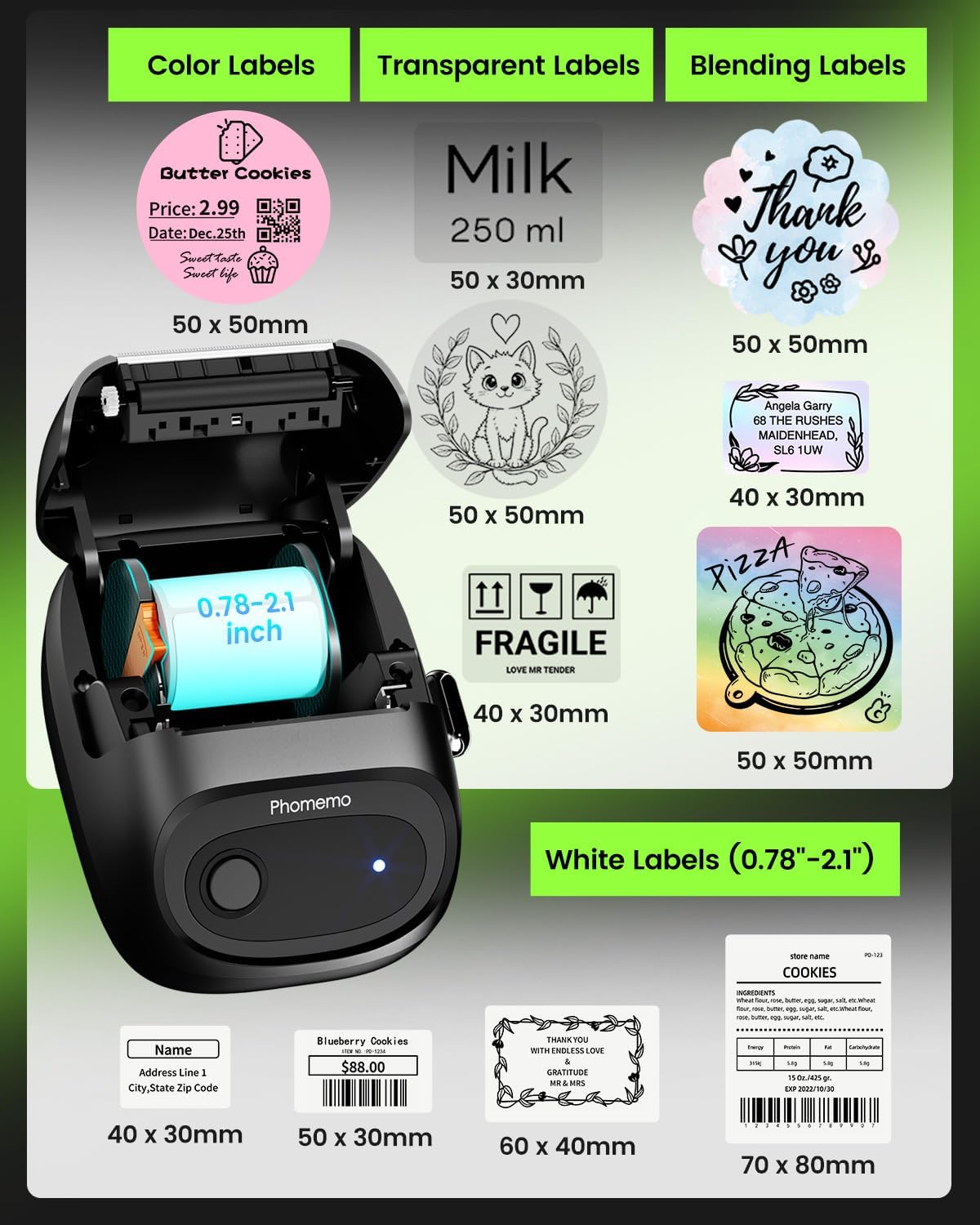
Figure 6: The M160 supports diverse label types and sizes.
Print: Once your design is complete, tap the "Print" button in the app. The printer will automatically feed and print the label.
Batch Printing: The app supports batch continuous printing, which can significantly improve efficiency for multiple labels.
Common Applications:
Small Business: Ideal for creating price tags, barcodes, QR codes, and address labels.
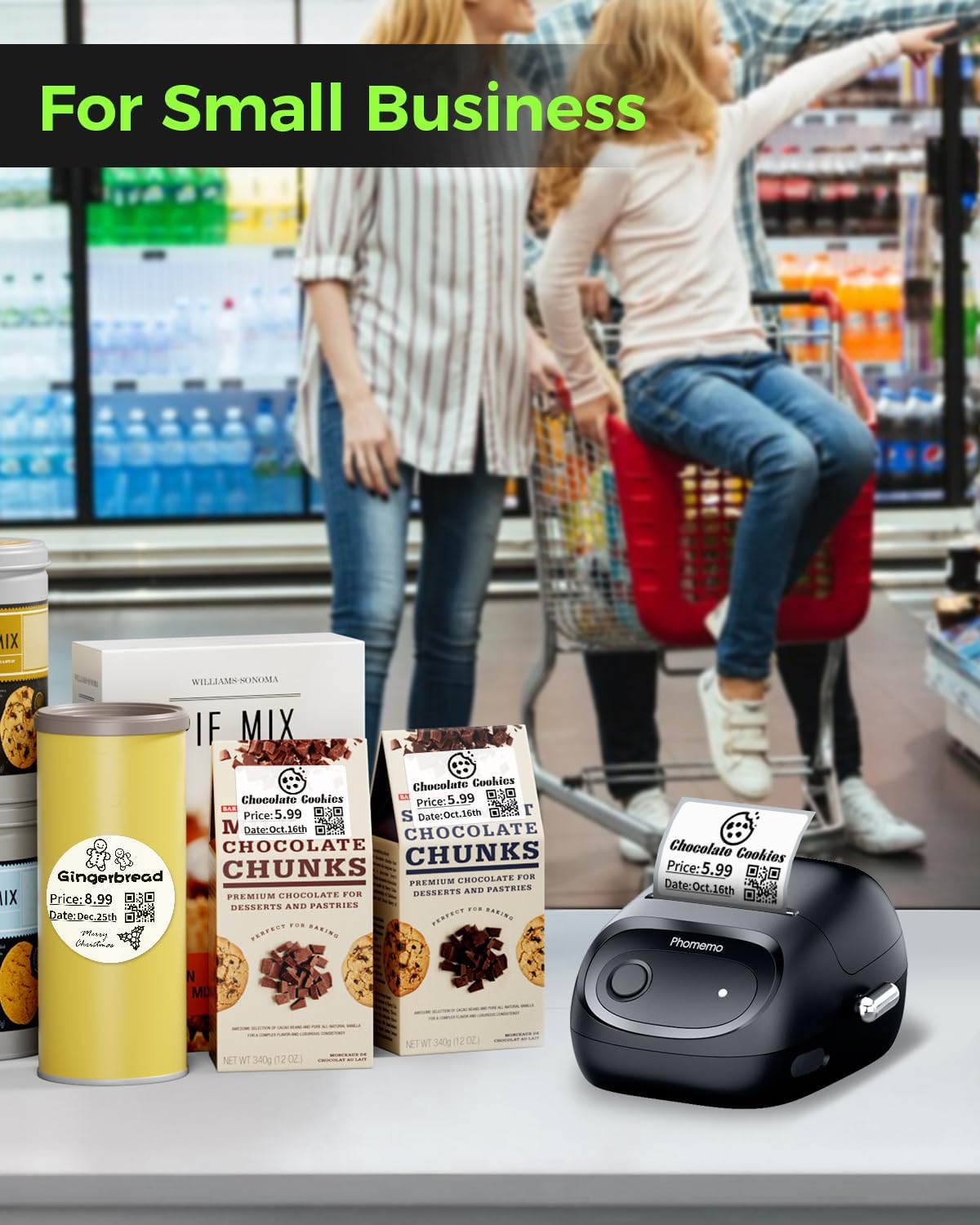
Figure 7: Using the M160 for small business labeling needs.
Home Organization: Label food containers, storage items, jars, and cosmetics.
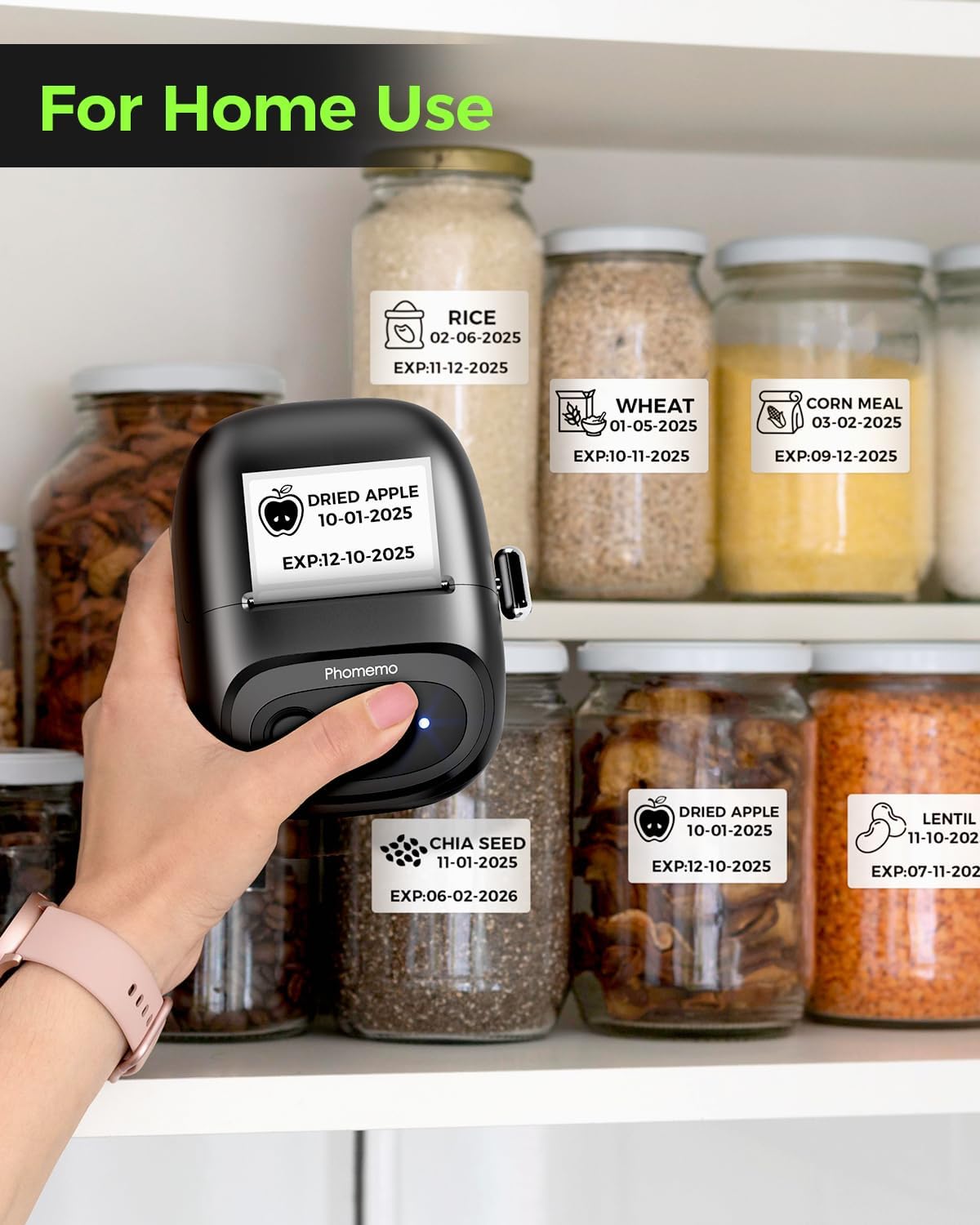
Figure 8: Practical home organization with the M160 label maker.
Office & School: Mark folders, note dates, make name tags, and identify personal items.
Gifts: Create personalized labels for gifts and crafts.
Video 2: Demonstration of the M160 Portable Label Printer's versatility for various labeling tasks, including personalizing items.
Maintenance
Cleaning the Print Head: Regularly clean the print head with an alcohol wipe to ensure optimal print quality. Do not touch the print head directly with your hands.
Label Roll Handling: Use only Phomemo thermal paper for best results. Store label rolls in a cool, dry place away from direct sunlight to prevent fading.

Figure 9: The M160 uses direct thermal printing, requiring no ink or toner.
Battery Care: Charge the device using the provided Type-C cable. Avoid overcharging or completely draining the battery for prolonged battery life.
Troubleshooting
| Problem | Possible Cause | Solution |
|---|---|---|
| Printer not connecting via Bluetooth. | Not connected through the app; phone Bluetooth off; printer off or out of range. | Ensure printer is on and near your phone. Connect via the "Print Master" app, not directly through phone settings. Restart both devices. |
| Poor print quality (faded, blurry). | Print head dirty; low battery; incorrect label type; old/damaged label roll. | Clean the print head. Charge the printer. Ensure you are using Phomemo thermal labels. Replace the label roll if old or damaged. |
| Labels not feeding correctly. | Label roll improperly installed; paper guides not adjusted; paper jam. | Open the cover and re-install the label roll, ensuring it's properly seated and the paper guides are snug. Clear any jammed paper. |
| Printer not turning on. | Battery drained; power button not pressed long enough. | Charge the printer for at least 30 minutes. Press and hold the power button for 3 seconds. |
Specifications
| Feature | Detail |
|---|---|
| Brand | Phomemo |
| Model | M160 |
| Printing Technology | Thermal |
| Connectivity Technology | Bluetooth, USB |
| Print Resolution | 203 DPI |
| Max Print Speed (Monochrome) | 40 ppm (pages per minute) / 40 mm/s |
| Max Media Size | 2 inches (50mm) |
| Compatible Devices | Smartphones (iOS, Android), PC (Windows, Mac, ChromeOS, Linux), Tablets, Laptops |
| Product Dimensions | 1.97 x 3.94 x 3.94 inches |
| Item Weight | 1.41 pounds |
| Special Feature | Portable |
Warranty and Support
For warranty information and technical support, please refer to the official Phomemo website or contact Phomemo customer service directly. Details are typically provided in the packaging or on the manufacturer's website.
Related documentsM160

Ask a question about this manual
Ask about setup, troubleshooting, compatibility, parts, safety, or missing instructions. Manuals+ will review the question and use this page’s manual context to help answer it.