
1. Introduction
This manual provides essential information for the safe and efficient operation of your NexiGo PJ40 Ultra Outdoor Netflix Projector. Please read this manual thoroughly before using the projector and retain it for future reference.
2. Safety Information
Observe the following safety precautions to prevent damage to the projector and ensure user safety:
- Do not block ventilation openings. Ensure adequate airflow around the projector.
- Do not expose the projector to rain, moisture, or extreme temperatures.
- Use only the power adapter supplied with the projector.
- Avoid looking directly into the projector lens when the lamp is on.
- Keep the projector away from heat sources and direct sunlight.
- Disconnect the power cord during lightning storms or when unused for long periods.
3. Package Contents
Verify that all items are present in the package:
- NexiGo PJ40 Ultra Projector
- Remote Control (with 2x AAA batteries)
- Power Adapter
- HDMI Cable
- AV Cable
- Lens Cleaning Cloth
- Spare Air Filter
- User Manual
4. Product Overview
The NexiGo PJ40 Ultra is a high-performance projector designed for versatile entertainment. It features native 1080p resolution, 800 ANSI lumens brightness, and AI image enhancement for clear, vibrant visuals. Integrated 20W speakers provide immersive audio. The projector includes officially licensed streaming apps like Netflix, YouTube, and Prime Video, along with comprehensive connectivity options.

Figure 4.1: NexiGo PJ40 Ultra Projector with projected Netflix screen.
Key Features:
- Native 1080p Resolution: Delivers crisp images with incredible detail.
- 800 ANSI Lumens Brightness: Provides clear visuals in various lighting conditions.
- AI Picture Quality Enhancement: Optimizes clarity, detail, and color reproduction with HDR and HLG support.
- Officially Licensed Streaming: Pre-installed Netflix, YouTube, and Prime Video for immediate access to content.
- AI-Enhanced Surround Sound: 20W speakers with DSP decoding for immersive audio.
- Auto Keystone Correction: Automatically adjusts vertical image distortion.
- Wireless Screen Mirroring: Supports iOS, Android, and Windows devices via 5 GHz Wi-Fi.
- Multiple Connectivity Options: Includes 2 USB ports, 2 HDMI inputs, AV port, and 3.5mm audio jack.
5. Setup
5.1 Initial Power-On
- Connect the power adapter to the projector's power input and then to a power outlet.
- Press the power button on the projector or the remote control to turn it on.
- Follow the on-screen instructions for initial language and network setup.
5.2 Placement and Screen Size
Position the projector on a stable, flat surface. The projection distance affects the screen size. Refer to the table below for recommended distances.

Figure 5.1: Recommended Projection Distances.
| Screen Diagonal (in.) | Projection Distance (ft) |
|---|---|
| 72 | 7.68 |
| 100 | 10.5 |
| 120 | 12.4 |
| 150 | 15.52 |
| 300 | 30.18 |
Note: Sizing measured by NexiGo Laboratory. Test measurements do not include the screen border size.
5.3 Focus and Keystone Correction
- Focus Adjustment: Rotate the focus wheel on the projector until the image is clear.
- Auto Vertical Keystone: The projector features automatic vertical keystone correction. Ensure this setting is enabled in the menu for automatic adjustment.
- Manual 4D Correction: For horizontal or more precise adjustments, navigate to the manual keystone settings in the menu.
- Zoom Function: Use the zoom function in the settings to shrink the screen size from 100% down to 60% without moving the projector.
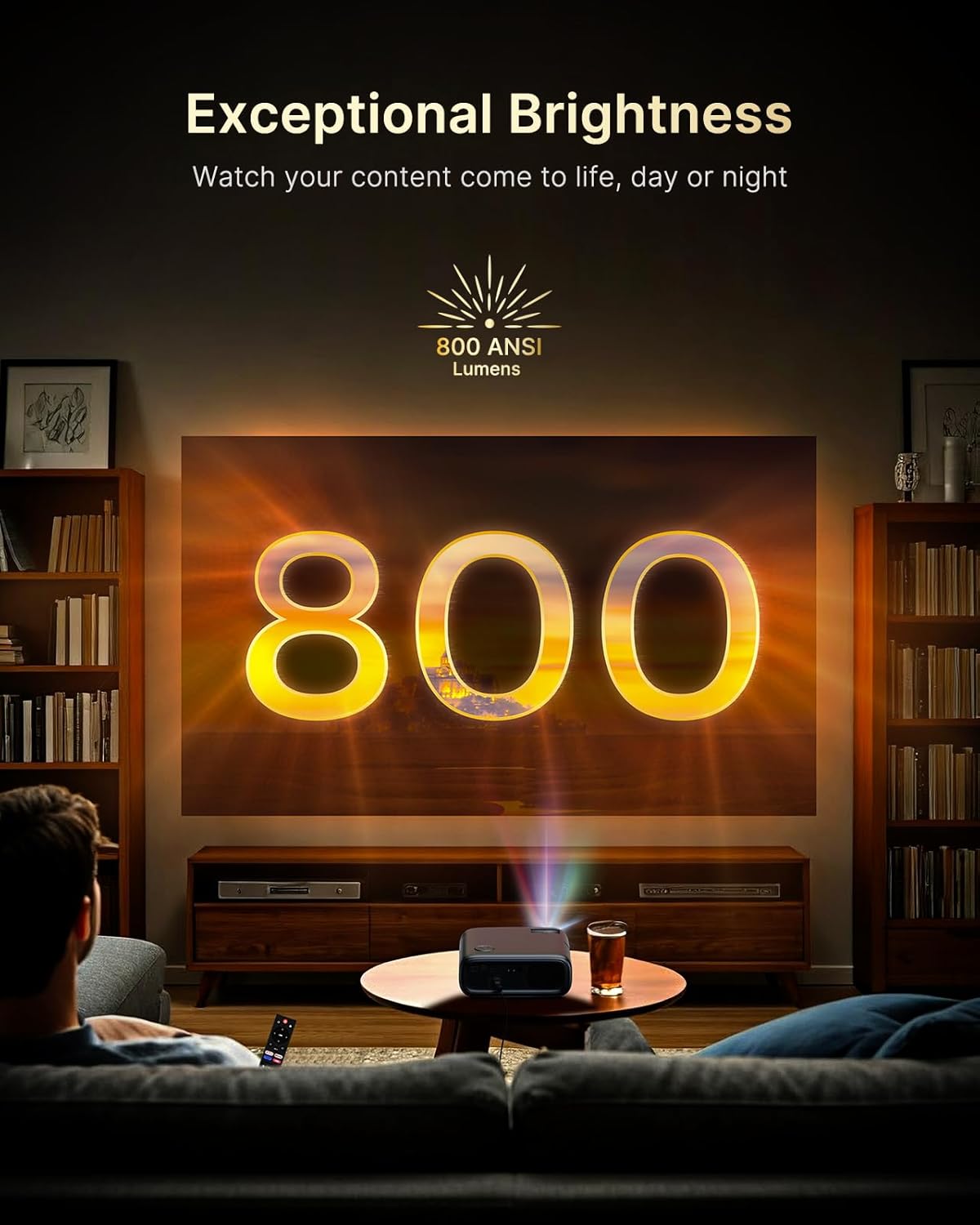
Figure 5.2: Keystone Correction and Zoom Options.
5.4 Network Connection
To access streaming services and screen mirroring, connect the projector to a Wi-Fi network:
- Navigate to the 'Settings' menu.
- Select 'Network' or 'Wi-Fi'.
- Choose your desired Wi-Fi network from the list and enter the password.

Figure 5.3: Dual-Band Wi-Fi Connectivity.
5.5 Connecting External Devices
The PJ40 Ultra offers various ports for connecting external devices:
- HDMI Ports (HDMI 1, HDMI 2): Connect gaming consoles (PS5, Nintendo Switch), TV sticks, laptops, or other HDMI-enabled devices. HDMI 1 supports ARC & CEC, HDMI 2 supports CEC.
- USB Ports: Connect USB flash drives or hard drives for media playback.
- AV Input Port: Connect older devices using the included AV cable.
- 3.5mm Audio Jack: Connect external headphones or speakers.

Figure 5.4: Connectivity Ports.
6. Operating Instructions
6.1 Remote Control Navigation
Use the included remote control to navigate the projector's interface. The remote allows you to power on/off, adjust volume, select input sources, and access settings and applications.
6.2 Streaming Applications
The projector comes with pre-installed and officially licensed applications:
- Netflix: Access your Netflix library directly.
- YouTube: Browse and watch videos from YouTube.
- Prime Video: Stream content from Amazon Prime Video.
To use these apps, ensure the projector is connected to the internet and log in with your respective account credentials.

Figure 6.1: Officially Licensed Streaming Applications.
6.3 Screen Mirroring
The PJ40 Ultra supports wireless screen mirroring for various devices:
- iOS Devices (AirPlay): Connect your iPhone or iPad to the same Wi-Fi network as the projector and use AirPlay to mirror your screen.
- Android Devices (Screen Mirror): Use the Screen Mirroring feature on your Android device to connect wirelessly.
- Windows Devices (Windows Cast): Utilize Windows Cast functionality for screen sharing from compatible Windows computers.
Note: Due to copyright restrictions, some streaming apps (e.g., Netflix, Amazon Prime, Hulu) may not support direct screen mirroring.
6.4 Audio Settings
The projector features built-in 20W speakers with DSP decoding for enhanced audio. You can also connect external audio devices:
- Bluetooth Connection: Pair Bluetooth speakers or headphones for a wireless audio experience.
- 3.5mm Audio Jack: Connect wired headphones or external speakers.

Figure 6.2: AI-Enhanced Surround Sound.
7. Maintenance
7.1 Cleaning the Lens
Use the provided lens cleaning cloth to gently wipe the projector lens. Avoid using abrasive cleaners or materials that could scratch the lens surface.
7.2 Air Filter Maintenance
The projector includes an air filter to prevent dust accumulation. Periodically check and clean the air filter to maintain optimal performance and cooling. A spare air filter is included for replacement when necessary.
7.3 General Care
- Keep the projector in a clean, dry environment.
- When not in use, cover the lens with the protective cap.
- Avoid dropping or subjecting the projector to strong impacts.
8. Troubleshooting
Common Issues and Solutions:
- No Power: Ensure the power adapter is securely connected to both the projector and a working power outlet. Try a different outlet.
- No Image:
- Check if the projector is powered on.
- Verify the input source is correctly selected (e.g., HDMI 1, HDMI 2).
- Ensure the connected device is powered on and outputting a signal.
- Blurry Image: Adjust the focus wheel on the projector until the image is sharp. Check keystone correction settings.
- No Sound:
- Increase the volume on the projector and the connected source device.
- Check if external speakers or headphones are properly connected or paired via Bluetooth.
- Ensure the audio output setting on the source device is correct.
- Wi-Fi Connectivity Issues:
- Ensure the Wi-Fi password is entered correctly.
- Restart the projector and your Wi-Fi router.
- Move the projector closer to the Wi-Fi router to improve signal strength.
- Projector Randomly Powers On: Some users have reported the projector powering on from standby mode unexpectedly. If this occurs, ensure the projector is fully powered off at the main power switch or unplugged when not in use to prevent unintended operation. Check for any available firmware updates that might address this behavior.
9. Specifications
| Feature | Specification |
|---|---|
| Brand | NexiGo |
| Model Number | PJ40 Ultra |
| Product Dimensions | 11.3 x 10.78 x 4.8 inches |
| Item Weight | 7.99 pounds |
| Display Resolution | 1920 x 1080 (Native 1080p) |
| Brightness | 800 ANSI Lumens |
| Connectivity Technology | HDMI, USB, Wi-Fi |
| Special Features | Official Netflix-Licensed, Built-in 20W Speaker, HDMI CEC Support, Wireless Screen Mirroring, Auto Keystone, 4K Support Input |
| Manufacturer | Nexight INC |
| Date First Available | January 2, 2025 |
10. Warranty and Support
NexiGo is committed to customer satisfaction and provides comprehensive support for its products.
- Customer Support: 24-hour customer support is available.
- Return/Exchange Policy: Enjoy a 30-day return or exchange period.
- Technical Support: Lifetime technical support is provided for your product.

Figure 10.1: NexiGo Customer Support Information.
For further assistance or to contact support, please visit the official NexiGo website or refer to the contact information provided with your product packaging.