
CNSTWEI B0DRYRYBQC
CNSTWEI 12.3-inch Android 14 Car Radio User Manual for Audi Q5 (2009-2016)
Model: B0DRYRYBQC
1. Introduction
This manual provides comprehensive instructions for the installation, operation, and maintenance of your CNSTWEI 12.3-inch Android 14 Car Radio. Designed specifically for Audi Q5 models from 2009 to 2016, this touchscreen stereo enhances your driving experience with features like wireless CarPlay, Android Auto, and advanced navigation capabilities. Please read this manual thoroughly before installation and use to ensure proper functionality and safety.
2. Product Overview
2.1 Key Features
- 12.3-inch high-resolution touchscreen display (1920*720).
- Android 14 operating system.
- Wireless Apple CarPlay and Wireless Android Auto support.
- Integrated GPS navigation with support for online and offline maps.
- Bluetooth connectivity for hands-free calling and audio streaming.
- Support for original car reversing image and optional AHD camera.
- Steering wheel control compatibility.
- Multiple audio output modes including stereo.
- 8-core CPU, 8GB RAM, 64GB ROM (specific to this model variant).
2.2 What's in the Box
The package includes the following components:
- 12.3-inch Carplay Screen
- Power Cable
- 4G Antenna
- GPS Antenna
- AMI Cable
- Airbag Cable
- LVDS USB Cable
- AUX Cable
- Screws and Hardware Bracket
- AHD Camera (if included as a gift/promotion)

Image 2.2.1: Components included with the CNSTWEI 12.3-inch Android 14 Car Radio. This includes the main screen, various cables (power, 4G, GPS, AMI, Airbag, LVDS USB, AUX), mounting screws, and a hardware bracket. An AHD camera may also be included.
3. Installation
Professional installation is recommended. Ensure the vehicle's power is disconnected before beginning installation.
3.1 Pre-Installation Check
Before installing the new unit, identify your Audi Q5's original system type (Low or High). This is crucial for correct wiring and functionality.

Image 3.1.1: Visual guide to distinguish between "HIGH" and "LOW" system configurations in Audi Q5 (2009-2016) vehicles. "HIGH" systems typically feature multimedia buttons, while "LOW" systems may have "AUDI Symphony" or "AUDI concert" labels without extensive multimedia controls.
3.2 Installation Process Overview
The installation involves removing the original car stereo unit and replacing it with the new Android 14 Car Radio. Connect all necessary cables (power, 4G, GPS, AMI, Airbag, LVDS USB, AUX) according to the wiring diagram provided with your unit. Secure the new screen using the provided hardware bracket and screws.

Image 3.2.1: A visual comparison demonstrating the vehicle's dashboard appearance before and after the installation of the CNSTWEI 12.3-inch Android 14 Car Radio. The new unit seamlessly integrates into the existing console.
4. Initial Setup and System Settings
After successful installation, power on the unit and proceed with initial setup. This includes connecting to Wi-Fi, setting language preferences, and configuring basic system parameters.
4.1 Accessing System Settings
Navigate to the "Settings" icon on the main interface to access various system configurations. Here you can adjust display, sound, network, and other device-specific settings.
Video 4.1.1: This video demonstrates the user interface and navigation through various settings on a similar car radio unit. It shows how to access system information, equalizer settings, and switch between different display modes.
4.2 Reverse Video Resolution Settings
If you are using an aftermarket reverse camera, you may need to adjust the video resolution settings for optimal display. Access "Factory Settings" (password may be required, refer to your installer or product documentation for default password) and locate "Reverse video resolution settings" to select the appropriate format (e.g., AHD/25, NTSC/PAL).
Video 4.2.1: This video illustrates the process of checking and adjusting the reverse video resolution settings within the car radio's factory settings menu. It guides the user through selecting the correct video format for their reverse camera.
5. Operation
5.1 Main Interface Navigation
The main interface provides quick access to key functions such as Navigation, Music, Telephone, Video, and Settings. Swipe left or right to view additional applications and widgets.
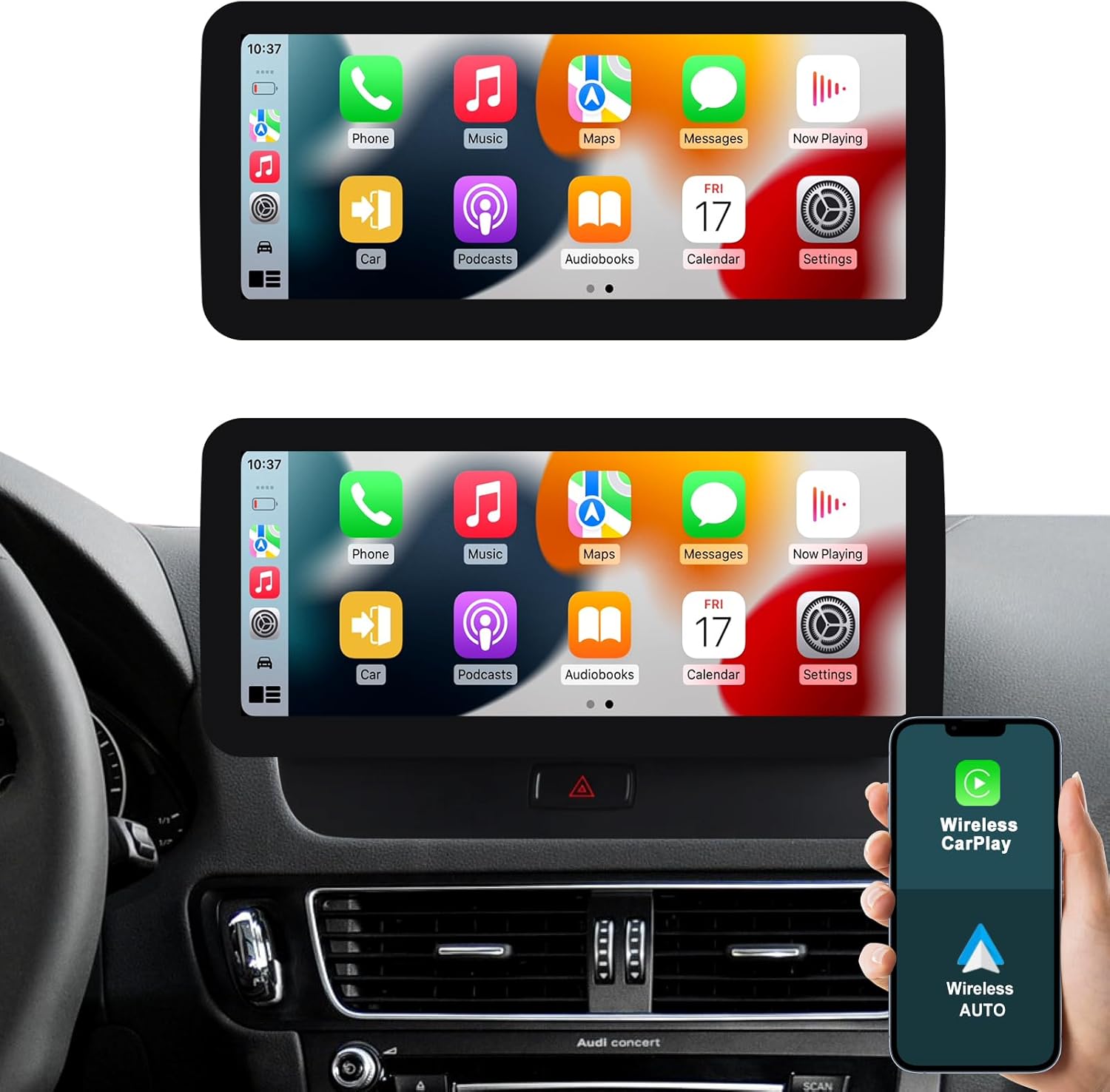
Image 5.1.1: The primary user interface of the car radio, displaying icons for various applications and features, including wireless CarPlay and Android Auto.
Video 5.1.2: This video demonstrates the main interface and various functions of the car radio, including music playback, video playback, navigation, and Bluetooth connectivity. It also shows the car information display and split-screen functionality.
5.2 Wireless CarPlay & Android Auto
Connect your compatible smartphone wirelessly to access Apple CarPlay or Android Auto. This allows for seamless integration of navigation, music, messages, and other apps directly on the car radio's display.

Image 5.2.1: The car radio screen showcasing both Wireless CarPlay and Wireless Android Auto interfaces, demonstrating smartphone integration for navigation, communication, and entertainment.
5.3 GPS Navigation
The unit supports various navigation applications, allowing you to use online maps (requires internet connection) or pre-installed offline maps. Access navigation through the dedicated icon on the main screen or via CarPlay/Android Auto.

Image 5.3.1: The car radio displaying a GPS navigation map, indicating support for various mapping applications and the ability to listen to music or radio simultaneously.
5.4 Reversing System
The car radio automatically displays the reversing image when the vehicle is put into reverse gear. It supports the original car's reversing image system. If your vehicle does not have an existing reversing image, an optional AHD camera can be installed and configured (refer to Section 4.2 for resolution settings).
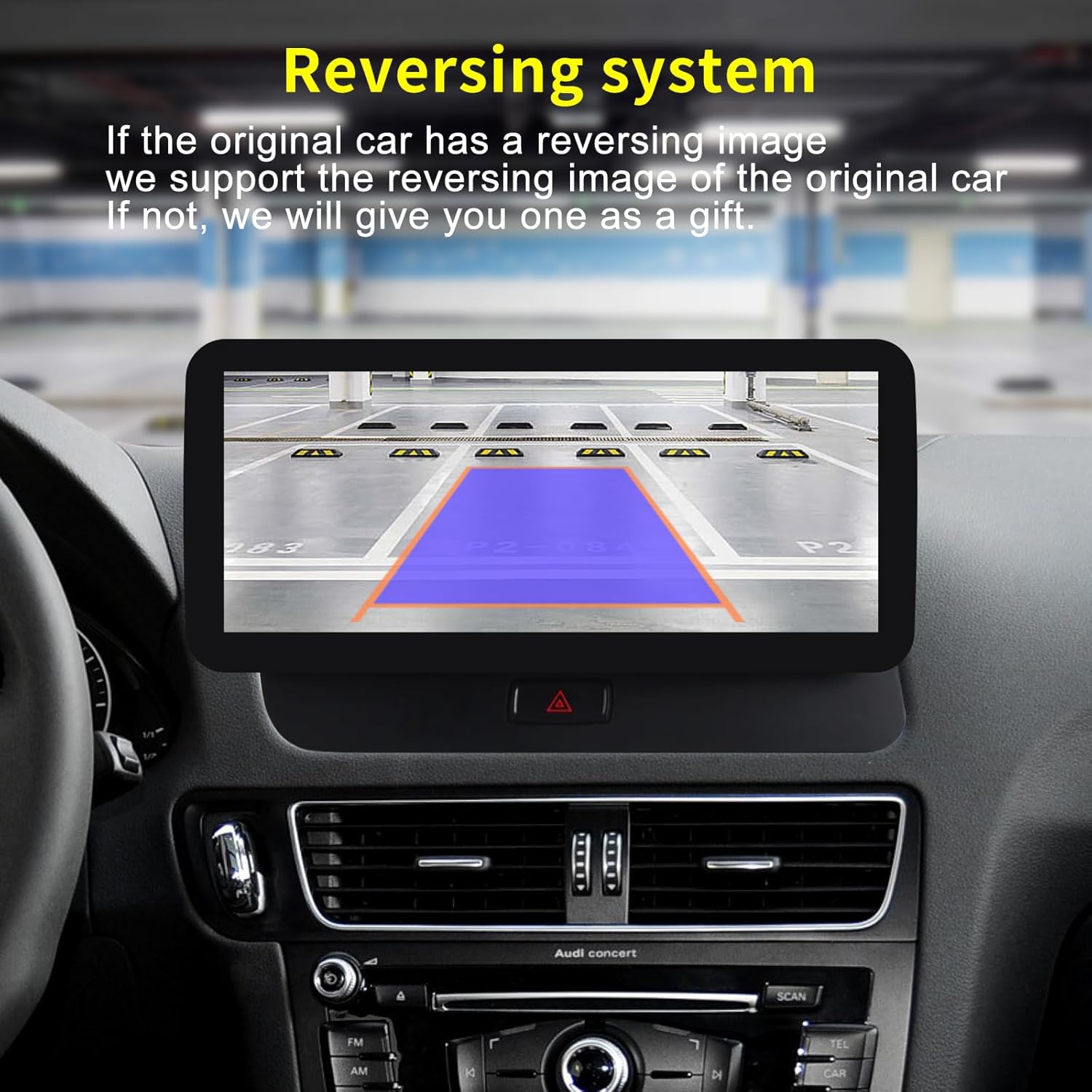
Image 5.4.1: The car radio displaying the reversing camera feed with dynamic parking guidelines, assisting the driver during parking maneuvers.
5.5 Bluetooth Connectivity
Pair your mobile phone via Bluetooth for hands-free calling and wireless audio streaming. Access the Bluetooth menu from the main interface to manage paired devices and make calls.
Video 5.5.1: This video demonstrates various features of a car stereo, including GPS navigation, WiFi connectivity, CarPlay/Android Auto compatibility, reversing image display, FM/RDS radio, built-in Bluetooth for hands-free calls, wireless/wired mirroring, and steering wheel control.
5.6 Split Screen Functionality
The split-screen feature allows you to run two applications simultaneously on the display, such as navigation and music playback. To activate, open an application, then swipe from the side or use the recent apps button to drag another compatible app into the split-screen view.
Video 5.6.1: This video demonstrates the split-screen functionality of the car radio, showing how to run two applications concurrently, such as navigation and a media player.
6. Maintenance
- Screen Cleaning: Use a soft, lint-free cloth to clean the touchscreen. Avoid abrasive cleaners or solvents.
- Software Updates: Periodically check for software updates to ensure optimal performance and access to new features. Updates can usually be found in the system settings.
- System Reset: In case of system malfunctions, a factory reset option is available in the settings. Be aware that this will erase all user data and settings.
7. Troubleshooting
| Problem | Possible Cause | Solution |
|---|---|---|
| Unit does not power on. | Incorrect wiring, blown fuse, insufficient power supply. | Check power connections, inspect vehicle fuses, ensure proper power supply. |
| No sound. | Volume too low, incorrect audio output settings, faulty speaker connection. | Increase volume, verify audio settings, check speaker wiring. |
| CarPlay/Android Auto not connecting. | Bluetooth/Wi-Fi off, incompatible phone, app issues. | Ensure phone's Bluetooth/Wi-Fi is on, restart phone and unit, check app compatibility. |
| Reverse camera not displaying. | Incorrect camera input selection, wrong video format, faulty camera. | Check "Reverse" settings (Section 4.2), ensure camera is properly connected. |
If you encounter issues not listed here or if the suggested solutions do not resolve the problem, please contact customer support.
8. Specifications
- Screen Size: 12.3 Inches
- Display Type: LCD, Capacitive Touch Screen
- Screen Resolution: 1920*720
- Operating System: Android 14
- CPU: Qualcomm Snapdragon 665 (SM6125) 8-core 2.0GHz Cortex-A73 (Based on product info, assuming this is the 8G 64G variant)
- RAM: 8GB
- ROM: 64GB
- Connectivity: Bluetooth, Wi-Fi, 4G (via external antenna)
- Special Features: Wireless CarPlay, Wireless Android Auto, GPS Navigation, Reversing System Support, Steering Wheel Control
- Audio Output Mode: Stereo
- Included Components: Carplay screen, various cables (power, 4G, GPS, AMI, Airbag, LVDS USB, AUX), screws, hardware bracket.
9. Warranty and Support
For warranty information, technical support, or service inquiries, please refer to the contact details provided with your purchase or visit the CNSTWEI official website. Keep your purchase receipt as proof of purchase for warranty claims.
Related Documents - B0DRYRYBQC
 |
Fabtech FTS22138 6" & 8" Basic System Installation Instructions for 2008-2015 Ford Super Duty Detailed installation guide for the Fabtech FTS22138 6" & 8" Basic System lift kit, designed for 2008-2015 Ford Super Duty trucks. Includes parts list, tool requirements, and step-by-step instructions for front suspension modification. |
 |
AUTOTOP 12.3 Digital Dashboard for BMW - Installation and Troubleshooting Guide Comprehensive guide for installing and updating the AUTOTOP 12.3 digital instrument cluster for compatible BMW vehicles. It covers software update instructions, common issue resolution, and explanations of dashboard features. |
 |
Installation Guide: OBI STARFISH Rear Wiper Blade for Kia Ceed (2006-2009) Step-by-step installation instructions for the OBI STARFISH rear wiper blade, compatible with Kia Ceed models from 2006 to 2009. |
 |
Grumman (Socata) GA-7 Airworthiness Directives Compliance Report Detailed compliance report for Grumman (Socata) GA-7 aircraft, listing airworthiness directives (ADs) for its Lycoming O-320-D1D engines, including AD numbers, effective dates, compliance methods, and due dates. |
 |
Sagemcom Fiber Box X6 Safety Instructions Comprehensive safety instructions and guidelines for the Sagemcom Fiber Box X6, covering installation, usage, maintenance, and regulatory compliance. |
 |
Tamiya 1/12 Yamaha YZR-M1 '09 Fiat Yamaha Team Model Kit Assembly Instructions Detailed assembly instructions and guide for the Tamiya 1/12 scale model kit of the 2009 Yamaha YZR-M1 Fiat Yamaha Team motorcycle, including parts lists, painting guides, and background information. |
Ask a question about this manual
Ask about setup, troubleshooting, compatibility, parts, safety, or missing instructions. Manuals+ will review the question and use this page’s manual context to help answer it.