1. Introduction
The Lifelong Lightbeam 2 Pro Smart Projector offers a versatile and immersive viewing experience. This manual provides essential information for setting up, operating, maintaining, and troubleshooting your projector to ensure optimal performance.
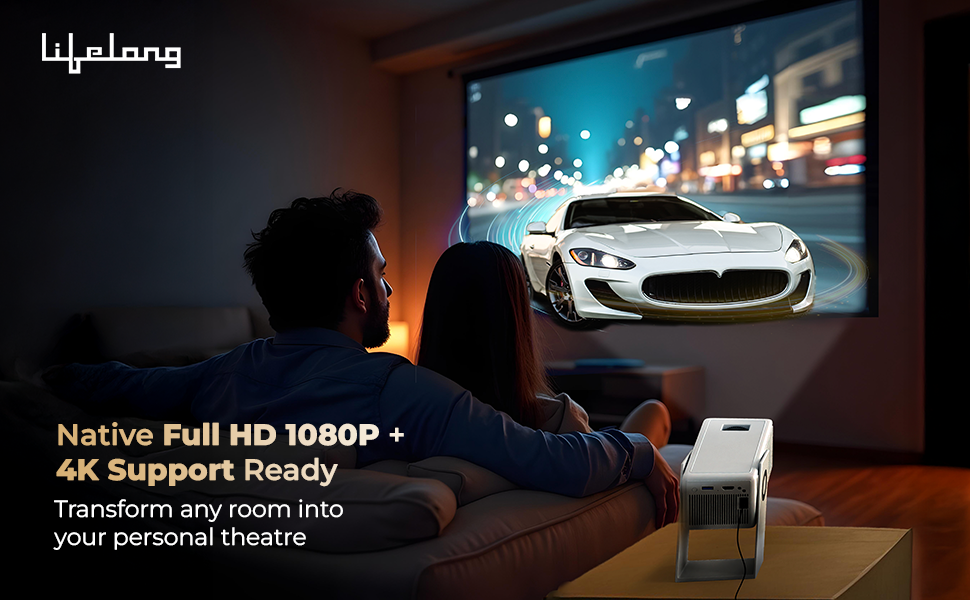
Image: Overview of the Lifelong Lightbeam 2 Pro Smart Projector's main features.
Key Features:
- Native 1080P Full HD & 4K Ultra HD Support: Delivers crisp, detailed images and vibrant colors for a cinema-quality viewing experience.
- 4000 Lumens Brightness: Ensures clear visibility even in well-lit environments.
- Android 11 Operating System: Provides direct access to popular streaming services like Netflix, Prime Video, Disney+ Hotstar, and YouTube.
- 360-Degree Rotation with 180-Degree Projection: Offers flexible placement and projection angles.
- Automatic Vertical Keystone Correction & Manual Focus: Allows for precise screen adjustments and distortion-free images.
- Built-in 6W Speakers: Provides integrated audio for convenience.
- Connectivity: Supports WiFi 6 with Miracast, Bluetooth 5.0, USB, and HDMI.
2. Product Overview & What's in the Box
Familiarize yourself with the components included with your Lifelong Lightbeam 2 Pro Smart Projector.
Package Contents:
- Lifelong Lightbeam 2 Pro Smart Projector Unit
- Remote Control
- Power Adapter
- User Manual

Image: Front view of the projector.
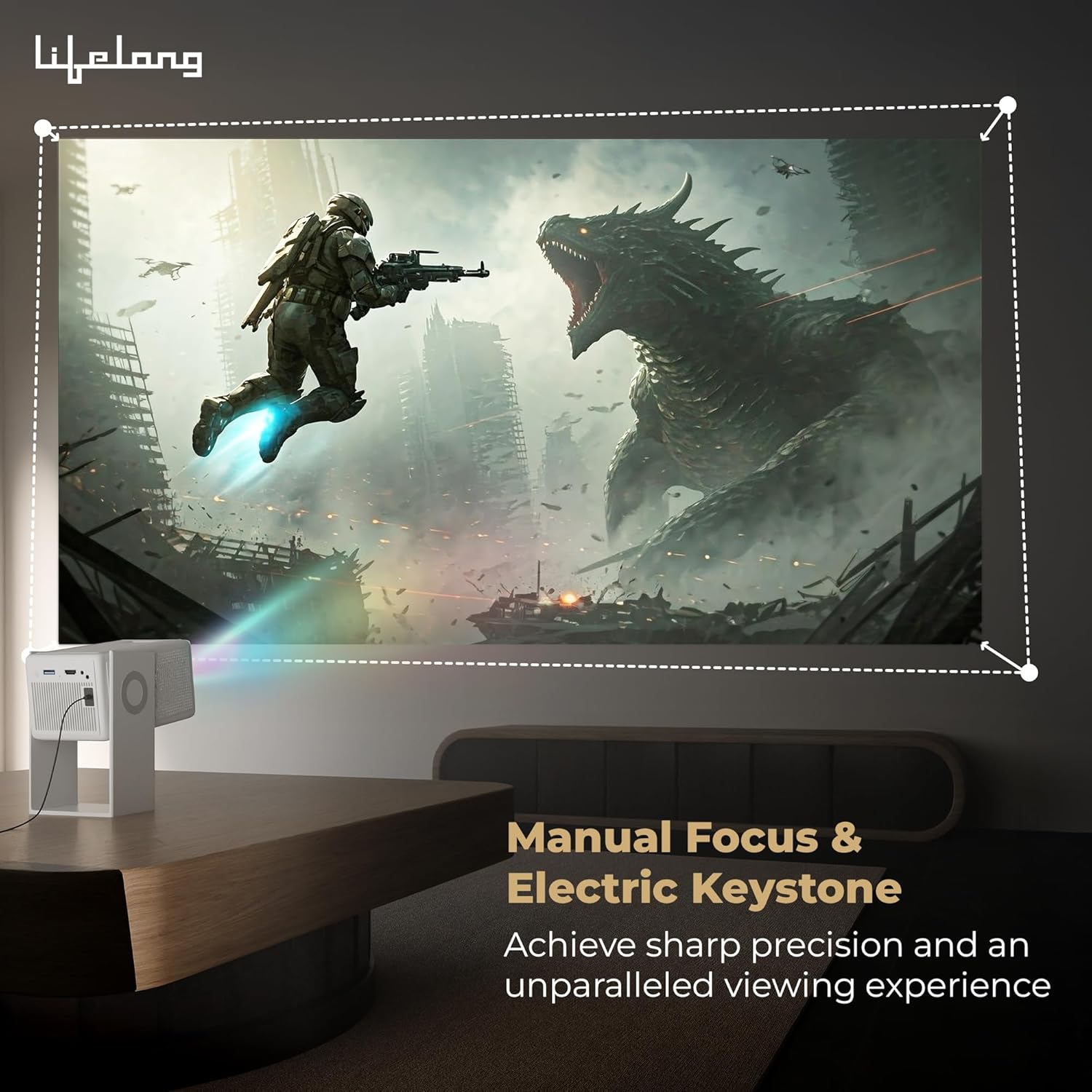
Image: Side view of the projector.

Image: Rear view of the projector, highlighting connectivity ports.
3. Setup
Follow these steps to set up your projector for the first time.
3.1 Placement
Position the projector on a stable, flat surface. The 360-degree rotation feature allows for flexible projection onto walls, ceilings, or floors. Ensure adequate ventilation around the unit.

Image: Projector demonstrating 360-degree rotation for ceiling projection.
3.2 Power Connection
- Connect the power adapter to the projector's power input port.
- Plug the power adapter into a suitable electrical outlet.
3.3 Initial Power On
- Press the power button on the projector or the remote control to turn on the device.
- Allow the projector to boot up. The Android 11 interface will appear.
3.4 Focus and Keystone Adjustment
Achieve a clear and rectangular image using the focus and keystone correction features.
- Automatic Vertical Keystone Correction: The projector automatically adjusts vertical image distortion.
- Manual Focus: Use the focus ring on the projector lens to sharpen the image until it is clear.
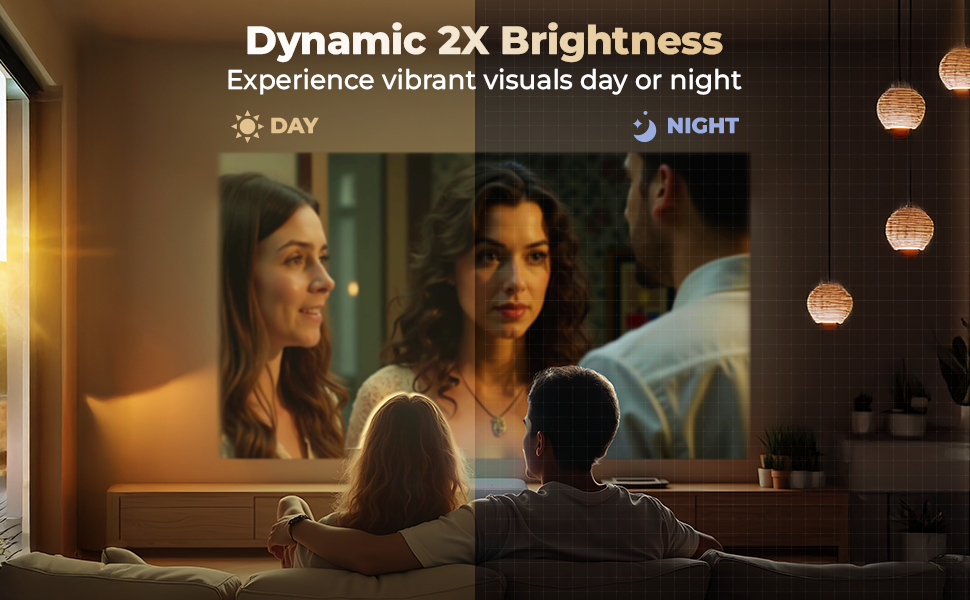
Image: Demonstrating manual focus and electric keystone for a sharp image.
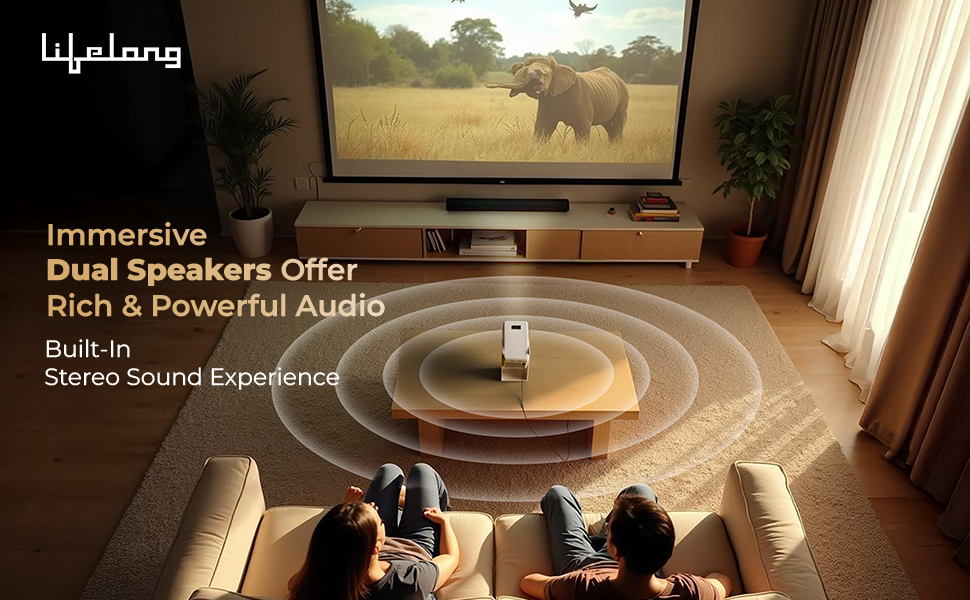
Image: Illustrating projection sizes up to 150 inches at varying distances.
4. Operating Instructions
Learn how to navigate and use your Lifelong Lightbeam 2 Pro Smart Projector.
4.1 Android 11 Smart Operating System
The projector runs on Android 11, providing a user-friendly interface and access to a wide range of applications.
- Home Screen: Navigate using the remote control to access installed apps, settings, and media.
- App Access: Pre-installed OTT apps like Netflix, Prime Video, Disney+ Hotstar, and YouTube are available. Connect to Wi-Fi to use these services.

Image: Android 11 interface showing available streaming applications.
4.2 Connectivity
The projector offers multiple ways to connect to external devices and networks.
- Wi-Fi 6 with Miracast: Connect to your home network for internet access and screen mirroring from compatible devices.
- Bluetooth 5.0: Pair with external Bluetooth speakers, headphones, or other accessories for enhanced audio.
- HDMI: Connect gaming consoles, laptops, or other HDMI-enabled devices.
- USB: Play media files directly from a USB drive.
4.3 Audio Output
The projector features built-in 6W (3W x 2) speakers. For a more immersive audio experience, connect external speakers via Bluetooth or the audio output port.
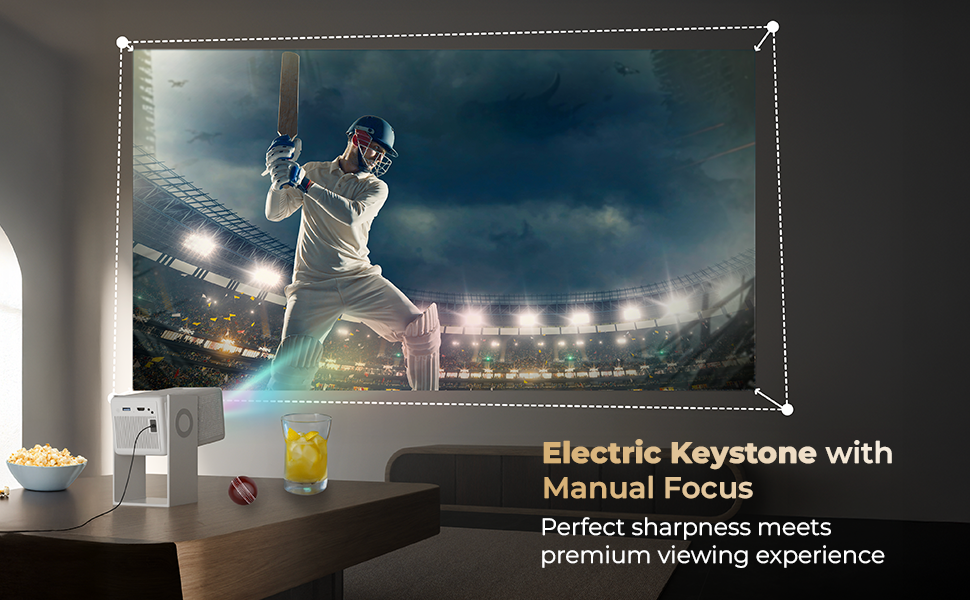
Image: Demonstrating immersive sound from the projector's built-in speakers.
4.4 Remote Control
Use the included remote control to navigate the interface, adjust settings, and control media playback.
5. Maintenance
Proper maintenance ensures the longevity and optimal performance of your projector.
5.1 Cleaning the Lens
Gently wipe the projector lens with a soft, lint-free cloth specifically designed for optical surfaces. Avoid using abrasive cleaners or excessive force.
5.2 Cleaning the Projector Body
Wipe the exterior of the projector with a soft, dry cloth. Do not use liquid cleaners directly on the device.
5.3 Ventilation
Ensure that the projector's ventilation openings are clear and unobstructed to prevent overheating. Do not place the projector on soft surfaces that may block airflow.
5.4 Storage
When not in use for extended periods, store the projector in a cool, dry place, away from direct sunlight and extreme temperatures. Consider using the original packaging for protection.
6. Troubleshooting
This section addresses common issues you might encounter with your projector.
6.1 No Power
- Ensure the power adapter is securely connected to both the projector and a working electrical outlet.
- Verify that the power outlet is functional by testing it with another device.
6.2 No Image or Blurry Image
- Adjust the manual focus ring on the lens until the image is sharp.
- Check the projection distance. Ensure the projector is within the recommended range for the desired screen size.
- Verify that the input source is correctly selected (e.g., HDMI, USB).
- Ensure the lens is clean and free of dust or smudges.
6.3 No Sound or Low Sound
- Increase the volume on both the projector and the connected source device.
- If using external speakers, ensure they are properly connected and powered on.
- If using Bluetooth audio, ensure the projector is correctly paired with the Bluetooth device.
6.4 Apps are Slow or Unresponsive
- Ensure a stable and strong Wi-Fi connection.
- Close unused applications running in the background.
- Restart the projector to clear temporary system issues.
6.5 Connectivity Issues (Wi-Fi/Bluetooth)
- Restart your Wi-Fi router or Bluetooth device.
- Forget and re-pair Bluetooth devices.
- Ensure the projector is within range of the Wi-Fi router or Bluetooth device.
7. Specifications
Detailed technical specifications for the Lifelong Lightbeam 2 Pro Smart Projector.
| Feature | Specification |
|---|---|
| Brand | Lifelong |
| Model | LLPJH32 |
| Product Dimensions | 10.5 x 11.5 x 20.5 cm |
| Item Weight | 904 g |
| Display Type | LED |
| Image Brightness | 4000 Lumens |
| Image Contrast Ratio | 2000:1 |
| Aspect Ratio | 16:10 |
| Native Screen Resolution | 1920 x 1080 (Full HD) |
| Supported Resolution | Up to 4K Ultra HD |
| Voltage | 220 Volts |
| Wattage | 70 Watts |
| Refresh Rate | 60 Hz |
| Operating System | Android 11 |
| Connectivity Technology | Bluetooth 5.0, HDMI, USB, Wi-Fi 6 (with Miracast) |
| Special Features | 360 Degrees Rotation, Built-In Speaker, Digital Keystone Correction |
| Mounting Type | Ceiling Mount |
| Recommended Uses | Home Cinema |
8. Warranty and Support
8.1 Warranty Information
Your Lifelong Lightbeam 2 Pro Smart Projector comes with a 6-month warranty from the date of purchase. Please retain your proof of purchase for warranty claims.
8.2 Customer Support
For technical assistance, troubleshooting, or warranty inquiries, please contact Lifelong customer support. Refer to the contact information provided with your product packaging or visit the official Lifelong website.
Manufacturer: Imported and Marketed by Lifelong Online Retail Private Limited, 5th Floor, Unit No. 508, DLF, South Court, Saket District Center, Saket, New Delhi, India-110017


