
1. Introduction
Thank you for choosing the YosaToo P13 Android 14 Tablet. This manual provides essential information for setting up, operating, maintaining, and troubleshooting your device. Please read it carefully to ensure optimal performance and longevity of your tablet.

Image: YosaToo P13 Android 14 Tablet with its protective case.
2. Package Contents
Ensure all items are present in the package:
- YosaToo P13 Android 14 Tablet
- Protective Case
- USB-C Charging Cable
- Power Adapter
- User Manual (this document)
3. Device Layout
Familiarize yourself with the physical features of your tablet.
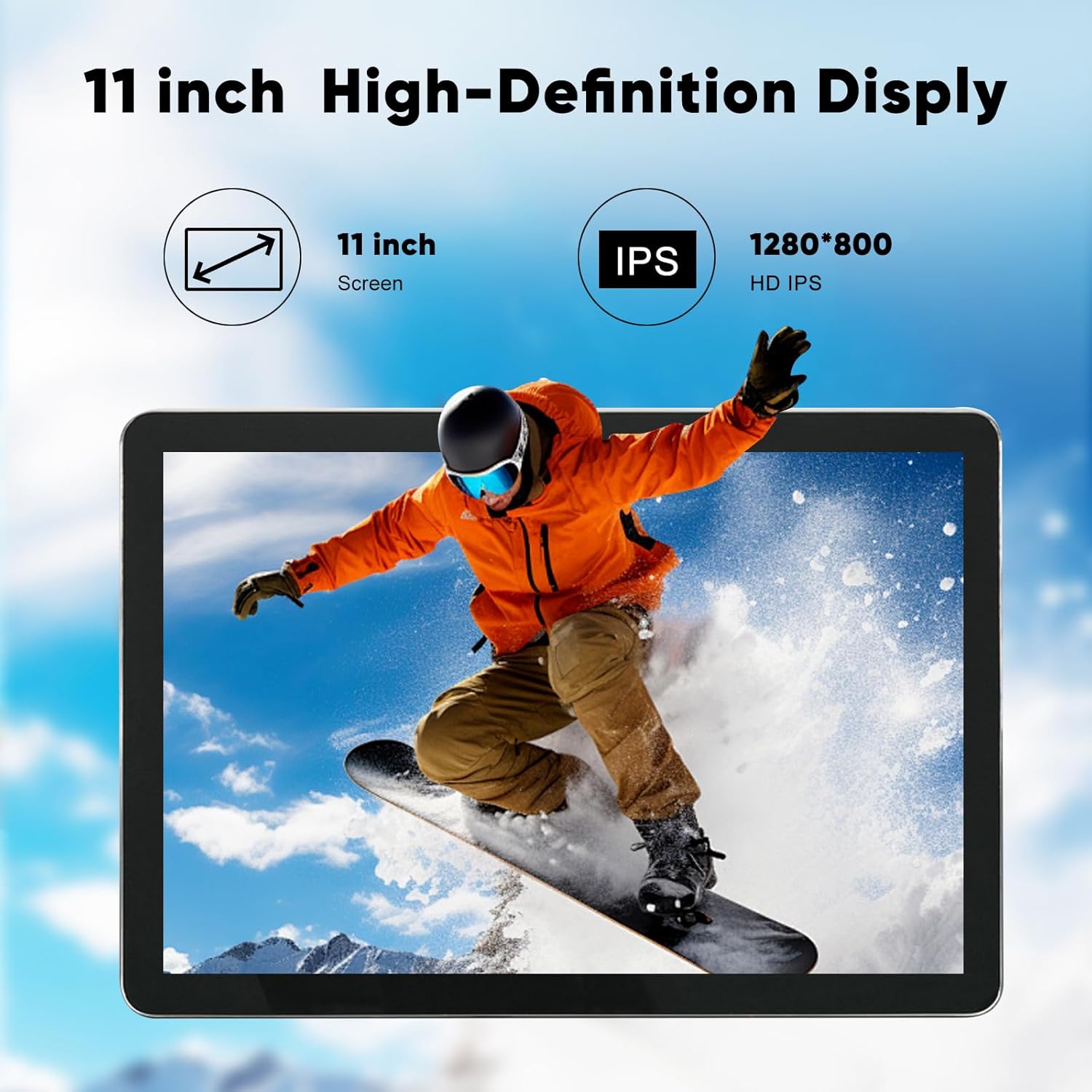
Image: The YosaToo P13 tablet securely placed in its included protective case, demonstrating its use.
The tablet features a power button and volume buttons on the side. A USB-C port is located on the top for charging, and a headphone jack is also available for audio output. The rear of the tablet includes two cameras.
4. Setup
4.1 Initial Power On and Charging
To power on your tablet, press and hold the power button located on the side until the screen illuminates. For first-time use, it is recommended to fully charge the tablet. Connect the provided USB-C charging cable to the tablet's USB-C port and the power adapter to a wall outlet.

Image: The tablet displaying a full charge, illustrating its long-life battery capacity.
4.2 Connecting to Wi-Fi
Upon initial setup or when connecting to a new network:
- Go to Settings > Network & internet > Internet.
- Select your desired Wi-Fi network from the list.
- Enter the network password if prompted.
- Tap Connect.
The YosaToo P13 supports dual-band 2.4G+5G Wi-Fi 6 for faster and more stable internet connectivity.
4.3 Google Account Setup
During the initial setup, you will be guided to sign in with your Google account. This is necessary to access the Google Play Store, Gmail, YouTube, and other Google services. If you do not have an account, you can create one during this process.
Video: An overview of the YosaToo P13 tablet, including unboxing and initial setup steps.
5. Operating Your Tablet
5.1 Navigation and Interface
Your YosaToo P13 tablet runs on Android 14, offering an intuitive user interface. Swipe up from the bottom of the screen to access the app drawer. Swipe down from the top to reveal quick settings and notifications.
5.2 Using Applications
The tablet comes with pre-installed Google applications. You can download additional apps from the Google Play Store. The octa-core processor and 14GB RAM ensure smooth app performance and multitasking.

Image: The tablet running a game, demonstrating its capability for gaming and entertainment.
5.3 Split-Screen Functionality
To use two apps simultaneously, utilize the split-screen feature:
- Open the first app.
- Swipe up from the bottom of the screen and hold to reveal recent apps.
- Tap the app icon at the top of the first app's window.
- Select Split top or Split screen.
- Choose the second app from your recent apps or app drawer.

Image: The tablet demonstrating its smart split-screen feature, allowing two applications to run side-by-side.
5.4 Face Unlock
For convenient and secure access, set up Face Unlock:
- Go to Settings > Security & privacy > Face unlock.
- Follow the on-screen instructions to register your face.

Image: A user demonstrating the face unlock feature for quick and secure access to the tablet.
5.5 Display Settings and Eye Protection
The 11-inch 1280*800 IPS display offers vibrant visuals. To reduce eye strain, especially during prolonged reading, enable Eye Protection mode:
- Go to Settings > Display.
- Look for Eye Protection or Reading Mode and toggle it on. You may also schedule its activation.

Image: The tablet being used for reading, showcasing its eye-protection display for comfortable viewing.
5.6 Camera Usage
The tablet is equipped with a 2MP front camera and an 8MP rear camera. Open the Camera app to capture photos and videos.

Image: The tablet highlighting its HD dual cameras, suitable for capturing moments.
5.7 Parental Controls
Android 14 includes robust parental control features to manage screen time, app access, and content filters for children.
- Go to Settings > Digital Wellbeing & parental controls.
- Set up a family link or manage existing controls to customize usage for different profiles.

Image: The tablet illustrating parental control options and a child enjoying age-appropriate content.
6. Maintenance
6.1 Cleaning Your Tablet
To clean the tablet screen and body, use a soft, lint-free cloth. For stubborn smudges, slightly dampen the cloth with water or a screen-safe cleaner. Avoid harsh chemicals or abrasive materials. The protective case can be removed for thorough cleaning of the tablet.
6.2 Battery Care
The 8000mAh battery provides 6-10 hours of active use and up to 30 days of standby time. To prolong battery life:
- Avoid extreme temperatures.
- Do not let the battery drain completely regularly.
- Unplug the charger once the tablet is fully charged.
6.3 Software Updates
Regularly check for and install system updates to ensure your tablet has the latest features, security patches, and performance improvements.
- Go to Settings > System > System update.
- Follow the on-screen prompts to check for and install updates.
6.4 Storage Management
Your tablet comes with 128GB of internal storage, expandable up to 1TB via a TF card (not included). To manage storage:
- Go to Settings > Storage to view usage and free up space.
- Regularly clear cache and uninstall unused apps.

Image: The tablet highlighting its large storage capacity (128GB ROM) and expandable memory.
7. Troubleshooting
If you encounter issues with your tablet, try the following solutions:
- Tablet not turning on: Ensure the battery is charged. Connect the charger and wait a few minutes before attempting to power on again.
- Apps crashing or freezing: Close and reopen the app. If the issue persists, clear the app's cache (Settings > Apps > [App Name] > Storage & cache > Clear cache).
- Wi-Fi connectivity issues: Restart your Wi-Fi router and the tablet. Ensure you are within range of the Wi-Fi signal.
- Slow performance: Close unnecessary background apps. Clear storage space if it's nearly full. Restart the tablet.
- Screen unresponsive: Force restart the tablet by holding the power button for approximately 10-15 seconds until it powers off and restarts.
If problems persist, consider performing a factory reset (back up your data first) or contact customer support.
8. Specifications
| Feature | Specification |
|---|---|
| Brand | YosaToo |
| Model Name | P13 |
| Operating System | Android 14 |
| Screen Size | 11 Inches |
| Screen Resolution | 1280 x 800 Pixels (IPS) |
| Processor | Octa-Core |
| RAM | 14GB (6GB + 8GB virtual) |
| Internal Storage | 128GB ROM |
| Expandable Storage | Up to 1TB (TF card not included) |
| Rear Camera | 8MP |
| Front Camera | 2MP |
| Battery Capacity | 8000mAh |
| Average Battery Life | 8-10 Hours (usage varies) |
| Wireless Type | 802.11ax (Wi-Fi 6, 2.4G+5G) |
| Connectivity | USB-C, Headphone Jack |
| Dimensions (LxWxH) | 9.6 x 6.3 x 0.4 inches |
| Item Weight | 2.35 pounds |
9. Warranty and Support
9.1 Product Warranty
Your YosaToo P13 tablet is covered by a standard manufacturer's warranty. Please refer to the warranty card included in your package for specific terms and conditions. Optional extended protection plans may be available for purchase.
9.2 Customer Support
For technical assistance, troubleshooting, or warranty inquiries, please contact YosaToo customer support through their official website or the contact information provided in your product packaging. Have your model number (P13) and ASIN (B0DRYJ8ZB4) ready when contacting support.